Introduction
The Hagibis U100 Ultra+ USB-C Docking Station is a versatile and integrated solution designed to expand the connectivity and functionality of your laptop or compatible device. It combines a docking station, M.2 SSD enclosure, and an RGB LED strip light, offering extensive port options for multi-monitor setups, high-speed data transfer, and power delivery.
Safety Information
- Keep the device away from water, fire, and high temperatures.
- Do not attempt to disassemble or repair the device yourself. Refer to qualified service personnel.
- Ensure proper ventilation to prevent overheating.
- Use only the recommended power adapter (100W PD) for optimal performance and safety.
- Avoid sudden disconnection of the USB-C cable, especially during data transfer to the M.2 SSD, to prevent data loss or corruption.
Package Contents

The package includes the following items:
- Docking Station
- Box
- Thermal grease
- User manual
- Type-C Cable*1
Product Overview
The Hagibis U100 Ultra+ integrates multiple functionalities into a sleek, compact design. Key features include:
- Unique Integrated Design: Combines a docking station, hard disk enclosure, LED strip light, and SD card storage box.
- RGB LED Strip Light: Features two main modes, sixteen rhythm modes, and four levels of adjustable brightness. Includes Voice Control Mode (light follows sound rhythm) and Memory Mode (light beats with M.2 hard disk read/write activity).
- 8K@30Hz Multi-Screen Extension: Supports external 3 monitors simultaneously with Mirror Mode and Extended Mode.
- M.2 Hard Drive Enclosure: Compatible with M.2 NVMe and M.2 SATA hard disks.
- High-Speed and Stable Wired Ethernet: Equipped with an RJ-45 2.5Gigabit Ethernet Network Port (10M/100M/1000Mbps/2500Mbps).
Port Layout

The docking station features a comprehensive array of ports for various connectivity needs. The image above illustrates the port layout, including USB-C, USB-A, HDMI, DisplayPort, Ethernet, SD/TF card slots, and audio jack.
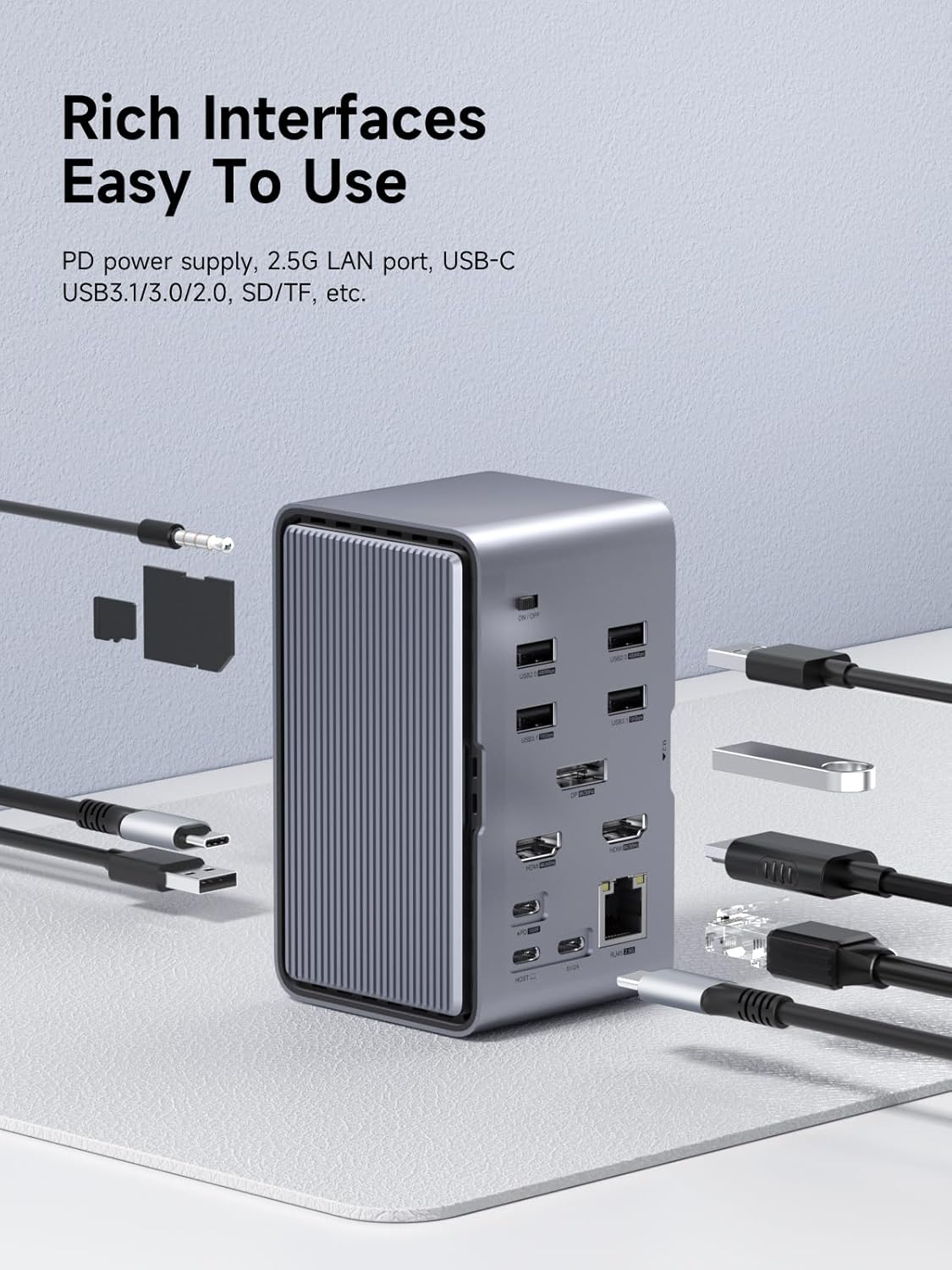
This image shows the docking station with multiple cables connected, demonstrating its rich interface capabilities for various peripherals.
Setup
Connecting to Host Devices
The U100 Ultra+ features two host USB-C inputs: USB-C(A) and USB-C(B). USB-C(A) is the main dock interface, controlling all ports except the right DisplayPort and HDMI ports. USB-C(B) controls only the right DisplayPort and HDMI ports. This dual-host design allows for flexible connectivity with multiple devices.
Power Connection
Connect a 100W Power Delivery (PD) adapter to the designated USB-C PD input port on the docking station. This powers the dock and provides pass-through charging to your connected laptop. A 5V/2A supplemental power port is also available for desktop computers, laptops that do not support PD, or when the laptop is already connected to other power sources. Note: PD power supply and supplemental power supply cannot be used simultaneously.

This image shows the docking station providing 100W PD fast charging to a connected laptop, ensuring your device stays powered while in use.
Monitor Connection
Connect your external monitors to the HDMI and DisplayPort outputs on the docking station. The dock supports up to 3 external monitors simultaneously. Ensure your computer's interface is DP1.4 to support external triple display for Windows systems. For Apple M1/M2 chip computers, only one external screen is supported; M1 Pro and M1 Max chips are not limited.

This image demonstrates the docking station's capability to support 8K@30Hz and 4K@60Hz resolutions for a fine and realistic picture quality on an external monitor.
M.2 SSD Installation
The M.2 hard drive enclosure is tool-free. Simply remove the magnetic cover, insert your M.2 NVMe or M.2 SATA hard disk, secure it with the provided rubber piece, and replace the magnetic cover. The LED strip light will beat in Memory Mode when the hard disk writes or reads.

This image illustrates the internal hard drive enclosure, compatible with M.2 NVMe and M.2 SATA hard drives, supporting various drive sizes.
Operating Instructions
RGB LED Strip Light
The RGB LED strip light offers two main modes and sixteen rhythm modes with four levels of brightness adjustment. Use the dedicated buttons on the front panel to cycle through color/brightness and mode/power options. In Voice Control Mode, the lights respond to ambient sound. In Memory Mode, the lights pulse with M.2 hard disk activity.

This image shows the RGB LED strip light in action, highlighting its customizable lighting effects and modes.
Multi-Monitor Usage
The docking station supports both Mirror Mode (displaying the same content on all screens) and Extended Mode (extending your desktop across multiple screens). For Windows, triple display extension is supported. For Apple M1/M2 chip computers, only one external screen can be expanded. M1 Pro and M1 Max chips do not have this limitation.
This diagram illustrates various multi-monitor configurations for Mac OS, including Mirror Mode and Extended Mode, with specific usage scenarios for different models.
This diagram illustrates various multi-monitor configurations for Windows, including Mirror Mode and Extended Mode, with specific usage scenarios for different models.
Data Transfer
Utilize the 10Gbps USB 3.1 ports (both USB-C and USB-A) for high-speed data transmission with external devices. The 2.5G Gigabit Ethernet port provides a stable and faster network connection, automatically adapting to 10M/100M/1000Mbps/2500Mbps network transmission.

This image highlights the 10Gbps transmission capabilities of the USB-C and USB 3.1 interfaces, allowing for fast data transfer between connected devices.
Maintenance
- Keep the docking station clean by wiping it with a soft, dry cloth.
- Avoid using harsh chemicals or abrasive materials.
- Ensure all cables are securely connected to prevent intermittent issues.
- Regularly check for firmware updates from the manufacturer's website for optimal performance and compatibility.
Troubleshooting
No Display Output
- Ensure the docking station is properly powered and connected to your host device via the correct USB-C port (USB-C(A) or USB-C(B)).
- Verify that your monitors are powered on and set to the correct input source.
- Check the display settings on your laptop to ensure external displays are detected and configured (Mirror Mode/Extended Mode).
- For Apple M1/M2 chips, remember the limitation of one external display.
Charging Issues
- Confirm that a 100W PD adapter is connected to the docking station's PD input.
- Ensure your laptop supports USB-C Power Delivery.
- If using the 5V/2A supplemental power, ensure the 100W PD input is not also connected.
Data Transfer Problems
- Verify that your external storage devices are properly connected to the 10Gbps USB 3.1 ports.
- Check the M.2 SSD installation to ensure it is correctly seated and recognized by your system.
- Ensure the USB-C cable connecting the dock to your host device supports data transfer.
Specifications
| Feature | Detail |
|---|---|
| Product Dimensions | 2.7 x 2.6 x 4.7 inches (6.86 x 6.60 x 11.94 cm) |
| Item Weight | 1.31 pounds (0.59 kg) |
| Item Model Number | U100 Ultra+ |
| Brand | Hagibis |
| Color | Grey |
| Hardware Interface | Ethernet, HDMI, MicroSD, USB 2.0, USB 3.0, USB Type C |
| Total USB Ports | 8 |
| Number of Ports | 16 |
| Total HDMI Ports | 1 |
| Wattage | 100 watts |
| Display Output | 8K@30Hz (DP & HDMI), 4K@60Hz (HDMI) |
| Ethernet Speed | 2.5 Gigabit (10M/100M/1000Mbps/2500Mbps) |
| M.2 SSD Compatibility | M.2 NVMe and M.2 SATA |
Warranty and Support
For warranty information and technical support, please refer to the contact details provided in your product packaging or visit the official Hagibis website. Keep your purchase receipt for warranty claims.
Official Product Videos
Docking Station 3 Monitors 4K@60Hz for M1 M2 M3 M4 MacBook
This video demonstrates the Hagibis U100 Ultra+ Docking Station's capability to support three monitors at 4K@60Hz, specifically highlighting its compatibility and performance with various MacBook models including those with M1, M2, M3, and M4 chips. It showcases the visual quality and extended desktop possibilities for enhanced productivity.
13 in 1 USB C Laptop Charging Station
This video provides an overview of the Hagibis U100 Ultra+ as a 13-in-1 USB-C Laptop Charging Station. It illustrates its various ports and charging capabilities, emphasizing its role in consolidating multiple functions into a single device for a streamlined workspace. The video demonstrates how the dock can efficiently charge a laptop and other USB-C devices.


