
Jansite Jansite 11.26'' Carplay Screen
Jansite 11.26'' Apple Carplay Screen with 2.5K Dash Cam & 1080P Backup Camera User Manual
Model: 11.26'' Carplay Screen
Product Overview
The Jansite 11.26'' Apple Carplay Screen is a comprehensive in-car entertainment and safety system designed to enhance your driving experience. It features a large touchscreen display, integrated dual dash cameras (2.5K front and 1080P rear), and seamless wireless connectivity for Apple CarPlay and Android Auto.

Image: The Jansite 11.26-inch Carplay Screen, showing the main display unit, integrated dash camera, rear backup camera, 64GB SD card, power cord, and mounting brackets.
Key Features:
- Largest 11.26'' Touch Screen: Provides an expansive visual display for navigation, media, and applications.
- Wireless Apple CarPlay & Android Auto: Effortless smartphone integration for calls, music, and navigation.
- Dual Dashcam (2.5K Front & 1080P Rear): Records driving footage comprehensively with HD night vision and loop recording. Includes a 64GB SD card.
- Siri & Voice Control: Hands-free operation for various functions, enhancing driving safety.
- Online Maps & Mirror Link: Access phone maps for navigation and seamless screen mirroring (note: some streaming services like Netflix are not supported).
- Multiple Audio Output Options: Supports Bluetooth to car speaker, AUX, FM radio, and built-in speaker.
- Wide Compatibility: Suitable for almost all cars and trucks with 12-24V power systems.
- Versatile Mounting: Includes suction cup and base brackets for dashboard or windshield installation.
Package Contents
Please verify that all items listed below are included in your package:
- Car DVR (Main Display Unit)
- Rear View Camera
- Power Cord (Type-C 5V 2.5A car charger)
- AUX Cable
- Suction Cup Bracket
- Base Bracket (Adhesive Bracket)
- 64GB SD Card
- User Manual

Image: Visual representation of the product's packing list, including the main unit, power cord, suction mount bracket, AUX cable, bracket fixing sticker, backup camera, 64G card, and user manual.
Setup and Installation
Follow these steps for proper installation of your Jansite Carplay Screen:
1. Choose a Mounting Location:
Select a suitable location on your dashboard or windshield that does not obstruct your view or interfere with driving controls. The device comes with two types of brackets:
- Suction Cup Bracket: Ideal for windshield mounting, offering flexibility in positioning.
- Base Bracket (Adhesive): Suitable for dashboard mounting, providing a stable and secure fit.
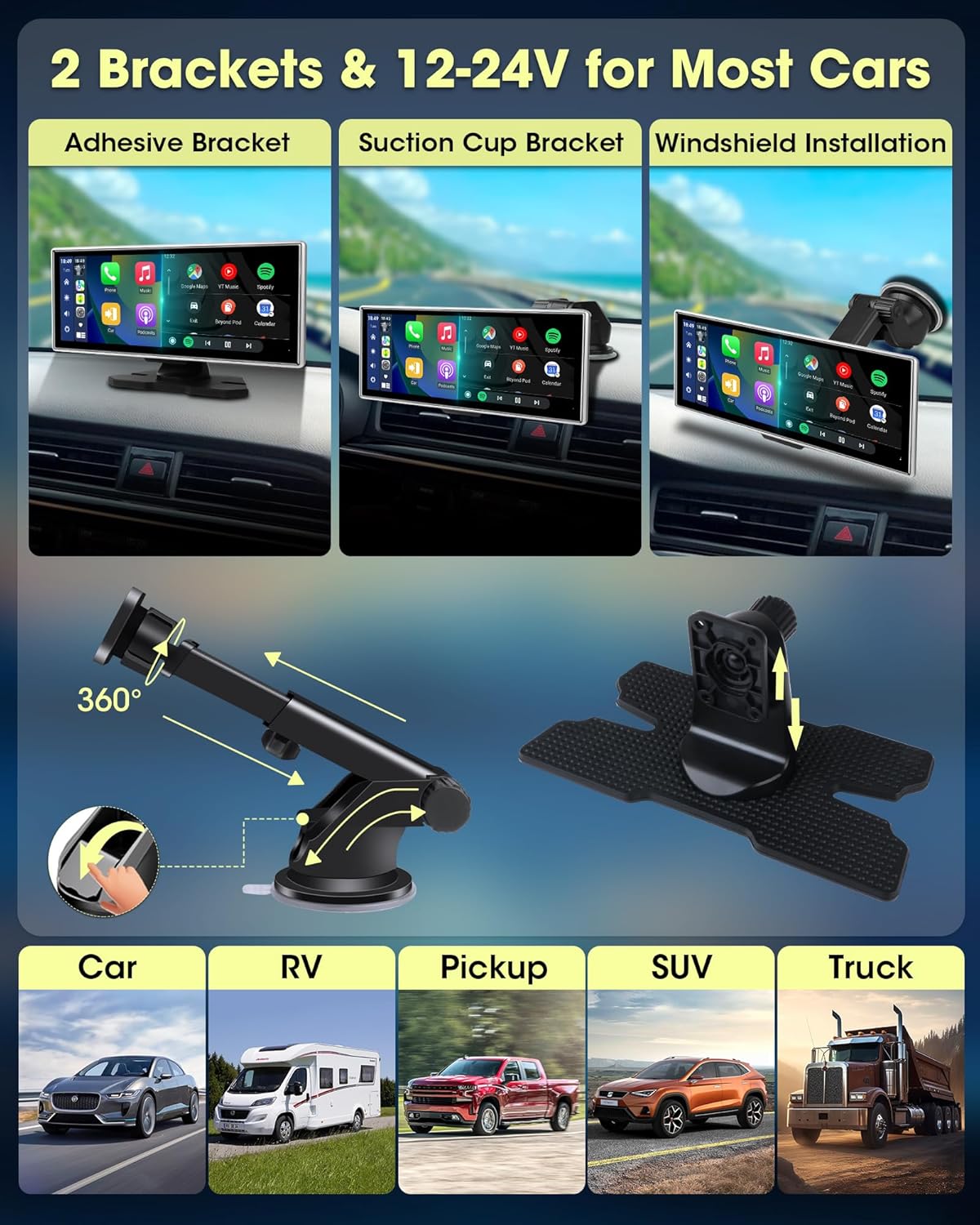
Image: Demonstrates the two types of brackets (suction cup and adhesive base) and three installation methods: adhesive bracket, suction cup bracket, and windshield installation. Also shows 360-degree rotation capability.
2. Connect Power:
Connect the provided Type-C power cord to the Carplay screen and plug the car charger into your vehicle's 12-24V power outlet. It is crucial to use the original 5V 2.5A car charger provided to avoid unit failure due to insufficient current or voltage. Do not insert other data cables into the USB port of the car charger simultaneously, as this may prevent the screen from turning on normally.
3. Install Rear View Camera:
Connect the rear view camera to the AV IN port on the main unit. For automatic display of the reverse image when shifting into reverse gear, connect the rear camera's positive lead to your vehicle's reversing lamp positive lead. Route the camera cable carefully to avoid interference with vehicle operations.

Image: A diagram illustrating the quick and easy installation process, showing the connection of the wireless Carplay unit via Type-C power and the rear view camera to the AV IN port, with the camera's power connected to the reversing lamp.
Operating Instructions
1. Wireless Apple CarPlay / Android Auto Connection:
To connect your smartphone wirelessly:
- On your iPhone or Android phone, open the Bluetooth settings page.
- Locate and select the device name (e.g., "Jansite_XXXX") from the list of available Bluetooth devices.
- Wait for approximately 10 seconds, then select "Pair" on your phone when prompted.
- Once paired, a pop-up interface will appear on your phone. Click "Use CarPlay Car" (for iPhone) or confirm Android Auto connection.
- The screen will automatically connect each time you get in your car after the initial setup.

Image: Step-by-step guide on how to connect a smartphone to the Carplay screen via Bluetooth for Apple CarPlay or Android Auto functionality.

Image: Illustrates the wireless Apple CarPlay, Android Auto, and Mirror Link interfaces on the 11.26-inch screen, showing how the iPhone automatically connects.
2. Voice Control (Siri / Google Assistant):
Integrate smart voice control for hands-free operation. Once connected to Apple CarPlay or Android Auto, you can use voice commands to:
- Make and answer phone calls.
- Play music.
- Get navigation directions.
- Send messages.
Simply activate Siri or Google Assistant through your connected phone or the screen's interface and speak your commands.

Image: Depicts the voice assistant feature, showing icons for Siri and Google Assistant, and examples of voice commands like "Navigate Home," "Play Music," and "Call Annie."
3. Mirror Link (AirPlay & Android Cast):
The Mirror Link function allows you to seamlessly mirror your smartphone's screen onto the 11.26-inch display. This is useful for displaying content directly from your phone.
For iPhone (AirPlay):
- Open the AirPlay function on your iPhone.
- Turn on Wi-Fi on your phone.
- Find the Wi-Fi name displayed on the Carplay screen and connect your iPhone to it.
- After successful connection, enter the iPhone mirror function.
- Click to complete the screen mirroring.
- To switch from CarPlay to AirPlay: Disconnect CarPlay from your iPhone first, then select AirPlay mode on the screen again.
For Android (Mirocast):
- Select "Mirocast" on the Carplay screen.
- Open/Click the Mirror Projection function on your Android phone (usually found under Settings > More connections > Wireless Projection).
- Select the device name (e.g., "F900-971D6420") and click "Connect".
Important Note: Some software applications, such as Netflix, YouTube TV, Hulu, and Pandora, do not support mirror projection due to content protection policies. After mirroring, please set the flip horizontal screen on your phone to obtain the best viewing effect. Due to different mobile phone and smart screen ratios, there may be blank space on the left and right sides of the screen when playing videos via mirror link.

Image: A six-step visual guide on how to connect an iPhone for screen mirroring using AirPlay, including instructions for switching from CarPlay.

Image: A three-step visual guide on how to connect an Android phone for screen mirroring using Mirocast, with tips on horizontal screen playback and potential blank spaces.

Image: Illustrates playing videos via Mirror Link, with a note about certain software (Netflix, YouTube TV, Hulu, Pandora) not supporting mirror projection.
4. Audio Output Options:
The Carplay screen offers multiple ways to output audio for clear and stable sound:
- Bluetooth to Car Speaker: Connect the Carplay screen to your car's audio system via Bluetooth for the best audio quality.
- AUX: Use the provided AUX cable to connect the Carplay screen to your car's AUX input.
- FM Transmit: Transmit audio to your car's FM radio by tuning both devices to the same FM frequency.
- Built-in Speaker: The unit has a built-in speaker for direct audio output.
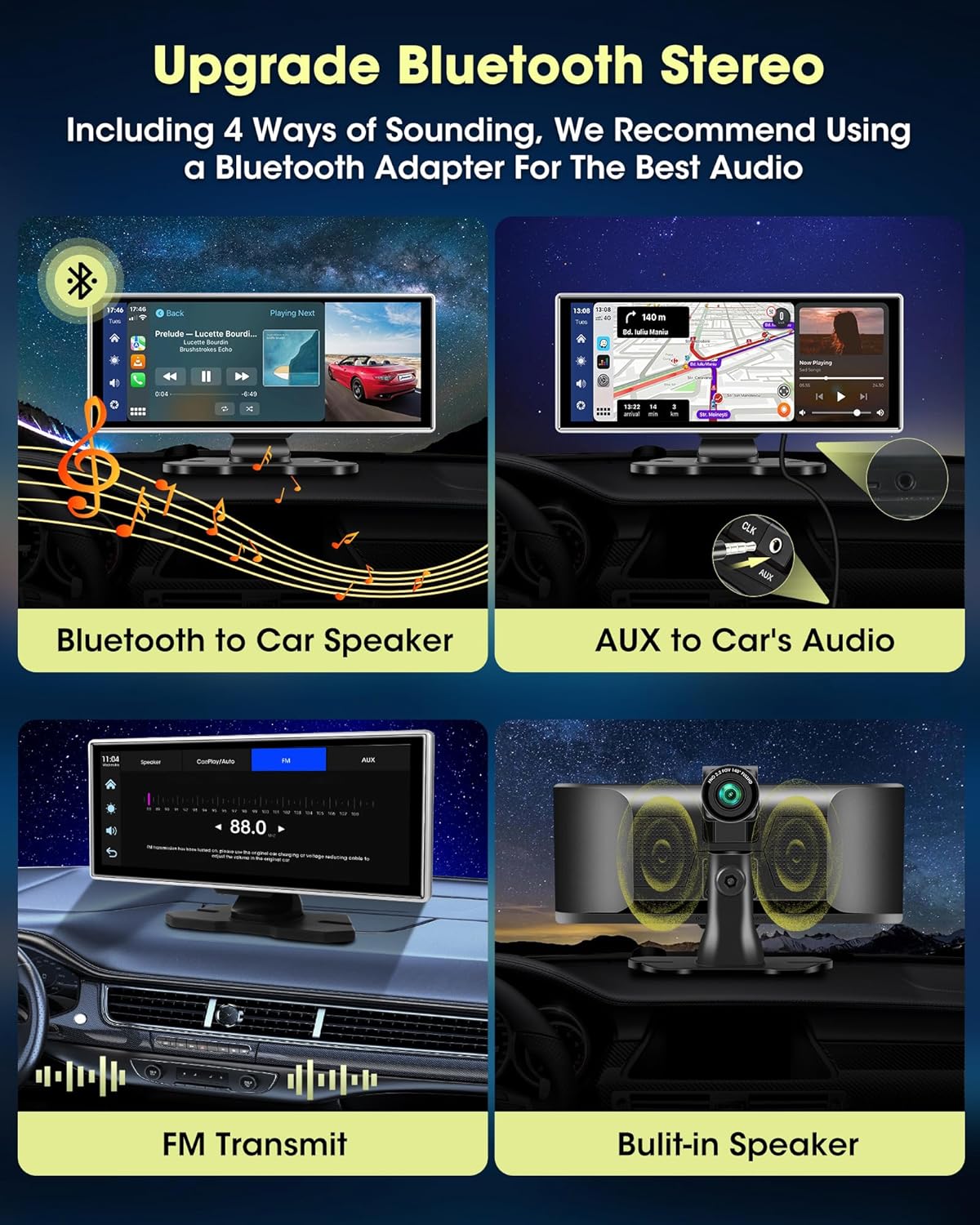
Image: Shows the four audio output methods: Bluetooth to car speaker, AUX to car's audio, FM transmit, and built-in speaker, recommending a Bluetooth adapter for optimal sound.
5. Dash Cam and Backup Camera Operation:
The integrated cameras provide comprehensive recording and assist with parking:
- Recording: The 2.5K front camera and 1080P rear camera record your driving process.
- Loop Recording: The included 64GB SD card supports loop recording, automatically overwriting older footage to ensure continuous recording.
- HD Night Vision: Both cameras support HD night vision for clear recording in low-light conditions.
- Reversing Assist: When the vehicle is in reverse, the screen automatically displays the rear camera view with adjustable reverse lines to aid in parking.

Image: Highlights the features of the 2.5K front camera and 1080P rear camera, including HD night vision, G-Sensor, loop recording, and the inclusion of a 64G SD card.
Maintenance
To ensure the longevity and optimal performance of your Jansite Carplay Screen, follow these maintenance guidelines:
- Cleaning: Use a soft, dry, lint-free cloth to clean the screen and exterior. For stubborn smudges, slightly dampen the cloth with water or a screen-safe cleaner. Avoid abrasive materials or harsh chemicals.
- Temperature: Avoid exposing the device to extreme temperatures (very hot or very cold) for extended periods, as this can affect battery life and screen performance.
- Cable Management: Ensure all cables are securely connected and not pinched or tangled, which can lead to damage.
- Software Updates: Periodically check the manufacturer's website or product support for any available firmware updates to ensure the best performance and compatibility.
- SD Card Care: Regularly format the 64GB SD card (e.g., once a month) to maintain optimal recording performance and prevent data corruption. Back up any important footage before formatting.
Troubleshooting
If you encounter issues with your Jansite Carplay Screen, refer to the following common problems and solutions:
| Problem | Possible Cause / Solution |
|---|---|
| Device does not power on. |
|
| Wireless CarPlay/Android Auto connection issues. |
|
| Mirror Link not working or video playback issues. |
|
| Dash Cam / Backup Camera recording problems. |
|
| Poor audio quality. |
|

Image: Important notes for users, including Huawei phone incompatibility, recommended SD card specifications, the necessity of using the original car charger, and advice on clearing Bluetooth connection records.
Specifications
| Feature | Detail |
|---|---|
| Screen Size | 11.26 inches |
| Front Camera Resolution | 2.5K (2560x1440) |
| Rear Camera Resolution | 1080P |
| Field of View | 170 Degrees (Front) |
| Operating System | Android (underlying system for Carplay/Android Auto) |
| Connectivity | Wireless Apple CarPlay, Android Auto, Bluetooth, AUX, FM |
| Power Input | Type-C 5V 2.5A (via car charger), 12-24V compatible |
| Storage | Supports up to 128GB SD card (64GB included) |
| Mounting Type | Windshield Mount / Dashboard Mount (Suction Cup & Adhesive Brackets) |
| Control Method | Touchscreen |
| Item Weight | 2.77 pounds |
| Package Dimensions | 12.36 x 6.97 x 4.61 inches |
| Included Components | Car DVR, Rear View Camera, Power Cord, AUX cable, two brackets, 64GB SD Card, User Manual |
Warranty and Support
Jansite is committed to providing quality products and customer satisfaction. While specific warranty terms are not detailed in this manual, the manufacturer stands behind its product.
If you encounter any problems during use, require technical assistance, or have questions regarding your product, please contact the seller directly for solutions or direct refunds. There is no need to return the product without prior contact.
For support, please reach out to Jansite Direct through the platform where you purchased the product. They are dedicated to providing professional and timely service.
Ask a question about this manual
Ask about setup, troubleshooting, compatibility, parts, safety, or missing instructions. Manuals+ will review the question and use this page’s manual context to help answer it.