
LIGHTWISH D80
LIGHTWISH D80 Portable Thermal Printer User Manual
Model: D80
Introduction
The LIGHTWISH D80 is a compact and portable thermal inkless printer designed for convenient printing on the go. This manual provides detailed instructions for setting up, operating, and maintaining your printer, ensuring optimal performance and longevity. Its lightweight design makes it ideal for travel, office, home, and car use, supporting various devices including iPhone, Android, Mac, and Windows.

The LIGHTWISH D80 printer is designed to be portable and compact, easily fitting into a backpack for printing files anytime, anywhere.
Package Contents
Before you begin, please verify that all items are present in your package:
- LIGHTWISH D80 Portable Thermal Printer
- User Manual
- USB Cable
- USB Type-C Connector
- A4 Thermal Paper Roll
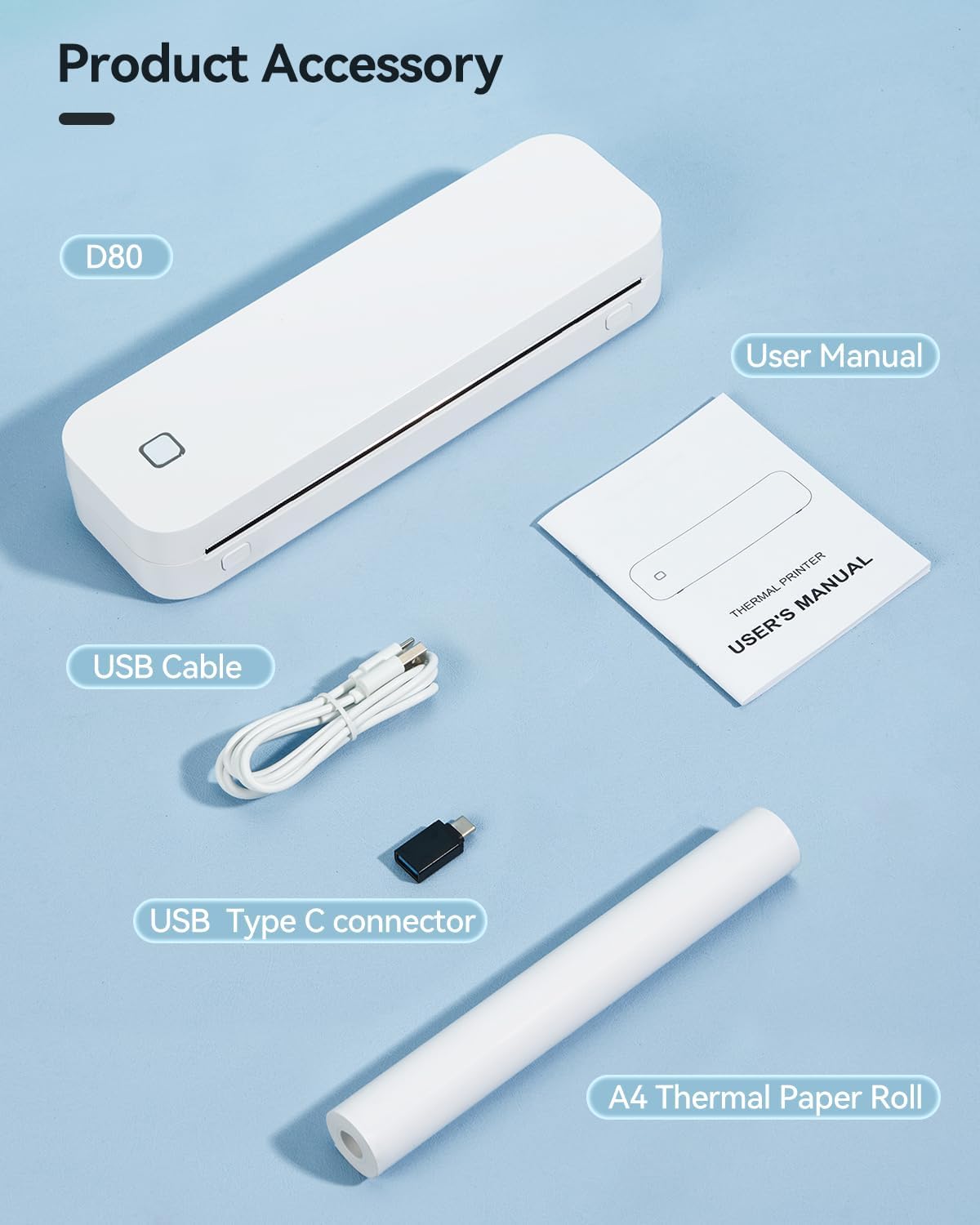
All accessories included with the LIGHTWISH D80 printer: the D80 printer unit, user manual, USB cable, USB Type C connector, and an A4 thermal paper roll.
Setup Guide
1. App Installation
To utilize the full functionality of your LIGHTWISH D80 printer, download the "Luck Jingle" app from your device's app store. This app is compatible with both iOS and Android devices.

Install the "Luck Jingle" app from the App Store or Google Play for seamless Bluetooth connectivity and printing.
2. Powering On the Printer
Press and hold the power button on the printer for 2 seconds until the indicator light illuminates. This indicates the printer is powered on and ready for connection.
3. Loading Thermal Paper
The LIGHTWISH D80 printer supports various paper sizes, including 8.5" x 11" US Letter, A4, A5, and smaller sizes like 2-inch, 3-inch, and 4-inch. For US Letter paper, ensure you remove the paper limiter inside the printer for proper feeding.
- Open the printer cover.
- If using roll paper, tear off any paper roll seal.
- Gently pull out the paper roll slightly to ensure it's properly aligned.
- Close the printer cover securely.
- For US Letter paper, locate and remove the paper limiter as shown in the image below.

To print on US Letter-size paper, remove the internal paper limiter as illustrated. The printer supports various paper sizes including 2-inch, 3-inch, 4-inch, A4, A5, US Letter, and Legal.
Operating Instructions
1. Connecting and Printing via Bluetooth (Mobile Devices)
The primary method for mobile printing is via Bluetooth using the "Luck Jingle" app.
- Ensure your printer is powered on.
- Enable Bluetooth on your smartphone or tablet.
- Open the "Luck Jingle" app.
- Within the app, navigate to the device connection section and select your D80 printer from the list of available devices.
- Once connected, you can select documents, images, or other content within the app to print. Adjust paper type and size settings as needed before confirming the print job.
Watch this video for a step-by-step guide on how to print with your phone using roll paper, covering app download, printer setup, Bluetooth connection, and initiating a print job.
2. Connecting and Printing via USB (PC/Mac)
For desktop and laptop computers, the printer can be connected directly via USB. Drivers may be required and can typically be found on the manufacturer's website (www.luckjingle.com).
- Connect the printer to your PC or Mac using the provided USB cable.
- Install any necessary drivers if prompted or if the printer is not recognized automatically.
- Once installed, the printer will appear as an available printing device in your computer's print dialogue.

The printer can be connected to PC devices (Windows and Mac) via USB for direct printing. Visit www.luckjingle.com for drivers and software.
3. Application Features
The "Luck Jingle" app offers a variety of printing options and features:
- File Print: Supports Word, Excel, PPT, PDF, and Txt formats.
- Picture Print: Includes image beautification and puzzle features.
- Label Print: Supports custom size label printing.
- OCR Scan: Supports document and certificate scanning.
- Web Print: Compatible with Google, Facebook, Pinterest, and Instagram.
- Tattoo Print: Specifically designed for tattoo painting.

Explore diverse printing functionalities within the app, including file, picture, label, OCR scan, web, and tattoo printing options.
Battery Information
The LIGHTWISH D80 printer is equipped with a 2600mAh battery, capable of printing approximately 400 sheets at low density on a full charge. Monitor the battery level through the "Luck Jingle" app.

The printer features a 2600mAh battery, allowing for approximately 400 sheets of printing at low density. Battery status can be checked via the app.
Maintenance
To ensure the longevity and optimal performance of your thermal printer, follow these maintenance guidelines:
- Cleaning: Regularly clean the print head and paper path with a soft, lint-free cloth. For stubborn residue, use a small amount of isopropyl alcohol on the cloth. Ensure the printer is off and disconnected from power before cleaning.
- Storage: Store the printer in a cool, dry place away from direct sunlight and extreme temperatures.
- Paper Quality: Always use high-quality thermal paper recommended for your printer. Using unsuitable paper can affect print quality and potentially damage the print head.
- Battery Care: For optimal battery life, avoid fully discharging the battery frequently. Charge the printer regularly, even if not in constant use.
Troubleshooting
If you encounter issues with your LIGHTWISH D80 printer, refer to the following common problems and solutions:
| Problem | Possible Cause | Solution |
|---|---|---|
| Printer not powering on | Low battery or power cable issue. | Charge the printer. Ensure the USB cable is securely connected. |
| Cannot connect via Bluetooth | Bluetooth is off, printer is out of range, or app issue. | Ensure Bluetooth is enabled on your device. Move closer to the printer. Restart the app and printer. |
| Poor print quality (faint/streaky) | Low print density setting, dirty print head, or incorrect paper. | Adjust print density in the app. Clean the print head. Ensure you are using thermal paper. |
| Paper jam | Improper paper loading or foreign object. | Turn off the printer. Carefully open the cover and remove any jammed paper. Ensure paper is loaded correctly. |
| Printer not recognized by PC | Missing or outdated drivers, or faulty USB connection. | Install or update drivers from www.luckjingle.com. Try a different USB port or cable. |
Specifications
- Model: D80
- Print Technology: Thermal Inkless Printing
- Resolution: 203 x 203 DPI
- Compatible Paper Sizes: 8.5" x 11" US Letter, A4, A5, 2-inch, 3-inch, 4-inch, Legal
- Connectivity: Bluetooth, USB
- Compatible Devices: Smartphones (iPhone, Android), PC (Windows, Mac)
- Battery: 2600mAh (approx. 400 sheets at low density)
- Dimensions: 10.4 x 1.9 x 3.1 inches (26.4 x 4.8 x 7.9 cm)
- Weight: 1.59 pounds (720 grams)
- Max Input Sheet Capacity: 50 sheets (for folded paper)
- Max Copy Speed (Black & White): 10 ppm

The LIGHTWISH D80 features High Definition Printing Technology with 203 DPI resolution, ensuring clear and sharp prints. Note: This printer does not support regular paper, only thermal paper.
Warranty and Support
LIGHTWISH is committed to providing reliable products and dedicated customer support. Your LIGHTWISH D80 printer comes with a standard warranty. For detailed warranty information, technical assistance, or any concerns, please contact our customer service team through the contact information provided on our official website or your purchase platform. We strive to address all inquiries promptly and efficiently.
Ask a question about this manual
Ask about setup, troubleshooting, compatibility, parts, safety, or missing instructions. Manuals+ will review the question and use this page’s manual context to help answer it.