
1. Product Overview
The Acer Predator Connect W6 is a high-performance Wi-Fi 6E Tri-Band AX7800 router designed to energize your home network with a peak theoretical throughput of 7.8Gbps. It features Hybrid QoS with device and application prioritization, aiming for maximum network speeds and low latency, particularly beneficial for gaming and streaming. This router is equipped with 6 performance-tuned antennas, 1GB DDR4 memory, and 4GB eMMC storage.

Figure 1.1: Top view of the Acer Predator Connect W6 Router, showcasing its design and illuminated Predator logo.
Key Features:
- Wi-Fi 6E Tri-Band AX7800 for high-speed wireless connectivity.
- 6 Performance-tuned antennas for extended coverage and signal strength.
- Hybrid QoS Compatible Killer Prioritization Engine for optimized network traffic.
- 1GB DDR4 memory and 4GB eMMC storage for robust performance.
2. Setup Guide
2.1 What's in the Box:
- Predator Connect W6 Wi-Fi 6E Router
- Power Cord
- Application and Quick Guide
2.2 Physical Connections:
Before powering on the router, ensure all necessary cables are connected securely.
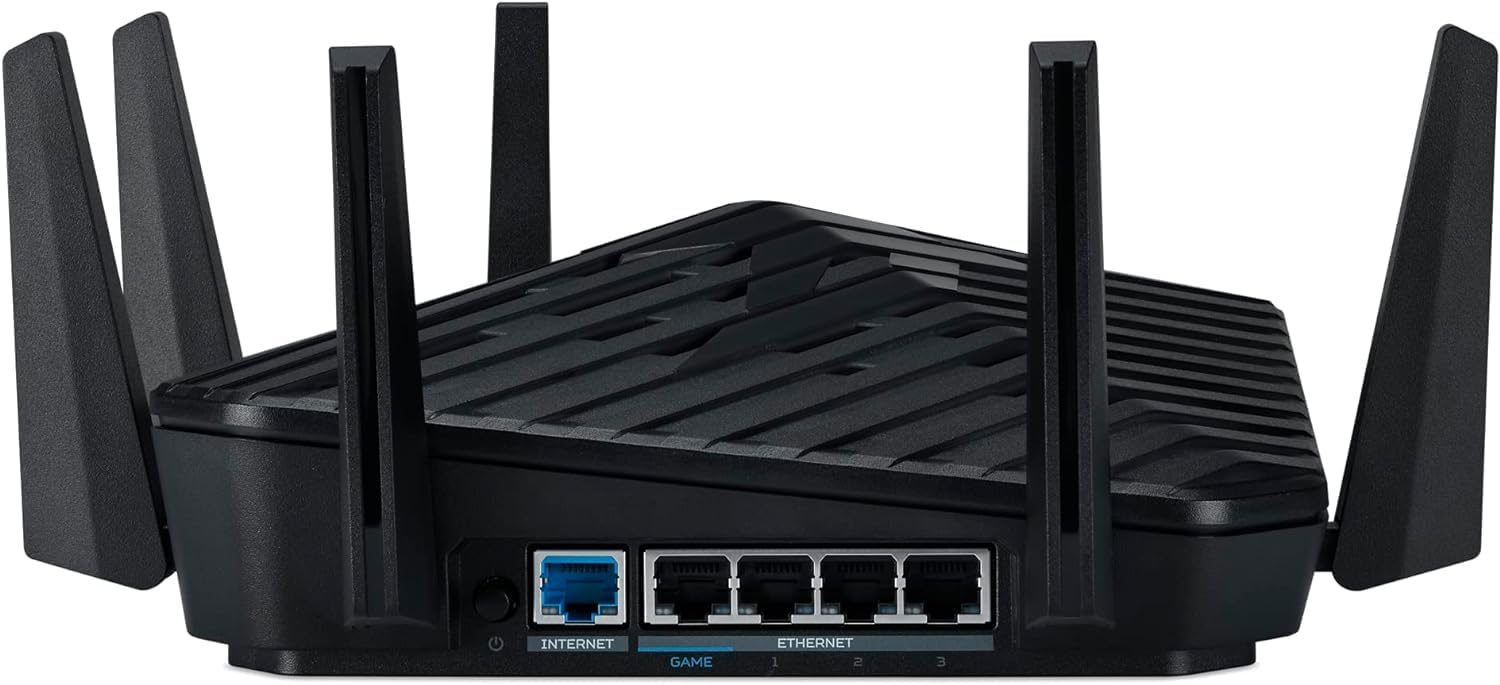
Figure 2.1: Rear view of the router, highlighting the various ports for connectivity.
- Connect to Modem: Connect one end of an Ethernet cable to the Internet port (blue) on the router and the other end to your modem's LAN port.
- Connect Power: Plug the power adapter into the router's power input port and then into a wall outlet.
- Connect Devices (Optional): For wired connections, connect devices like PCs or gaming consoles to the Game port (yellow) or any of the Ethernet ports (1-3) using Ethernet cables.
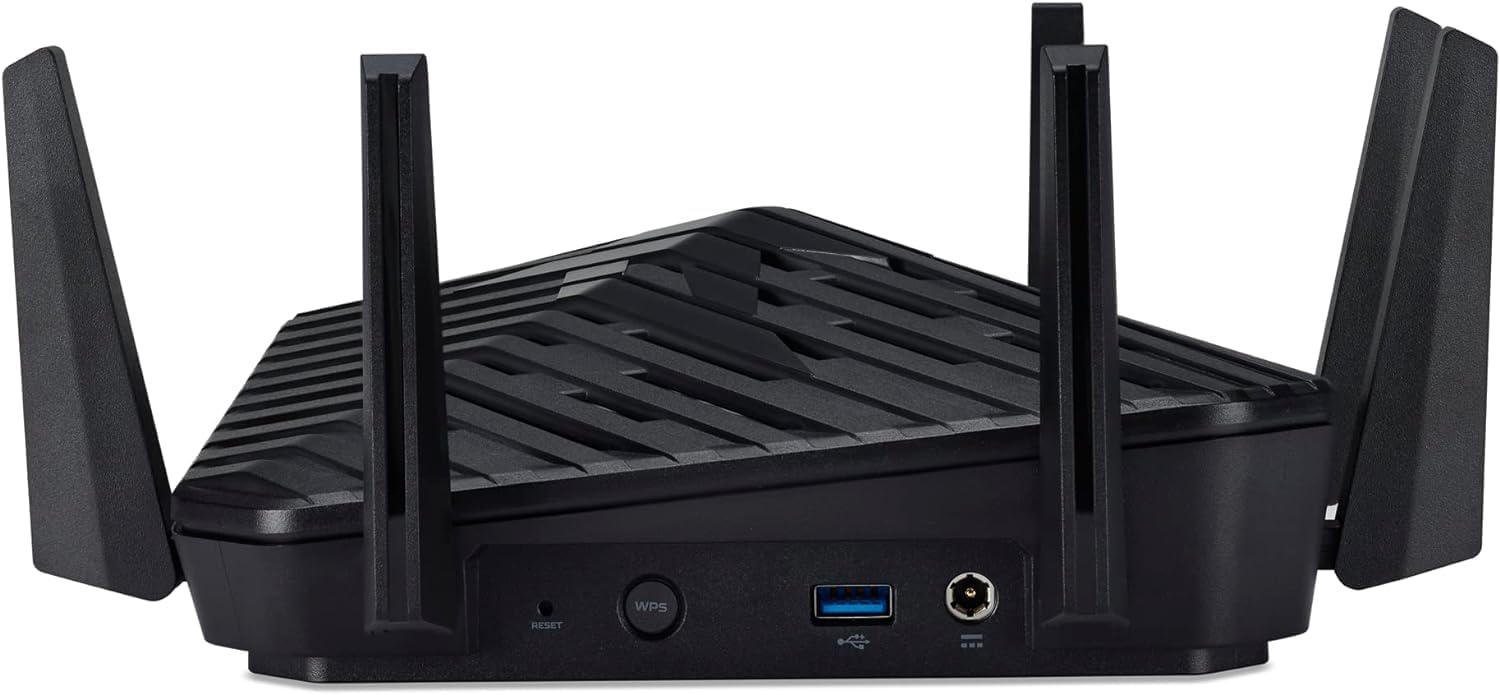
Figure 2.2: Side view of the router, showing the WPS button and USB port.
2.3 Initial Configuration:
Once powered on, wait for the router's indicator lights to stabilize. You can configure the router via a web browser or a dedicated mobile application (if available).
- Connect to Router: Connect your computer or mobile device to the router's default Wi-Fi network (SSID and password usually found on a sticker on the router or in the Quick Guide). Alternatively, connect your computer directly to an Ethernet port on the router.
- Access Web Interface: Open a web browser and enter the default IP address (e.g.,
192.168.1.1orrouter.acer.com) into the address bar. Refer to the Quick Guide for the exact default IP and login credentials. - Follow Setup Wizard: Log in with the default username and password. The router's web interface will typically guide you through an initial setup wizard to configure your internet connection, Wi-Fi network name (SSID), and password. It is highly recommended to change the default login credentials for security.
3. Operating Instructions
3.1 Connecting Devices:
- Wi-Fi Devices: Search for your Wi-Fi network name (SSID) on your device and enter the password you configured during setup. The Predator Connect W6 supports Wi-Fi 6E, allowing compatible devices to connect to the 6GHz band for less interference and higher speeds.
- Wired Devices: Connect devices directly to the Ethernet ports on the back of the router using Ethernet cables.
- WPS (Wi-Fi Protected Setup): For devices supporting WPS, press the WPS button on the side of the router (refer to Figure 2.2) and then activate WPS on your device within two minutes to establish a connection without entering the password.
3.2 Managing Router Settings:
Access the router's web interface (as described in Section 2.3) to manage advanced settings:
- Hybrid QoS: Prioritize network traffic for specific devices or applications (e.g., gaming, streaming) to ensure optimal performance.
- Guest Network: Create a separate Wi-Fi network for guests, providing internet access without granting access to your main network resources.
- Parental Controls: Manage internet access times and block specific websites for connected devices.
- Security Settings: Configure firewall rules, VPN settings, and other security features.
3.3 LED Indicators:
The router features LED indicators that provide status information. Refer to the Quick Guide for a detailed explanation of each LED's behavior (e.g., solid blue for normal operation, blinking for activity, red for errors).
4. Maintenance
Regular maintenance helps ensure the longevity and optimal performance of your router.
- Firmware Updates: Periodically check the Acer support website or the router's web interface for available firmware updates. Keeping the firmware up-to-date can improve performance, add new features, and address security vulnerabilities.
- Regular Reboot: Rebooting the router every few weeks can help clear its memory and resolve minor performance issues. Simply unplug the power cord, wait 10-15 seconds, and plug it back in.
- Cleaning: Gently clean the router's exterior with a soft, dry cloth. Ensure ventilation holes are free from dust and obstructions to prevent overheating. Do not use liquid cleaners.
- Optimal Placement: Place the router in a central location, away from obstructions, large metal objects, and other electronic devices that may cause interference. Elevating the router can also improve signal distribution.
5. Troubleshooting
If you encounter issues with your Acer Predator Connect W6 router, try the following troubleshooting steps:
- No Internet Connection:
- Check all cable connections (modem to router, router to power).
- Reboot both your modem and router. Unplug them, wait 30 seconds, then plug in the modem first, wait for it to fully boot, then plug in the router.
- Verify your internet service provider (ISP) is not experiencing an outage.
- Slow Wi-Fi Speed:
- Ensure your devices are connecting to the appropriate Wi-Fi band (2.4GHz, 5GHz, or 6GHz for Wi-Fi 6E compatible devices).
- Check for interference from other electronic devices or neighboring Wi-Fi networks.
- Adjust router placement for better signal coverage.
- Limit the number of simultaneous high-bandwidth activities.
- Cannot Connect to Wi-Fi:
- Double-check your Wi-Fi password.
- Ensure the Wi-Fi feature is enabled on the router (via web interface).
- Try forgetting the network on your device and reconnecting.
- Factory Reset: If issues persist, you may need to perform a factory reset. Locate the small reset button (often recessed) on the router (refer to Figure 2.2). With the router powered on, use a paperclip or similar pointed object to press and hold the reset button for 10-15 seconds until the lights flash. This will revert all settings to their factory defaults, requiring you to reconfigure the router.
6. Specifications
| Feature | Detail |
|---|---|
| Model Name | Predator Connect W6 |
| Wireless Standard | Wi-Fi 6E (802.11ax) |
| Frequency Band Class | Tri-Band (2.4GHz, 5GHz, 6GHz) |
| Antennas | 6 Performance-tuned antennas |
| Memory | 1GB DDR4 |
| Storage | 4GB eMMC |
| Connectivity Technology | Ethernet, Wi-Fi |
| Special Feature | WPS, Hybrid QoS Compatible Killer Prioritization Engine |
| Product Dimensions | 10.43 x 10.24 x 4.37 inches |
| Item Weight | 1.93 pounds |
| Color | Black |
| Recommended Uses | Gaming, Streaming |
7. Warranty and Support
7.1 Warranty Information:
This Acer Predator Connect W6 Wi-Fi 6E Router is a Certified Refurbished product. It shows limited or no wear and includes all original accessories. It is backed by a 90-day warranty from the date of purchase. Please retain your proof of purchase for warranty claims.
7.2 Customer Support:
For technical assistance, troubleshooting beyond this manual, or warranty inquiries, please contact Acer customer support or the seller from whom you purchased the renewed product. You may also visit the Amazon Renewed Store for general information regarding renewed products.