
Introduction
This manual provides detailed instructions for the EOIWUY T78 Bluetooth 5.3 FM Transmitter Car Adapter. It covers setup, operation, and troubleshooting to ensure optimal performance and user experience. Please read this manual thoroughly before using the device.
Key Features
- Stylish Design & Clear Display: Features a compact rotary knob and an oval exterior. The large character display ensures clear and intuitive visibility of information.
- Versatile Audio Playback: Enjoy music from a USB drive or stream audio directly from your phone via the AUX port, eliminating reliance on FM channels.
- Fast Charging: Equipped with PD36W and QC3.0 18W charging ports for efficient and rapid charging of your devices on the go.
- RGB Ambient Light & Bass Boost: Enhance your driving ambiance with a vibrant seven-color RGB ambient light. Choose your preferred color or deactivate the function. Experience improved music listening with a one-click bass enhancement mode.
- Bluetooth 5.3 & Voice Assistant: Benefit from a stable connection and low latency with Bluetooth 5.3 technology. Easily activate Siri or your preferred voice assistant by long-pressing the next track button for a hands-free experience.

Diagram illustrating the advanced Bluetooth 5.3 chip and its benefits: faster connection, stable transmission, and automatic reconnection.
Product Overview
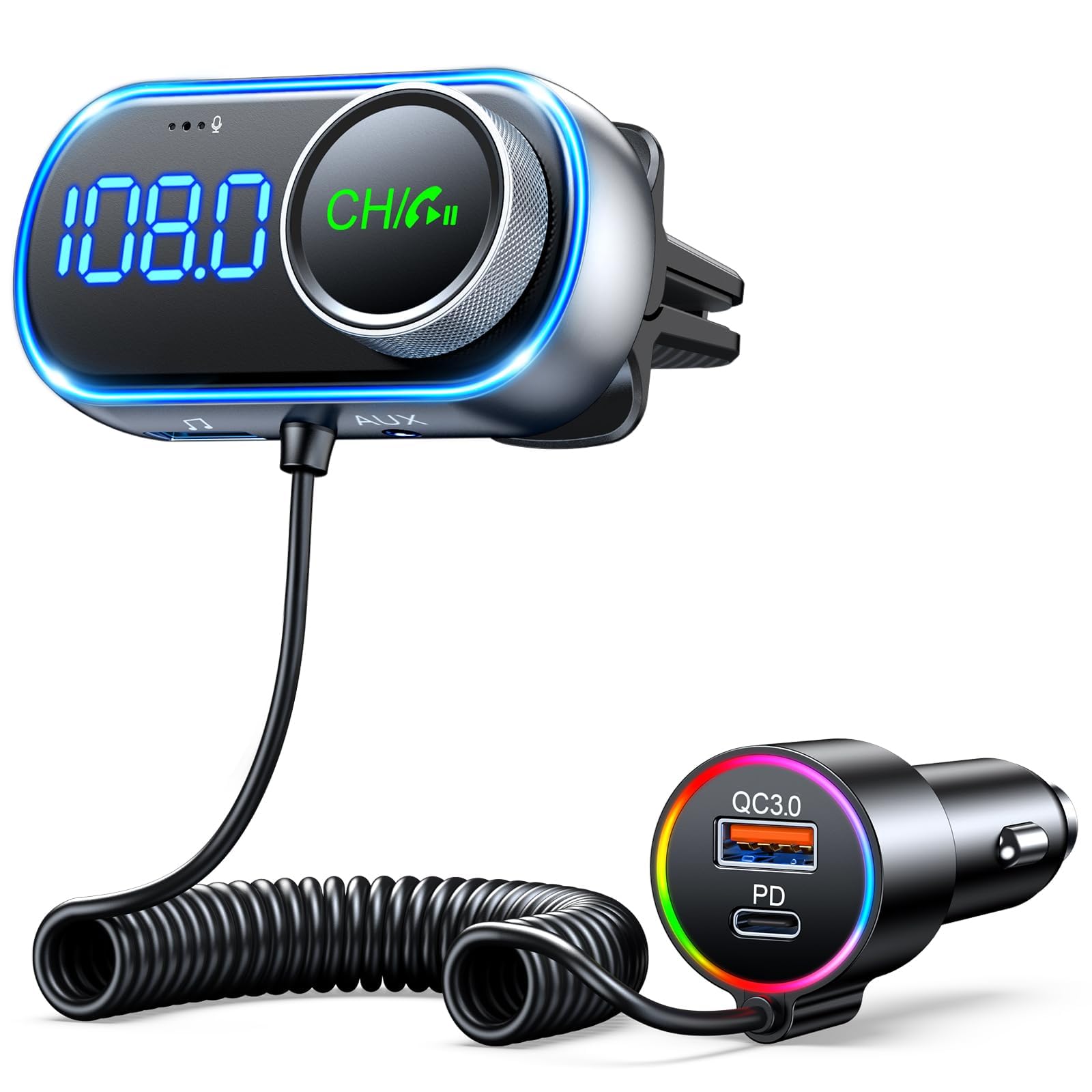
The EOIWUY T78 FM Transmitter consists of two main parts: the display unit with controls and the car charger unit. These components work together to provide audio streaming, hands-free calling, and device charging.

The EOIWUY T78 Bluetooth FM Transmitter and its car charger component, connected by a coiled cable.
Components
- FM Transmitter Unit: Features an LED display, rotary knob (for volume/frequency/play/pause), CH/A button, previous/next track buttons, AUX port, and a USB port for media playback.
- Car Charger Unit: Plugs into the car's cigarette lighter socket and provides PD36W (USB-C) and QC3.0 (USB-A) fast charging ports.
- Air Vent Clip: Used to securely mount the FM transmitter unit to your car's air vent.
- Coiled Cable: Connects the FM transmitter unit to the car charger unit for power and data transfer.
Setup
Installation Steps
- Attach the FM transmitter unit to your car's air vent using the provided clip. Ensure it is securely fastened.
- Plug the car charger unit into your vehicle's 12V/24V cigarette lighter socket.
- Connect the coiled cable from the transmitter unit to the car charger unit. The device will power on automatically and display the current FM frequency.
Video demonstrating the physical installation of the EOIWUY T78 FM transmitter in a car, including attaching it to the air vent and plugging in the charger, followed by operational steps.
Operating Instructions
1. FM Frequency Tuning
- Tune your car radio to an empty FM frequency (one with no active broadcast).
- On the T78 transmitter, long-press the "CH/A" button to enter FM tuning mode. The frequency display will flash.
- Rotate the knob to adjust the transmitter's frequency to match the empty frequency on your car radio.
- Short-press the "CH/A" button again to confirm the frequency.

The FM transmitter display showing the current FM frequency and the AUX port.
2. Bluetooth Pairing
- Ensure the FM transmitter is powered on and set to an empty FM frequency.
- On your smartphone, enable Bluetooth and search for available devices.
- Select "T78" from the list to pair. A voice prompt will confirm successful connection.
A smartphone screen showing the Bluetooth settings with 'T78' available for connection.
3. Music Playback
The T78 supports multiple audio input methods:
- Bluetooth Mode: Once paired, play music from your phone. Audio will transmit to your car's speakers via the selected FM frequency.
- USB Drive Mode: Insert a USB drive containing MP3/WMA/WAV/FLAC files into the USB port on the transmitter unit. The device will automatically switch to USB playback.
- AUX Mode: Connect your phone or other audio device directly to the AUX port on the transmitter unit using a 3.5mm audio cable. No FM pairing is needed for this mode.
Music Controls:
- Volume Adjustment: Rotate the knob clockwise to increase volume, counter-clockwise to decrease.
- Play/Pause: Short-press the knob to play or pause music.
- Next Track: Short-press the "Next Track" button to skip to the next song.
- Previous Track: Short-press the "Previous Track" button to go to the previous song.

A smartphone displaying a music playback application, connected to the FM transmitter, with bass boost options shown.
4. Hands-Free Calling
The T78 allows for convenient hands-free communication while driving.
- Answer Call: Short-press the knob when an incoming call rings.
- End Call: Short-press the knob during an active call to hang up.
- Reject Call: Long-press the knob when an incoming call rings.
- Redial: Double-click the knob to redial the last number.
An illustration of a user making a hands-free call using the FM transmitter, with call controls displayed on the screen.
5. Fast Charging
The car charger unit provides fast charging capabilities for your mobile devices.
- Connect your device's charging cable to the PD36W (USB-C) or QC3.0 (USB-A) port on the car charger unit for rapid charging.
Close-up of the car charger unit showing the PD36W (USB-C) and QC3.0 (USB-A) fast charging ports.
6. RGB Ambient Light
Customize the device's ambient lighting to match your preference.
- Short-press the light button (located on the side of the transmitter unit) to cycle through 7 different colors.
- Long-press the light button to turn off the ambient light.

The FM transmitter unit illuminated with colorful RGB ambient lighting, showcasing various color options.
7. Bass Boost Mode
Enhance your audio experience with deeper bass.
- Short-press the "B" button (often integrated with the knob or a separate button) to activate or deactivate the bass enhancement mode. The display will show "B ON" or "B OFF".
The FM transmitter display indicating 'B ON' for bass boost mode, with musical notes in the background.
8. Voice Assistant Activation
Access your smartphone's voice assistant conveniently.
- Long-press the "Next Track" button to activate your smartphone's voice assistant (e.g., Siri, Google Assistant).
Maintenance
Care and Maintenance
- Keep the device dry. Avoid exposure to water or moisture.
- Do not expose the device to extreme temperatures or direct sunlight for prolonged periods.
- Clean the device with a soft, dry cloth. Do not use harsh chemicals, cleaning solvents, or strong detergents.
- Ensure proper ventilation around the device when in use to prevent overheating.
Troubleshooting
Common Issues and Solutions
| Problem | Solution |
|---|---|
| No power | Check if the car charger is securely plugged into the cigarette lighter socket. Ensure the vehicle's ignition is on. |
| Static or poor audio quality | Ensure the FM frequency on the transmitter and car radio are identical and set to an empty channel. Try a different empty FM frequency. Adjust the volume on both the transmitter and your car radio. Ensure your phone's volume is at an appropriate level. Move away from strong radio interference sources. |
| Bluetooth not connecting | Ensure Bluetooth is enabled on your phone. Forget "T78" from your phone's Bluetooth list and re-pair. Restart both the transmitter and your phone. |
| Charging is slow | Ensure your charging cable supports fast charging. Verify your device supports PD36W or QC3.0 fast charging. |
| Voice assistant not responding | Ensure your phone's voice assistant is enabled. Check if the long-press action on the "Next Track" button is correctly performed. |
Specifications
Technical Specifications
| Feature | Detail |
|---|---|
| Brand | EOIWUY |
| Model Number | T78 |
| Screen Size | 2 Centimeters |
| Connections | AUX |
| Compatible Devices | Smartphone, Tablet, MP3 Player, Audio device with Bluetooth or AUX port |
| Rechargeable Battery | No |
| Bluetooth Version | 5.3 |
| Charging Ports | PD36W, QC3.0 18W |
| Audio Playback | USB drive (MP3/WMA/WAV/FLAC), AUX, Bluetooth |
| Ambient Light | 7-color RGB |
| Special Features | Bass Boost, Hands-Free Calling, Voice Assistant Support |
Important Safety Information
To ensure safe operation and prevent damage to the device or your vehicle, please observe the following safety guidelines:
- Avoid exposing the device to high temperatures, direct sunlight, or enclosed spaces where heat can build up.
- Keep the device away from water and moisture. Do not operate it with wet hands.
- Do not attempt to disassemble, repair, or modify the device. This may void the warranty and pose safety risks.
- Be aware of potential interference with other wireless devices. If interference occurs, try adjusting the FM frequency.
- Always prioritize safe driving. Do not operate the device in a way that distracts you from the road. Adjust settings only when it is safe to do so.
- Use only approved charging cables and accessories with the device.
Warranty and Customer Support
For warranty information or technical support, please contact EOIWUY customer service through the retailer where the product was purchased. Please refer to your purchase documentation for specific warranty terms and conditions. Keep your proof of purchase for any warranty claims.