
1. Introduction
This manual provides comprehensive instructions for the installation, operation, and maintenance of your FJZKTEG Inteligente Biometric Smart Lock, Model K7 TY B 50. This keyless WiFi electronic smart door lock offers multiple unlocking methods and integrates with the Tuya App for remote management, enhancing security and convenience for your home or office.
Key Features:
- Multiple unlocking methods: Tuya APP, Fingerprint, Password, Smart Card, Key, Wrist strap.
- Built-in Wi-Fi module for seamless smartphone connectivity.
- Remote unlocking and temporary password setting via Tuya App.
- Virtual Password Anti-peeping Unlock for enhanced security.
- Emergency power supply via USB and mechanical key access.
- Durable, heat-resistant tempered glass panel.
- Supports 9 language voice prompts.

Image 1.1: Overview of the FJZKTEG Smart Lock highlighting its tempered glass panel, long battery life, compatibility with various lock types, Tuya WiFi integration, included accessories (wristbands and cards), and multi-language voice support.
2. Product Specifications
| Specification | Detail |
|---|---|
| Model Number | K7 TY B 50 (f17heceecc90) |
| Door Thickness Compatibility | 35-60mm (1.38-2.36 inches) |
| Power Supply | 4 x AAA batteries |
| Emergency Power | USB port |
| Connectivity | Wi-Fi (Tuya App) |
| Unlocking Methods | Fingerprint, Password, Smart Card, Key, Wristband, Tuya App |
| Panel Material | Tempered Glass |
| Item Weight | 1.76 ounces (lock mechanism only, actual product weight may vary) |
| Package Dimensions | 1.18 x 0.79 x 0.39 inches (packaging dimensions, not lock dimensions) |
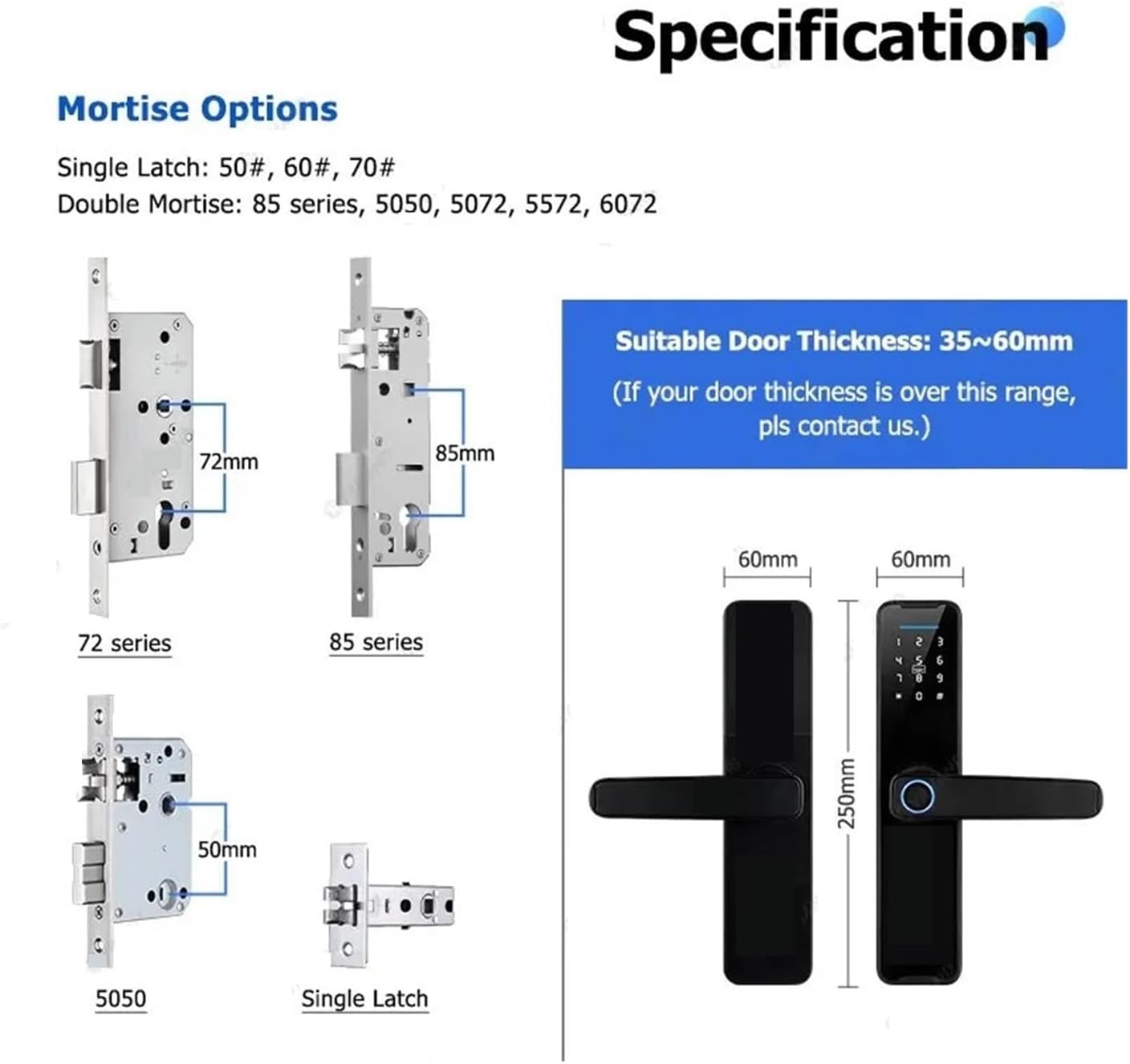
Image 2.1: Detailed specifications including various mortise options and the compatible door thickness range (35-60mm). The image also shows the overall dimensions of the smart lock unit.
3. Setup and Installation
3.1 Door Preparation and Mortise Selection
Ensure your door thickness is between 35mm and 60mm. Select the appropriate mortise for your door type. The lock supports various mortise options including Single Latch (50#, 60#, 70#) and Double Mortise (85 series, 5050, 5072, 5572, 6072).

Image 3.1: Illustration of a 50# Single Latch mortise with its dimensions, shown alongside the FJZKTEG Smart Lock. This helps in selecting the correct mortise for installation.
3.2 Battery Installation
The smart lock is powered by 4 AAA batteries. Install the batteries into the designated compartment, ensuring correct polarity. For optimal performance, use high-quality alkaline batteries.
3.3 Tuya App Connection
- Download the Tuya App from your smartphone's app store.
- Register or log in to your Tuya account.
- Follow the in-app instructions to add a new device. Select 'Smart Lock' or 'Door Lock (Wi-Fi)'.
- Put the smart lock into pairing mode (refer to the lock's display or voice prompts for specific instructions).
- Connect the lock to your home Wi-Fi network via the app.
4. Operating Instructions
The FJZKTEG Smart Lock offers multiple convenient ways to unlock your door.
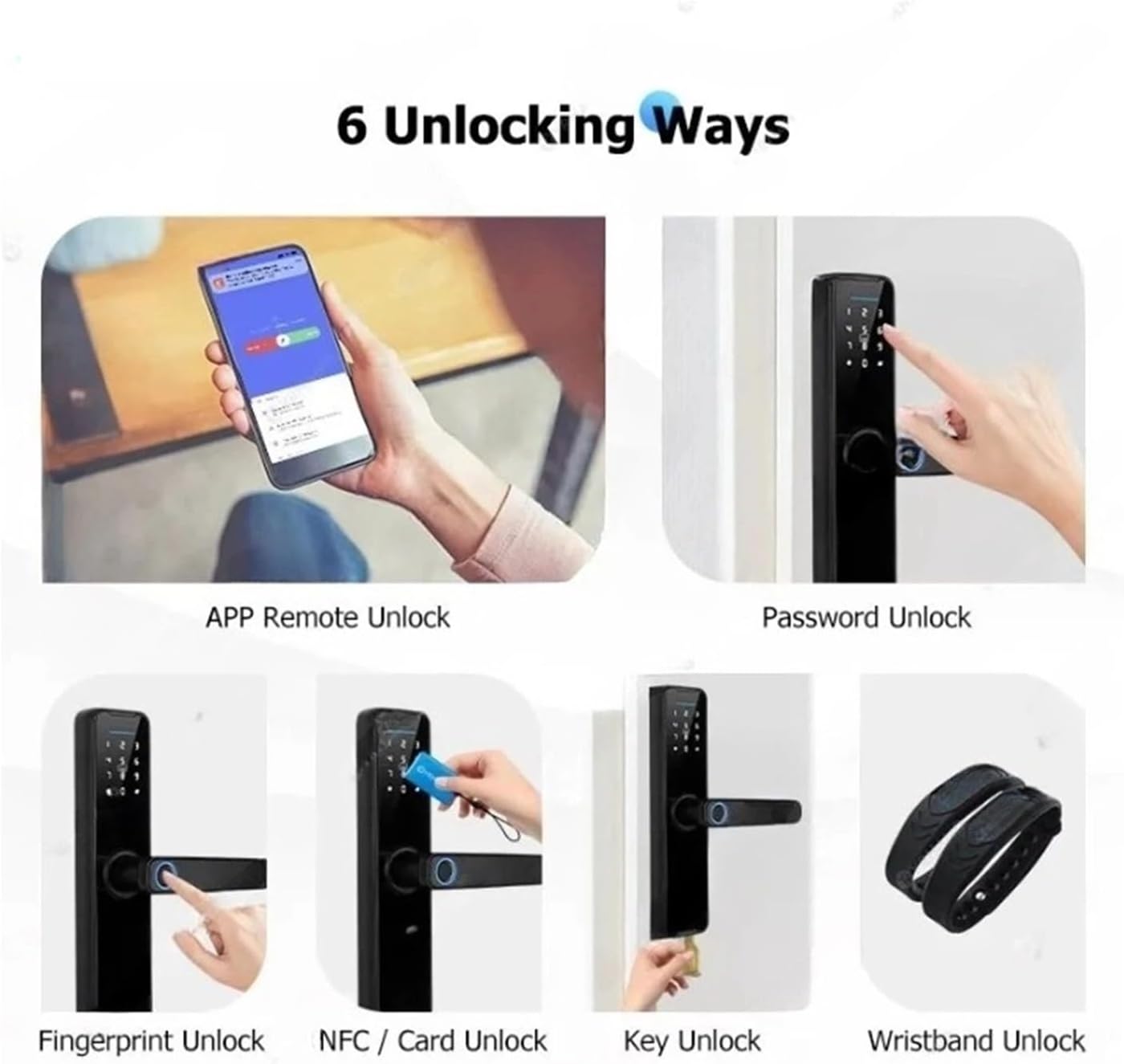
Image 4.1: Visual guide to the six available unlocking methods for the smart lock.
4.1 Tuya APP Remote Unlock
Once connected to the Tuya App, you can remotely unlock your door from anywhere with an internet connection. The app also allows for setting temporary passwords and monitoring lock status.
4.2 Fingerprint Unlock
Register your fingerprints through the Tuya App or directly on the lock's keypad. To unlock, place your registered finger on the fingerprint sensor. The lock will verify and unlock if the fingerprint is recognized.
4.3 Password Unlock
Enter your registered password on the keypad. The lock supports virtual password anti-peeping, allowing you to enter random digits before and after your actual password to prevent others from guessing it.
4.4 Smart Card / NFC Unlock
Register the provided smart cards or NFC-enabled devices with the lock. To unlock, present the registered card or device near the designated sensor area.
4.5 Key Unlock
In case of electronic failure or depleted batteries, use the provided mechanical key to unlock the door manually.
4.6 Wristband Unlock
Register the included wristbands with the lock. To unlock, present the wristband near the designated sensor area.
4.7 Language Voice Conversion
The smart lock supports 9 different language voice prompts. To switch languages, the lock must be in an initialized state. Refer to the lock's settings menu or the Tuya App for specific instructions on changing the voice language.

Image 4.2: The smart lock's multi-language voice support feature, displaying the 9 available languages and a note about the initialization requirement for language switching.
5. Maintenance
5.1 Battery Life and Replacement
The smart lock is designed for ultra-long battery life, powered by 4 AAA batteries. When the battery level is low, the lock will provide a low battery warning via voice prompt or the Tuya App. Replace all four batteries promptly to ensure continuous operation.
5.2 Emergency Power Supply
If the batteries completely deplete before replacement, the lock can be temporarily powered using a USB power bank connected to the emergency USB port located at the bottom of the lock. This allows you to unlock the door and replace the batteries.

Image 5.1: Illustration of the smart lock's battery power source (4 AAA batteries) and the USB emergency power outlet for temporary power supply.
5.3 Cleaning
Clean the lock's surface and fingerprint sensor with a soft, dry cloth. Avoid using abrasive cleaners or solvents that could damage the finish or electronic components.
6. Troubleshooting
- Lock not responding: Check battery level. If low, replace batteries or use emergency USB power. Ensure the lock is properly installed and all connections are secure.
- Fingerprint not recognized: Ensure your finger is clean and dry. Try re-registering your fingerprint. Ensure the fingerprint sensor is clean.
- Password not working: Verify the correct password is being entered. Utilize the virtual password anti-peeping feature correctly.
- Cannot connect to Tuya App: Ensure your Wi-Fi network is active and the lock is within range. Restart the lock and your router. Follow the app's pairing instructions carefully.
- Voice prompts in wrong language: Refer to Section 4.7 for instructions on changing the voice language. Ensure the lock is in an initialized state if required.
7. Warranty and Support
For warranty information and technical support, please refer to the documentation provided with your purchase or contact FJZKTEG customer service through the retailer where the product was purchased. Keep your proof of purchase for warranty claims.