
1. Introduction
This manual provides detailed instructions for the installation, operation, and maintenance of your Yunir Digital Door Viewer. Please read this manual thoroughly before use to ensure proper functionality and safety.
2. Safety Information
For specific operations, please refer to the instruction manual. Do not place this product in harsh environments such as high temperatures, high humidity, or areas with excessive dust or smoke. Also, avoid exposing it to rain. Failure to do so may result in damage to the device. Do not apply excessive pressure to the lens or PIR sensor on the outdoor unit, as this may cause hardware damage. During installation, handle with care. Avoid pulling the unit's ribbon cable forcefully and prevent the FPC ribbon cable from being scratched or cut.
3. Package Contents
Verify that all components are present in the package:
- Indoor Monitor Unit
- Outdoor Peephole Camera
- Mounting Bracket
- USB Charging Cable
- Installation Screws and Accessories
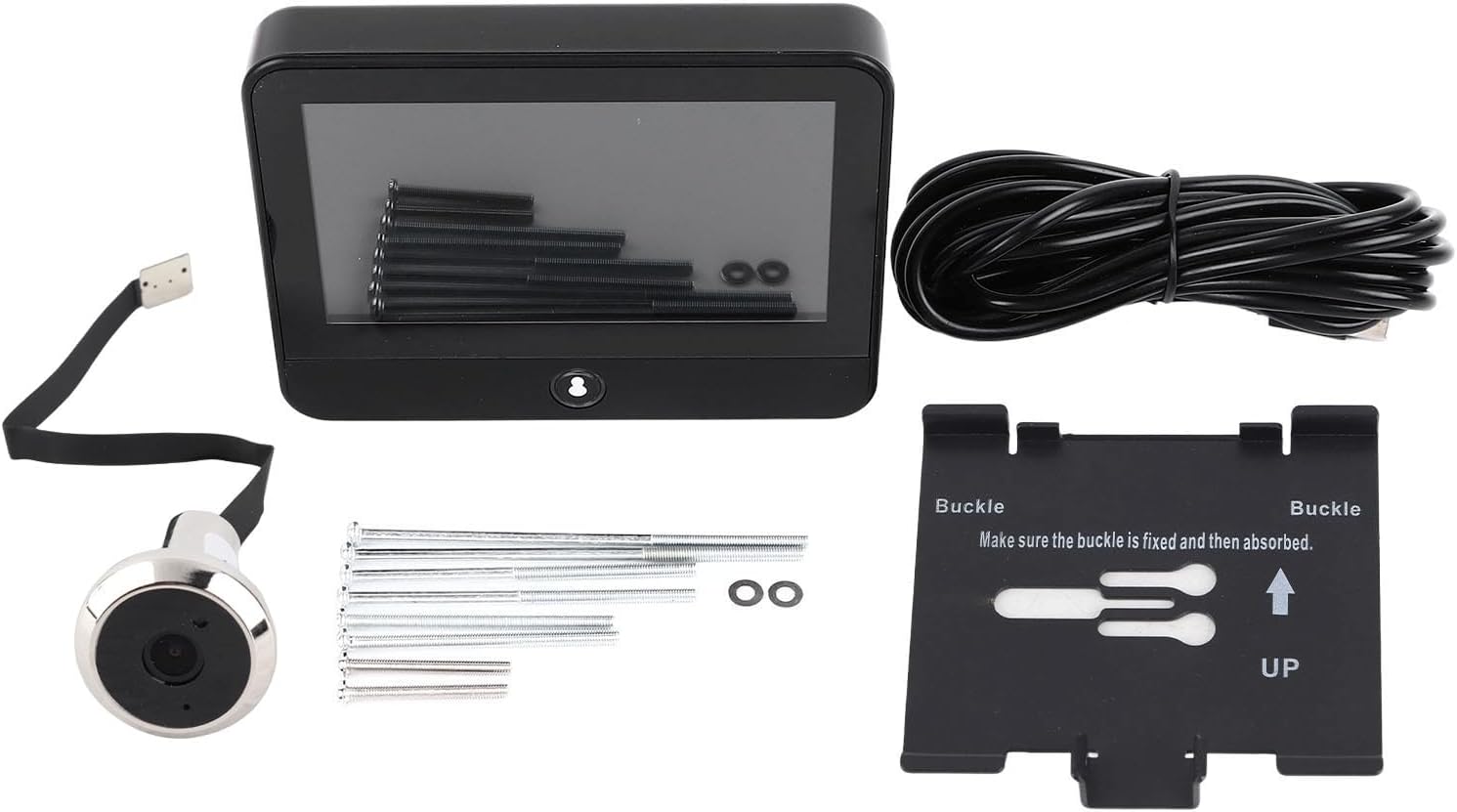
The package includes the indoor monitor, outdoor peephole camera, mounting bracket, USB charging cable, and various screws for installation.
4. Product Overview
The Yunir Digital Door Viewer consists of an indoor display unit and an outdoor peephole camera. The indoor unit features an HD screen for clear viewing, while the outdoor unit houses the 1080P camera with a 120° wide-angle lens.

The outdoor camera unit integrates seamlessly into your door's peephole, providing a discreet and wide-angle view of your doorstep.
5. Setup and Installation
The Yunir Digital Door Viewer is designed for straightforward installation. Ensure your door has an existing peephole or drill a suitable hole according to the product dimensions.

Refer to the provided dimensions for proper placement and hole size. The indoor unit measures approximately 12cm (4.72in) in width and 10cm (3.94in) in height.
Installation Steps:
- If present, remove your existing peephole from the door.
- Insert the outdoor camera unit through the peephole hole from the exterior side of the door.
- From the interior side, attach the mounting bracket to the outdoor camera unit, ensuring it is flush against the door.
- Carefully connect the ribbon cable from the outdoor camera to the designated port on the indoor monitor unit.
- Mount the indoor monitor unit onto the bracket and secure it using the provided screws.
- Ensure all connections are secure and the units are firmly attached to the door.

Once installed, the digital door viewer provides a clear view of the area outside your door.
6. Operating Instructions
Familiarize yourself with the basic operations of your digital door viewer:
- Power On/Off: Press and hold the power button (usually located on the side or bottom of the indoor unit) to turn the device on or off.
- Live View: Press the view button on the indoor unit to activate the screen and see a live feed from the outdoor camera.
- High Definition Monitoring: The 1080P camera and HD screen provide clear video, allowing you to monitor your doorstep with clarity.

The HD screen displays a clear, wide-angle view of visitors at your door, ensuring high-definition monitoring.
- Wide Angle View: The 120° wide-angle lens ensures a broad perspective, minimizing blind spots and allowing you to see more of your surroundings.
- Peephole Function: Use the electronic peephole function to safely identify visitors without the need to open the door, enhancing your home security.

The wide-angle view captures a broad area, allowing you to see multiple individuals or a wider scene.
7. TUYA APP Integration
The Yunir Digital Door Viewer supports remote access via the TUYA smartphone application. This allows you to monitor your doorstep and manage access from anywhere.
Pairing with TUYA APP:
- Download the TUYA Smart app from your device's app store (available for iOS and Android).
- Create an account or log in to your existing TUYA Smart account.
- In the app, tap the '+' icon to add a new device. Select 'Security & Video Surveillance' or 'Doorbell' from the device categories.
- Ensure your door viewer is powered on and in pairing mode (refer to the device's screen for pairing prompts, usually indicated by a flashing light or specific icon).
- Follow the on-screen instructions in the TUYA app to complete the pairing process, which may involve connecting to a temporary Wi-Fi network or scanning a QR code.
Once paired, you can view live video, receive notifications, and potentially interact with visitors directly from the TUYA app on your smartphone.
8. Maintenance
- Cleaning: Gently wipe the indoor screen and outdoor camera lens with a soft, dry, lint-free cloth. Avoid using abrasive cleaners, solvents, or chemical sprays, as these can damage the surfaces.
- Battery Charging: The device features a built-in 5000mAh rechargeable battery. When the battery level is low, connect the indoor unit to a standard USB power adapter using the provided USB charging cable. Ensure the device is fully charged for optimal performance.
- Environmental Care: To prolong the life of your device, do not expose it to extreme temperatures, high humidity, excessive dust, smoke, or direct rain. Avoid applying excessive pressure to the camera lens or PIR sensor on the outdoor unit.
9. Troubleshooting
If you encounter issues with your Yunir Digital Door Viewer, refer to the following common troubleshooting steps:
- No Power: Ensure the device's internal 5000mAh battery is fully charged. Connect the indoor unit to a power source using the USB cable and allow it to charge for several hours.
- No Image on Screen: Check the physical connection between the outdoor camera and the indoor monitor. Ensure the ribbon cable is securely and correctly inserted into its port.
- Poor Image Quality: Clean the outdoor camera lens with a soft, dry cloth to remove any dust or smudges. Ensure there are no physical obstructions blocking the camera's view. Check for sufficient lighting conditions outside the door.
- App Connection Issues: Verify that your home Wi-Fi network is stable and has internet access. Restart both the door viewer and your smartphone. Attempt the pairing process again in the TUYA app, ensuring the device is in pairing mode.
- Device Not Responding: If the device becomes unresponsive, try a soft reset by pressing and holding the power button for an extended period (e.g., 10-15 seconds). If the issue persists, ensure the battery is not completely depleted.
10. Specifications
| Feature | Specification |
|---|---|
| Brand | Yunir |
| Model Number | Yunirwgf6zr8c7o |
| Camera Resolution | 1080P |
| Viewing Angle | 120° Wide Angle |
| Battery Capacity | 5000mAh (Built-in rechargeable) |
| App Compatibility | TUYA APP |
| Item Weight | 1.01 pounds |
| Package Dimensions | 7.6 x 4.8 x 1.73 inches |
| Wattage | 3 watts |
| Mounting Type | Wall Mount |
| Date First Available | April 26, 2024 |
11. Warranty and Support
For warranty information, technical assistance, or customer support, please refer to the documentation provided with your purchase or contact Yunir customer service directly. Keep your purchase receipt or proof of purchase for any warranty claims.