1. Introduction
This manual provides detailed instructions for the installation, operation, and maintenance of your Inefala 2G+64G Android 15 Car Radio. This advanced multimedia system is specifically designed for Fiat Tipo Egea models from 2015 to 2020, offering a seamless upgrade to your in-car entertainment and navigation experience. Please read this manual thoroughly before installation and use to ensure proper functionality and safety.

Image: Overview of the Inefala Car Radio highlighting key features like WiFi, Bluetooth, FM, and GPS, shown installed in a Fiat Egea dashboard.
2. Product Features
- Vehicle Compatibility: Specifically designed for Fiat Tipo Egea models manufactured between 2015 and 2020. Includes necessary installation frame and ISO adapters for a perfect fit.
- Advanced Android 15 System: Features a 9-inch 1080P HD touchscreen display, powered by the latest Android 15 operating system. Equipped with 2GB RAM and 64GB ROM for smooth performance and ample storage.
- Wireless & Wired CarPlay/Android Auto: Seamlessly integrate your smartphone for navigation, calls, music, and voice control (e.g., "Hey Siri," "Hello Google").
- GPS Navigation & WiFi: Built-in GPS antenna supports both online and offline maps. Connect to WiFi or phone hotspots for internet access and popular apps like YouTube, TikTok, and Spotify.
- Bluetooth 4.0: Enables hands-free calling, phonebook synchronization, and wireless music streaming.
- FM/RDS Radio: Enjoy 30 preset stations with automatic channel search and RDS functionality for station information.
- Mirror Link: Project your smartphone screen onto the car radio display for shared content viewing.
- Canbus Integration: Decodes original car data for seamless steering wheel control functionality.
- Sound Optimization: EQ function allows for sound quality adjustment and noise reduction.

Image: Illustration of the car stereo's internal components, highlighting the 4-core processor, 2GB RAM, and 64GB ROM for enhanced performance.

Image: Visual representation of the display's capabilities, including 2.5D touchscreen, 1024x600 resolution, 1080P video playback, and improved visual quality.
3. What's in the Box
Upon purchase, you will receive the following components:
- 1 x Android Car Radio (9-inch display)
- 1 x Power Cable
- 1 x GPS Antenna
- 1 x Rear Camera Input Cable
- 1 x RCA Cable
- 1 x USB Cable
- 2 x Mounting Brackets
- 4 x Screws
- 1 x User Manual
- 1 x Backup Camera
- 1 x External Microphone
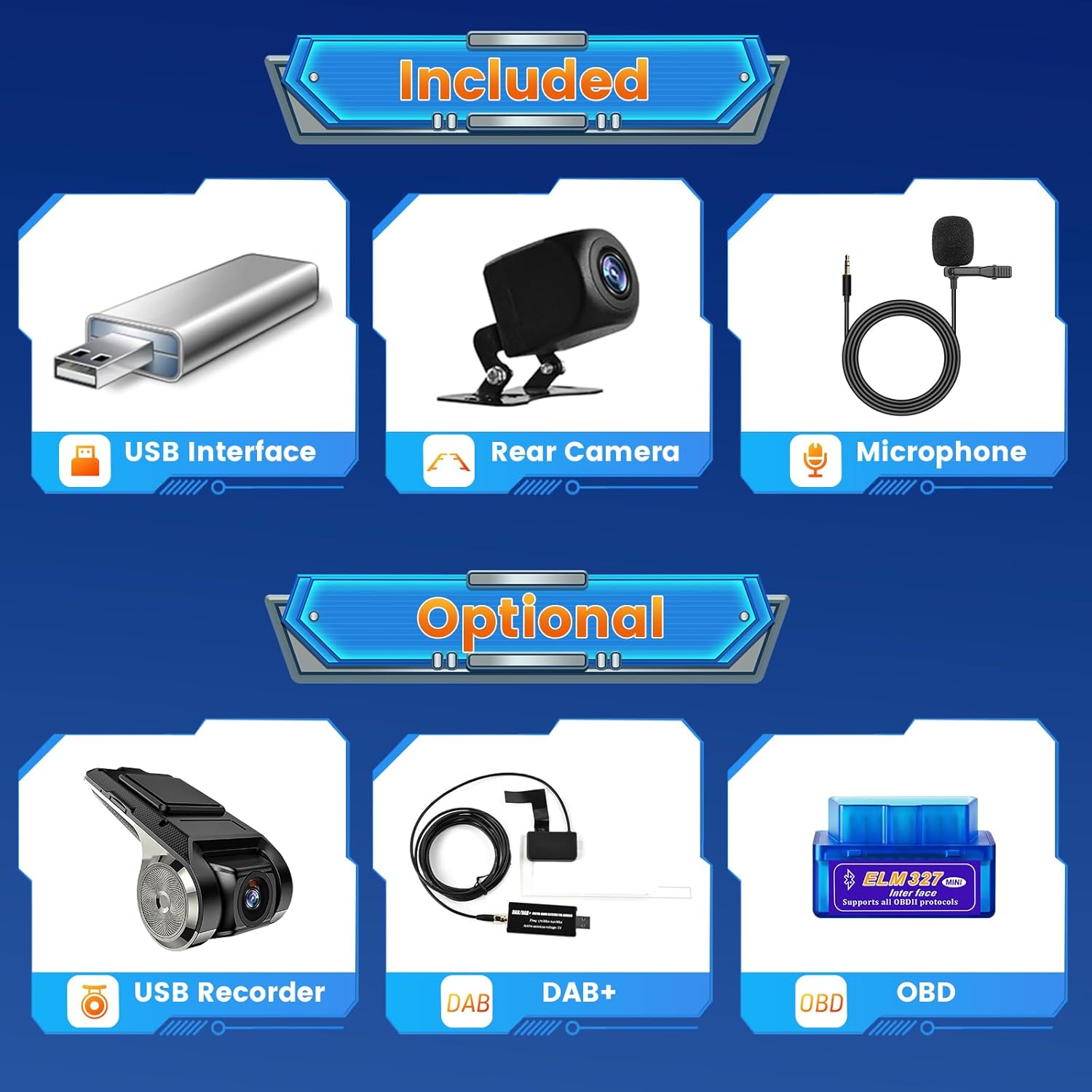
Image: A visual guide to the included and optional components, such as the USB interface, rear camera, and microphone.

Image: A comprehensive display of all items included in the package, including the main unit, cables, camera, microphone, and installation tools.
4. Setup & Installation
4.1 General Installation
The car radio is designed for direct fitment in Fiat Tipo Egea (2015-2020) models. It comes with a specific installation frame and ISO adapters. Professional installation is recommended to ensure correct wiring and functionality.

Image: A side-by-side comparison illustrating the car's dashboard before and after the installation of the 9-inch Inefala Android car radio.

Image: Another view of the car's dashboard before and after the installation of the 9-inch Inefala Android car radio, demonstrating the integrated fit.
4.2 Reversing Camera Installation
The reversing camera is included for enhanced safety. Follow these wiring instructions:
- Connect the camera's positive pole to the positive pole of the car's reversing light power supply.
- Connect the camera's negative pole to the negative pole of the car's reversing light power supply.
- The reversing trigger is controlled by the stereo; therefore, connections 3 and 4 (if present in your specific wiring harness) do not require additional connection for the reversing function.
- Ensure the white plug is connected to the main device to receive Bluetooth and WiFi signals.

Image: A detailed wiring diagram illustrating how to connect the reversing camera to the car radio system.
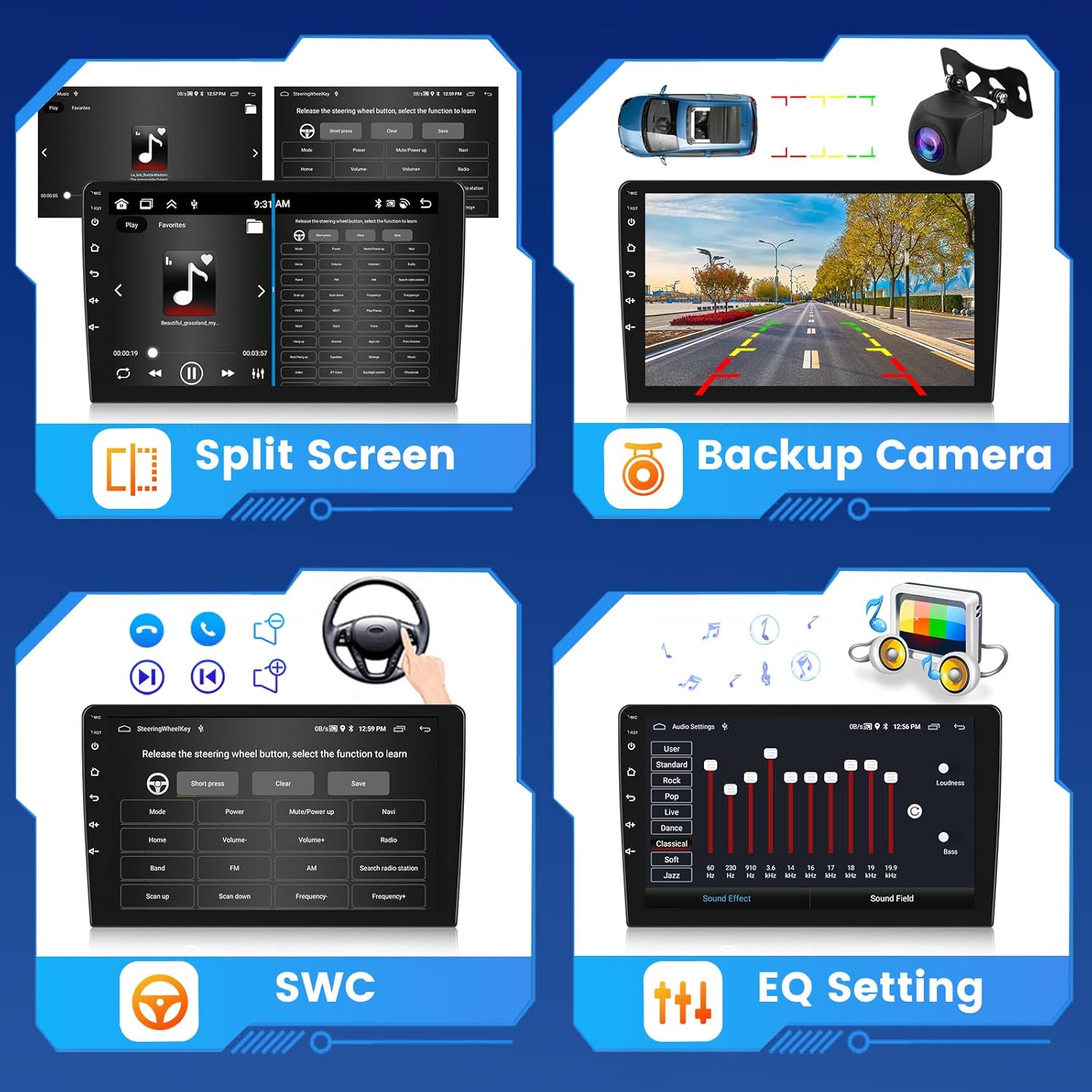
Image: A multi-panel image showing the split-screen function, the backup camera display with guidelines, the steering wheel control learning interface, and the equalizer settings.
4.3 Canbus and Steering Wheel Control (SWC) Setup
Upon connecting the Canbus, it is essential to configure the Canbus settings correctly to enable functionality of your steering wheel controls. Follow these steps:
- Go to Settings.
- Navigate to Factory Setup.
- Enter the password 1234.
- Select Hiworld + your car's year and model under Car settings.
- Proceed to "Steering Learning" under Factory Setting to finalize the steering wheel button learning process.

Image: A screenshot of the car radio's steering wheel control learning interface, with instructions for Canbus setup.
5. Operating Instructions
5.1 CarPlay & Android Auto
Connect your smartphone wirelessly or via USB to access CarPlay or Android Auto. This allows you to use navigation, make calls, send messages, and play music directly from your phone's interface on the car radio screen. Voice commands like "Hey Siri" or "Hello Google" are supported.

Image: Displays of the Apple CarPlay and Android Auto interfaces, demonstrating their appearance and functionality on the car radio screen.

Image: A visual representation of wireless CarPlay and Android Auto connectivity, showcasing popular applications accessible through the system.
5.2 GPS Navigation
The unit features a built-in GPS antenna and supports both online and offline navigation applications. You can download maps for offline use or use online services like Waze or Sygic when connected to WiFi.

Image: The car radio screen displaying built-in WiFi capabilities and options for online and offline map navigation.

Image: A depiction of the GPS navigation interface, highlighting both offline map capabilities and compatibility with online navigation apps.
5.3 WiFi Connectivity
Connect the car stereo to your home WiFi network or use your phone's hotspot to access the internet. This allows you to browse the web, stream content, and download apps directly on the unit.

Image: The car radio screen demonstrating WiFi connectivity and the ability to access various online applications such as YouTube and social media.
5.4 Bluetooth Functions
The built-in Bluetooth 4.0 module allows for hands-free calling and audio streaming. Pair your phone to make and receive calls safely, and play music from your device through the car's speakers.

Image: The car radio displaying the FM RDS radio interface and the hands-free Bluetooth calling screen.

Image: A driver interacting with the car radio, illustrating the use of built-in Bluetooth for phone calls and music playback.
5.5 FM/RDS Radio
Tune into your favorite FM radio stations. The RDS (Radio Data System) feature displays station information, song titles, and artist names where available. You can save up to 30 preset stations.

Image: The car radio displaying the FM/RDS radio interface, along with equalizer settings and a music playback screen.
5.6 Split Screen Display
Utilize the split-screen function to display two applications simultaneously. For example, you can have navigation running on one side and music playback on the other, enhancing multitasking capabilities.

Image: The car radio screen demonstrating the split-screen feature, with navigation on one side and music playback on the other.
5.7 Rear Camera Operation
When the vehicle is shifted into reverse gear, the car radio will automatically display the rearview camera feed, providing a clear view of the area behind your vehicle for safer parking and maneuvering.

Image: The car radio screen displaying the high-definition rearview camera feed with parking guidelines, emphasizing clear digital signal transmission and instant activation.
5.8 Mirror Link
Use the Mirror Link function to duplicate your smartphone's screen onto the car radio display. This allows you to view apps, videos, or photos from your phone on the larger screen.

Image: The car radio screen demonstrating the Mirror Link function, displaying a smartphone's content mirrored on the larger unit.
5.9 Video Output (Optional)
The unit supports video output via RCA cable to connect to external headrest monitors. This allows passengers, especially children, to watch videos during travel.

Image: An illustration of the video output capability, showing a child entertained by cartoons on a rear-seat monitor connected to the car radio.
6. Maintenance
To ensure the longevity and optimal performance of your Inefala Car Radio, follow these maintenance guidelines:
- Cleaning: Use a soft, dry cloth to clean the screen and exterior. Avoid abrasive cleaners or solvents.
- Software Updates: Periodically check for software updates through the system settings or the manufacturer's website to ensure you have the latest features and bug fixes.
- Temperature: Avoid exposing the unit to extreme temperatures, both hot and cold, for extended periods.
7. Troubleshooting
If you encounter any issues with your car radio, please refer to the following basic troubleshooting steps:
- No Power: Check all power connections and fuses. Ensure the car's ignition is on.
- No Sound: Verify speaker connections, check volume levels, and ensure the mute function is not activated.
- Touchscreen Unresponsive: Try restarting the unit. If the issue persists, a factory reset might be necessary (note: this will erase personal settings).
- GPS Not Working: Ensure the GPS antenna is properly connected and has a clear view of the sky. Check GPS settings in the system.
- Bluetooth/WiFi Connection Issues: Ensure the white plug for signals is correctly connected to the main device. Restart the unit and your phone, then try pairing again.
- Steering Wheel Controls Not Working: Re-verify the Canbus connection and perform the "Steering Learning" process as described in Section 4.3.
For persistent issues, please contact customer support.
8. Specifications
| Feature | Specification |
|---|---|
| Brand | Inefala |
| Model Name | 2G+64G Android 15 |
| Product Dimensions | 23.5 x 14 x 4 cm |
| Item Weight | 10 g |
| Memory Capacity | 64 GB |
| Operating System | Android |
| Compatible Devices | Smartphone |
| Additional Features | Android Auto, CarPlay, Equalizer, Rear Camera Input, GPS Navigation |
| Number of Items | 1 |
| Screen Size | 9 Inches |
| Display Type | LED |
| Color Screen | Yes |
| Resolution | 1080p Full HD |
| Audio Output Mode | Stereo |
| Wattage | 45 watts |
| Speaker Output Channels | 4 |
| Total USB Ports | 2 |
| Connectivity Type | Wireless/Bluetooth/USB |
| Human Interface Input | Microphone, Touchscreen |
| Installation Type | On-dash |
9. Warranty & Support
Inefala provides a 24-month quality guarantee from the date of purchase. We are committed to resolving any quality issues you may encounter.
Customer Support
For technical assistance, questions, or concerns, please do not hesitate to contact us directly via email:
We guarantee that 100% of your concerns can be resolved by contacting us.

Image: Information on how to obtain 24/7 technical assistance, including the seller's email address for support.

Image: A visual guide outlining the steps to contact the seller for support, emphasizing email communication.