
Inefala 8 Core/4G+64G Android 13 Autoradio 2 Din
Contents
Inefala 8 Core/4G+64G Android 13 Car Stereo User Manual
Model: 8 Core/4G+64G Android 13 Autoradio 2 Din
Brand: Inefala
1. Introduction
This manual provides detailed instructions for the installation, operation, and maintenance of your Inefala 8 Core/4G+64G Android 13 Car Stereo. Please read this manual thoroughly before using the product to ensure proper and safe operation.
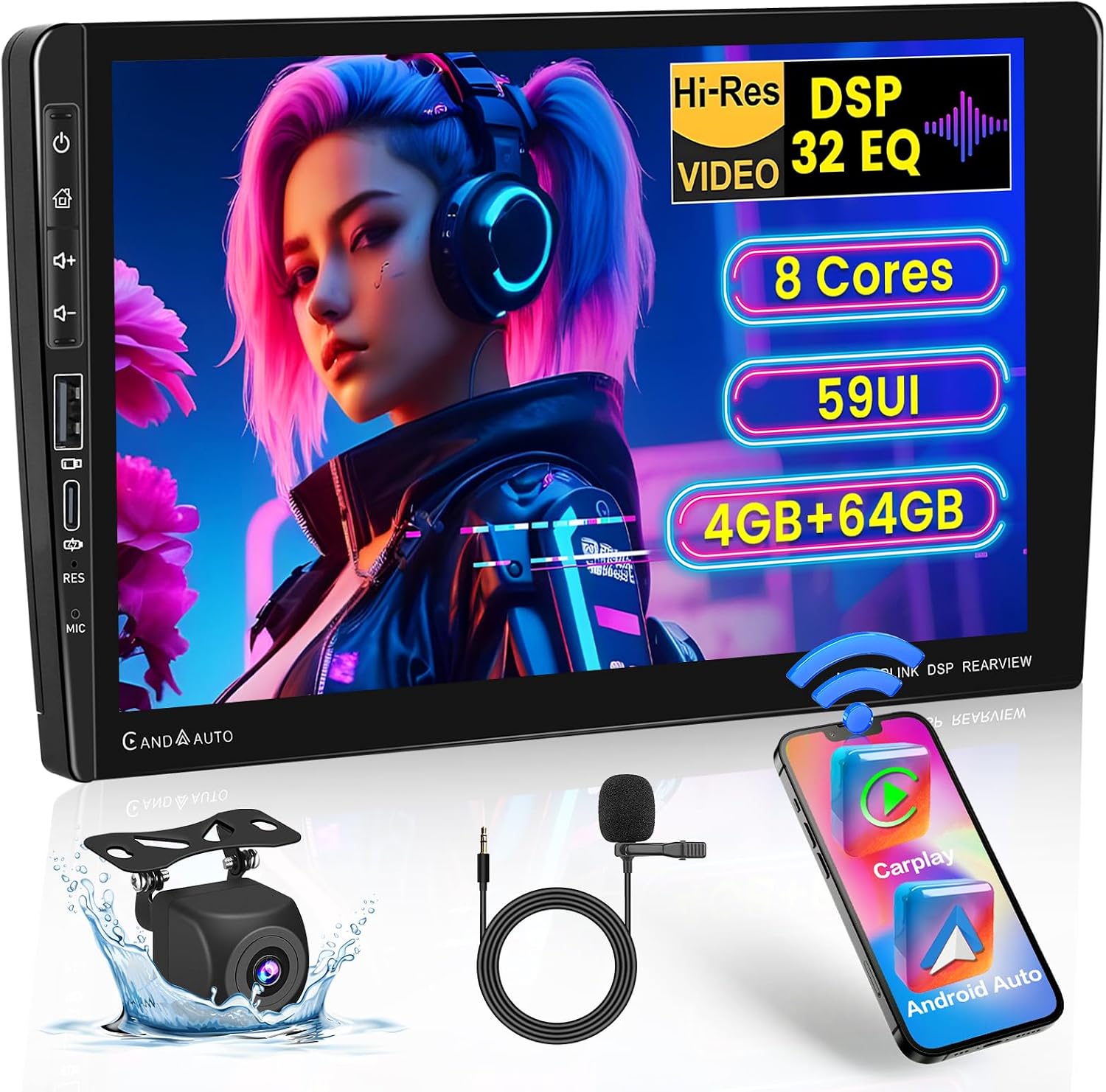
Figure 1.1: Inefala 9-inch Android 13 Car Stereo with included reversing camera, external microphone, and a smartphone demonstrating wireless connectivity.

Figure 1.2: Overview of the powerful processor featuring Android 13, 8 Cores, 4GB RAM, and 64GB ROM.
2. Package Contents
Verify that all items are present in the package before proceeding with installation:
- Inefala 9-inch Android 13 Car Stereo Unit
- Power Cable
- Horn Cable
- External Microphone (MIC)
- Remote Control
- 12LED Rear Camera (AHD Reversing Camera)
- User Manual (this document)

Figure 2.1: Product dimensions and a visual representation of the package contents.
3. Setup and Installation
Professional installation is recommended. Ensure the vehicle's power is disconnected before beginning installation.
3.1 Pre-Installation Check
Before installing the new unit, compare the existing car stereo setup with the new unit's dimensions and wiring requirements. Some vehicles may require additional adapters for power, antenna, or steering wheel controls.

Figure 3.1: Visual comparison of a car's dashboard before and after the installation of the Inefala car stereo.
3.2 Wiring Connections
Carefully follow the wiring diagrams provided. Incorrect wiring can damage the unit or the vehicle's electrical system.
- Power Cable: Connect the main power harness to your vehicle's wiring. Ensure correct connections for GND (Ground), +12V Ignition Switch, B+(+12V), and Small Light Controller (ILL).
- Horn Cable: Connect the speaker wires according to the diagram for Front Right, Front Left, Rear Right, and Rear Left speakers.
- Steering Wheel Control (SWC): Connect the SWC wires if your vehicle supports steering wheel controls.
- Brake Control Line: Connect for safety features (e.g., video playback restriction while driving).
- Reversing Control Line: Essential for automatic camera display when reversing.
- Audio/Video Outputs: V-OUT1, V-OUT2, L-OUT, R-OUT for external displays or amplifiers.
- Camera Input (CAMIN): For the included rear camera.
- Antenna: Connect your vehicle's radio antenna.
- USB Ports: For data transfer and charging.

Figure 3.2: Rear view of the car stereo unit with labeled wiring ports and corresponding wire color codes for power and horn cables.
3.3 Rear Camera Installation
The included AHD rear camera provides a 170° viewing angle and night vision. Connect it as follows:
- Mount the rear camera securely at the back of your vehicle.
- Connect the camera's power wire (red) to the reversing lamp's positive wire.
- Connect the camera's ground wire (black) to a suitable ground point.
- Run the video signal cable (RCA) from the camera to the "CAMIN" input on the car stereo unit.

Figure 3.3: Wiring diagram for connecting the backup camera to the car stereo system.
4. Operating Instructions
4.1 Basic Operation
- Power On/Off: Press the power button on the unit or remote control.
- Volume Control: Use the rotary knob or touch screen controls to adjust volume.
- Touch Screen: The 9-inch capacitive touch screen responds to taps, swipes, and pinches.
- User Interface: Choose from 59 different UI themes to personalize your experience.
4.2 Wireless Apple CarPlay & Android Auto
Connect your smartphone wirelessly or via USB for seamless integration. Access navigation, music, messages, and more directly from the car stereo display.
- Wireless Connection: Enable Bluetooth and Wi-Fi on your smartphone and pair with the car stereo. Follow on-screen prompts to activate CarPlay or Android Auto.
- Wired Connection: Connect your smartphone to the unit's USB-A or USB-C port using a compatible cable.
- Supported Apps: Enjoy apps like WhatsApp, Google Maps, Telegram, Spotify, YouTube, and more.
- Voice Control: Use Siri (for Apple CarPlay) or Google Assistant (for Android Auto) for hands-free control of functions.

Figure 4.1: Wireless Apple CarPlay and Android Auto functionality, showing compatible apps and connection methods.

Figure 4.2: Bluetooth 5.0 and Voice Control features, enabling hands-free operation and music streaming.
4.3 GPS Navigation & WiFi Connectivity
The unit supports both online and offline navigation. Connect to Wi-Fi for real-time traffic updates and access to online content.
- GPS: Utilize pre-installed maps or download your preferred navigation apps.
- WiFi: Connect to a Wi-Fi network or mobile hotspot to browse the web, stream videos, and download applications.

Figure 4.3: GPS Navigation and WiFi Connection capabilities, showing map interface and popular app icons.
4.4 Audio Features (DSP & FM/RDS)
Experience enhanced audio quality with the built-in Digital Signal Processor (DSP) and enjoy a wide range of radio stations.
- DSP 32EQ: Fine-tune your audio with the 32-band equalizer for precise sound customization.
- Bluetooth 5.0: Ensures faster data transmission for high-quality audio streaming and stable hands-free calls.
- FM/RDS Radio: Access FM radio stations with RDS (Radio Data System) for station information.

Figure 4.4: DSP 32 Band equalizer interface for advanced audio tuning.

Figure 4.5: Multi-Band EQ Mode for customizing sound output.

Figure 4.6: FM/RDS Radio interface for tuning and managing radio stations.
4.5 Split Screen Functionality
Multitask efficiently by running two applications simultaneously on the 9-inch display. For example, use navigation while listening to music or browsing the web.

Figure 4.7: Three Split Screen Functionality, allowing simultaneous use of multiple applications.
4.6 Mirror Link (Android/iOS)
Mirror your smartphone's screen directly onto the car stereo display for a larger view of your phone's content.

Figure 4.8: Mirror Link feature for Android and iOS devices.
4.7 Steering Wheel Control
Integrate with your vehicle's steering wheel controls for convenient and safe operation of the car stereo without taking your hands off the wheel.

Figure 4.9: Steering Wheel Control setup interface.
4.8 Rear Camera Functionality
The included AHD rear camera automatically displays the rear view when the vehicle is in reverse gear, enhancing safety during parking and maneuvering.
- High Definition: Provides clear video feed.
- Night Vision: Improved visibility in low-light conditions.
- 170° Viewing Angle: Wide field of view to minimize blind spots.
- Waterproof: Designed to withstand various weather conditions.

Figure 4.10: Dash Cam and Rear Camera features.
5. Maintenance
To ensure the longevity and optimal performance of your car stereo, follow these maintenance guidelines:
- Cleaning: Use a soft, dry cloth to clean the screen and unit. For stubborn smudges, slightly dampen the cloth with water or a screen-safe cleaner. Avoid abrasive materials or harsh chemicals.
- Software Updates: Periodically check for software updates to ensure the system runs smoothly and has the latest features and security patches. Updates can typically be found via the unit's settings menu when connected to Wi-Fi.
- Environmental Conditions: Avoid exposing the unit to extreme temperatures, direct sunlight for prolonged periods, or excessive moisture.
6. Troubleshooting
If you encounter issues with your Inefala car stereo, refer to the following common problems and solutions:
| Problem | Possible Cause | Solution |
|---|---|---|
| Unit does not power on. | No power connection; Blown fuse; Incorrect wiring. | Check power cable connections. Verify vehicle's fuse box and the unit's fuse. Ensure correct wiring as per Section 3.2. |
| No sound from speakers. | Speaker wires disconnected; Volume too low; Mute activated; Incorrect audio settings. | Check horn cable connections. Increase volume. Deactivate mute. Adjust DSP/EQ settings. |
| CarPlay/Android Auto not connecting. | Bluetooth/Wi-Fi off; Incorrect pairing; USB cable issue; Software glitch. | Ensure Bluetooth and Wi-Fi are enabled on both devices. Re-pair devices. Try a different USB cable. Restart the unit and phone. |
| GPS signal weak or inaccurate. | Antenna not properly connected; Obstruction; Outdated maps. | Check GPS antenna connection. Move to an open area. Update navigation maps. |
| Apps load slowly or freeze. | Too many apps running; Low storage; Software issue. | Close background apps. Clear cache/data for problematic apps. Free up storage. Perform a system restart. |
| Rear camera not displaying. | Camera power issue; Video cable disconnected; Reversing control line not connected. | Check camera power and video cable connections. Ensure the reversing control line is correctly wired to the reversing lamp. |
If the problem persists, please contact Inefala customer support for assistance.
7. Specifications
| Feature | Detail |
|---|---|
| Brand | Inefala |
| Operating System | Android 13 |
| Processor | 8 Core |
| RAM | 4GB |
| ROM | 64GB |
| Display Size | 9 inches |
| Compatible Devices | Smartphone |
| Audio Output Mode | Stereo |
| Surround Sound Channel Configuration | 2.0 |
| Power (RMS) | 45 Watts |
| Number of Channels | 2 |
| Output Power (Max) | 180 Watts |
| Audio Output Type | Bluetooth, Speaker |
| Bluetooth Version | 5.0 |
| Rear Camera | AHD, 170° angle, Night Vision, Waterproof |
8. Warranty and Support
Inefala is committed to providing high-quality products and excellent customer service.
- Quality Assurance: Enjoy a 24-month quality assurance period from the date of purchase.
- Free Return: Benefit from a 30-day free return policy.
- Customer Support: Our support team aims to provide an online reply within 24 hours for any inquiries or issues.

Figure 8.1: Inefala's commitment to quality assurance and customer support.

Figure 8.2: Inefala's dedication to quality manufacturing.

Figure 8.3: Inefala's responsive customer support team.
For support, please visit the official Inefala website or contact us through your purchase platform.
Ask a question about this manual
Ask about setup, troubleshooting, compatibility, parts, safety, or missing instructions. Manuals+ will review the question and use this page’s manual context to help answer it.