
UGREEN 45355
Contents
UGREEN Magnetic Phone Desk Mount for Bed (Model 45355)
Instruction Manual
Introduction
This manual provides detailed instructions for the safe and effective use of your UGREEN Magnetic Phone Desk Mount for Bed, Model 45355. Please read this manual thoroughly before installation and operation to ensure optimal performance and longevity of the product. Keep this manual for future reference.
Safety Information
- Ensure the clamp is securely fastened to a stable surface before attaching your device.
- Do not overload the mount beyond its maximum weight capacity of 4.85 lbs (2.2 kg).
- Avoid placing the mount in locations where it could obstruct pathways or create a tripping hazard.
- Keep the magnetic head away from sensitive electronic devices that may be affected by magnetic fields.
- Do not attempt to disassemble or modify the product, as this may void the warranty and pose a safety risk.
- Keep out of reach of children.
Package Contents
Verify that all items are present in the package:
- UGREEN Magnetic Phone Desk Mount (Main Arm Assembly)
- Desk Clamp
- Magnetic Phone Holder Head
- Metal Ring (for non-MagSafe devices)
- Instruction Manual (this document)
Setup Instructions
Follow these steps to assemble and install your UGREEN Magnetic Phone Desk Mount:
1. Attach the Desk Clamp
- Choose a stable surface such as a desk, headboard, or table edge. The clamp can accommodate surfaces up to 2.83 inches (7.2 cm) thick.
- Unscrew the clamp knob until the opening is wide enough to fit over your chosen surface.
- Position the clamp and tighten the knob firmly until it is secure. Ensure the clamp is stable and does not wobble. The protective silicone pads on the clamp prevent damage to your furniture.

Image: The UGREEN Magnetic Phone Desk Mount securely clamped to a desk, ready for use.

Image: Visual guide demonstrating how to attach the clamp to a surface, highlighting the maximum compatible thickness of 2.83 inches.
2. Insert the Main Arm Assembly
- Insert the base of the main arm assembly into the opening on the top of the tightened desk clamp.
- Tighten the screw on the side of the clamp to secure the arm in place. The arm should be able to rotate 360 degrees at the base.
3. Attach the Magnetic Phone Holder Head
- Locate the magnetic phone holder head. It features a ball joint for flexible positioning.
- Attach the magnetic phone holder head to the end of the main arm assembly. Ensure it is firmly screwed or clicked into place, depending on the design.
4. Prepare Your Device (for non-MagSafe phones)
If your phone is an iPhone 12 series or newer, or uses a MagSafe-compatible case, you can directly attach it to the magnetic holder. For older iPhone models (e.g., iPhone 11 and earlier) or Android phones, use the included metal ring:
- Clean the back surface of your phone or phone case thoroughly.
- Peel off the adhesive backing from the metal ring.
- Carefully center and press the metal ring onto the back of your phone or case. Apply firm pressure for a few seconds to ensure strong adhesion.

Image: Illustration of how MagSafe-compatible iPhones attach directly, and how to use the adhesive metal ring for other smartphone models.
Operating Instructions
1. Attaching Your Phone
- Align the back of your MagSafe-compatible phone (or phone with the attached metal ring) with the magnetic phone holder head.
- The strong N52 magnets will securely hold your device in place.

Image: A smartphone being attached to the magnetic holder, demonstrating the strong 25N magnetic connection.

Image: Visual representation of the secure magnetic attachment, emphasizing that the phone will "Never Fall Off" due to strong magnetic force.
2. Adjusting the Arm and Viewing Angle
- The mount features two adjustable arms that can rotate 180 degrees at their joints.
- The magnetic holder head can rotate 360 degrees and tilt to achieve the desired viewing angle.
- Carefully position the arms and head to achieve your preferred height and angle for hands-free viewing.

Image: A diagram showing the flexible and adjustable arm, highlighting 180-degree rotation at the joints and 360-degree rotation at the base and magnetic head.
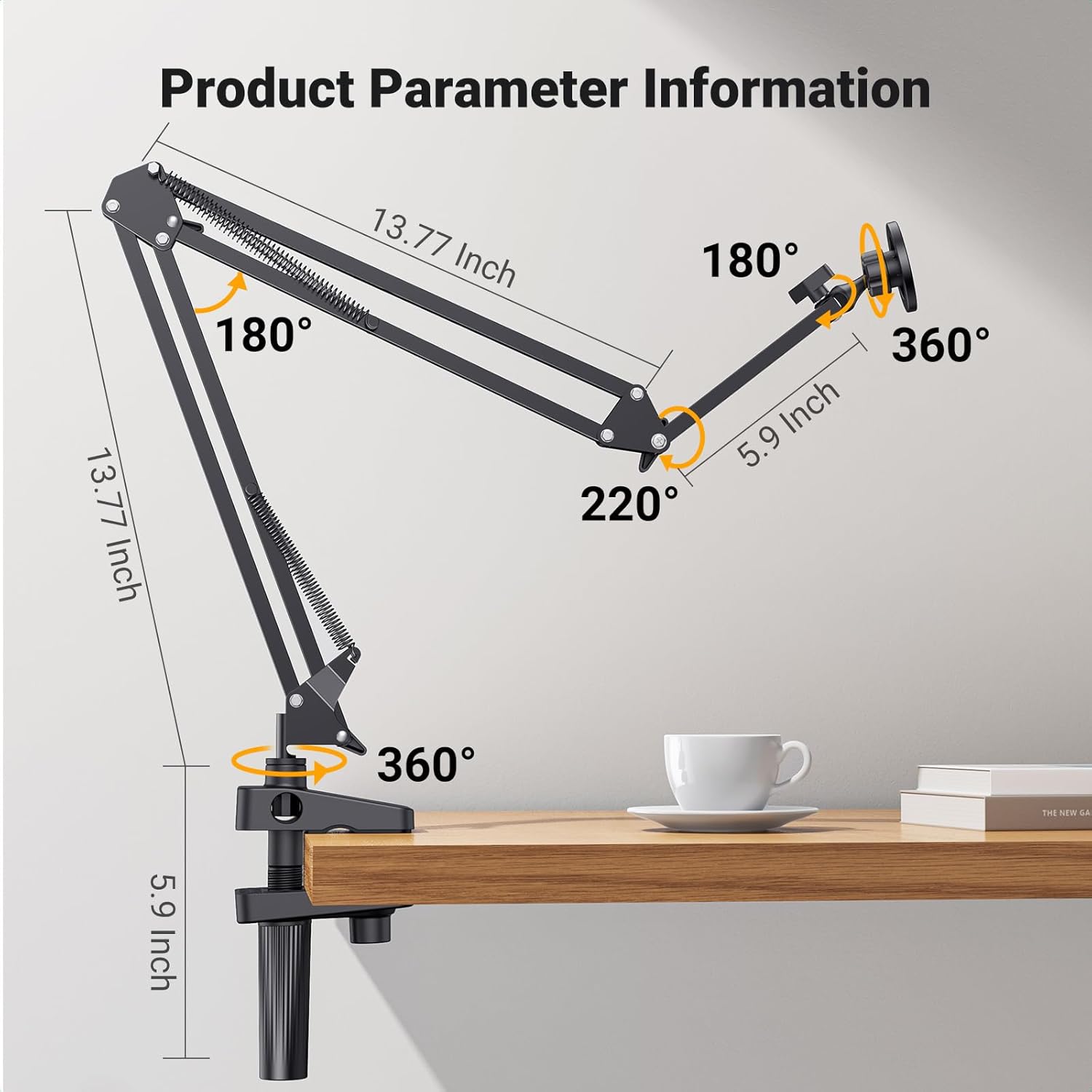
Image: Detailed product parameter information, including arm lengths (13.77 inches each) and various articulation angles (180°, 220°, 360°).

Image: A person comfortably watching videos hands-free, with the phone mounted on a side table.

Image: A person relaxing in bed, using the phone mount for video calls or content consumption.
Maintenance
- Cleaning: Wipe the mount with a soft, dry cloth. For stubborn dirt, a slightly damp cloth can be used, followed by immediate drying. Avoid abrasive cleaners or solvents.
- Inspection: Periodically check all screws and joints to ensure they remain tight. Re-tighten if necessary.
- Storage: When not in use for extended periods, store the mount in a clean, dry place away from direct sunlight and extreme temperatures.
Troubleshooting
| Problem | Possible Cause | Solution |
|---|---|---|
| Phone does not attach securely to the magnetic holder. |
|
|
| Mount wobbles or feels unstable. |
|
|
| Arm joints are loose and do not hold position. | Normal wear or adjustment needed. | Tighten the screws at the arm joints if they become loose over time. |

Image: A visual comparison highlighting the UGREEN mount's stability during touch interaction compared to a wobbly alternative.
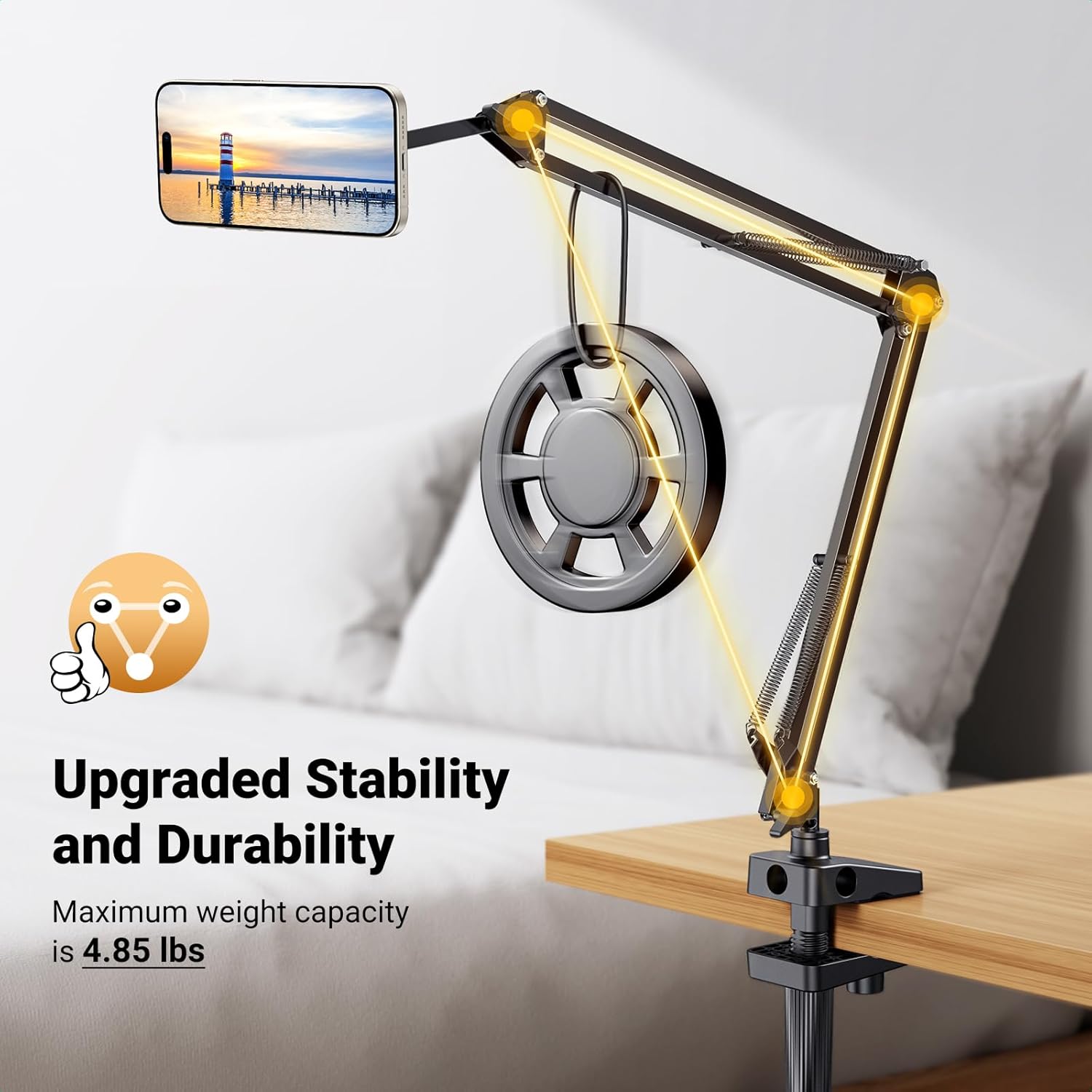
Image: The mount demonstrating its upgraded stability and durability by securely holding a weight, indicating a maximum capacity of 4.85 lbs.
Specifications
| Brand | UGREEN |
| Model Number | 45355 |
| Mounting Type | Tabletop / Clamp |
| Compatible Devices | iPhones and other smartphones (MagSafe compatible or with included metal ring) |
| Max Clamp Thickness | 2.83 inches (7.2 cm) |
| Max Weight Capacity | 4.85 lbs (2.2 kg) |
| Arm Length (each segment) | 13.77 inches (35 cm) |
| Magnetic Force | 25N (N52 Magnets) |
| Item Weight | 1.87 pounds (0.85 kg) |
| Package Dimensions | 15.86 x 6.81 x 2.83 inches |
Warranty and Support
UGREEN products are designed and manufactured to the highest quality standards. This product comes with a standard manufacturer's warranty. For specific warranty terms, technical support, or customer service inquiries, please refer to the warranty card included with your product or visit the official UGREEN website.
UGREEN Official Website: www.ugreen.com
Ask a question about this manual
Ask about setup, troubleshooting, compatibility, parts, safety, or missing instructions. Manuals+ will review the question and use this page’s manual context to help answer it.