1. Introduction
Thank you for choosing the aosu 4MP Indoor Security Camera. This manual provides essential information for the safe and efficient use of your device. This camera offers 2.5K QHD resolution, 360° pan and 155° tilt for comprehensive coverage, dual-band Wi-Fi support (5GHz/2.4GHz), two-way audio with one-touch call functionality, and smart motion tracking. It is ideal for home security, baby monitoring, and pet surveillance.

Image: Overview of aosu 4MP Indoor Camera features.
2. Package Contents
- aosu 4MP Indoor Security Camera
- USB Power Cable
- Power Adapter
- Mounting Accessories (Screws, Wall Mount Plate)
- Quick Start Guide
3. Setup Guide
3.1 App Installation
- Download the aosu app from your smartphone's app store (Google Play Store for Android or Apple App Store for iOS).
- Create an account or log in if you already have one.
3.2 Camera Connection
- Connect the camera to a power source using the provided USB cable and power adapter. The camera will power on and indicate readiness for setup.
- Open the aosu app and follow the on-screen instructions to add your new device.
- Ensure your Wi-Fi network is 5GHz or 2.4GHz compatible for a hassle-free connection. The camera supports both frequencies.
- Scan the QR code displayed in the app with your camera lens when prompted.
- Once connected, you can name your camera and begin using its features.

Image: The camera supports both 2.4GHz and 5GHz Wi-Fi for flexible connectivity.
Video: An official overview of the aosu indoor security camera, demonstrating its features and ease of use.
4. Operating Instructions
4.1 Live View and Control (360° Pan/Tilt)
Access the live feed from your camera through the aosu app. Use the on-screen controls to pan (360° horizontal rotation) and tilt (155° vertical tilt) the camera lens, allowing you to view any corner of your room. You can also zoom in for more detail.

Image: The camera offers a 360° horizontal view and 155° vertical tilt for full room coverage.
4.2 One-Touch Call
The camera features a physical button that, when pressed, initiates a call to your connected smartphone. This is ideal for children or elderly family members to quickly get in touch with you.
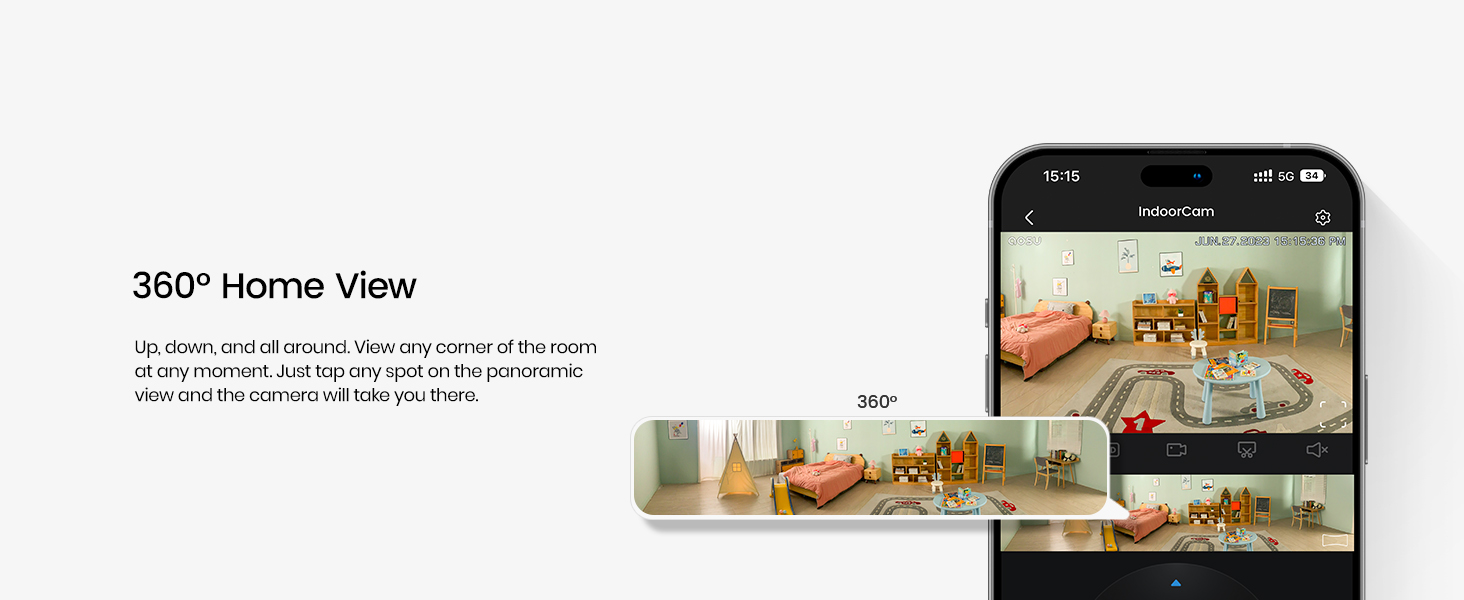
Image: The one-touch call feature allows instant communication from the camera to your phone.
4.3 Two-Way Audio
Utilize the built-in microphone and speaker for two-way communication. Speak through your smartphone app to the camera, and hear responses from the camera's location.

Image: Engage in real-time two-way communication through the camera and your smartphone.
4.4 Smart Motion Tracking
Enable smart tracking in the app to have the camera automatically follow detected motion, such as people or pets, ensuring no important activity is missed.
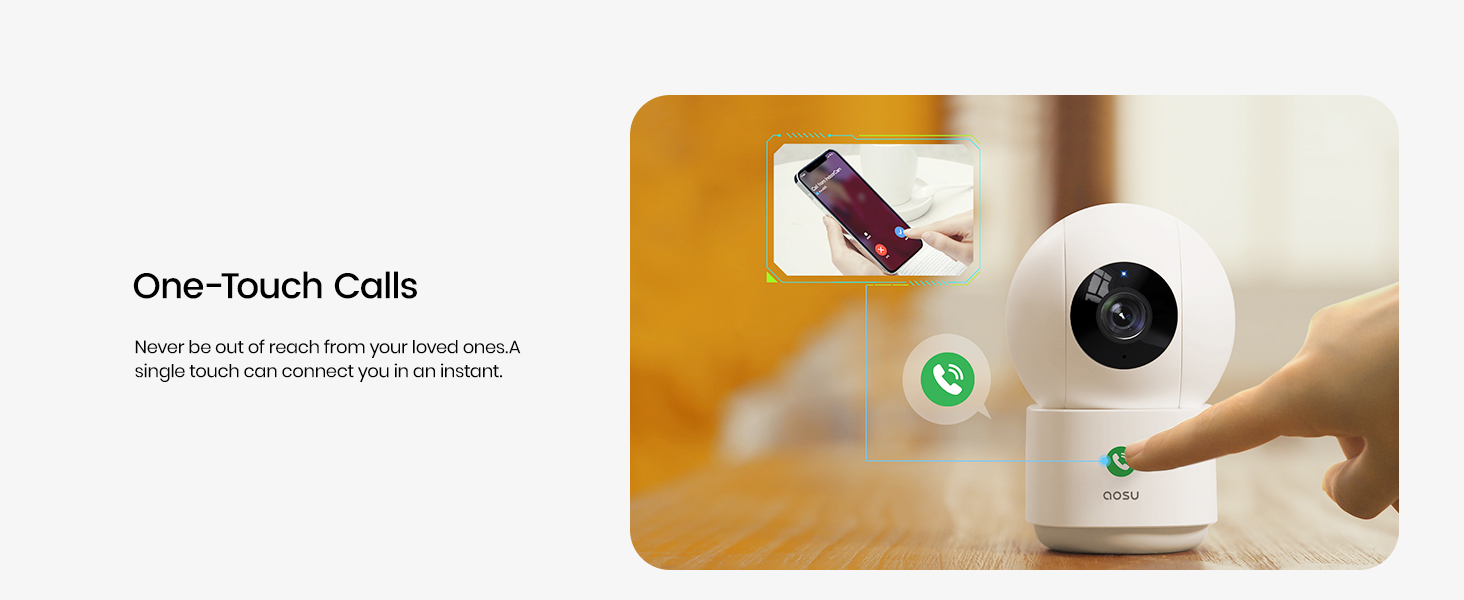
Image: The camera's smart motion tracking feature follows movement within its field of view.
4.5 Night Vision
The camera is equipped with clear night vision capabilities, allowing for monitoring in low-light or dark conditions.
4.6 Privacy Mode
Activate Privacy Mode via the aosu app. In this mode, the camera lens will rotate downwards, physically hiding itself to ensure your privacy when monitoring is not required.
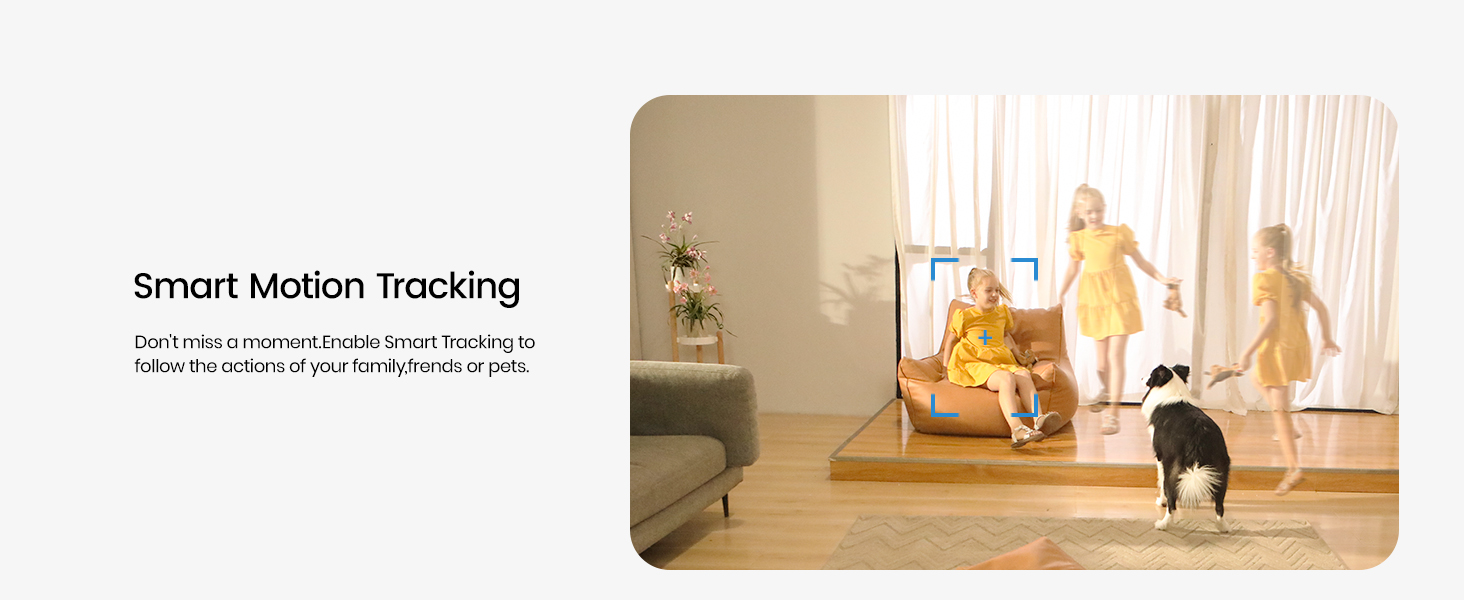
Image: Privacy Mode allows the camera to physically hide its lens when not in use.
4.7 Storage Options
The camera supports both local storage via a MicroSD card (not included) and cloud storage options (subscription may be required). This allows for flexible recording and playback of events.

Image: Choose between local MicroSD card storage or cloud storage for your recordings.
4.8 Smart Home Integration
The aosu camera is compatible with Amazon Alexa and Google Assistant. Integrate it into your smart home ecosystem to view live feeds on compatible smart displays or receive voice-activated commands.

Image: Seamlessly integrate your camera with Amazon Alexa and Google Assistant.
5. Maintenance
- Cleaning: Gently wipe the camera lens and body with a soft, dry cloth. Avoid using harsh chemicals or abrasive materials.
- Firmware Updates: Regularly check the aosu app for available firmware updates to ensure optimal performance and security.
- Placement: Ensure the camera is placed in a stable location, away from direct sunlight, heat sources, and moisture.
6. Troubleshooting
- Connectivity Issues: If the camera loses connection, ensure your Wi-Fi router is functioning correctly and the camera is within range. Try restarting both the camera and your router.
- App Not Responding: Close and reopen the aosu app. If the issue persists, reinstall the app.
- Poor Video Quality: Check your internet connection speed. Ensure the camera lens is clean and free from obstructions. Adjust video quality settings in the app if necessary.
- Motion Detection Not Working: Verify that motion detection is enabled in the app settings and that the detection zone is correctly configured.
7. Specifications
| Feature | Detail |
|---|---|
| Brand | aosu |
| Model Name | C2P2BH11 |
| Connectivity Technology | Wireless (Wi-Fi, Bluetooth) |
| Special Features | 2-Way Audio, Local Recording, Motion Sensor, Night Vision, One-Touch Call |
| Indoor/Outdoor Usage | Indoor |
| Compatible Devices | Smartphone (Amazon Alexa, Google Assistant) |
| Effective Still Resolution | 4 MP |
| Video Capture Resolution | 1920p (2.5K QHD) |
| Frame Rate | 25 frames per second |
| Viewing Angle | 360 Degrees (Pan), 155 Degrees (Tilt) |
| Optical Zoom | 6x |
| Power Source | Corded Electric |
| Item Dimensions | 3 x 3 x 5 inches |
| Item Weight | 0.74 Kilograms |
8. Warranty and Support
For warranty information, please refer to the documentation included with your product or visit the official aosu website. For technical support or further assistance, please contact aosu customer service.
Manufacturer: AOSU
Return Policy: 30-day refund/replacement policy may apply (check retailer for details).
AOSU Official Store: Visit Store


