
Cawevon HY300 Pro Projector
Cawevon HY300 Pro 4K Mini Projector User Manual
Model: HY300 Pro Projector
1. Introduction
This manual provides detailed instructions for the setup, operation, and maintenance of your Cawevon HY300 Pro 4K Mini Projector. Please read this manual thoroughly before using the product to ensure proper functionality and to prevent damage.
2. Product Overview
2.1 Key Features
- Portable Design: Compact size (17 x 10 cm) and lightweight (500 grams) for easy transport.
- Android 11 Operating System: Integrated smart projector for direct access to streaming apps without an external TV box.
- Dual-Band Wi-Fi 6 & Bluetooth 5.0: Ensures fast wireless synchronization and stable connections to audio devices.
- Automatic Keystone Correction: Built-in high-precision sensor for real-time movement detection and automatic vertical image correction. Manual focus is required.
- 180-Degree Rotatable Projection: Flexible projection angle allows display on walls, floors, or ceilings.
- Large Screen Projection: Supports up to a 130-inch display from an optimal distance of 1.68 meters.
- Integrated HiFi Speakers: 5W stereo speakers provide clear and powerful audio.
- Low Noise Operation: Operates at less than 25 dB for a quiet viewing experience.
2.2 Package Contents
- 1 x Cawevon HY300 Pro Projector
- 1 x Remote Control
- 1 x User Manual
- 1 x Data Cable
3. Setup
3.1 Initial Placement
Place the projector on a stable, flat surface. Ensure there is adequate ventilation around the device. The 180-degree rotatable design allows for flexible positioning to project onto various surfaces like walls, ceilings, or floors.

Image: The HY300 Pro projector positioned in a bedroom, demonstrating its 180-degree rotation capability to project an image onto the ceiling.
3.2 Power Connection
- Connect the provided data cable to the projector's power input.
- Plug the other end of the data cable into a suitable power outlet.
- Press the power button on the projector or remote control to turn on the device.
3.3 Focus and Keystone Correction
- Manual Focus: After powering on, adjust the manual focus ring on the projector lens until the image appears sharp and clear.
- Automatic Keystone Correction: The projector features automatic vertical keystone correction. It will automatically adjust the image vertically to achieve a rectangular shape. Horizontal adjustments are not automatic and may require repositioning the projector.

Image: An illustration of the automatic keystone correction feature, where a distorted projected image is automatically squared on a wall.
4. Operating Instructions
4.1 Wired Screen Mirroring (iOS Devices)
- Connect your iPhone to the projector using an original iPhone charging cable (USB to Lightning).
- When a pop-up window appears on your iPhone, tap "Trust".
- Enter your device's password if prompted.
- The iPhone screen will now be mirrored on the projector.
4.2 Wireless Screen Mirroring
Ensure your mobile device (Android/iOS) or tablet is connected to the same Wi-Fi network as the projector.
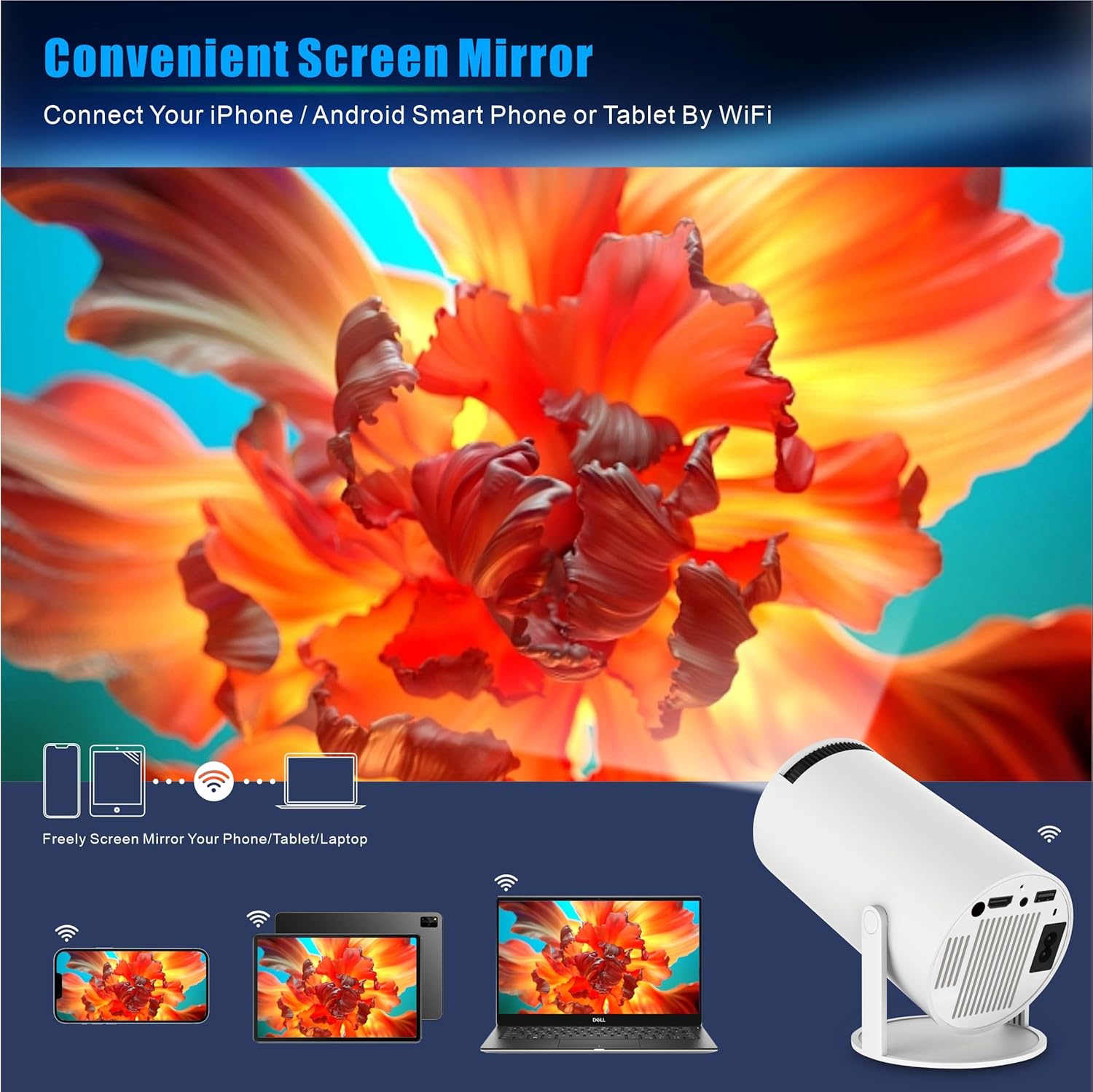
Image: The projector wirelessly mirroring content from various devices including a smartphone, tablet, and laptop, highlighting its Wi-Fi connectivity.
4.2.1 Android/Tablet Wireless Screen Mirroring
- Open the settings menu on your Android mobile or tablet.
- Navigate to your display settings or screen mirroring option.
- Select the projector's device name (e.g., "HY300 Pro").
4.2.2 DLNA (Digital Living Network Alliance)
For DLNA, ensure your phone/tablet is on the same network as the projector.
- Open a video playback application on your device.
- Look for the "TV" icon (cast icon) and select it.
- Choose the projector's device name from the list.
4.2.3 iOS Cast (AirPlay/Screen Mirroring)
- On your iOS phone, open Wi-Fi settings and connect to the projector's Wi-Fi network.
- Enter the Wi-Fi password on your phone if prompted.
- Open the Control Center on your iOS device and tap "Screen Mirroring" or "AirPlay".
- Select the projector from the available devices.
4.3 Using Android 11 Features
The HY300 Pro projector runs on Android 11, allowing you to directly access and install applications from the app store (e.g., Netflix, YouTube, Prime Video). Navigate the interface using the remote control.

Image: The HY300 Pro projector displaying a variety of streaming application logos, illustrating its integrated Android smart features.
5. Specifications
| Feature | Detail |
|---|---|
| Brand | Cawevon |
| Model Number | HY300 Pro Projector |
| Color | White |
| Product Type | Portable Projector |
| Operating System | Android 11 |
| Connectivity Technology | USB, Wi-Fi 6 (Dual-Band 5G), Bluetooth 5.0 |
| Display Resolution | Native 1280x720P, Supports 4K Decoding |
| Maximum Display Resolution | 3840 x 2160 (4K) |
| Display Type | LCD |
| Brightness | 160 ANSI Lumens |
| Projection Screen Size | Up to 130 inches |
| Optimal Projection Distance | 1.68 meters for 130 inches |
| Product Dimensions | 17L x 17H centimeters |
| Weight | 500 grams (net) |
| Internal Storage | 1GB RAM + 8GB ROM |
| Audio | Integrated 5W Stereo HiFi Speakers |
| Noise Level | Less than 25 dB |
| Special Features | Short throw, Built-in speaker, Auto focus (manual focus required after startup), Portable, Built-in Wi-Fi, 180-degree rotation, Automatic vertical keystone correction. |
| Compatible Devices | iOS smartphones, Android smartphones, media players with DLNA, USB devices, Bluetooth audio equipment. |

Image: A visual summary of the HY300 Pro's main specifications and features, including 4K support, Wi-Fi 6, Bluetooth 5.0, and 180-degree projection.
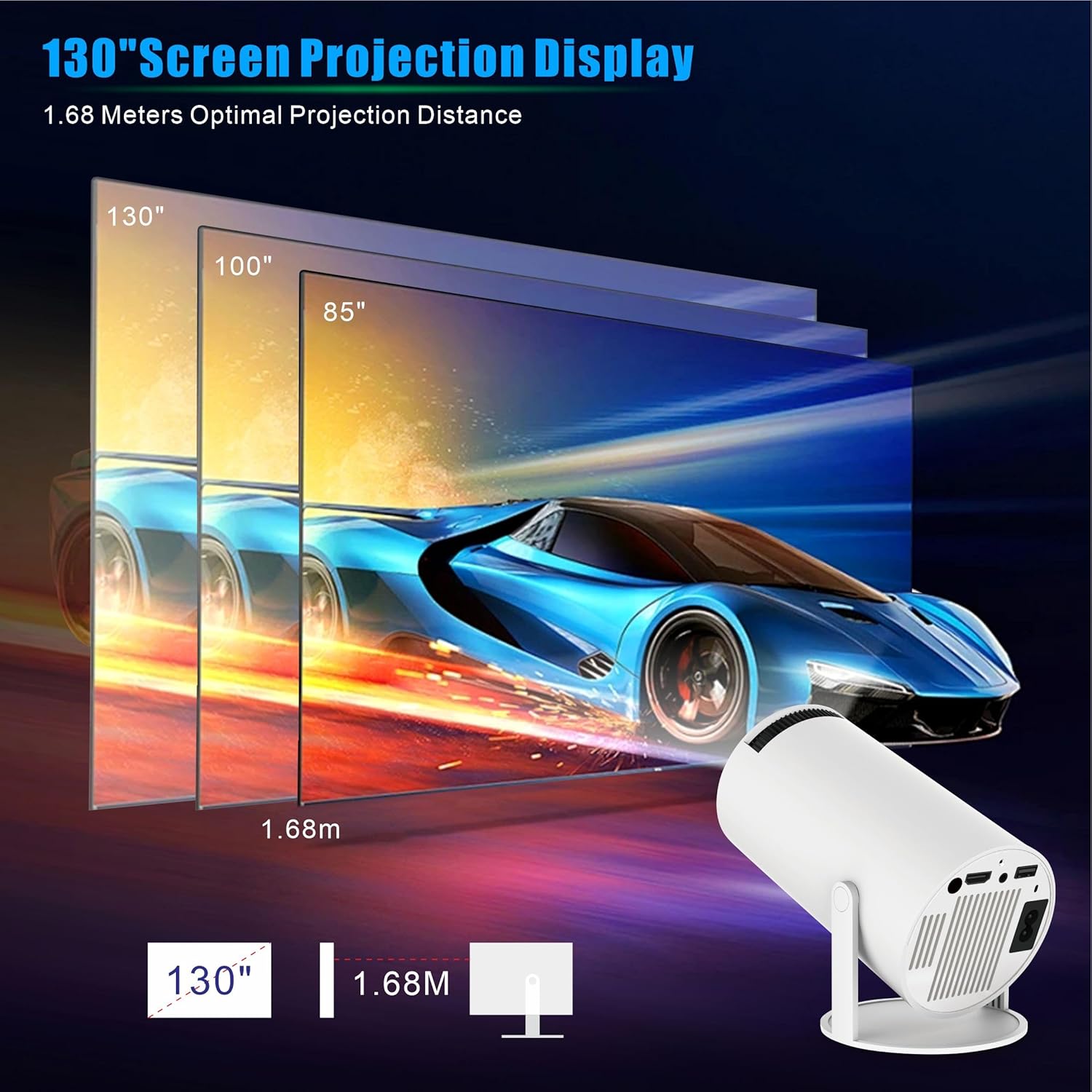
Image: An illustration showing the projector's capability to produce various screen sizes, up to 130 inches, from a distance of 1.68 meters.
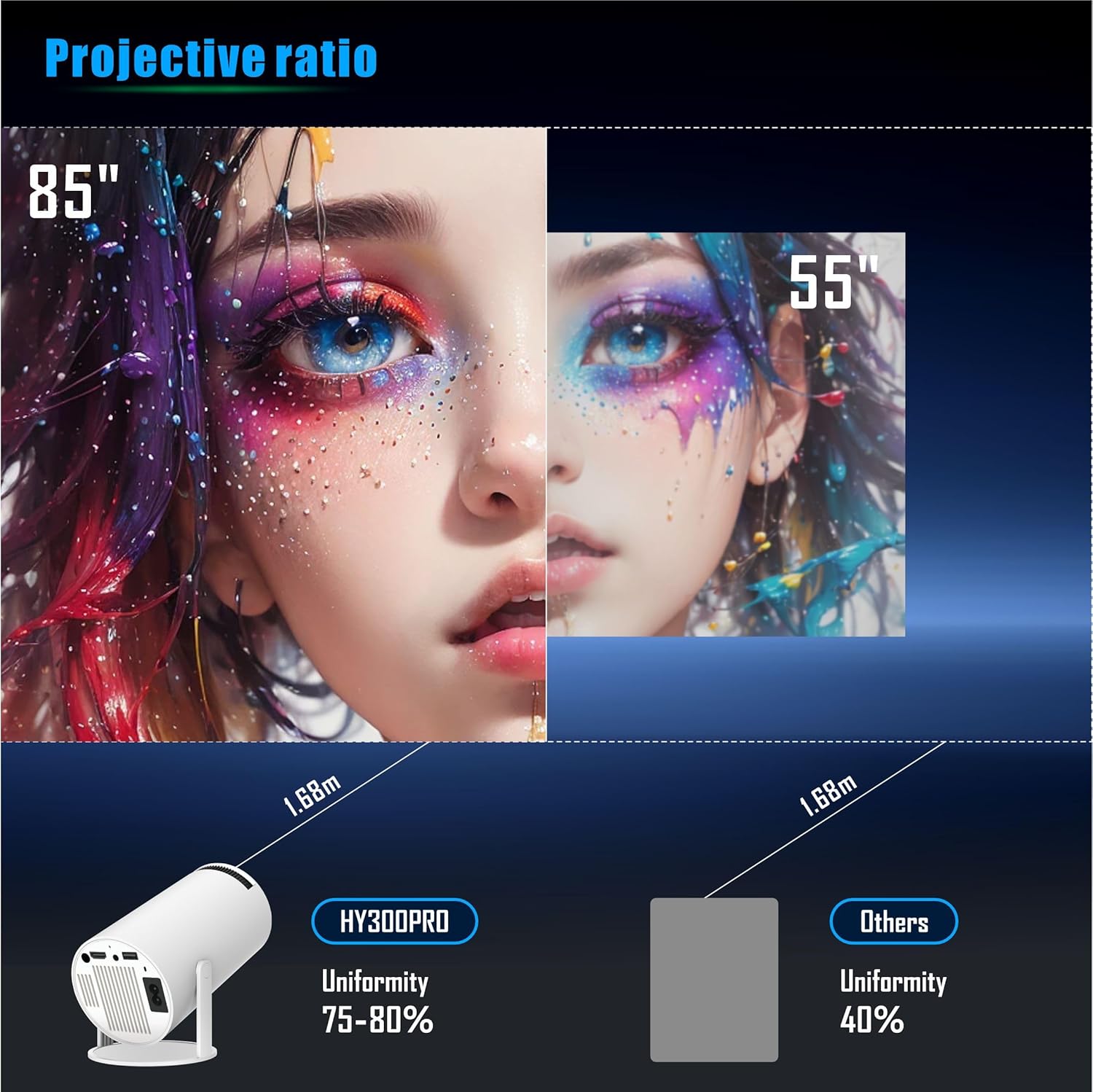
Image: A visual comparison highlighting the superior image uniformity of the HY300 Pro projector compared to other models.
6. Maintenance
6.1 Cleaning the Lens
Gently wipe the projector lens with a soft, lint-free cloth specifically designed for optical surfaces. Do not use abrasive cleaners or solvents.
6.2 Cleaning the Exterior
Use a soft, dry cloth to clean the exterior of the projector. For stubborn marks, slightly dampen the cloth with water. Avoid getting moisture into any openings.
6.3 Ventilation
Ensure the projector's ventilation ports are clear of dust and obstructions to prevent overheating. Do not block the vents during operation.
7. Troubleshooting
7.1 No Image Displayed
- Check if the projector is powered on.
- Ensure the power cable is securely connected.
- Verify the input source is correctly selected (e.g., Wi-Fi, USB).
- If using screen mirroring, confirm the device is properly connected and on the same network.
7.2 Blurry Image
- Adjust the manual focus ring on the projector lens.
- Ensure the projection surface is flat and smooth.
- If the edges are blurry, reposition the projector to minimize extreme angles, as automatic keystone correction primarily handles vertical distortion.
7.3 No Sound
- Check the volume level on the projector and the connected source device.
- If using Bluetooth, ensure the projector is correctly paired with the audio device and the audio output is set to Bluetooth.
- Verify that the integrated speakers are not muted.
7.4 Wireless Connection Issues
- Ensure both the projector and your device are connected to the same Wi-Fi network.
- Check the Wi-Fi signal strength.
- Restart both the projector and your mobile device.
- Ensure your router is functioning correctly.
8. Safety Information
- Do not look directly into the projector lens when the lamp is on.
- Keep the projector away from water or other liquids.
- Do not expose the projector to extreme temperatures or high humidity.
- Avoid placing the projector in direct sunlight.
- Do not attempt to disassemble or repair the projector yourself. Contact qualified service personnel.
- Keep out of reach of children.
9. Warranty and Support
For warranty information and customer support, please refer to the documentation included with your product packaging or contact the retailer where you purchased the Cawevon HY300 Pro Projector.
Related Documents - HY300 Pro Projector
 |
LQWELL HY300 Smart Projector Quick Installation Guide A concise guide to installing and operating the LQWELL HY300 Smart Projector, covering setup, features like Miracast and Airplay, and safety instructions. |
 |
LQWELL HY300 Mini Projector User Manual Comprehensive user manual for the LQWELL HY300 Mini Projector, covering setup, features, and troubleshooting. Learn how to connect devices, navigate settings, and optimize your viewing experience. |
 |
LQWELL HY320-M Mini Projector Owner's Manual Explore the LQWELL HY320-M Mini Projector, a versatile Native 1080P 4K home theater device. This owner's manual provides essential guidance on setup, features like Auto Keystone Correction, connectivity options, media playback, and safety precautions for an optimal viewing experience. |
 |
Akiyo O2 LED Projector User Manual Comprehensive user manual for the Akiyo O2 Mini Portable LED Projector. Learn about its Smart OS, Full HD 1080P resolution, WiFi6, Bluetooth 5.4, 180° rotation, App Integrada, Auto Keystone, and various connection options like HDMI, USB, and smartphone mirroring. |
 |
XBJ BL360 Mini 4K Projector Product Manual Product manual for the XBJ BL360 Mini 4K Projector, covering product information, manufacturer details, safety warnings, and usage instructions. |
 |
Magcubic HY310X Mini Projector User Manual - Setup, Settings, and Safety Comprehensive user manual for the Magcubic HY310X Mini Projector. Learn about safety instructions, overview, remote control, settings (networking, Bluetooth, projection, applications, language, date/time), about information, other settings, screen casting, and regulatory compliance. |