
1. Introduction
Thank you for choosing the JXTZ Bluetooth 5.3 Transmitter Receiver. This device is designed to provide seamless wireless audio connectivity, functioning as both a Bluetooth transmitter and a receiver. It allows you to upgrade your car audio, home stereo systems, and other non-Bluetooth devices to support Bluetooth functionality. This manual provides detailed instructions for setup, operation, maintenance, and troubleshooting to ensure optimal performance and a satisfying user experience.
2. Product Overview
2.1 Key Features
- 2-in-1 Functionality: Combines Bluetooth transmission (TX) and reception (RX) modes.
- Bluetooth 5.3 Technology: Ensures stable, high-speed, and wide-ranging connections.
- Premium Sound Quality: Supports A2DP, AVRCP, HFP, HID, and features CVC noise cancellation for clear audio.
- TF Card Support: Allows direct music playback from a TF (microSD) card without Bluetooth.
- Hands-free Calling: Built-in microphone for safe communication while driving.
- Compact Design: Portable with a back clip for convenient attachment.
- Long Battery Life: Up to 20 hours of continuous use on a single charge.
- Digital Display Screen: Shows battery level and volume in real-time.
2.2 Package Contents
Please ensure all items are present:
- JXTZ Bluetooth 5.3 Transmitter Receiver
- 3.5mm Audio Cable
- USB Type-C Charging Cable
- User Manual (this document)

Image: The JXTZ Bluetooth 5.3 Transmitter Receiver unit shown alongside its included 3.5mm audio cable.
2.3 Device Layout

Image: Detailed diagram illustrating the various components of the JXTZ Bluetooth adapter, including multifunctional keys, TX/RX switch, TF card slot, digital display, AUX port, and charging port.
- Multifunctional Keys: Central button for Play/Pause, surrounded by Volume Up (+), Volume Down (-), Previous Song (◀◀), and Next Song (►►).
- Transmit/Receive Button (TX/RX): A physical switch on the side to toggle between Transmitter and Receiver modes.
- Back Splint: A clip on the rear for attaching the device to clothing or other surfaces.
- TF Card Slot: Located on the side for inserting a microSD card for direct audio playback.
- Digital Display: Front-facing screen showing battery percentage and current mode (TX/RX).
- AUX Port: 3.5mm audio jack for connecting to external audio devices.
- Charging Port: USB Type-C port for charging the device.
3. Safety Information
To ensure safe and proper use of your JXTZ Bluetooth 5.3 Transmitter Receiver, please observe the following:
- Avoid exposing the device to extreme temperatures (hot or cold) or high humidity.
- Handle the built-in battery properly. Do not attempt to disassemble or replace the battery.
- Be aware of potential interference with other wireless devices, especially medical devices.
- Do not connect the device to a charger with an output exceeding 1A to prevent potential battery damage.
- Keep the device away from water and other liquids.
4. Setup
4.1 Charging the Device
Before first use, fully charge the device. Use the provided USB Type-C charging cable to connect the device to a USB power source (e.g., computer USB port, USB wall adapter). The digital display will show the charging progress. A full charge typically takes approximately 1 hour and provides up to 20 hours of continuous use in Receiver (RX) mode.

Image: The JXTZ Bluetooth adapter connected to a USB-C charging cable, illustrating its internal battery and charging process, emphasizing its 20-hour battery life.
4.2 Power On/Off
- To Power On: Press and hold the central Play/Pause button for a few seconds. The digital display will show "HI" and a voice prompt will announce "Power on".
- To Power Off: Press and hold the central Play/Pause button again for a few seconds. A voice prompt will announce "Power off", and the display will show the battery percentage briefly before turning off.
4.3 Mode Switching (TX/RX)
The device features a physical switch on its side to toggle between Transmitter (TX) and Receiver (RX) modes. Ensure the device is powered on before switching modes.
4.4 Bluetooth Pairing

Image: A visual guide demonstrating how the JXTZ Bluetooth adapter connects to various devices in Transmitter (TX) mode (e.g., TV, PC to Bluetooth headphones/speakers) and Receiver (RX) mode (e.g., car audio, amplifier to smartphone/tablet).
- Receiver (RX) Mode Pairing:
- Switch the device to RX mode. The RX indicator on the display will flash, indicating it is in pairing mode.
- On your Bluetooth-enabled device (e.g., smartphone, tablet, laptop), search for Bluetooth devices and select "M06" from the list.
- Once connected, a voice prompt will announce "connected", and the RX indicator will remain steadily lit.
- Transmitter (TX) Mode Pairing:
- Switch the device to TX mode. The TX indicator on the display will flash.
- Place your Bluetooth receiving device (e.g., Bluetooth headphones, Bluetooth speaker) into pairing mode.
- The JXTZ adapter will automatically search for and connect to the first available Bluetooth receiving device.
Note: If the device is connected to a charger, it may not advertise itself as a Bluetooth device for pairing. Unplug the charger, pair the device, and then you can plug the charger back in for continued use while charging.
5. Operating Instructions
5.1 Transmitter (TX) Mode
In TX mode, the device takes audio input from a non-Bluetooth source (e.g., TV, PC, gaming console) via the 3.5mm AUX cable and transmits it wirelessly to a Bluetooth-enabled audio output device (e.g., Bluetooth headphones, Bluetooth speaker).
- Connect one end of the 3.5mm audio cable to the AUX port of the JXTZ adapter.
- Connect the other end of the 3.5mm audio cable to the audio output jack of your non-Bluetooth device (e.g., TV headphone jack).
- Switch the JXTZ adapter to TX mode.
- Ensure your Bluetooth headphones or speaker are in pairing mode. The JXTZ adapter will automatically connect.
- Audio from your non-Bluetooth source will now be streamed to your Bluetooth output device.
5.2 Receiver (RX) Mode
In RX mode, the device receives Bluetooth audio from your smartphone, tablet, or laptop and outputs it to a non-Bluetooth audio system (e.g., car stereo, home amplifier, wired headphones) via the 3.5mm AUX cable.
- Connect one end of the 3.5mm audio cable to the AUX port of the JXTZ adapter.
- Connect the other end of the 3.5mm audio cable to the audio input jack of your non-Bluetooth audio system (e.g., car AUX input, home stereo AUX input).
- Switch the JXTZ adapter to RX mode.
- Pair your smartphone or other Bluetooth device with "M06" as described in Section 4.4.
- Play music or audio on your Bluetooth device. The sound will now play through your connected audio system.

Image: A young girl enjoying music with her dog, demonstrating the wireless receiving capability of the JXTZ adapter connected to a Bluetooth speaker.
5.3 TF Card Playback
The device supports direct audio playback from a TF (microSD) card, allowing you to listen to music without a Bluetooth connection.
- Insert a TF card (up to 32GB, not included) into the TF card slot on the side of the device. Ensure the card is inserted correctly until it clicks into place.
- Double-tap the central Play/Pause button. A voice prompt will announce "sd card mode".
- The device will automatically begin playing audio files (MP3 format supported) found on the card.
- To switch back to Bluetooth mode, double-tap the Play/Pause button again. A voice prompt will announce "Bluetooth mode".
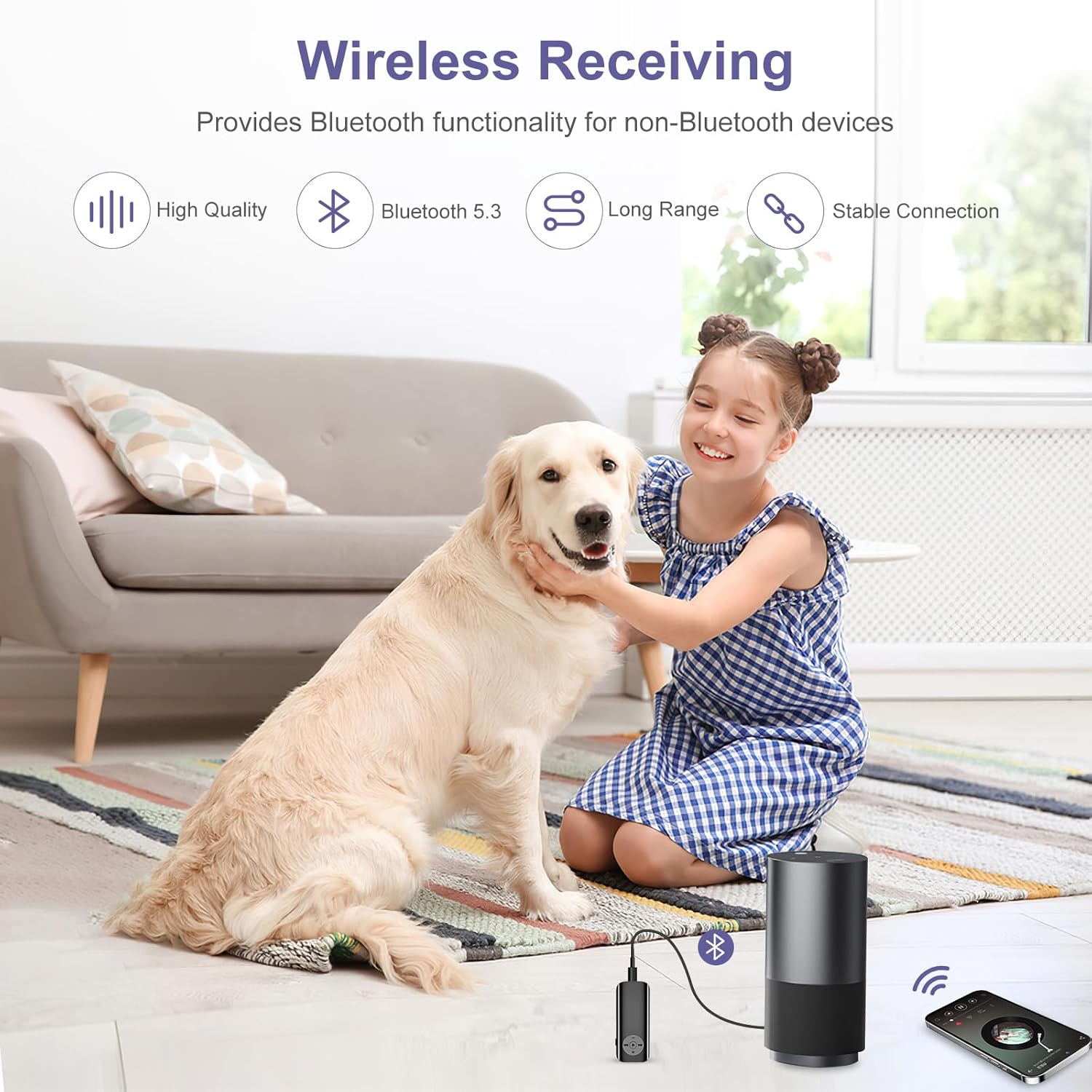
Image: A detailed view of a microSD card being inserted into the dedicated TF card slot on the JXTZ Bluetooth adapter, illustrating the card support feature.
Note: The device supports MP3 files and plays them in order within folders and subfolders. It does not support M4A files, nor does it offer display of song information, shuffle, or search functions for TF card playback.
5.4 Hands-free Calling
The JXTZ adapter supports hands-free calling when connected to your smartphone in RX mode.
- Answering a Call: Press the central Play/Pause button once.
- Ending a Call: Press the central Play/Pause button once during a call.
- Rejecting a Call: Press and hold the central Play/Pause button.
- Redialing Last Number: Double-press the central Play/Pause button.

Image: A man driving, demonstrating the hands-free calling feature of the JXTZ Bluetooth adapter, emphasizing safe driving with call management options.
Note: While the hands-free calling feature is convenient, the microphone quality may be limited. Users have reported that the sound can be distant or hollow, and voice may cut out if the microphone hole is more than a foot away. For best results, hold the device closer to your mouth.
5.5 Volume and Track Control
Use the multifunctional keys on the device for audio control:
- Volume Up: Press the "+" button.
- Volume Down: Press the "-" button.
- Next Track: Press the "►►" button.
- Previous Track: Press the "◀◀" button.

Image: A man wearing over-ear headphones, with the JXTZ Bluetooth adapter clipped to his shirt collar, illustrating its use for personal audio enjoyment.
6. Maintenance
To ensure the longevity and optimal performance of your JXTZ Bluetooth 5.3 Transmitter Receiver, follow these maintenance guidelines:
- Cleaning: Use a soft, dry cloth to wipe the device. Do not use harsh chemicals, cleaning solvents, or strong detergents.
- Storage: Store the device in a cool, dry place away from direct sunlight and extreme temperatures.
- Battery Care: Avoid fully discharging the battery frequently. If storing for a long period, charge the device to about 50% every few months to preserve battery health.
- Cable Care: Handle the 3.5mm audio cable and USB-C charging cable gently. Avoid sharp bends or excessive pulling to prevent damage.
7. Troubleshooting
If you encounter issues with your JXTZ Bluetooth 5.3 Transmitter Receiver, please refer to the following common problems and solutions:
| Problem | Possible Cause | Solution |
|---|---|---|
| Device does not power on or has no Bluetooth signal. | Low battery; device malfunction. | Charge the device fully. If still unresponsive, contact customer support. |
| Cannot pair with a Bluetooth device. | Device in wrong mode; not in pairing mode; interference; already paired. | Ensure the JXTZ adapter is in the correct TX/RX mode and flashing. Make sure the target device is in pairing mode. Move closer to the device. If charging, unplug the charger, pair, then reconnect. |
| Audio quality is poor or intermittent in TX mode. | Loose 3.5mm cable connection; source audio issue; interference. | Ensure the 3.5mm cable is securely connected at both ends. Try a different 3.5mm cable. Test with a different audio source. Reduce distance between devices. |
| Hands-free call microphone quality is poor. | Microphone distance; environmental noise. | Hold the device closer to your mouth during calls. Use in a quieter environment. Note that microphone quality may be limited for this device. |
| TF card playback not working or limited. | Unsupported file format; card not inserted correctly; no playable files. | Ensure audio files are in MP3 format. Reinsert the TF card. Verify that playable files exist on the card. Note that shuffle and search functions are not supported. |
| Battery drains quickly or display malfunctions. | Aging battery; software glitch; hardware defect. | Perform a full discharge and recharge cycle. If the issue persists, contact customer support for potential hardware issues. |
8. Specifications
| Brand | JXTZ |
| Model Number | CP316 |
| Connectivity Technology | Auxiliary, Bluetooth, USB |
| Bluetooth Version | 5.3 |
| Power Source | Battery Powered |
| Color | Black |
| Special Features | Hands-Free Calls, Noise Cancellation |
| Battery Life (RX Mode) | Up to 20 hours |
| Charging Time | Approx. 1 hour |
| TF Card Support | Yes (MP3 format, up to 32GB) |
| Transmission Range | Up to 15 meters (49 feet) |
| Package Dimensions | 5.12 x 2.95 x 0.94 inches |
| Item Weight | 2.89 ounces |
9. Warranty and Support
For warranty information and customer support, please refer to the documentation provided with your purchase or contact the seller directly. Keep your proof of purchase for any warranty claims. For technical assistance or further inquiries, please visit the official JXTZ website or contact their customer service department.