
Inefala Inefala 8 Core 4G+64G Android 13
Contents
Inefala 9-Inch Double Din Android Car Radio Stereo User Manual
Model: Inefala 8 Core 4G+64G Android 13
1. Introduction
This manual provides detailed instructions for the installation, operation, and maintenance of your Inefala 9-Inch Double Din Android Car Radio Stereo. Please read this manual thoroughly before using the product to ensure proper functionality and safety. Keep this manual for future reference.
2. Safety Information
- Do not operate the device in a way that distracts you from driving. Always prioritize road safety.
- Ensure all wiring is correctly connected to prevent short circuits or damage. Consult a professional for installation if unsure.
- Avoid exposing the unit to extreme temperatures, direct sunlight for prolonged periods, or excessive moisture.
- Do not attempt to disassemble or modify the unit. This may void the warranty and cause damage.
- Keep the screen clean and free from obstructions to ensure clear visibility.
3. What's in the Box
Verify that all components are present before beginning installation:
- 1 x Android Car Radio
- 1 x Power Cable
- 1 x GPS Antenna
- 1 x Rear Camera Input Cable
- 1 x RCA Cable
- 2 x USB Cable
- 2 x Mounting Bracket
- 1 x Installation Tool
- 1 x Instruction Manual (this document)
- 1 x Backup Camera
- 1 x External Microphone

Image: Contents of the Inefala car stereo package.
4. Setup and Installation
Proper installation is crucial for optimal performance. It is recommended to have the unit installed by a qualified professional.
4.1 Pre-Installation Considerations
- Vehicle Compatibility: This is a double DIN unit. Ensure your vehicle's dashboard opening is compatible. You may need a specific double DIN dash kit for your car model.
- Wiring Harness: An ISO harness specific to your car's brand and model may be required for seamless integration.
- Power Disconnection: Always disconnect the vehicle's battery before starting any electrical work.

Image: Illustration of additional accessories needed for proper installation.
4.2 Installation Steps (General Guide)
- Remove Old Unit: Carefully remove your existing car stereo and any necessary trim panels.
- Connect Wiring: Connect the provided power cable, GPS antenna, RCA cables, and USB cables to the corresponding ports on the new unit. If using a backup camera, connect its input cable.
- Mounting: Attach the mounting brackets to the sides of the car radio. Slide the unit into the dashboard opening, securing it with the brackets.
- Reconnect Battery: Once all connections are secure and the unit is mounted, reconnect the vehicle's battery.
- Initial Power On: Turn on the vehicle's ignition and power on the car stereo to test basic functions.

Image: Comparison of a car dashboard before and after the installation of the Inefala car stereo.
5. Operating Instructions
Your Inefala car stereo offers a wide range of features for an enhanced driving experience.
5.1 Wireless CarPlay & Android Auto
Connect your smartphone wirelessly or via USB to access apps, navigation, music, and calls directly on the car stereo screen.
- Connection: Enable Bluetooth on your phone and the car stereo. Pair the devices. For wired connection, use a USB cable.
- Functionality: Access navigation apps (e.g., Google Maps, Apple Maps), messaging apps (e.g., WhatsApp, Telegram), music streaming (e.g., Spotify, iHeart), and make hands-free calls.
- Voice Control: Utilize Siri or Google Assistant for voice commands.

Image: Display of Wireless Apple CarPlay and Android Auto features, showing smartphone integration.
Video: Demonstrates various functions of the car stereo, including CarPlay/Android Auto music playback, navigation, video playback, hands-free calling, voice control, dual screen, FM/RDS radio, network radio, and DSP settings.
5.2 GPS Navigation & WiFi Connection
The unit supports both online and offline navigation and can connect to Wi-Fi for internet access.
- GPS: Built-in GPS module for accurate positioning. Supports online navigation apps (e.g., Waze, Sygic) and allows for offline map downloads from the Play Store.
- WiFi: Connect to a Wi-Fi network or mobile hotspot to stream videos, browse the web, and download applications from the Google Play Store.

Image: Shows GPS navigation and various applications available with WiFi connectivity.
5.3 DSP & 32-Band Equalizer
Customize your audio experience with the integrated Digital Sound Processor (DSP).
- 32EQ Adjustment: Fine-tune audio frequencies with the 32-band equalizer for crystal-clear sound output.
- Sound Field: Adjust sound staging and balance to optimize the listening experience within your vehicle.
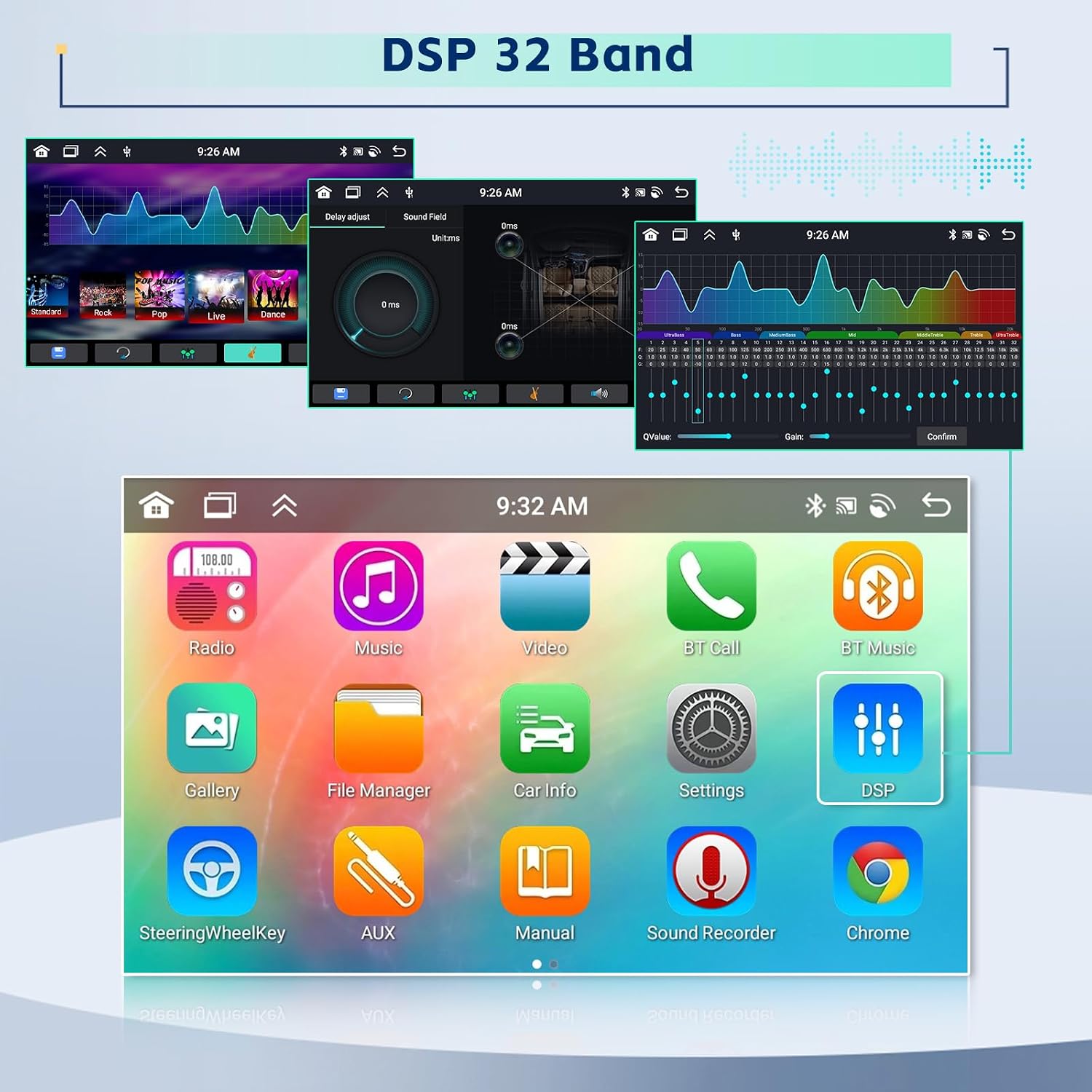
Image: Screenshot of the 32-band DSP equalizer settings on the car stereo.
5.4 Bluetooth 5.0 & FM/RDS Radio
Enjoy seamless wireless connectivity and radio broadcasts.
- Bluetooth 5.0: Faster data transmission for hands-free calling, phonebook downloads, and high-quality music streaming.
- FM/RDS Radio: Access 30 preset stations for news, traffic updates, and weather forecasts. RDS (Radio Data System) provides additional information.
5.5 Split Screen Functionality
Multitask efficiently by running two applications simultaneously on the 9-inch HD screen.
- Usage: For example, use GPS navigation on one side while playing music or watching a video on the other.
- Activation: Refer to the on-screen interface for activating split-screen mode, typically by long-pressing an app icon or using a dedicated split-screen button.

Image: Demonstrates the three-way split screen function, allowing multiple applications to run concurrently.
5.6 Mirror Link
Synchronize your smartphone's content directly onto the car stereo's large screen.
- Compatibility: Supports both Android and iOS devices.
- Function: Display your phone's screen, including apps, videos, and photos, on the car stereo.
5.7 Steering Wheel Control (SWC)
Integrate with your vehicle's existing steering wheel controls for convenient operation.
- Setup: The unit supports learning functions for steering wheel controls. Access the 'SteeringWheelKey' settings in the main menu to configure.
- Benefits: Control volume, track skipping, mode switching, and answer/end calls without taking your hands off the wheel.
5.8 Rear View Camera
Enhance safety with the included night vision AHD backup camera.
- Installation: Connect the camera to the dedicated rear camera input cable. Ensure proper power connection to the vehicle's reverse light circuit.
- Features: 170° viewing angle, waterproof design, and automatic display when shifting into reverse gear.
6. Maintenance
To ensure the longevity and optimal performance of your car stereo, follow these maintenance guidelines:
- Screen Cleaning: Use a soft, lint-free cloth to gently wipe the touchscreen. For stubborn smudges, slightly dampen the cloth with water or a screen-safe cleaner. Avoid abrasive materials or harsh chemicals.
- General Cleaning: Keep the unit's exterior free from dust and debris. Use a soft, dry cloth.
- Software Updates: Periodically check the manufacturer's website or the unit's settings for available software updates to ensure the latest features and bug fixes.
- Avoid Liquids: Do not spill liquids on the unit. If liquid enters the unit, immediately power it off and consult a service professional.
7. Troubleshooting
If you encounter issues with your Inefala car stereo, refer to the following common problems and solutions:
| Problem | Possible Cause | Solution |
|---|---|---|
| No power/Unit does not turn on | Incorrect wiring, blown fuse, vehicle battery issue. | Check power cable connections. Inspect vehicle's fuse box for blown fuses. Ensure vehicle battery is charged. |
| No sound | Speaker wiring issues, volume too low, incorrect audio output settings. | Verify speaker connections. Increase volume. Check audio settings (e.g., DSP, balance/fader). |
| Bluetooth not connecting | Bluetooth not enabled, device not in pairing mode, interference. | Ensure Bluetooth is on for both devices. Put the car stereo in pairing mode. Delete previous pairings and try again. |
| GPS signal lost/inaccurate | GPS antenna obstruction, poor satellite reception. | Ensure GPS antenna is properly installed and has a clear view of the sky. Move to an open area. |
| Touchscreen unresponsive | Software glitch, screen calibration needed. | Restart the unit. If issue persists, perform a factory reset (note: this will erase all data). |
| CarPlay/Android Auto not launching | Incorrect USB cable, phone settings, app issues. | Use a high-quality USB cable. Ensure CarPlay/Android Auto is enabled on your phone. Restart phone and unit. |
If the problem persists after trying these solutions, please contact Inefala customer support.
8. Specifications
| Feature | Detail |
|---|---|
| Model Name | Inefala 8 Core 4G+64G Android 13 |
| CPU | 8-core |
| RAM | 4GB |
| ROM | 64GB |
| Screen Size | 9 Inches |
| Screen Resolution | 1280x720 pixels |
| Operating System | Android 13 |
| Bluetooth Version | 5.0 |
| Equalizer | 32-band DSP |
| Connectivity | Bluetooth, Wi-Fi, USB |
| Product Dimensions | 1.79 x 8.5 x 5.07 inches |
| Item Weight | 2.09 pounds |
9. Warranty and Support
Inefala is committed to providing high-quality products and customer satisfaction.
- Quality Assurance: The product comes with a 24-month quality assurance period from the date of purchase.
- Returns: Enjoy 30 days of free returns.
- Customer Support: For any quality issues or inquiries, please contact Inefala customer support. You can expect an online reply within 24 hours.
For direct assistance, please contact the seller, Inefala-US, via their Amazon store or the provided contact information.

Image: Inefala's customer support and warranty information.
Ask a question about this manual
Ask about setup, troubleshooting, compatibility, parts, safety, or missing instructions. Manuals+ will review the question and use this page’s manual context to help answer it.