
FEELWORLD FW703-ANP75-LY- US
Contents
FEELWORLD FW703 7-Inch Video Camera Monitor User Manual
Model: FW703-ANP75-LY- US
1. Introduction
The FEELWORLD FW703 is a high-resolution 7-inch video camera monitor designed for professional and consumer cameras. It features a Full HD 1920x1200 IPS display with 4K UHD 3840x2160P support, offering a clear and accurate visual experience for various shooting scenarios. This manual provides comprehensive instructions for setting up, operating, maintaining, and troubleshooting your FW703 monitor.
2. Package Contents
Please verify that all items listed below are included in your package. If any items are missing or damaged, please contact customer support.
- FEELWORLD FW703 Monitor
- F750 4400 mAh Battery
- Mini HDMI Cable
- Sunshade
- Hot Shoe Mount
- F970 Battery Plate
- Mini USB to USB Cable
- Operation Manual

Image: The FW703 monitor along with its standard accessories, including the battery, cables, sunshade, and mounting hardware.
3. Product Overview
The FW703 monitor is designed for portability and functionality, featuring a slim profile and lightweight construction. It offers a 160° wide viewing angle IPS panel, ensuring clear visibility from various positions.
Key Features:
- Display: 7-inch IPS, 1920x1200 Full HD, 323 PPI.
- Resolution Support: Up to 4K UHD 3840x2160P.
- Inputs/Outputs: 3G-SDI, 4K HDMI Input/Output, USB Upgrade port, 3.5mm Ear Phone Slot.
- Auxiliary Functions: Histogram, Embedded Audio, False Color, Exposure, Check Field, Nine Grid, Zoom, Peaking Focus.
- Power: Flexible power options including NP-F series battery compatibility and DC 12V input.

Image: Close-up view of the FW703 screen highlighting its 7-inch FHD display, 16.7M colors, 1200:1 contrast ratio, 450nit brightness, and 323 PPI.

Image: Detailed view of the monitor's rear panel, showing the 3G-SDI and 4K HDMI input and output ports, along with supported video formats.
4. Setup
4.1 Powering the Monitor
The FW703 monitor can be powered by an NP-F series battery or a DC 12V power adapter.
- Battery Installation: Insert a compatible NP-F series battery (e.g., F970, F750, F550) into the battery plate on the rear of the monitor until it clicks into place.
- DC Power: Connect a 12V/1.5A DC power adapter (not included) to the DC IN port on the side of the monitor.

Image: Illustration of the flexible power supply options for the FW703, showing both NP-F battery compatibility and the DC 12V power input.
4.2 Connecting to a Camera/Device
The FW703 supports both HDMI and 3G-SDI connections.
- HDMI Connection: Use the provided Mini HDMI cable to connect your camera's HDMI output to the HDMI IN port on the monitor.
- SDI Connection: For professional cameras, connect the SDI output of your device to the SDI IN port on the monitor using an SDI cable (not included).
4.3 Mounting the Monitor
Attach the hot shoe mount to your camera's hot shoe or a compatible rig. Then, secure the FW703 monitor to the hot shoe mount using the 1/4-inch screw thread at the bottom of the monitor.
5. Operating the Monitor
5.1 Basic Operation
- Power On/Off: Press and hold the power button to turn the monitor on or off.
- Input Selection: Use the menu or dedicated buttons to switch between HDMI and SDI inputs.
5.2 Menu Navigation and Shortcut Buttons
The FW703 features a new UI menu for easier setup and four customizable shortcut function keys (F1-F4).
- Menu Button: Press the MENU button to access the main menu. Use the navigation buttons to scroll through options and confirm selections.
- Shortcut Keys (F1-F4): These keys can be assigned to frequently used functions such as Peaking Focus, False Color, Histogram, etc. Refer to the 'System' menu to customize these assignments.
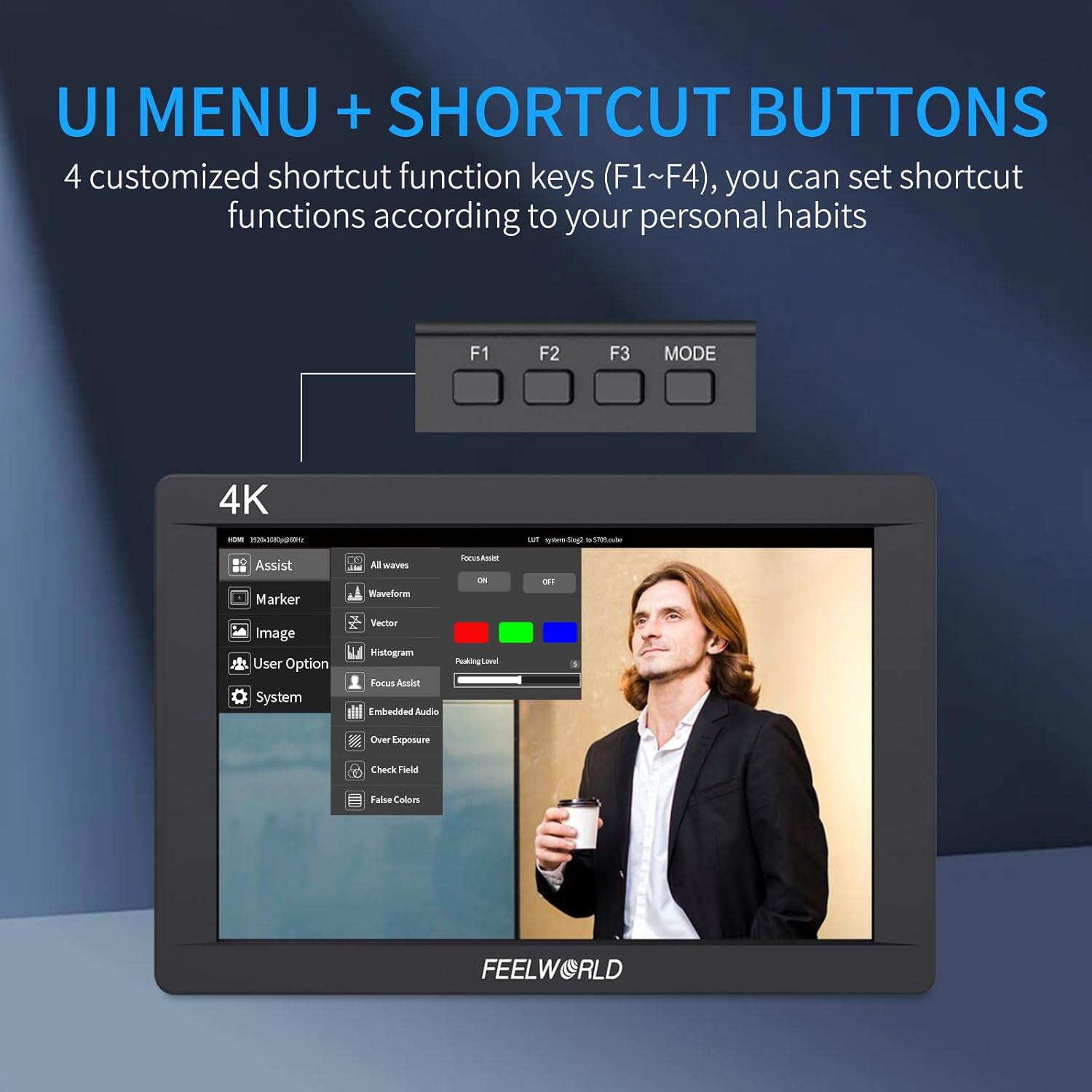
Image: The FW703 monitor displaying its user interface menu and highlighting the four customizable shortcut function keys (F1-F4) for quick access to features.
5.3 Auxiliary Functions
The FW703 integrates various professional functions to assist with accurate exposure and focus.
- Histogram: Displays the tonal distribution of the image, helping to prevent overexposure or underexposure.
- Peaking Filter: Highlights sharp edges in the image, assisting with precise focus.
- False Color: Uses color overlays to represent different exposure levels, aiding in exposure adjustment.
- Exposure (Zebras): Displays zebra patterns over areas that are overexposed.
- Check Field: Allows checking the image in monochrome, red, green, or blue channels.
- Nine Grid: Overlays a 3x3 grid for composition assistance.
- Embedded Audio: Displays audio levels on screen.
- Zoom-in: Magnifies a portion of the image for detailed inspection.
- 3D LUTs: Supports loading custom 3D LUT files via USB for real-time color grading preview. Up to 32 user LUT tables can be stored.
- Waveform Monitoring: Built-in waveform functions (Vectorscope, Brightness Histogram, YUV Parade, Y Parade) can be turned on individually or all at once for broadcast-level monitoring.

Image: Visual representation of the various professional tools available on the FW703, including Histogram, Peaking Filter, False Colors, Exposure, Pixel-to-Pixel, Check Field, Nine Grid, Embedded Audio, DSLR Scale, Zoom-in, Image Flip, and Anamorphic mode.

Image: Diagram showing how to load custom 3D LUT files onto the FW703 monitor using a USB memory stick, with 'Before' and 'After' examples of color application.

Image: The FW703 monitor displaying various broadcast-level waveform monitoring functions, including Vectorscope, Brightness Histogram, YUV Parade, and Y Parade.
6. Maintenance
Proper maintenance ensures the longevity and optimal performance of your FW703 monitor.
- Cleaning the Screen: Use a soft, lint-free cloth specifically designed for electronics screens. Do not use abrasive cleaners or solvents. Gently wipe the screen to remove dust and smudges.
- Cleaning the Body: Wipe the monitor's body with a soft, dry cloth. For stubborn dirt, a slightly damp cloth can be used, followed by a dry cloth.
- Storage: When not in use, store the monitor in a cool, dry place, away from direct sunlight and extreme temperatures. Use the provided sunshade or a protective case to prevent scratches.
- Battery Care: If using batteries, ensure they are charged regularly and stored properly when not in use to maintain their lifespan.
7. Troubleshooting
This section addresses common issues you might encounter with your FW703 monitor.
| Problem | Possible Cause | Solution |
|---|---|---|
| Monitor does not power on. | Low or dead battery; Power adapter not connected or faulty. | Charge or replace the battery. Ensure the DC power adapter is securely connected and functional. |
| No image displayed. | Incorrect input selected; Cable not connected properly; Camera output issue. | Verify the correct input (HDMI/SDI) is selected. Check cable connections. Ensure your camera is outputting a signal. |
| Image is distorted or flickering. | Loose cable connection; Incompatible resolution/frame rate. | Reconnect the HDMI/SDI cable. Check if the camera's output resolution and frame rate are supported by the monitor. |
| Buttons are unresponsive. | Temporary software glitch. | Power off the monitor, wait a few seconds, then power it back on. |
8. Specifications
Detailed technical specifications for the FEELWORLD FW703 monitor.
| Feature | Specification |
|---|---|
| Display Size | 7 inches |
| Resolution | 1920x1200 pixels |
| Pixel Density (PPI) | 323 |
| Aspect Ratio | 16:10 |
| Brightness | 450 cd/m² |
| Contrast Ratio | 1200:1 |
| Viewing Angle | 160° (H/V) |
| Input Ports | 1 x 3G-SDI, 1 x HDMI |
| Output Ports | 1 x 3G-SDI, 1 x HDMI |
| Audio Output | 3.5mm Headphone Jack, Built-in Speaker |
| Power Input | DC 12V, NP-F Battery Plate |
| Dimensions | 8.78 x 6.3 x 3.19 inches |
| Weight | 2.33 pounds |
| Model Number | FW703-ANP75-LY- US |
| ASIN | B0D2NN5838 |
9. Warranty and Support
FEELWORLD products are designed and manufactured to high quality standards. For warranty information and technical support, please refer to the official FEELWORLD website or contact your local distributor.
- Online Support: Visit the official FEELWORLD website for FAQs, firmware updates, and support resources.
- Customer Service: If you encounter any issues that cannot be resolved using this manual, please contact FEELWORLD customer service for assistance.
Ask a question about this manual
Ask about setup, troubleshooting, compatibility, parts, safety, or missing instructions. Manuals+ will review the question and use this page’s manual context to help answer it.