1. Introduction
The UGREEN 20Gbps M.2 NVMe SATA SSD Enclosure provides a high-speed external storage solution for M.2 NVMe and SATA SSDs. This enclosure supports data transfer rates up to 20Gbps via USB 3.2 Gen 2x2 connections, offering efficient performance for various applications. It is designed for compatibility with multiple M.2 SSD sizes and features robust heat dissipation to ensure stable operation and data integrity.

Figure 1: UGREEN 20Gbps M.2 NVMe SATA SSD Enclosure
2. Package Contents
Verify that all items listed below are included in your package:
- 1 x UGREEN M.2 NVMe SATA SSD Enclosure
- 1 x 0.3m USB-C to USB-C Cable
- 1 x Silicone Pad (Thermal Pad)
- 1 x Screwdriver
- 1 x Fixed Buckle (for SSD installation)
- 1 x Silicone Case (Protective Cover)
- 1 x User Manual
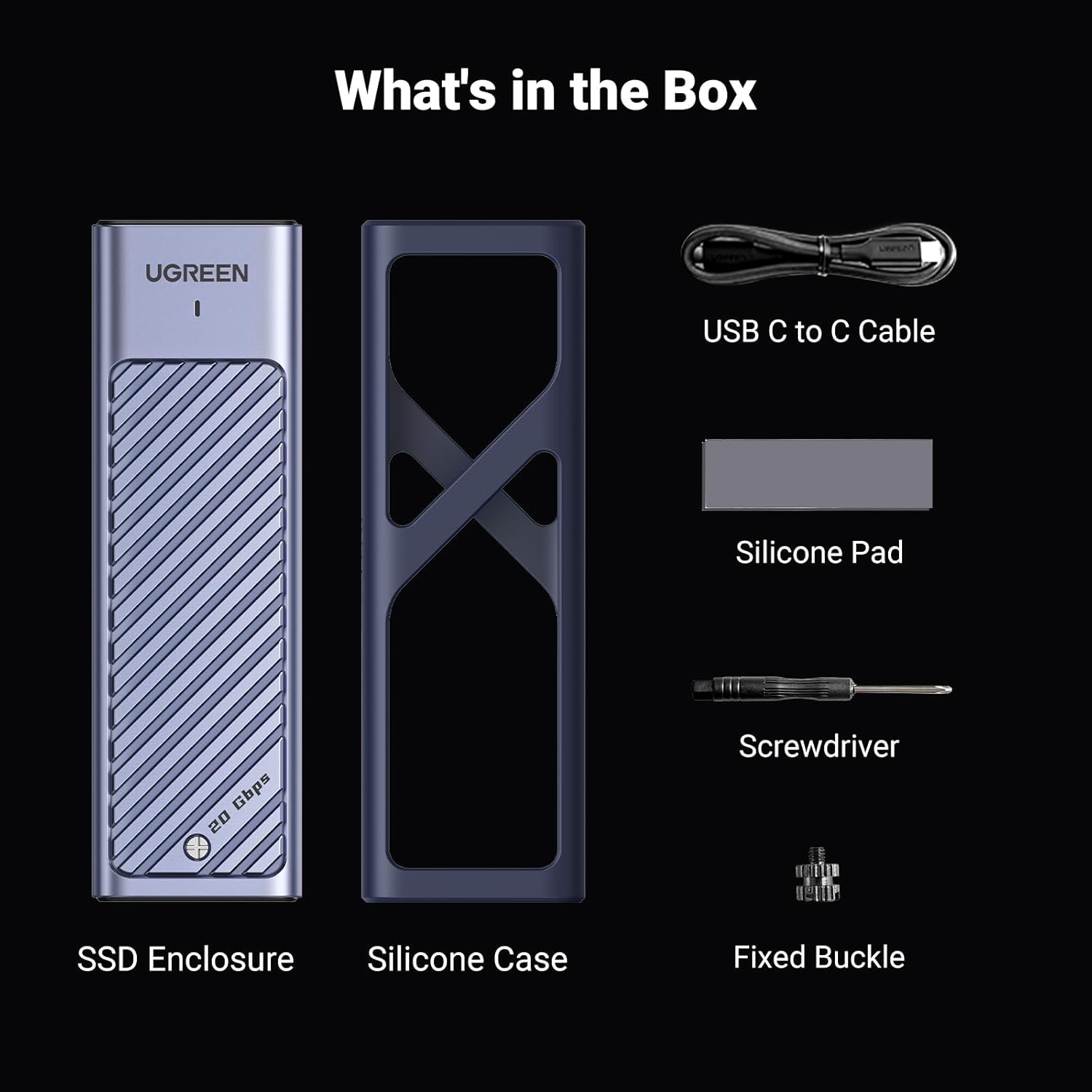
Figure 2: Included accessories: SSD Enclosure, Silicone Case, USB-C to USB-C Cable, Silicone Pad, Screwdriver, Fixed Buckle.
3. Specifications
| Feature | Description |
|---|---|
| Brand | UGREEN |
| Model Number | 35576 |
| Material | Aluminum |
| Compatible SSD Types | PCIe NVMe M.2 SSDs (M Key) and SATA NGFF M.2 SSDs (B+M Key) |
| Supported SSD Sizes | 2230, 2242, 2260, 2280 |
| Max Storage Capacity | Up to 8TB |
| Data Transfer Rate | Up to 20Gbps (USB 3.2 Gen 2x2) |
| Interface | USB-C (USB 3.2 Gen 2x2) |
| Supported Features | UASP, Trim |
| Compatible Systems | Windows, macOS, Linux, Android, iOS |
| Dimensions | 4.84 x 1.49 x 0.49 inches |
| Item Weight | 0.15 Kilograms (approx. 5.3 ounces) |
Note: For 20Gbps transfer speed, ensure your USB interface protocol is USB 3.2 Gen 2x2.
4. Installation Guide
Follow these steps to install your M.2 SSD into the UGREEN enclosure:
- Remove the Silicone Cover: Gently slide off the protective silicone cover from the enclosure.
- Unscrew and Open the Cover: Use the provided screwdriver to loosen the screw on the enclosure and slide open the metal cover.
- Align the Hard Drive Interface: Carefully insert your M.2 SSD into the M.2 slot, ensuring the connectors are properly aligned.
- Fix Hard Drive with Fixed Buckle: Secure the SSD in place using the provided fixed buckle. Choose the appropriate hole based on your SSD's length (2230/2242/2260/2280).
- Affix the Silicone Pad: Peel off the protective film from both sides of the thermal silicone pad and place it onto the SSD chip. This helps with heat dissipation.
- Complete Installation: Close the metal cover and secure it with the screw. Finally, re-attach the silicone protective cover.

Figure 3: Visual guide for installing an M.2 SSD into the enclosure.
5. Operating Instructions
5.1. Connecting to a Device
Connect the UGREEN SSD enclosure to your computer, laptop, tablet, or mobile phone using the provided USB-C to USB-C cable. The enclosure is plug-and-play, requiring no additional drivers for most operating systems (Windows, macOS, Linux, Android, iOS).

Figure 4: The enclosure can be used with various USB-C compatible devices.
5.2. LED Indicator
The enclosure features an LED indicator to show its status:
- White Light On: Indicates standby or hibernate mode.
- White Light Flashing: Indicates data reading or writing activity.
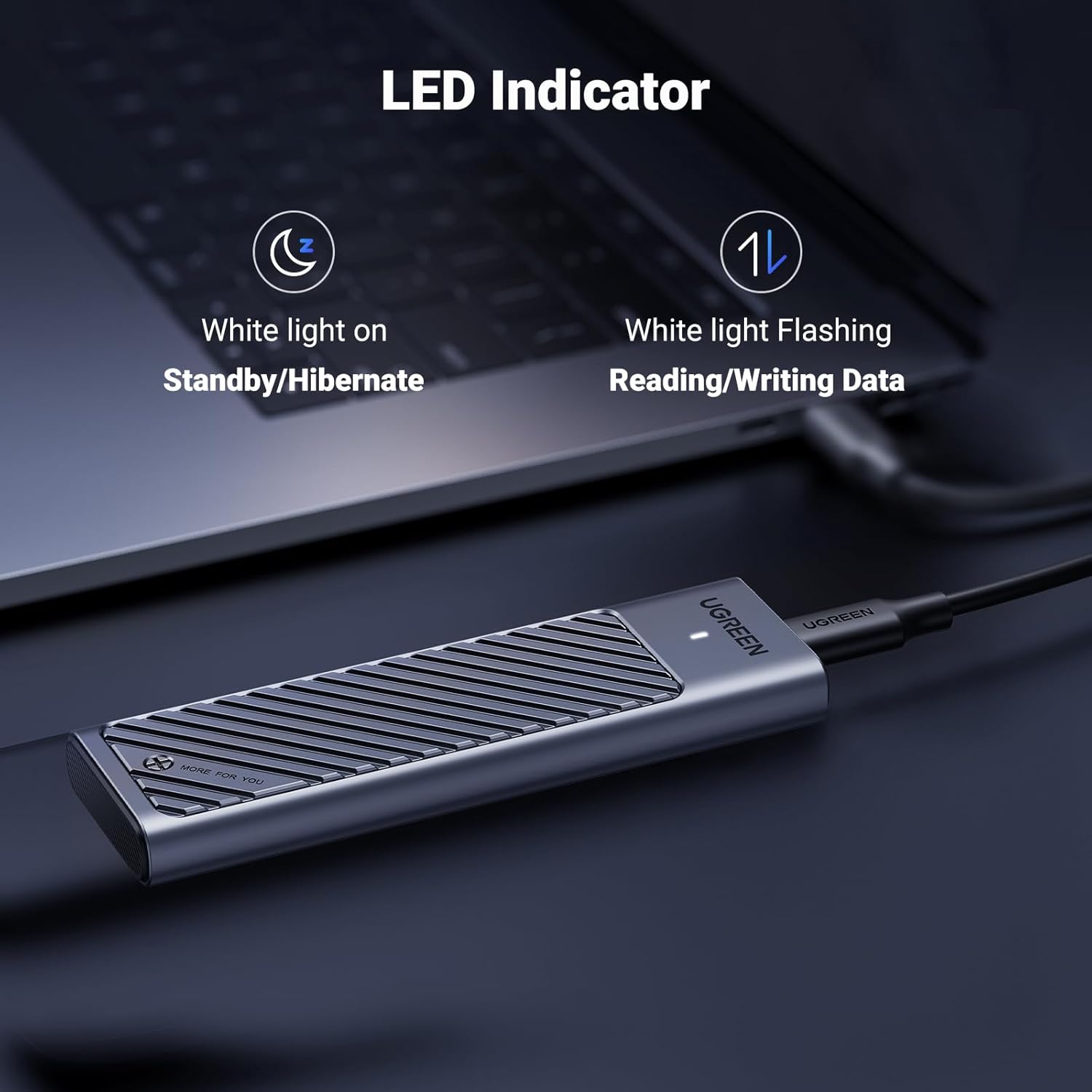
Figure 5: LED indicator status.
6. Heat Dissipation Features
The UGREEN enclosure is engineered with multiple features to ensure effective heat dissipation, protecting your SSD from overheating during high-speed operations:
- Aluminum Body: The enclosure's aluminum casing acts as an excellent thermal conductor, drawing heat away from the SSD.
- Silicone Pad: A thermal silicone pad assists in transferring heat from the SSD to the aluminum case.
- Thermal Fin Design: The grooved design on the enclosure's surface increases the heat dissipation area.

Figure 6: Heat dissipation mechanism of the enclosure.
7. Compatibility
7.1. SSD Compatibility
This enclosure supports both NVMe (M Key) and SATA (B+M Key) M.2 SSDs. It is compatible with SSDs of sizes 2230, 2242, 2260, and 2280. Please note that m-SATA SSDs are not supported.
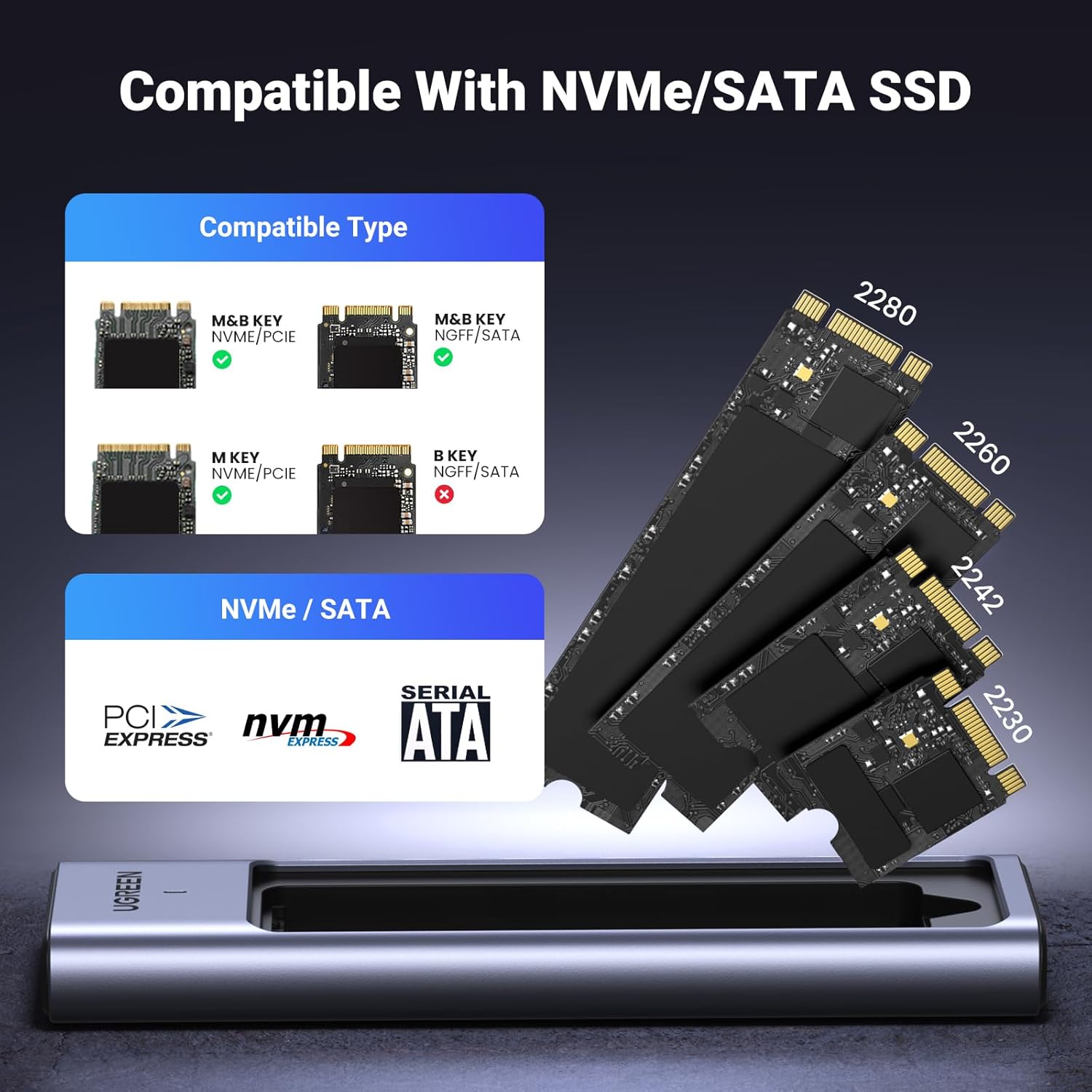
Figure 7: Supported M.2 SSD types and keying.
7.2. Operating System Compatibility
The enclosure is compatible with a wide range of operating systems, including Windows, macOS, Linux, Android, and iOS, allowing for versatile use across different devices.
8. Troubleshooting
- SSD Not Recognized:
- Ensure the M.2 SSD is correctly inserted and secured within the enclosure.
- Verify the USB-C cable is securely connected to both the enclosure and your device.
- Try connecting to a different USB-C port on your device.
- Check if the SSD is initialized and formatted in your operating system's Disk Management (Windows) or Disk Utility (macOS).
- Slow Transfer Speeds:
- Confirm that your device's USB-C port supports USB 3.2 Gen 2x2 (20Gbps) for maximum performance. Other USB versions will result in lower speeds.
- Ensure the USB-C cable used is rated for 20Gbps data transfer.
- Close any background applications that might be consuming system resources or bandwidth.
- Verify that the SSD itself is capable of 20Gbps speeds.
- Enclosure Gets Hot:
- It is normal for the aluminum enclosure to warm up during heavy data transfer, as it is designed to dissipate heat from the SSD.
- Ensure the thermal silicone pad is correctly installed between the SSD and the enclosure's metal cover.
- Avoid placing the enclosure in enclosed spaces that restrict airflow.
9. Maintenance
- Keep the enclosure clean and free from dust. Use a soft, dry cloth for cleaning.
- Avoid exposing the enclosure to extreme temperatures, humidity, or direct sunlight.
- Handle the enclosure with care to prevent physical damage. The silicone protective cover offers some shock protection.
- Always safely eject the drive from your operating system before disconnecting it to prevent data corruption.
10. Warranty and Support
UGREEN products typically come with a manufacturer's warranty. For specific warranty details, return policies, or technical support, please refer to the warranty card included in your package or visit the official UGREEN website. It is recommended to back up all your important data regularly to avoid any loss or corruption of data.