
1. Introduction
Thank you for choosing the Inateck Surface Go Keyboard. This manual provides detailed instructions on how to set up, operate, and maintain your keyboard to ensure optimal performance and longevity. This ultra-slim keyboard cover transforms your Surface Go into a laptop, enhancing both work efficiency and entertainment experience.
2. Compatibility
The Inateck Surface Go Keyboard is designed for full compatibility with the Microsoft Surface Go series. Please ensure your device is listed below for proper functionality:
- Surface Go 4 (2023)
- Surface Go 3 (2021)
- Surface Go 2 (2020)
- Surface Go 1 (2018)
Note: This keyboard is not compatible with Surface Pro models.

Image: Compatibility chart for Inateck Surface Go Keyboard, indicating support for Surface Go 1 through 4.
3. Features
- Seamless Connectivity: Equipped with Bluetooth 5.3 for faster and more stable connections.
- Seven-Color Backlight: Choose from seven backlight colors to meet your various needs in different lighting conditions.
- Ultra-Thin and Lightweight: Weighing only 246g (about half a pound) for easy portability.
- Dedicated Shortcut Keys: First-row keys on the keyboard serve as dedicated shortcuts for functions such as screen capture, lock screen, and volume adjustment. These keys work independently without the need for a Fn key combination.
- Long Standby Time: Enjoy extended usage with up to 180 days of standby time.
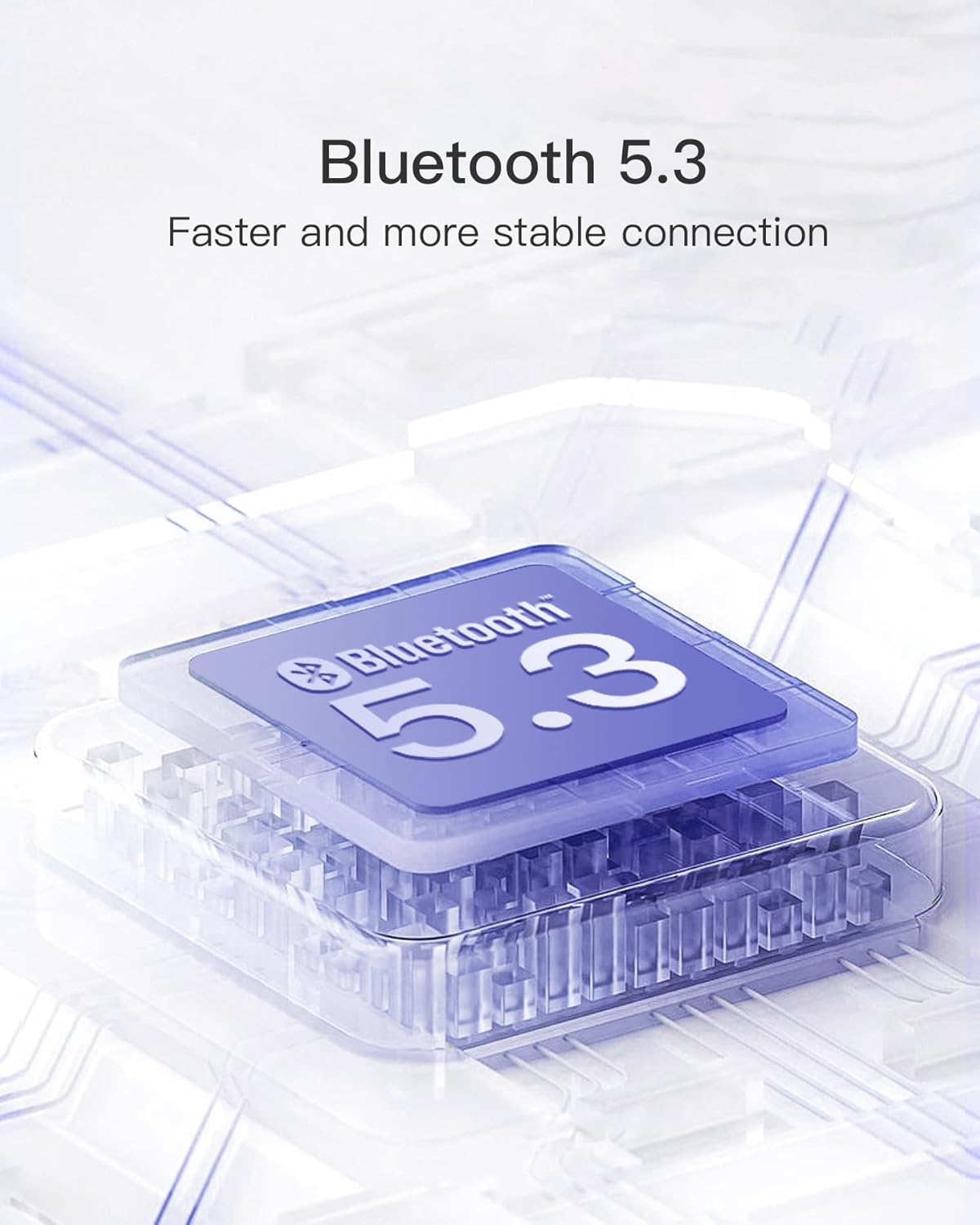
Image: Visual representation of Bluetooth 5.3 technology, highlighting fast and stable connection.

Image: A person using the Inateck keyboard with its keys illuminated by a green backlight, demonstrating the seven-color backlight feature.

Image: The Inateck keyboard depicted as lightweight and portable, with its thickness and weight (246g) highlighted.

Image: A close-up of the Inateck keyboard's top row, illustrating the dedicated shortcut keys for various functions.

Image: A person using the Inateck keyboard on an airplane, emphasizing its 180-day standby time for travel convenience.
4. Setup
4.1. Charging the Keyboard
Before first use, fully charge the keyboard. Connect the provided USB-C cable to the charging port on the keyboard and the other end to a USB power adapter (not included) or a computer's USB port.

Image: A close-up view of the keyboard's USB-C charging port with a cable inserted.
4.2. Bluetooth Pairing
- Ensure the keyboard is charged and powered on using the switch on the side.
- On your Surface Go, go to Settings > Bluetooth & devices.
- Turn on Bluetooth.
- The keyboard should appear in the list of available devices (e.g., "Inateck Keyboard"). Select it to pair.
- Follow any on-screen prompts to complete the pairing process.
5. Operating Instructions
5.1. Basic Usage
Once paired, the keyboard functions like a standard laptop keyboard. Simply type as you normally would. The integrated trackpad allows for precise cursor control and navigation.
5.2. Backlight Control
The keyboard features a seven-color backlight. Use the dedicated backlight key (often indicated by a light bulb icon or similar) in the function row to cycle through colors or turn the backlight on/off. Some models may require pressing the 'Fn' key in combination with a function key for backlight control.
5.3. Shortcut Keys
The top row of keys provides dedicated shortcuts for common functions. These include:
- Screen capture
- Lock screen
- Volume adjustment (up, down, mute)
- Media playback controls (play/pause, next, previous)
These keys operate directly without needing to press the 'Fn' key simultaneously.
5.4. Trackpad Functionality
The trackpad supports five-finger multitouch gestures. It also features an anti-misoperation setting where the left and right buttons are temporarily disabled for 0.3 seconds when keys are pressed, preventing accidental touches during typing.

Image: A detailed view of the keyboard's integrated trackpad.
5.5. Usage Modes
The keyboard cover allows for flexible usage modes:
- Laptop Mode: Position your Surface Go with the keyboard attached for a traditional laptop experience.
- Tablet Mode: Fold the keyboard cover back behind the Surface Go to use your device as a tablet. The screen will remain on even with the cover closed for approximately 20 seconds before turning off.

Image: The Inateck keyboard attached to a Surface Go, demonstrating its use in laptop mode.

Image: The Inateck keyboard folded back, allowing the Surface Go to be used in tablet mode.
6. Maintenance
To ensure the longevity of your Inateck Surface Go Keyboard, follow these maintenance guidelines:
- Cleaning: Use a soft, dry, lint-free cloth to clean the keyboard surface. For stubborn marks, slightly dampen the cloth with water. Avoid using harsh chemicals or abrasive materials.
- Storage: When not in use, store the keyboard in a cool, dry place away from direct sunlight and extreme temperatures.
- Handling: Avoid dropping the keyboard or exposing it to excessive force, which could damage internal components or the keys.
7. Troubleshooting
If you encounter issues with your Inateck Surface Go Keyboard, please refer to the following common problems and solutions:
| Problem | Possible Cause | Solution |
|---|---|---|
| Keyboard not connecting via Bluetooth. | Low battery, Bluetooth off on Surface Go, keyboard not in pairing mode, interference. | Ensure keyboard is charged. Turn Bluetooth off and on again on Surface Go. Restart both devices. Move closer to Surface Go. |
| Keys not responding. | Keyboard not powered on, connection issue, software glitch. | Check power switch. Re-pair Bluetooth. Restart Surface Go. |
| Backlight not working. | Backlight turned off, low battery. | Press the backlight key to turn it on or cycle colors. Charge the keyboard. |
| Trackpad unresponsive or erratic. | Software issue, dirty trackpad, physical damage. | Restart Surface Go. Clean the trackpad surface. Ensure no physical obstructions. |
If the problem persists after trying these solutions, please contact Inateck customer support for further assistance.
8. Specifications
| Feature | Detail |
|---|---|
| Brand | Inateck |
| Model Number | KB02028 |
| Product Dimensions | 24.52 x 18.66 x 0.68 cm |
| Item Weight | 245 g |
| Connectivity Technology | Bluetooth 5.3 |
| Compatible Devices | Microsoft Surface Go series (Go 1, 2, 3, 4) |
| Keyboard Description | Type Cover |
| Number of Keys | 78 |
| Special Feature | 7-Color Backlight, Lightweight, Trackpad, Dedicated Shortcut Keys |
| Power Source | Battery Powered (1 Lithium Ion battery included) |
| Operating System | Windows 10 (for Surface Go compatibility) |
| Included Components | Trackpad |
9. Warranty and Support
Inateck products are designed for reliability and performance. This product comes with a standard manufacturer's warranty. For detailed warranty information, technical support, or service inquiries, please visit the official Inateck website or contact their customer service directly. Please retain your proof of purchase for warranty claims.
Inateck Official Website: www.inateck.com
