
1. Introduction
This manual provides detailed instructions for the installation, operation, and maintenance of your VECHTEL Android 13 Car Radio Stereo. This unit is designed specifically for Nissan Sentra models from 2013 to 2017. Please read this manual thoroughly before installation and use to ensure proper function and safety.
2. Safety Information
- Always consult a professional for installation if you are unsure about any steps. Incorrect installation can damage the vehicle's electrical system or the stereo unit.
- Do not operate the device in a way that distracts you from driving. Always prioritize road safety.
- Ensure all wiring is properly insulated and secured to prevent short circuits or electrical hazards.
- Keep the unit away from water and excessive moisture.
- Do not attempt to disassemble or modify the unit. This will void the warranty and may cause damage.
3. Package Contents
Verify that all items listed below are included in your package:
- VECHTEL Android 13 Car Radio Stereo Unit (10.1-inch)
- Power Cable
- Original USB Cable
- Rear Camera Input Cable
- GPS Antenna
- RCA Cable
- HD Backup Camera
- Microphone (MIC)
- Installation Tools (Plastic pry tools, screws)

Figure 3.1: Included Package List
4. Setup and Installation
4.1 Compatibility Check
This unit is designed for Nissan Sentra models manufactured between 2013 and 2017. Ensure your vehicle's dashboard configuration matches the horizontal buckle type shown in the compatibility diagram. If your vehicle has vertical buckles, this unit will not be compatible.

Figure 4.1: Nissan Sentra 2013-2017 Compatibility and Fitment
4.2 Wiring Diagram
Refer to the following diagram for correct wiring connections. Ensure the vehicle's power is disconnected before beginning any wiring work.

Figure 4.2: Back Wiring Diagram / Wiring Harness Diagram
4.3 Physical Installation
- Carefully remove the original car stereo unit and trim panels using the provided installation tools.
- Connect the power harness, RCA cables, USB cables, GPS antenna, and Wi-Fi/Bluetooth antennas according to the wiring diagram.
- If installing the backup camera, route the camera cable to the rear of the vehicle and connect it to the designated input on the stereo.
- Mount the new VECHTEL stereo unit into the dashboard opening, ensuring all clips and screws are securely fastened.
- Reinstall any removed trim panels.
- Reconnect the vehicle's power and test the unit.
5. Operating Instructions
5.1 Basic Operation and HD Touch Screen
The unit features a 10.1-inch 1024*600 HD capacitive touchscreen. Power on the unit by starting your vehicle. Navigate through menus and applications by tapping and swiping on the screen.

Figure 5.1: HD Touch Screen Interface
5.2 Wireless CarPlay and Android Auto
Connect your smartphone wirelessly to access CarPlay or Android Auto. This allows for hands-free calls, navigation, music streaming, and voice control (Siri/Google Assistant).
- Ensure Bluetooth is enabled on your phone and the car stereo.
- Pair your phone with the stereo via Bluetooth.
- Follow the on-screen prompts to activate Wireless CarPlay or Android Auto.

Figure 5.2: Wireless CarPlay / Android Auto Interface
5.3 GPS Navigation
The unit has built-in GPS. You can use online navigation apps (e.g., Google Maps) via Wi-Fi or download offline maps directly from the Play Store for navigation without an internet connection.

Figure 5.3: GPS Navigation Display
5.4 Bluetooth Connectivity
Connect your phone via Bluetooth for hands-free calling and wireless audio streaming.
- Go to the Bluetooth settings on the stereo.
- Enable Bluetooth on your phone and search for available devices.
- Select the stereo's name (e.g., "VECHTEL Car Stereo") from your phone's list and pair.
- Your phonebook will automatically sync, and you can make/receive calls and play music wirelessly.
5.5 Wi-Fi Connection
Connect to a Wi-Fi hotspot (e.g., from your phone or a portable hotspot) to access online features, download apps, and browse the internet.
- Navigate to Settings > Network & Internet > Wi-Fi.
- Turn on Wi-Fi and select your desired network.
- Enter the password if prompted.
5.6 FM Radio
Access the FM Radio application to listen to local radio stations. The unit supports 18 preset stations.
- Open the 'FM Radio' app.
- Use the scan function to find stations or manually tune to a frequency.
- Save your favorite stations to the preset buttons.
5.7 Mirror Link
The Mirror Link feature allows you to display your iOS or Android phone screen directly onto the car stereo wirelessly. This is useful for apps not supported by CarPlay/Android Auto.
- Open the 'Mirror Link' app on the stereo.
- Follow the on-screen instructions to connect your specific phone model (iOS or Android).
5.8 Split Screen Function
Utilize the split-screen feature to run two applications simultaneously, such as navigation on one side and music playback on the other.
- While an app is open, long-press the recent apps button or follow the specific Android 13 gestures for split-screen mode.
- Select a second app to occupy the other half of the screen.
5.9 Steering Wheel Controls (SWC)
The unit supports your vehicle's existing steering wheel controls, allowing you to manage music, calls, and other functions without taking your hands off the wheel.
- Access the SWC settings in the stereo's menu.
- Follow the on-screen instructions to map your steering wheel buttons to the desired functions.
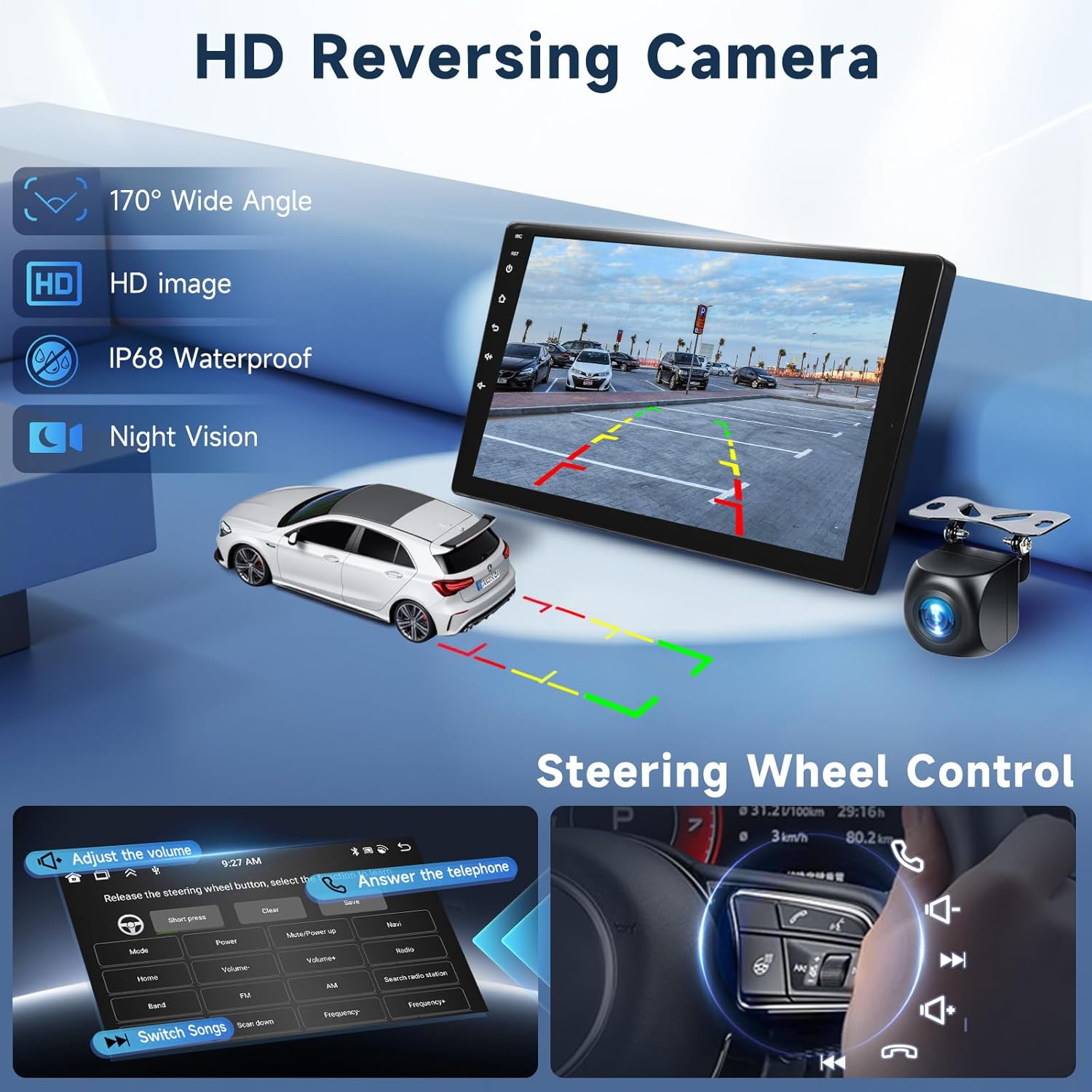
Figure 5.4: Steering Wheel Control Configuration
5.10 Backup Camera Input
When the vehicle is shifted into reverse, the display will automatically switch to the view from the connected HD backup camera, providing better visibility for parking and reversing maneuvers.
5.11 Audio Equalizer (EQ)
Customize your audio experience with the built-in equalizer. Select from various preset sound scenes or manually adjust frequency bands to suit your preferences.
5.12 Multiple UI Themes
The unit offers multiple user interface themes, allowing you to personalize the look and feel of your car stereo's display.
6. Troubleshooting
If you encounter issues, refer to the following common problems and solutions:
| Problem | Possible Cause | Solution |
|---|---|---|
| Unit does not power on | Incorrect wiring, blown fuse, vehicle power issue | Check power connections, inspect vehicle fuses, ensure vehicle ignition is on. |
| No sound | Speaker wiring issues, volume too low, mute activated | Verify speaker connections, increase volume, check if mute is active. |
| GPS signal lost or inaccurate | GPS antenna not properly connected or obstructed | Ensure GPS antenna is securely connected and placed in an unobstructed location (e.g., dashboard). |
| Bluetooth connection unstable | Interference, phone too far, old pairing data | Move phone closer, clear old Bluetooth pairings on both devices and re-pair. |
| Backup camera not displaying | Camera wiring incorrect, camera faulty, reverse trigger not connected | Check camera power and video signal connections, ensure reverse trigger wire is correctly connected. |
7. Maintenance
- Cleaning the Screen: Use a soft, lint-free cloth to gently wipe the touchscreen. For stubborn smudges, slightly dampen the cloth with water or a screen-safe cleaner. Avoid harsh chemicals or abrasive materials.
- Software Updates: Periodically check for software updates via the system settings (requires Wi-Fi connection) to ensure optimal performance and access to new features.
- General Care: Avoid exposing the unit to extreme temperatures or direct sunlight for prolonged periods. Ensure proper ventilation around the unit.
8. Specifications
| Feature | Specification |
|---|---|
| Model Name | 2G+64G H Snap |
| Operating System | Android 13 |
| RAM | 2GB |
| Memory Storage Capacity | 64GB |
| Screen Size | 10.1 Inches |
| Resolution | 1024 x 600 (HD) |
| Display Type | LCD, 2.5D Capacitive Touchscreen |
| Connectivity Technology | Bluetooth, USB, Wi-Fi |
| Special Features | 4 CORE Processor, GPS, Wireless Android Auto, Wireless CarPlay, Mirror Link, Split Screen, SWC, FM Radio, Multiple EQ, Multiple UI Themes |
| Supported Satellite Navigation System | GPS |
| Included Components | HD Backup Camera |
| Item Weight | 1.5 Kilograms |
9. Warranty and Support
This VECHTEL car stereo unit comes with a 2-year warranty. For technical support, warranty claims, or any questions regarding your product, please contact VECHTEL customer service through the retailer where the product was purchased. Please have your purchase receipt and product model number (2G+64G H Snap) ready when contacting support.
