
1. Introduction
This manual provides essential information for the safe and effective operation of your Jimveo E88 Projector. Please read this manual thoroughly before using the product and retain it for future reference. The Jimveo E88 is a 4K-supported, Full HD 1080P projector featuring 800 ANSI lumens, autofocus, auto keystone correction, official Netflix licensing, Dolby Audio, WiFi 6, and Bluetooth connectivity.
2. Safety Instructions
- Do not look directly into the projector lens when the lamp is on.
- Ensure proper ventilation around the projector to prevent overheating.
- Do not expose the projector to rain, moisture, or extreme temperatures.
- Use only the power adapter supplied with the projector.
- Avoid placing the projector on unstable surfaces.
- Keep the projector away from water and other liquids.
- Do not attempt to disassemble or repair the projector yourself. Contact customer support for assistance.
3. Package Contents
Verify that all items are present in the package:
- Jimveo E88 Projector
- Remote Control
- Power Adapter
- HDMI Cable
- User Manual
4. Product Overview
Familiarize yourself with the projector's physical components and connection ports.

Image: The Jimveo E88 projector with its remote control, showing a streaming service on the projected screen.
Ports and Interfaces:
- HDMI Port: Connect to devices such as laptops, gaming consoles (PS5), or Blu-ray players.
- USB Port: Connect USB drives for media playback.
- AV Port: Connect to older devices using an AV cable.
- Audio Out: Connect external speakers or headphones.
- Power Input: Connect the power adapter.
5. Setup
5.1 Initial Placement
Place the projector on a stable, flat surface. Ensure there are no obstructions blocking the lens or ventilation openings. The optimal projection distance can vary, but the projector features automatic image adjustments.
5.2 Power Connection
- Connect the power adapter to the projector's power input port.
- Plug the power adapter into a wall outlet.
- Press the power button on the projector or remote control to turn it on.
5.3 Remote Control Pairing
The remote control uses Bluetooth. If the remote does not respond, ensure it is paired. Follow on-screen instructions during initial setup or refer to the system settings for Bluetooth device pairing.
5.4 Connecting External Devices
The E88 projector supports various input sources:
- HDMI: Connect your PS5, PC, DVD player, or other HDMI-enabled devices using the provided HDMI cable.
- USB: Insert a USB disk for direct media playback.
- AV: Use an AV cable for devices with AV output.
- Wireless Connection: Connect iOS and Android phones wirelessly for screen mirroring (refer to operating instructions for details).
5.5 Network Connection (WiFi 6)
To access online streaming services and updates, connect the projector to your WiFi network.
- Navigate to the 'Settings' menu on the projector.
- Select 'Network' or 'WiFi'.
- Choose your WiFi network from the list and enter the password.
- The projector supports WiFi 6 for faster and more stable connections.
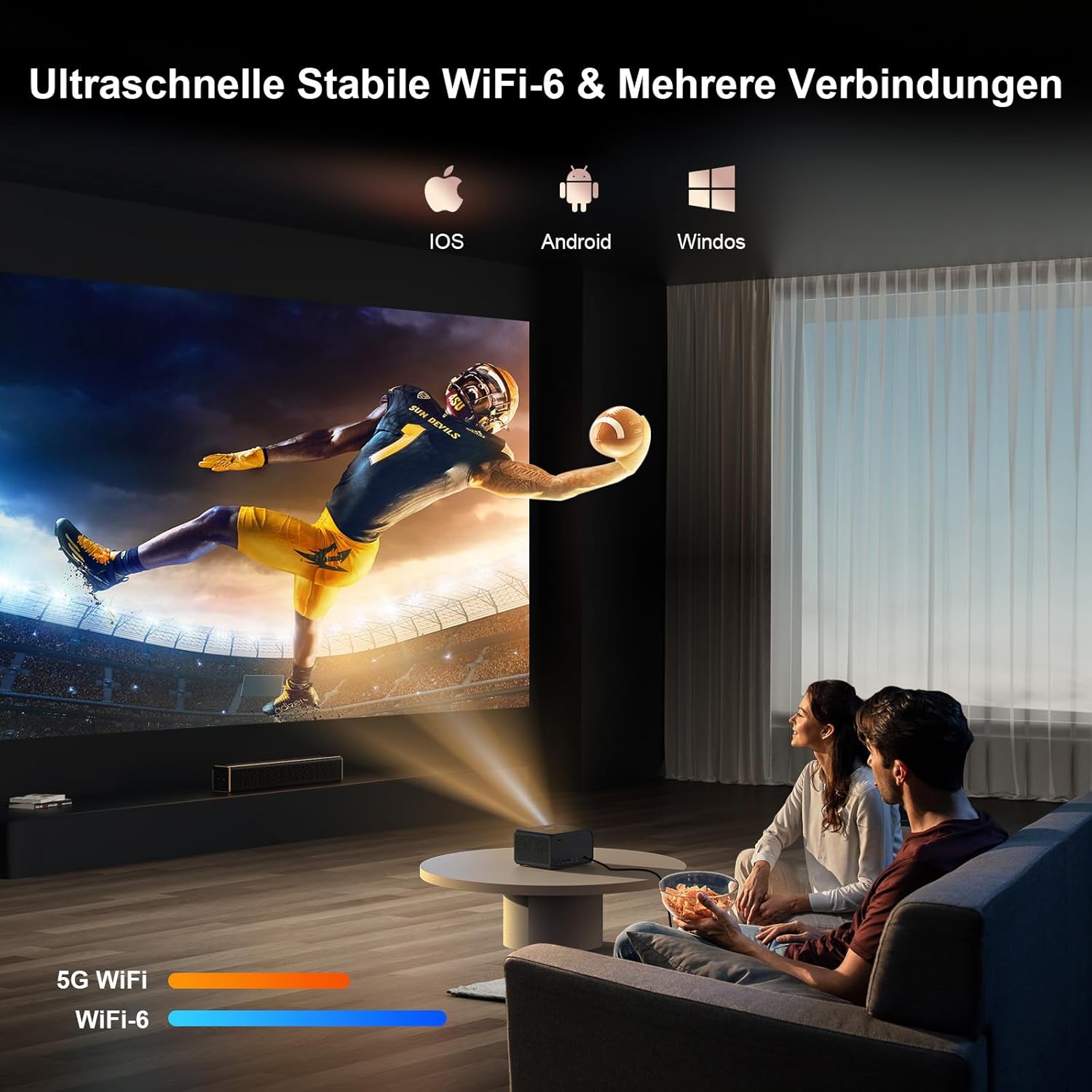
Image: The Jimveo E88 projector in use, highlighting its WiFi 6 connectivity.
6. Operating Instructions
6.1 Basic Operation
- Power On/Off: Press the power button on the projector or remote.
- Navigation: Use the directional buttons on the remote to navigate the on-screen menu.
- Input Source: Select the desired input source (HDMI, USB, AV, or Smart OS) from the main menu.
6.2 Smart OS and Streaming
The Jimveo E88 features a built-in intelligent operating system with official Netflix licensing and support for other popular streaming platforms like YouTube, Hulu, and Prime Video.

Image: The Jimveo E88 projector showcasing its native 1080P resolution and 4K support with a vibrant image.
- App Access: Access pre-installed streaming applications directly from the home screen.
- DIY Homepage: Customize your home screen layout and app arrangement.
- E-Instructions: The system includes an electronic guide for user assistance.
- Mobile Wake-up: Activate the projector with a single touch from your mobile phone.
- Online Upgrades: The integrated system supports online updates to ensure you have the latest features and content.

Image: The Jimveo E88 projector's smart operating system interface, highlighting features like DIY homepage and online upgrades.
6.3 Audio Features
The E88 projector is equipped with Dolby Audio and built-in 3W dual stereo speakers for an immersive sound experience.

Image: The Jimveo E88 projector highlighting its Dolby Audio support and built-in speakers.
- Dolby Audio: Provides enhanced sound quality for movies and other content.
- Bluetooth Speaker Mode: The projector can connect to your phone via bi-directional Bluetooth and function as a Bluetooth speaker.
6.4 Image Adjustment
The projector features intelligent image correction functions for a clear and properly aligned display.

Image: The Jimveo E88 projector illustrating its intelligent autofocus and auto keystone correction features.
- Autofocus: The projector automatically adjusts the focus for a sharp image within approximately 6 seconds.
- Auto Keystone Correction (±45°): Automatically corrects distorted images to a rectangular shape, even when the projector is tilted.
- Intelligent Obstacle Avoidance: The projector can detect and adjust the image to avoid obstacles on the projection surface.
- Zoom Function: Adjust the image size without physically moving the projector.
7. Maintenance
7.1 Cleaning the Lens
Use a soft, lint-free cloth specifically designed for optical lenses. Do not use abrasive cleaners or excessive force.
7.2 Cleaning the Vents
Regularly check and clean the ventilation openings to ensure proper airflow and prevent overheating. Use a soft brush or compressed air to remove dust.
7.3 Storage
When not in use for extended periods, store the projector in a cool, dry place, protected from dust and direct sunlight. Use the original packaging or a protective case.
8. Troubleshooting
If you encounter issues with your Jimveo E88 Projector, refer to the following common problems and solutions:
| Problem | Possible Cause | Solution |
|---|---|---|
| No Power | Power cable not connected; Power outlet faulty; Projector off. | Ensure power cable is securely connected. Test power outlet. Press power button. |
| No Image | Incorrect input source; Cable not connected; Device not powered on. | Select correct input source. Check HDMI/AV/USB cable connections. Power on connected device. |
| Blurry Image | Autofocus issue; Lens dirty; Projector too close/far. | Allow autofocus to complete. Clean the lens. Adjust projector distance or use zoom. |
| No Sound | Volume too low; Muted; External audio device not connected. | Increase volume. Unmute. Check external audio connections if applicable. |
| Remote Not Responding | Batteries low/dead; Not paired; Obstruction. | Replace batteries. Re-pair remote via Bluetooth settings. Ensure no obstructions. |
| WiFi Connection Issues | Incorrect password; Router issues; Signal interference. | Verify WiFi password. Restart router. Move projector closer to router. |
9. Specifications
| Feature | Specification |
|---|---|
| Brand | Jimveo |
| Model Name | E88 |
| Maximum Display Resolution | 3840 x 2160 Pixels (4K Supported) |
| Native Resolution | 1920 x 1080 Pixels (Full HD 1080P) |
| Display Type | LED |
| Brightness | 800 ANSI Lumens |
| Included Components | HDMI Cable |
| Maximum Projection Distance | 6 meters |
| Minimum Projection Distance | 1 meter |
| Voltage | 230 Volts |
| Hardware Interface | Bluetooth, HDMI, USB, AV |
| Wireless Connectivity | WiFi 6, Bi-directional Bluetooth |
| Audio | Dolby Audio, Built-in 3W Dual Stereo Speakers |
| Smart Features | Official Netflix License, Intelligent OS, Autofocus, Auto Keystone Correction, Obstacle Avoidance, Zoom Function, DIY Homepage, Mobile Wake-up, Online Upgrades |
10. Warranty and Support
Jimveo offers a 3-year repair warranty and lifetime technical support for the E88 Projector. For any questions or assistance, please contact Jimveo customer support through the product support page or the provided after-sale email address.


