
ANNKE N46PCK6-V4-98DM
Contents
ANNKE N46PCK6-V4-98DM PoE Security Camera System User Manual
Model: N46PCK6-V4-98DM
1. Introduction
This manual provides comprehensive instructions for the installation, operation, and maintenance of your ANNKE N46PCK6-V4-98DM PoE Security Camera System. Please read this manual thoroughly before using the product to ensure proper setup and functionality.
The ANNKE N46PCK6-V4-98DM system includes a 16-channel 12MP Network Video Recorder (NVR) and eight 4K wired turret IP cameras. It features smart dual-light color night vision, built-in microphones, AI motion detection, and an IP67 weather resistance rating. A 6TB hard drive is pre-installed for recording.

Figure 1.1: Overview of the ANNKE N46PCK6-V4-98DM PoE Security Camera System, showing the NVR unit, eight turret cameras, and the included 6TB hard drive.
2. Package Contents
Verify that all items listed below are present in your package. If any items are missing or damaged, please contact ANNKE customer support.
- 1 x 16-Channel 12MP PoE NVR with 6TB Hard Drive
- 8 x 4K Turret IP PoE Cameras
- 1 x HDMI Cable
- 1 x Ethernet Cable
- 1 x Power Adapter (for NVR)
- 1 x USB Mouse
- 4 x 60ft Network Cables
- 4 x 100ft Network Cables
- 8 x Screw Kits (for camera mounting)
- 1 x Wall Sticker
- 1 x User Manual

Figure 2.1: Contents of the ANNKE N46PCK6-V4-98DM system package. This image displays the NVR unit, eight turret cameras, a 6TB hard drive, various cables (HDMI, Ethernet, network), a power adapter, a USB mouse, mounting screws, a wall sticker, and the user manual.
3. Setup and Installation
3.1 NVR Connection
- Connect the Hard Drive: The 6TB HDD is pre-installed. If installing a new HDD, ensure it is securely mounted and connected to the SATA interface inside the NVR.
- Connect to a Monitor: Use the provided HDMI cable to connect the NVR's HDMI output port to a monitor or TV.
- Connect the Mouse: Plug the USB mouse into a USB port on the NVR.
- Network Connection: Connect the NVR to your router using an Ethernet cable for remote access and updates.
- Power On: Connect the power adapter to the NVR and then to a power outlet. The NVR will boot up automatically.
3.2 Camera Installation
The 4K turret IP cameras are designed for both indoor and outdoor use with an IP67 rating.
- Mounting Location: Choose a suitable location for each camera, ensuring a clear field of view and within range of the provided network cables. Consider areas prone to human and vehicle activity for optimal AI detection.
- Secure Mounting: Use the provided screw kits to securely mount each camera to a wall or ceiling.
- PoE Connection: Connect each camera to an available PoE port on the NVR using the provided network cables. The cameras will receive both power and data through this single cable.
- Adjust Angle: Adjust the camera's angle to cover the desired surveillance area.

Figure 3.1: Detail of the 4K turret IP camera, highlighting the lens, dual light illuminators, and built-in microphone for audio recording.

Figure 3.2: Visual comparison demonstrating the clarity and detail provided by 4K resolution from the ANNKE camera compared to lower resolutions like 1080p and 2K.
4. Operating the System
4.1 Initial Setup Wizard
Upon first boot, the NVR will guide you through an initial setup wizard. Follow the on-screen prompts to:
- Set up an administrator password.
- Configure date and time settings.
- Format the hard drive (if prompted).
- Network configuration (DHCP is usually default).
4.2 Live View and Recording
Once configured, the NVR will display the live view from all connected cameras. The system is set to record continuously by default. You can access recording settings via the NVR's main menu.
4.3 Motion Detection and AI Features
The system supports AI motion detection for human and vehicle targets. This feature helps reduce false alarms.
- Configuration: Navigate to the "Event" or "Alarm" settings in the NVR menu to configure motion detection zones and sensitivity for each camera.
- Smart Events: The NVR supports line crossing detection, intrusion detection, region entrance detection, and region exiting detection. These require compatible IP camera support.
- Notifications: Configure the system to send push notifications to the ANNKE Vision app, email alerts, or trigger a buzzer upon detection.

Figure 4.1: Illustration of the intelligent motion detection feature, showing the system identifying a human and a vehicle, and generating an alert notification on a mobile device.
4.4 Night Vision Modes
The cameras offer three night vision modes:
- IR Light Mode (Black & White Vision): Standard infrared night vision, providing clear black and white images in low light.
- White Light Mode (Color Night Vision): The camera's white light illuminator activates to provide full-color images in darkness.
- Smart Dual-Light Mode: The camera primarily uses IR for black and white vision. When a human or vehicle is detected, the white light activates to provide color vision and deter intruders.
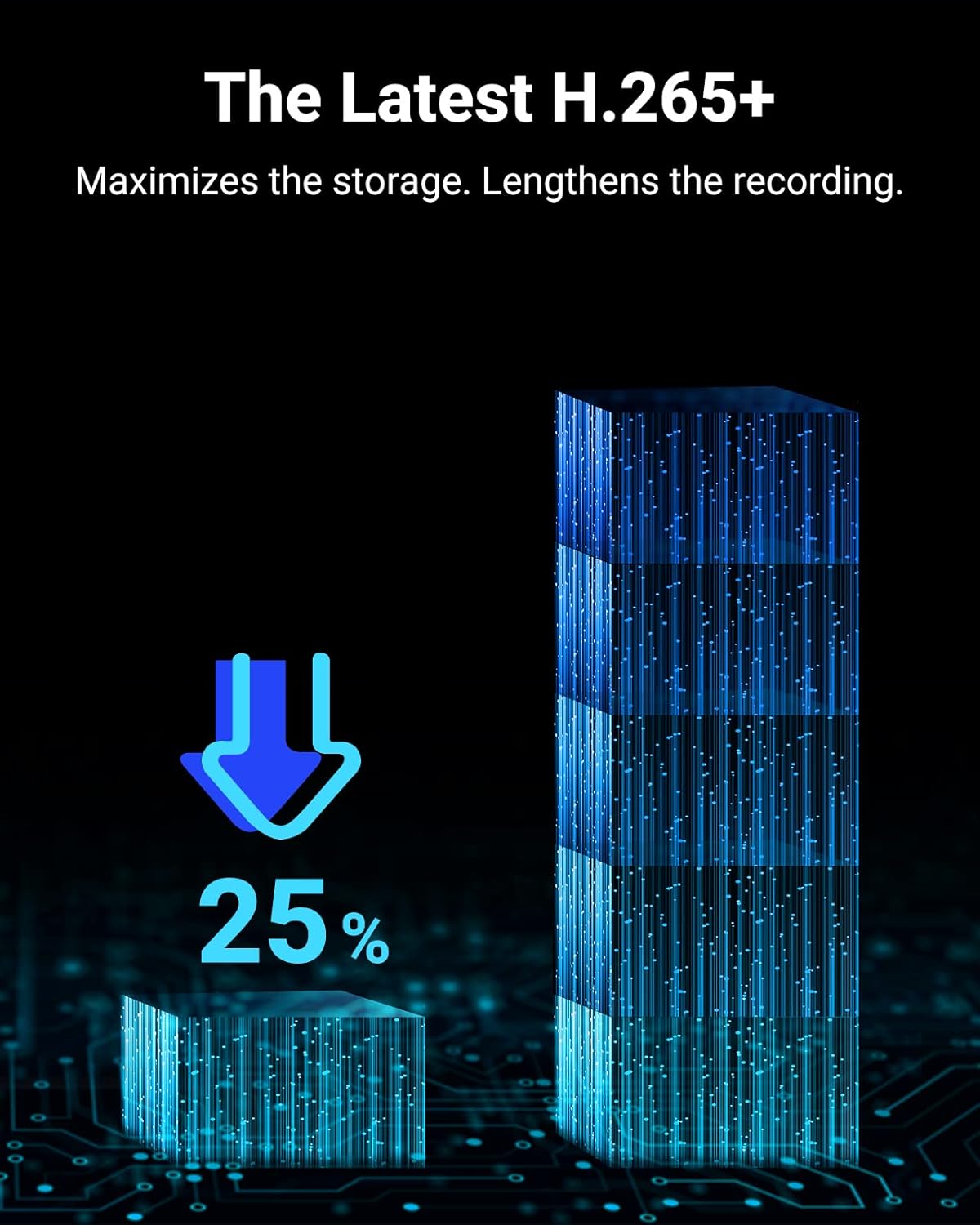
Figure 4.2: Depiction of the three intelligent night vision modes available on the ANNKE cameras: Black & White (IR), Color Night Vision (White Light), and Smart Dual Light, which combines both for enhanced detection.
4.5 Remote Access (ANNKE Vision App)
Download the free ANNKE Vision app from the App Store or Google Play to access your system remotely.
- Download: Search for "ANNKE Vision" in your device's app store.
- Register Account: Create an account and log in.
- Add Device: Follow the in-app instructions to add your NVR by scanning the QR code or manually entering the device details.
- Live View & Playback: Once added, you can view live feeds, play back recordings, and receive notifications from your smartphone or tablet.

Figure 4.3: A smartphone screen showing the ANNKE Vision application interface, displaying a live camera feed, illustrating remote access capabilities.
5. Maintenance
- Regular Cleaning: Periodically clean the camera lenses with a soft, damp cloth to ensure clear image quality. Do not use harsh chemicals.
- Firmware Updates: Check the ANNKE website or the NVR's system settings for available firmware updates to ensure optimal performance and security.
- Hard Drive Management: The system uses H.265+ compression to maximize storage. Regularly review recordings and back up important footage. The NVR will automatically overwrite the oldest footage when the hard drive is full.
- Cable Inspection: Periodically inspect all cables for wear or damage, especially outdoor network cables.

Figure 5.1: A visual representation of the H.265+ video compression technology, demonstrating its efficiency in reducing storage requirements, shown as a 25% reduction compared to previous standards.

Figure 5.2: This image highlights two key features of the ANNKE camera: a built-in microphone for noise-cancelling audio recording and an IP67 rating, indicating its dust and waterproof capabilities.
6. Troubleshooting
| Problem | Possible Cause | Solution |
|---|---|---|
| No video display on monitor. | NVR not powered on; HDMI cable loose; incorrect monitor input. | Check power connection; ensure HDMI cable is secure; select correct input on monitor. |
| Camera not showing video. | PoE cable disconnected/damaged; camera not powered; NVR port issue. | Check PoE cable connection; try a different PoE port; restart NVR. |
| No remote access via app. | NVR not connected to internet; incorrect network settings; app configuration error. | Verify NVR internet connection; check network settings (DHCP); re-add device in app. |
| Motion detection not working. | Detection zones not configured; sensitivity too low; AI detection disabled. | Configure motion detection zones; increase sensitivity; ensure AI detection is enabled. |
| Hard drive full, no new recordings. | Continuous recording enabled, hard drive capacity reached. | The system is designed to overwrite oldest footage. No action needed unless you want to save specific footage. Consider upgrading HDD if more storage is consistently needed. |
7. Specifications
7.1 NVR Specifications
- Video Input: Up to 16 channels IP cameras
- Video Output: HDMI up to 4K (3840 × 2160), VGA up to 1080p
- Recording Resolution: Up to 12 MP
- Video Compression: H.265+/H.265/H.264+/H.264
- SATA Interfaces: 2 (supports up to 16TB HDD, 6TB included)
- PoE Inputs: Built-in
- AI Features: 4-ch Human and vehicle targets detection (NVR-based), 16-ch Human and vehicle targets detection (requires IP camera support)
- Smart Events: Line crossing, intrusion, region entrance/exiting detection (requires IP camera support)
7.2 Camera Specifications
- Image Sensor: 1/2.4" Progressive Scan CMOS
- Max Resolution: 3840x2160 (8MP/4K)
- Lens: 4 mm, F1.6
- Angle of View: Horizontal FOV 78°, Vertical FOV 38°, Diagonal FOV 96°
- Audio: Built-in Microphone
- Supplement Light Type: Smart Dual-Light (IR, White Light)
- Supplement Light Range: IR up to 30m (100ft), White Light up to 20m (65ft)
- WDR: 120dB True WDR
- DNR: 3D DNR
- Weather Resistance: IP67 Dust and Waterproof
- Storage: Built-in microSD/SDHC/SDXC Slot, up to 512 GB (for individual camera recording, not included)
- Power: PoE & DC12V
8. Warranty and Support
ANNKE products typically come with a limited warranty. Please refer to the warranty card included in your package or visit the official ANNKE website for detailed warranty terms and conditions.
For technical support, product inquiries, or warranty claims, please contact ANNKE customer service through their official website or the contact information provided in your product documentation.
ANNKE Official Website: www.annke.com
Ask a question about this manual
Ask about setup, troubleshooting, compatibility, parts, safety, or missing instructions. Manuals+ will review the question and use this page’s manual context to help answer it.