
1. Introduction
This manual provides detailed instructions for the installation, setup, and operation of your Roinvou Android Radio Upgrade for Jeep Compass 2017-2020. This unit features a 10.1-inch HD touchscreen, Wireless CarPlay, Android Auto, GPS Navigation, WiFi, Bluetooth, FM/RDS radio, and supports a backup camera.
Please read this manual thoroughly before installation and use to ensure proper function and to maximize your driving experience.
2. Compatibility
This Roinvou Android Radio Upgrade is specifically designed for Jeep Compass models manufactured between 2017 and 2020.
Important: Before purchasing and installing, verify that the power cable port on the detail page matches your vehicle's original car wiring. The stereo supports most stock features, including the backup camera and steering wheel controls.

Image: Comparison of the dashboard before and after installation of the Roinvou Android Radio in a Jeep Compass (2017-2020 model). The image highlights key features like Apple CarPlay, Android Auto, Mirror Link, Android 13 OS, 8 Cores, 6GB RAM + 128GB ROM, 1280x720 resolution, and 32-band EQ.
3. Package Contents
The package includes the following components:
- Jeep Compass Car Stereo (Head Unit)
- Power Cable
- Canbus Box
- Radio Antenna
- Original USB Cable
- RCA Harness
- GPS Antenna
- AHD Backup Camera
- External Microphone
- Rear Camera Input Cable
- Dual USB Cable
- Installation Tool

Image: Visual representation of the complete package contents, including the head unit, various cables, antennas, CANBUS box, backup camera, external microphone, and installation tools.
4. Installation
Professional installation is recommended. Ensure the vehicle's power is disconnected before beginning installation.
4.1. Wiring Connections
Refer to the port details and wiring diagrams for correct connections. Ensure all cables are securely connected to their respective ports on the head unit and the vehicle's wiring harness.

Image: Detailed diagram illustrating the various input/output ports on the rear of the head unit and their corresponding cable connections, including Power Cable, RCA Input/Output, USB Cable, 8pin CANBUS Serial Port (Optional), Reversing Camera Input, GPS Antenna, Radio Antenna, MIC, CVBS IN 1, VIDEO OUT, SUB WOOFER, VIDEO IN, AUX R IN, AUX L IN, AUDIO OUT R, AUDIO OUT L, and AMP CONT.
4.2. Backup Camera Wiring
Connect the AHD backup camera as shown in the diagram. The camera supports both CVBS and AHD formats, which can be configured in the factory settings under camera type settings.

Image: Wiring diagram for the included AHD backup camera, showing connections for video output, power (red wire to reversing lamp, black to GND), and the camera power cable.
5. Initial Setup and Customization
5.1. Display and Themes
The unit features a 1280 x 720 HD capacitive touchscreen. You can customize the interface:
- Backgrounds: Touch the color circle in the lower left corner of the screen to switch between 19 available backgrounds.
- Desktop Themes: Long press the main interface to switch between 59 desktop themes.

Image: Illustration of the 1280 x 720 resolution display and various touch gestures supported by the screen.

Image: Examples of the 19 wallpaper options and 59 desktop themes available for customization on the head unit.
6. Operating Instructions
6.1. Wireless CarPlay & Android Auto
The unit supports both wireless and wired CarPlay and Android Auto. Connect your smartphone via WiFi hotspot or the phone's original USB cable for seamless integration. This allows access to navigation, calls, messages, and music directly from the head unit.
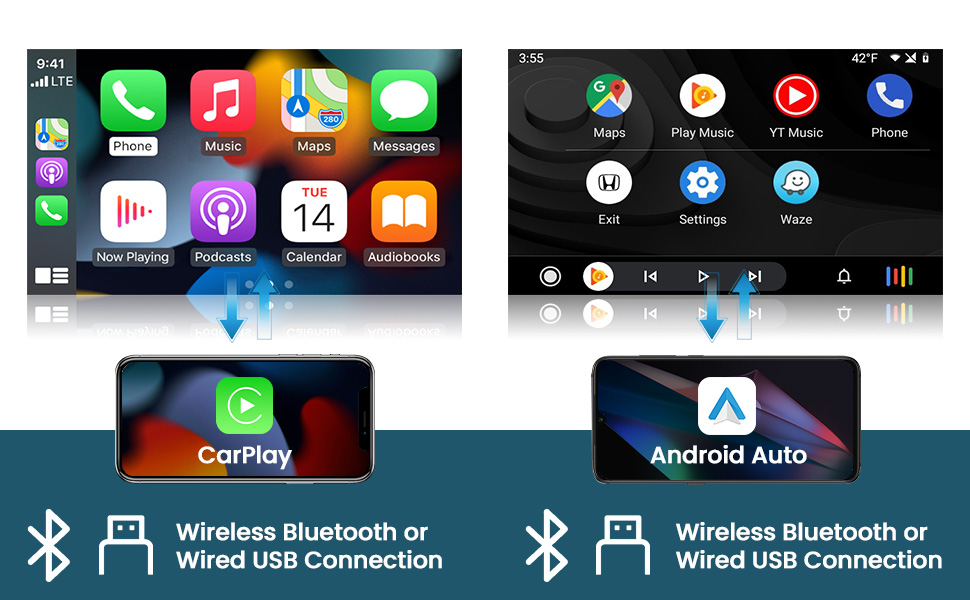
Image: Visual examples of the Wireless CarPlay and Android Auto interfaces, showing music playback, navigation, and phone call functions.
6.2. Mirror Link
Mirror Link functionality allows you to display your phone's screen directly onto the head unit. This can be achieved via WiFi hotspot or USB connection.

Image: A visual representation of the Mirror Link feature, showing a smartphone screen being mirrored onto the larger head unit display.
6.3. GPS Navigation & WiFi
The unit includes a built-in GPS module. Navigation software like Waze and free offline maps can be used. Connect to WiFi or a mobile hotspot to use online maps and download additional applications from the Play Store, such as YouTube or TikTok.
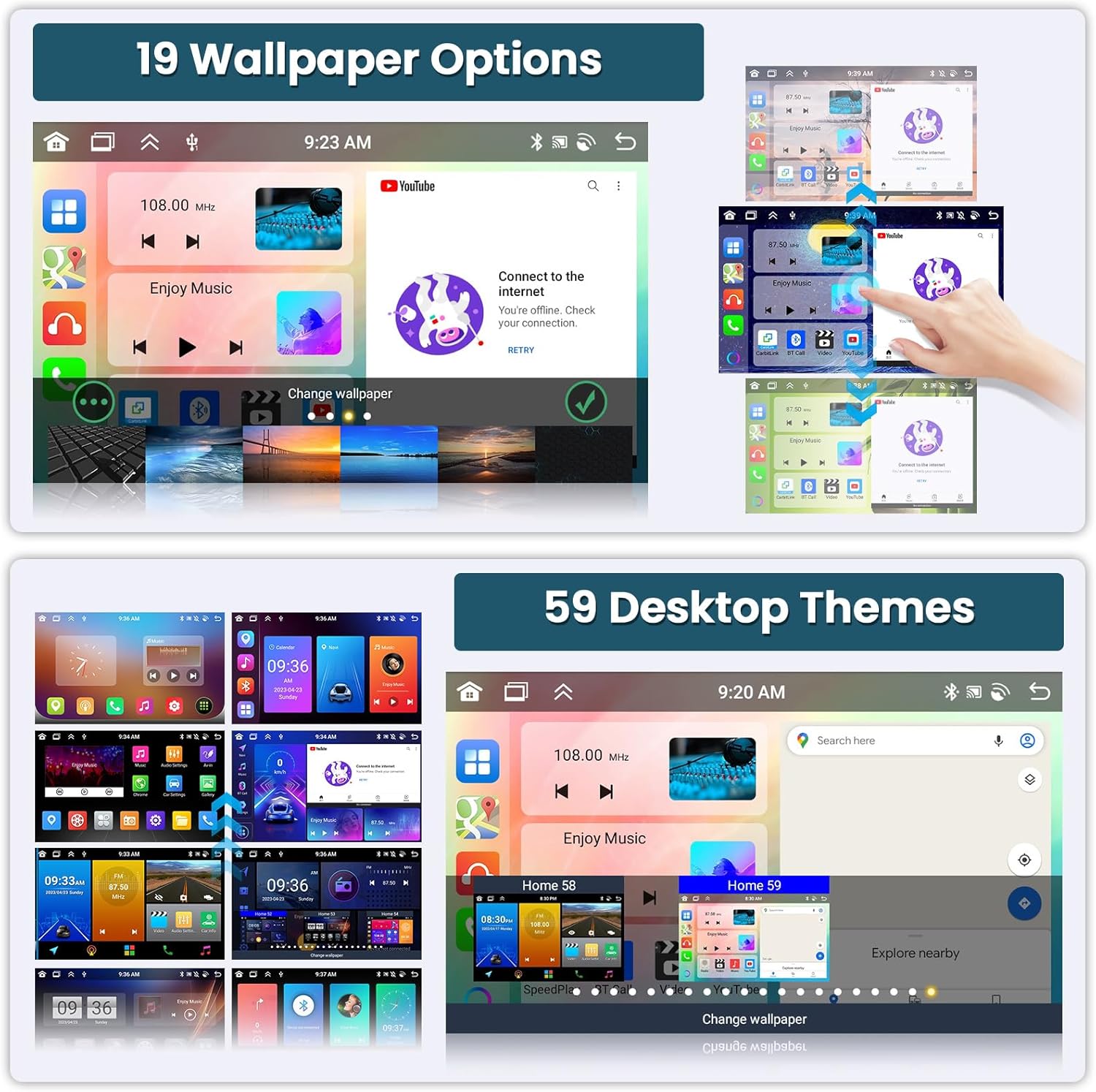
Image: Displays of the GPS navigation interface showing a map with route information, and a screen demonstrating WiFi connectivity for accessing online apps like YouTube, Facebook, and TikTok.
6.4. Bluetooth & FM/RDS Radio
Utilize the built-in and external microphone for hands-free calling, music playback, and voice functions. Sync contacts for easy access. The stable FM radio offers 18 preset stations and supports manual, semi-automatic, and fully automatic channel search. High-quality FM/RDS radio provides channel broadcasting, weather forecasts, and real-time road conditions.

Image: Displays the Bluetooth dialer interface for hands-free calls and the FM/RDS radio interface showing station tuning and presets.
6.5. Voice Control
The system supports voice control for various functions, enhancing convenience and safety while driving. Use voice commands to open applications, make calls, or control media playback.
6.6. Split Screen Functionality
The split-screen feature allows two applications to run simultaneously on the display, such as navigation and music playback.

Image: A screenshot showing the head unit display split into two sections, with a radio interface on one side and a music player on the other.
6.7. AHD Backup Camera
When the vehicle is shifted into reverse gear, the head unit will automatically display the reversing image from the connected AHD backup camera, aiding in safer parking maneuvers. The camera offers night vision, is waterproof, and provides a wide-angle view.
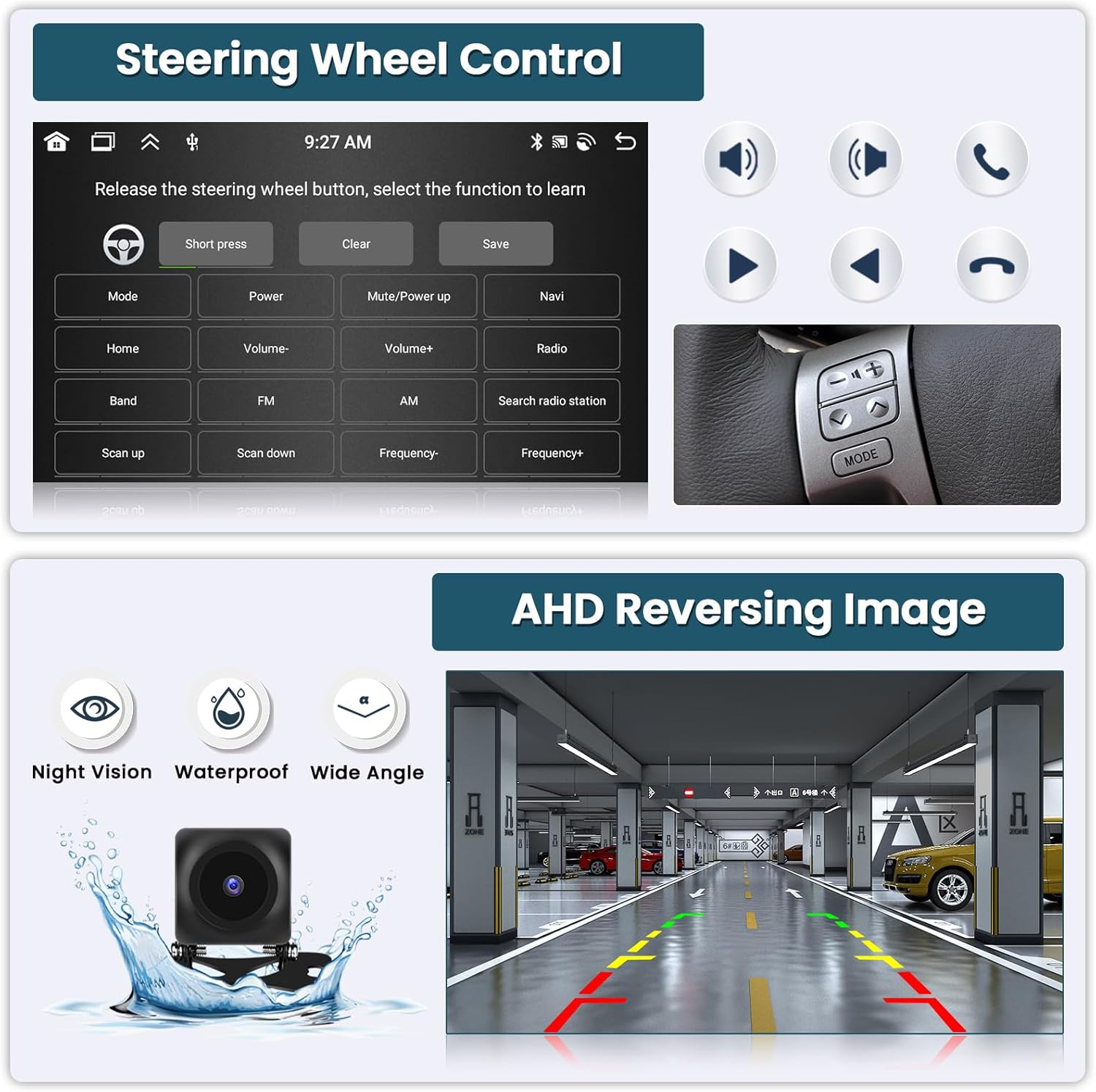
Image: A display of the AHD reversing image on the head unit, showing parking guidelines and highlighting the camera's night vision, waterproof, and wide-angle capabilities.
6.8. Steering Wheel Control (SWC)
The unit supports existing steering wheel controls, allowing you to manage radio channels, volume, and songs directly from your steering wheel for a safer driving experience.

Image: The interface for programming steering wheel controls, showing options to assign functions like volume, mode, power, and navigation to physical buttons.
6.9. Audio Equalizer (32-band EQ)
The integrated 32-band EQ allows for precise audio tuning, enabling you to customize the sound output to your preference for a superior music listening experience.
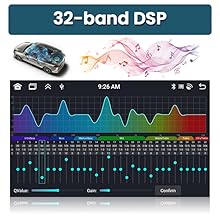
Image: The 32-band Digital Sound Processor (DSP) interface, allowing users to adjust frequency bands for customized audio output.
7. Media Demonstration
Video: This video demonstrates various UI functions, CarPlay, Android Auto, and GPS navigation features of the Roinvou Android Radio. It shows the user interface, music playback, map navigation, and hands-free calling.
8. Specifications
| Feature | Detail |
|---|---|
| Brand | Roinvou |
| Model Number | Roinvou-A7208A3572H1MI2US31-C251 |
| Operating System | Android 13 |
| Processor | 8 Cores |
| Memory (RAM) | 6 GB |
| Storage (ROM) | 128 GB |
| Screen Size | 10.1 Inches |
| Resolution | 1280 x 720 |
| Touch Screen Type | Capacitive |
| Connectivity | Bluetooth, USB, Wi-Fi |
| Special Features | Wireless/Wired CarPlay, Wireless/Wired Android Auto, Mirror Link, Voice Control, GPS Navigation, FM/RDS Radio, SWC, 32-band EQ, Split Screen, AHD Backup Camera Support |
| Map Type | North America (offline maps available) |
| Audio Output Mode | Stereo |
| Human-Interface Input | Microphone, Touchscreen |
9. Troubleshooting
If you encounter issues, please refer to the following common solutions:
- No Power: Check all power connections and ensure the vehicle's ignition is on. Verify the power cable port matches your original car's wiring.
- No Sound: Check speaker connections, volume levels, and equalizer settings. Ensure the correct audio output source is selected.
- GPS Signal Loss: Ensure the GPS antenna is properly installed and has a clear view of the sky.
- CarPlay/Android Auto Connection Issues: Verify your phone's USB cable is original and undamaged. Ensure WiFi hotspot is active for wireless connections. Restart both the head unit and your phone.
- Backup Camera Not Displaying: Check the camera's power and video input connections. Ensure the camera type setting (CVBS/AHD) is correctly configured in the factory settings.
- System Freezing/Unresponsive: Perform a soft reset by pressing the reset button (if available) or by turning off the vehicle's ignition and restarting.
For further assistance, please contact Roinvou customer support.
10. Warranty and Support
This Roinvou Android Radio Upgrade comes with a 1-Year Warranty.
For technical support, warranty claims, or any questions regarding your product, please contact Roinvou customer service. You can often find contact information on the manufacturer's website or through your purchase platform.
Contact: roinvouservices@l63.com


