
Miofive S1 Ultra(4K+4K)
Miofive Dash Cam S1 Ultra User Manual
Model: S1 Ultra (4K+4K)
1. Product Overview
The Miofive Dash Cam S1 Ultra is a high-performance dual dash camera system designed to capture your driving journey in stunning 4K resolution for both front and rear views. Equipped with advanced features like built-in GPS, Wi-Fi, Bluetooth, 24-hour parking monitoring, and super night vision, it provides comprehensive surveillance and peace of mind on the road.

Figure 1.1: Miofive Dash Cam S1 Ultra main unit, rear camera, 64GB SD card, and mobile application interface.
Key Features:
- Dual 4K+4K Recording: Simultaneous recording from front (140° wide angle) and rear (112° wide angle) cameras in 4K resolution.
- HDR Technology & Super Night Vision: Enhanced video clarity in various lighting conditions, including low-light environments.
- Built-in GPS & Wi-Fi: Accurate location, speed, and route tracking, with easy video access and sharing via the Miofive app.
- G-Sensor & Loop Recording: Automatic video locking upon impact and efficient storage management by overwriting old files.
- 24-Hour Parking Monitoring: Continuous surveillance when parked (requires optional hardwire kit).
- Supercapacitor: Enhanced durability and performance in extreme temperatures.
2. Package Contents
Please check the package contents upon unboxing to ensure all components are present:
- S1 Ultra Dash Cam x 1
- 64G MicroSD Card x 1
- Data Cable x 1
- Car Charger x 1
- Charging Cable x 1
- Rear Cam Cable x 1
- Crowbar x 1
- Static Sticker x 4
- 3M Adhesive x 2
- User Manual x 1
3. Setup and Installation
3.1 Preparing the MicroSD Card
The dash cam comes with a 64GB MicroSD card. For optimal performance, it is recommended to format the card before first use and periodically thereafter. The device supports up to 512GB MicroSDXC cards.

Figure 3.1: The dash cam supports loop recording and includes a 64GB MicroSD card.
3.2 Mounting the Front Dash Cam
- Clean the windshield area where you intend to mount the dash cam.
- Apply a static sticker to the chosen area on the windshield. This helps in easy removal and prevents adhesive residue.
- Attach the 3M adhesive mount to the dash cam, then firmly press it onto the static sticker on the windshield.
- Ensure the camera lens has a clear view of the road and does not obstruct your driving vision.

Figure 3.2: The dash cam is designed for easy disassembly from its mount.
3.3 Installing the Rear Camera
- Mount the rear camera on the rear windshield, ensuring a clear view.
- Carefully route the rear camera cable from the rear of the vehicle to the front dash cam. Use the provided crowbar to tuck the cable neatly along the vehicle's trim.
- Connect the rear camera cable to the designated port on the main dash cam unit.

Figure 3.3: Ensure proper alignment and connection of the rear camera cable for detection by the front camera.
3.4 Power Connection
- Connect the car charger to your vehicle's 12V power outlet (cigarette lighter socket).
- Connect the charging cable from the car charger to the main dash cam unit.
- The dash cam will automatically power on and begin recording when the vehicle's ignition is turned on.

Figure 3.4: Standard power connection using the car charger. An optional hardwire kit (ASIN: B0CRHJQ3WQ) is available for 24-hour parking monitoring.
4. Operating Instructions
4.1 Basic Operation
- Power On/Off: The dash cam powers on automatically with vehicle ignition and powers off when the ignition is turned off. You can also manually power it on/off using the power button.
- Recording: Recording starts automatically when the device is powered on. A red dot or indicator on the screen confirms recording is active.
- Screen Display: The 3-inch IPS screen displays real-time footage from the front and/or rear cameras, along with recording status, time, and GPS information.

Figure 4.1: The 3-inch IPS screen provides a clear view of recordings and device status.
4.2 Dual 4K Recording
The S1 Ultra records simultaneously from both front and rear cameras in 4K resolution, providing comprehensive coverage of your surroundings.
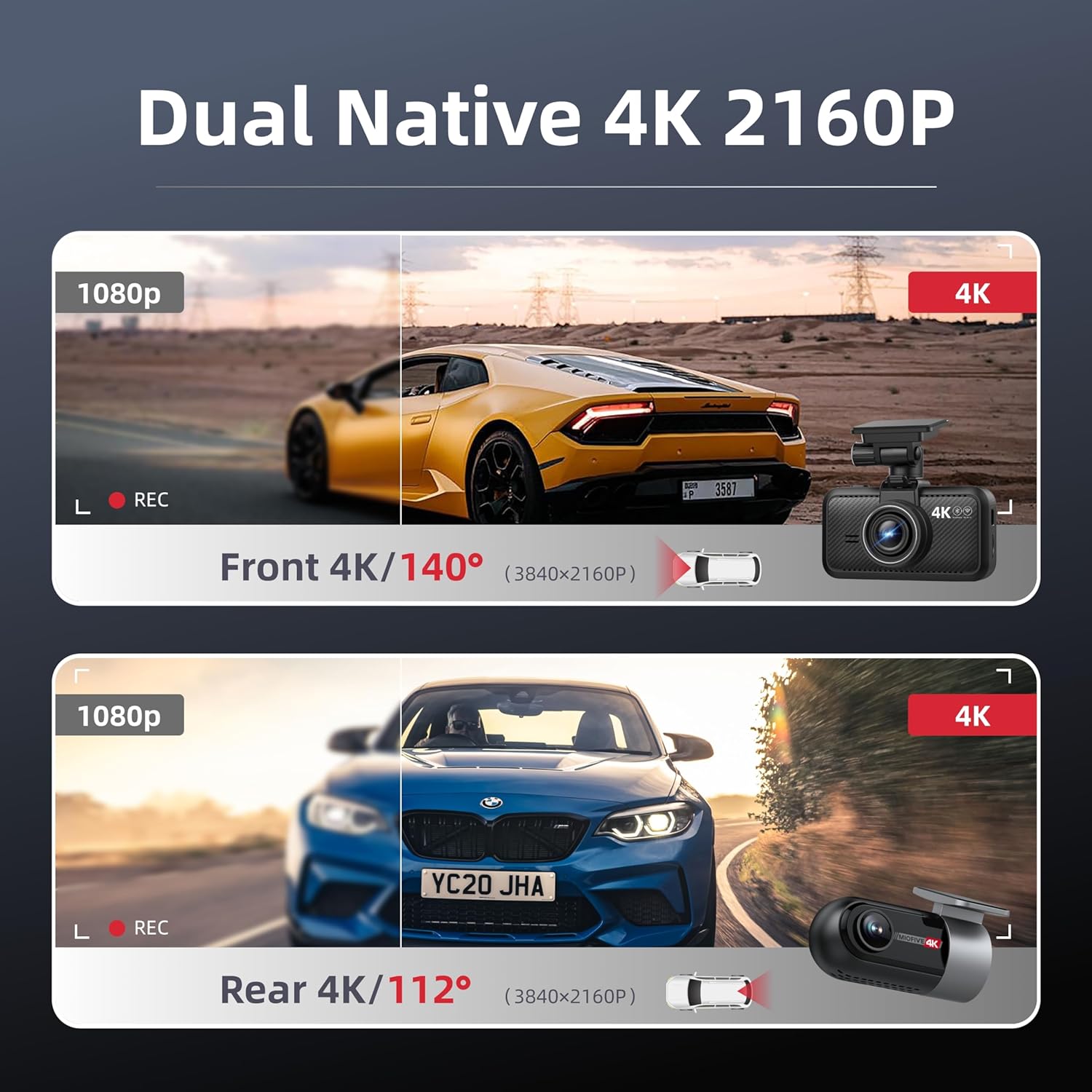
Figure 4.2: Dual Native 4K 2160P recording provides superior clarity for both front and rear views.
4.3 Wi-Fi and App Control
Connect your smartphone to the dash cam via Wi-Fi using the Miofive app (available for Android and iOS). This allows you to:
- View live footage.
- Download recorded videos to your phone.
- Adjust camera settings.
- Share videos directly from the app.

Figure 4.3: Built-in 5G Wi-Fi and Bluetooth enable seamless app control and video sharing.
4.4 GPS Functionality
The built-in GPS module accurately records your vehicle's location, speed, and driving route. This data can be viewed alongside your video footage in the Miofive app.
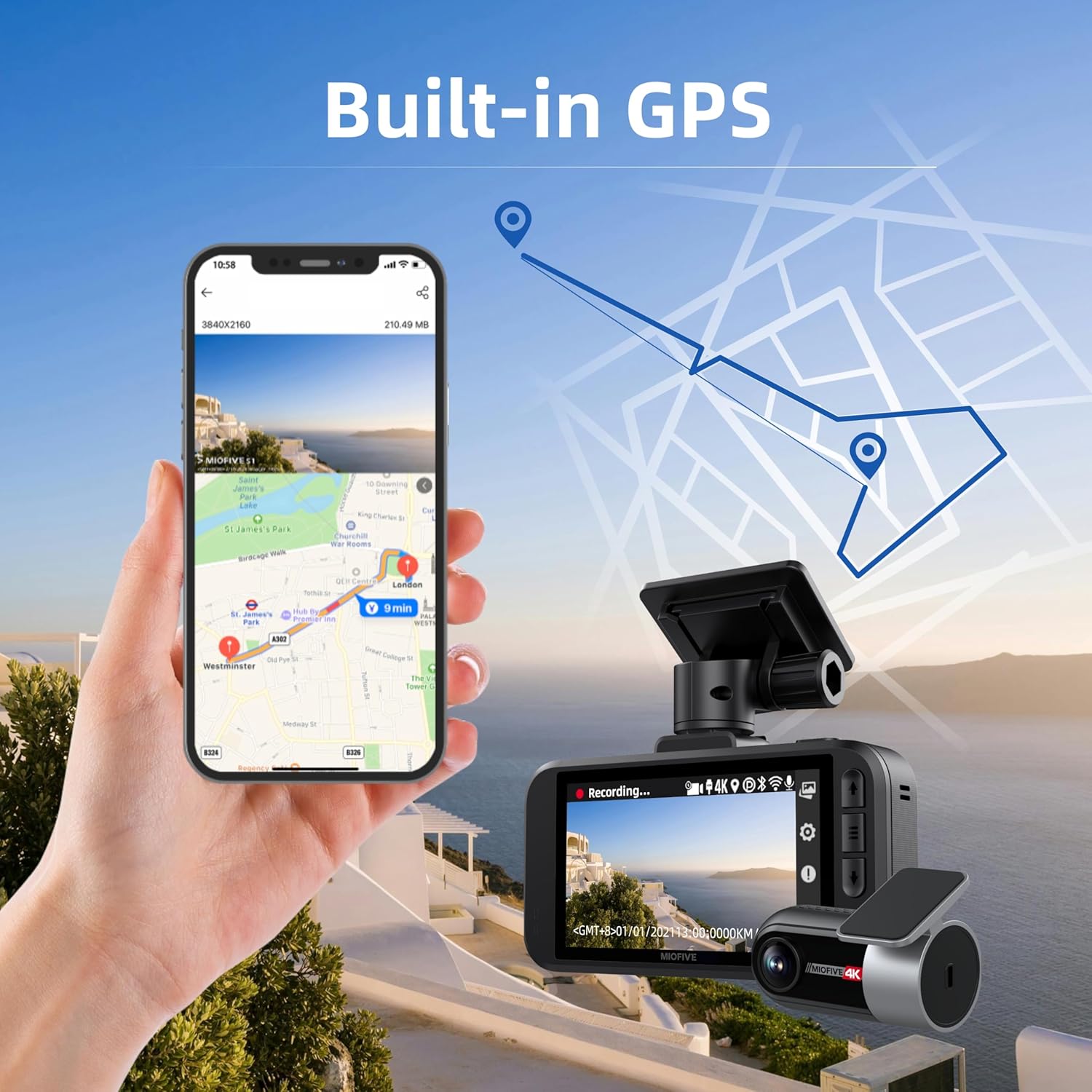
Figure 4.4: Built-in GPS provides accurate location and route tracking.
4.5 Parking Monitoring & G-Sensor
When connected to an optional hardwire kit (ASIN: B0CRHJQ3WQ), the dash cam can provide 24-hour parking monitoring using time-lapse recording. The integrated G-sensor detects sudden impacts or collisions while driving or parked, automatically locking the current video segment to prevent it from being overwritten.

Figure 4.5: 24-hour parking mode (with hardwire kit) and G-sensor functionality for impact detection.
4.6 Loop Recording
The dash cam utilizes loop recording, which means it continuously records and overwrites the oldest video files when the MicroSD card is full. This ensures that you always have the most recent footage available.
4.7 Super Night Vision & HDR
Equipped with Super Night Vision and HDR (High Dynamic Range) technology, the S1 Ultra delivers clear and detailed video recordings even in challenging low-light or high-contrast conditions.

Figure 4.6: Super Night Vision ensures clear recordings in low-light conditions.
5. Maintenance
5.1 MicroSD Card Maintenance
To maintain optimal recording performance and prevent data corruption, it is recommended to format the MicroSD card within the dash cam settings every 2-4 weeks. This can typically be done via the device's menu or through the Miofive app.
5.2 Firmware Updates
Miofive periodically releases firmware updates to improve performance, add features, or fix bugs. You can update the dash cam's firmware wirelessly (OTA - Over-The-Air) via the Miofive app.

Figure 5.1: Over-The-Air (OTA) firmware updates can be performed via the Miofive app.
5.3 Cleaning the Device
Use a soft, dry cloth to clean the dash cam's exterior and lenses. Avoid using abrasive cleaners or solvents that could damage the device.
6. Troubleshooting
| Problem | Possible Cause | Solution |
|---|---|---|
| Dash cam does not power on. | No power from car charger; loose connection. | Check car charger connection and vehicle's 12V outlet. Ensure ignition is on. |
| Recording stops or freezes. | SD card full or corrupted; incompatible SD card. | Format the SD card. Use a high-speed (Class 10 or U3) MicroSD card. Replace if necessary. |
| Rear camera not detected. | Improper cable connection. | Ensure the rear camera cable is correctly and firmly plugged into the main unit. Refer to Figure 3.3. |
| Wi-Fi connection issues. | Incorrect password; too far from device. | Verify Wi-Fi password. Ensure your phone is close to the dash cam. Restart both devices. |
| Poor video quality at night. | Dirty lens; extreme low light. | Clean the camera lenses. Ensure no obstructions on the windshield. |
If you encounter issues not listed here, please contact Miofive customer support.
7. Specifications
| Feature | Detail |
|---|---|
| Model Name | S1 Ultra (4K+4K) |
| Video Capture Resolution | Front: 4K (3840x2160P), Rear: 4K (3840x2160P) |
| Front Camera Angle | 140° Wide Angle |
| Rear Camera Angle | 112° Wide Angle |
| Screen Size | 3-inch IPS Screen |
| Connectivity | 5G Wi-Fi, Bluetooth, GPS |
| Storage Support | MicroSDXC Card, up to 512GB (64GB included) |
| Special Features | HDR, Super Night Vision, G-Sensor, Loop Recording, 24-Hour Parking Monitor (with optional hardwire kit), Free Miofive App, Over-The-Air Firmware Updates, Supercapacitor |
| Power Source | Car Charger (12V) |
| Operating Temperature | Designed to withstand wide temperature changes (due to Supercapacitor) |
| Dimensions | 7 x 6 x 3 inches |
| Weight | 1.5 pounds |
8. Warranty and Support
Miofive stands behind the quality of its products. The S1 Ultra Dash Cam comes with:
- 18-Month Warranty: Unconditional warranty coverage from the date of purchase.
- Lifetime Technical Support: Dedicated technical assistance for the lifespan of your product.
For any inquiries, technical assistance, or warranty claims, please contact our customer support team:
Email: support@miofive.com
Our 24/7 customer support team is committed to addressing your needs and ensuring your satisfaction.
Related documentsS1 Ultra(4K+4K)


Ask a question about this manual
Ask about setup, troubleshooting, compatibility, parts, safety, or missing instructions. Manuals+ will review the question and use this page’s manual context to help answer it.