
1. Introduction
This manual provides detailed instructions for the Norwii N26 Wireless Presentation Clicker. Please read this guide thoroughly to ensure proper use and optimal performance of your device.
2. What's Included
- Norwii N26 Wireless Presenter x 1
- USB Receiver x 1
- User Manual x 1
- Pouch x 1
Note: 1 AAA battery is required and not included in the package.

Image: Package contents of the Norwii N26 Wireless Presentation Clicker.
3. Setup and Battery Installation
3.1 Battery Installation
The Norwii N26 requires one AAA battery (not included). To install the battery:
- Locate the battery cover on the back of the presenter.
- Slide the battery cover open.
- Insert one AAA battery, ensuring correct polarity (+/-).
- Close the battery cover securely.

Image: Labeled diagram of the Norwii N26 Wireless Presenter, indicating the battery cover location.
3.2 Connecting the USB Receiver (Plug & Play)
The Norwii N26 is designed for plug-and-play functionality, requiring no software installation for basic use.
- Remove the USB receiver from its magnetic storage slot at the end of the presenter.
- Plug the USB receiver into an available USB port on your computer.
- The system will automatically detect and install the necessary drivers.
- Turn on the presenter using the Power On/Off switch.

Image: Plug-and-Play setup with the USB receiver.

Image: Magnetic USB receiver storage.
4. Operating Instructions
The Norwii N26 features intuitive controls for effective presentations.
- Page Up (Single Click): Advances to the next slide.
- Page Down (Single Click): Returns to the previous slide.
- Full Screen (Long Press): Toggles full-screen mode in presentation software.
- Black Screen (Long Press): Displays a black screen during a presentation.
- Laser Key: Activates the red light pointer.
Image: Labeled diagram of the Norwii N26 Wireless Presenter buttons.
4.1 Red Light Pointer
The integrated red light pointer is designed for highlighting content on most projection screens. It strictly complies with IEC-60825-1 safety standards. Note: The red light pointer is not recommended for TV screens due to prohibitive regulations and may not be clearly visible.

Image: Norwii N26 in use, demonstrating the red laser pointer and control range.
4.2 Control Range
The Norwii N26 offers a wireless control range of up to 328 feet (100 meters), making it suitable for large presentation spaces. The actual range may vary depending on environmental factors and obstructions.

Image: Demonstration of the long control range.
4.3 Low Battery Alert
The presenter features a low battery smart alert. The indicator light will blink blue when the battery level is low, signaling that it's time to replace the AAA battery.

Image: Low battery smart alert indicator.
5. Customization
The functions of the presenter's keys can be reconfigured using the Norwii Presenter software, available for download from the official Norwii website. This allows for personalized control over your presentations.

Image: Key-functions are customizable via Norwii Presenter software.
To switch between different working modes (e.g., Up/Down, Left/Right, Scroll, PgUp/PgDn), long press the “^” (Page Up) and “v” (Page Down) keys simultaneously for 3 seconds.

Image: Switching between compatibility modes.
6. Compatibility
The Norwii N26 is broadly compatible with various operating systems and presentation software:
- Operating Systems: Windows, macOS, Linux, Android, ChromeOS
- Presentation Software: PowerPoint, Keynote, Prezi, Google Slides, Word, Excel, ACD See, OneNote, Pages, Numbers, Photos, and more.

Image: Wide compatibility with operating systems and software.
7. Specifications
| Feature | Detail |
|---|---|
| Product Dimensions | 5.45 x 0.59 x 0.69 inches |
| Item Weight | 0.65 ounces |
| Batteries Required | 1 AAA battery (not included) |
| Operating Range | Up to 100 meters (328 feet) |
| Laser Class | Class II |
| Special Feature | Key-function customizable |
8. Troubleshooting
If you encounter issues with your Norwii N26, refer to the following common solutions:
8.1 Weak Laser Pointer
- Ensure the battery has sufficient power. Replace with a fresh AAA battery if needed.
- The laser may appear weak on TV screens due to prohibitive regulations. For TV screens, consider Norwii N95s Pro or N97s models.
8.2 Short Control Range
- Verify the battery has sufficient power.
- Ensure there are no significant obstructions between the wireless presenter and the USB receiver, as these can shorten the control distance.
8.3 Page Turn Not Responding
- Confirm that the presentation window is the currently active window on your computer. Click on the presentation window to activate it.
- Long press the “^” (Page Up) and “v” (Page Down) keys simultaneously for 3 seconds to switch between the available working modes (Up & Down, Left & Right, Scroll, PgUp & PgDn).
- For macOS users: After plugging the USB receiver into your computer for the first time, set the keyboard type to ANSI.
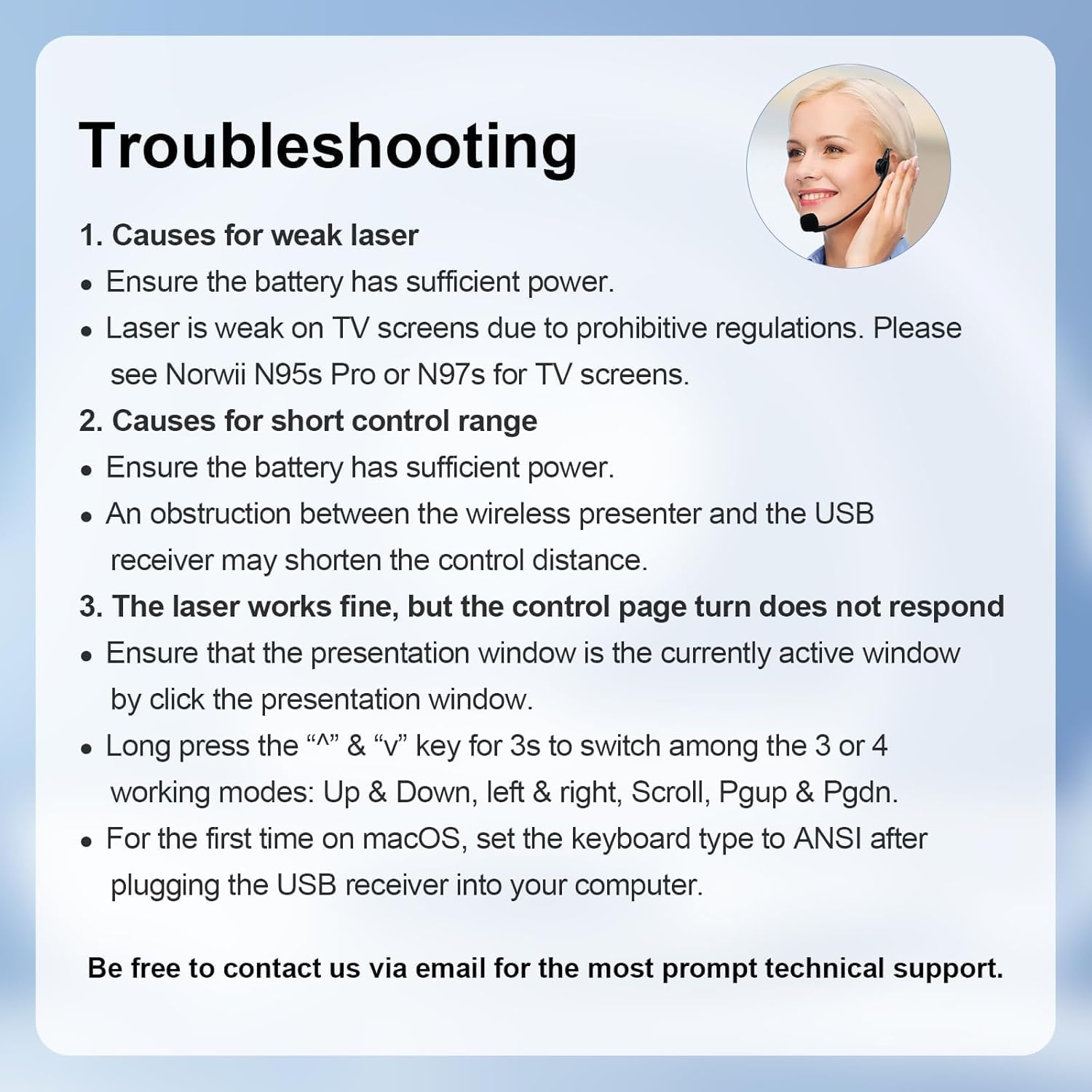
Image: Troubleshooting tips for common issues.
9. Important Safety Information
The red light pointer is a Class II laser product. Do not stare directly into the laser beam or point it at people or animals. Avoid direct eye exposure. Use responsibly.
10. Support
For further technical assistance or inquiries, please contact Norwii customer support via email. Refer to the product packaging or official website for contact details.


