
UGREEN DXP4800 Plus
Contents
UGREEN NASync DXP4800 Plus 4-Bay NAS User Manual
Model: DXP4800 Plus | Brand: UGREEN
1. Introduction
The UGREEN NASync DXP4800 Plus is a high-performance 4-bay Network Attached Storage (NAS) device designed for centralized data storage, automatic backups, and remote access. Featuring an Intel Pentium Gold 8505 processor, 8GB DDR5 RAM, 128GB SSD, and versatile connectivity including 10GbE and 2.5GbE ports, it offers a robust solution for managing your digital assets. This manual provides essential information for setting up, operating, maintaining, and troubleshooting your NAS device.

The NAS provides significant advantages over external drives, including centralized storage, automatic backups, remote access, and advanced RAID options for data recovery. It supports a massive storage capacity of up to 136TB, allowing for extensive media and document storage.

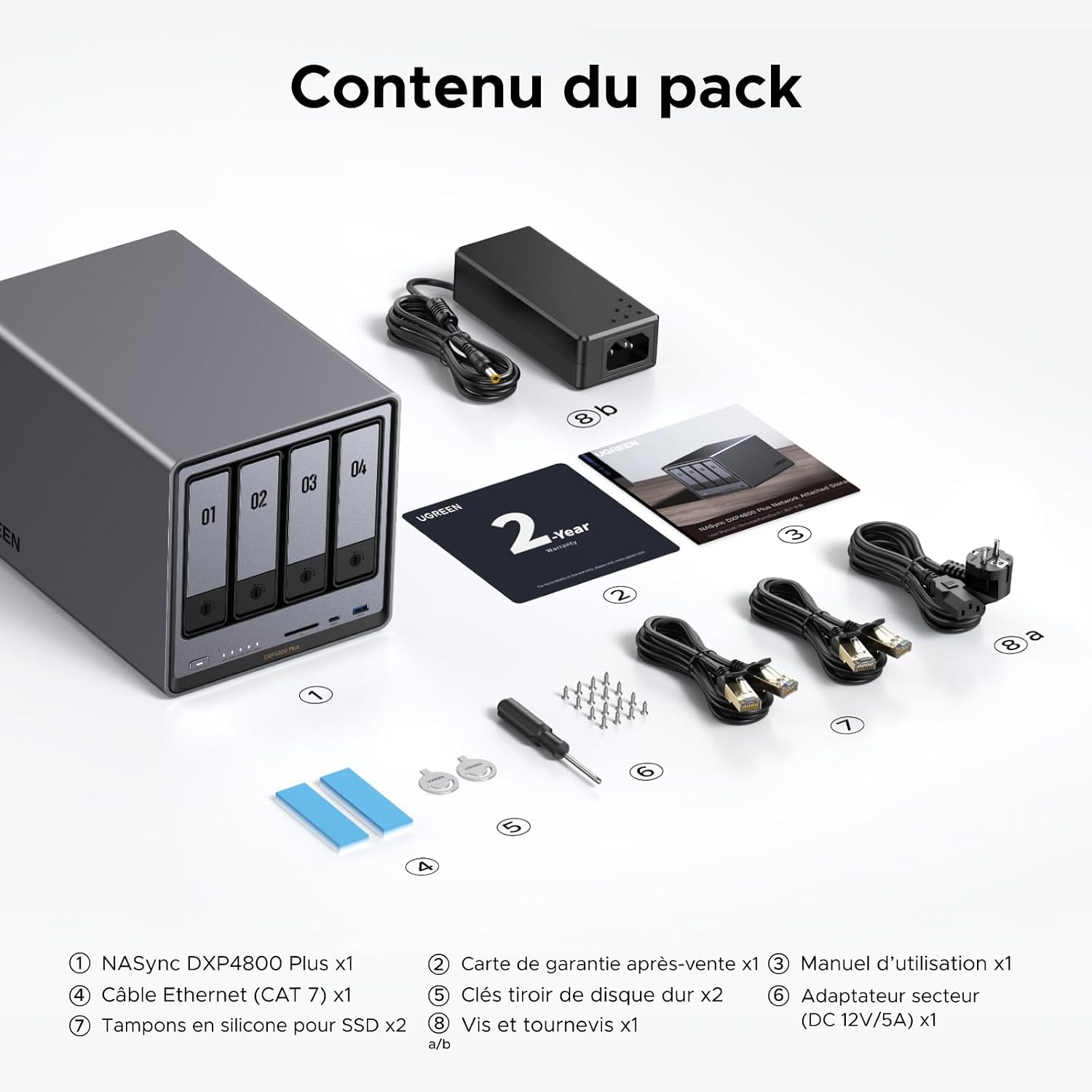
2. Package Contents
Verify that all items are present in the package before proceeding with the setup:
- UGREEN NASync DXP4800 Plus Unit x1
- Warranty Card x1
- User Manual x1
- Ethernet Cable (CAT 7) x1
- Hard Drive Tray Keys x2
- Power Adapter (DC 12V/5A) x1
- Silicone Dampers for SSD x2
- Screws and Screwdriver x1
3. Hardware Overview
Front Panel
- Drive Bays (01-04): Slots for installing 3.5-inch or 2.5-inch hard drives/SSDs.
- Power Button: To power on/off the device.
- LED Indicators: Status lights for power, LAN, and individual disk activity.
- SD Card Slot: For direct media import.
- USB-C Port (10Gb/s): For connecting external devices.
- USB-A Port (10Gb/s): For connecting external devices.
Rear Panel
- HDMI (4K) Port: For direct display output.
- USB 2.0 Ports (x2): For connecting peripherals.
- USB-A Port (5Gb/s): For connecting external devices.
- 10GbE LAN Port: High-speed network connection.
- 2.5GbE LAN Port: Standard network connection.
- Reset Button: For system reset.
- DC 12V Power Input: Connect the power adapter here.

4. Setup
4.1 Installing Hard Drives/SSDs
The UGREEN NASync DXP4800 Plus supports up to four 3.5-inch or 2.5-inch SATA hard drives or SSDs. Storage drives are not included and must be purchased separately. Refer to the compatibility list for supported third-party drives (Western Digital, Seagate, Toshiba, etc.).
- Open Drive Bays: Use the provided keys to unlock and open the drive trays.
- Install Drives: Securely mount your 3.5-inch HDDs or 2.5-inch SSDs into the trays using the included screws. For 2.5-inch SSDs, use the silicone dampers if necessary.
- Insert Trays: Slide the loaded trays back into the NAS bays until they click into place.
4.2 Initial Power-On and Network Connection
- Connect Power: Plug the power adapter into the DC 12V input on the rear panel and then into a power outlet.
- Connect Network: Use the provided CAT 7 Ethernet cable to connect one of the LAN ports (10GbE or 2.5GbE) on the NAS to your router or network switch.
- Power On: Press the power button on the front panel. The NAS will begin its startup sequence.
4.3 Software Installation (UGREEN OS)
The NAS comes with the UGREEN OS pre-installed on an internal flash memory. Initial setup and configuration are performed via a web browser on a connected computer.
- Access NAS: On a computer connected to the same network, open a web browser and navigate to the NAS's IP address or use the UGREEN NAS utility to discover the device.
- Follow On-Screen Instructions: The UGREEN OS setup wizard will guide you through creating an administrator account, configuring storage volumes (including RAID options), and performing initial system updates.
- Install Mobile App: Download the UGREEN NAS app for Windows, macOS, Android, or iOS for convenient management and file access.

5. Operating the NAS
5.1 Data Storage and Management
The NAS provides centralized storage for all your files. With support for various RAID configurations (RAID 1, 5, 6, 10), your data is protected against single or multiple drive failures, ensuring easy data recovery.


5.2 High-Speed Data Transfer
Experience ultra-fast data transfers with the 10GbE network port and 10Gbps USB ports. Back up 1GB of data in less than a second, significantly faster than standard 1GbE connections.

The NAS also features two M.2 NVMe SSD slots for high-speed cache, further boosting read and write performance.

5.3 Private Cloud and Data Security
Maintain full ownership of your data with advanced encryption protocols. The NAS provides a secure private cloud environment, protecting your files and privacy. Flexible permission management facilitates secure collaboration.

5.4 AI Photo Album
The intelligent AI photo album automatically categorizes your photos by recognizing faces, scenes, objects, and locations. It also helps eliminate duplicate images to free up storage space and save time.

5.5 User-Friendly Application
Manage your NAS with ease using the intuitive UGREEN NAS application. It supports Windows, macOS, Android, iOS, web browsers, and smart TVs, providing secure access from any device.

5.6 Multimedia Hub
Store all your films in one secure location and automatically sort them. Connect an HDMI cable to enjoy stunning 4K 60Hz playback with your family and friends directly from the NAS.

5.7 Advanced Functionalities
Unlock more advanced features by running Windows, Linux, and other operating systems via virtual machines, or utilize Docker to deploy applications such as video surveillance for home security.

6. Maintenance
6.1 Cooling and Noise Levels
The NAS features an efficient and quiet cooling system to ensure consistent performance. In silent mode, the noise level remains between 29 and 34 dB, ensuring minimal disturbance. For reference, 20 to 40 dB corresponds to a quiet environment like a library.

6.2 Software Updates
Regular software updates are provided to enhance functionality, improve security, and fix bugs. Ensure your NAS is connected to the internet to receive and install the latest updates for optimal performance and features.
- Q1/Q2 2025 Updates: Added more languages (Italian, French, Spanish, Dutch, Portuguese, Japanese). Online storage tools now support direct backups from Google Drive. Subtitles added to Video Center.
- November 30 Updates: Two-factor authentication added. File Manager supports batch renaming and drag-and-drop between tabs. iOS supports current file formats. Progress tracking added for synchronization and PC backup. Batch submission for multiple torrent downloads. Docker supports macvlan networks for independent IP addresses. "Online Document" functionality available on Windows, macOS, and web clients. Video Center supports loading ISO directories for playback.
7. Troubleshooting
This section addresses common issues you might encounter with your UGREEN NASync DXP4800 Plus.
7.1 Phone Connectivity Issues
Q: Why is my phone incompatible or unable to connect to the NAS?
A:
- Update your UGREEN OS: Connect to the NAS via the web interface with a computer and perform the UGREEN OS update.
- Reset the NAS: If the computer still cannot connect to the NAS, try restoring it to factory settings and reinitializing the system.
- Contact Support: If your problem persists, please contact the support team for assistance.
7.2 Application Installation (Plex/Emby/Kodi)
Q: Can I install Plex/Emby/Kodi?
A: Our App Store does not offer direct downloads for these applications, but you can install them via Docker or a virtual machine.
7.3 Docker and Virtual Machine Configuration
Q: Is configuring Docker and virtual machines complicated?
A: Deploying Docker and virtual machines requires configuration files. Please consult the Knowledge Center or official tutorials for detailed instructions.
7.4 Third-Party OS Installation (Unraid/TrueNAS)
Q: Can I install Unraid or TrueNAS on UGREEN NAS devices?
A: The device can run third-party software, but installing non-official software may lead to issues.
8. Specifications
| Feature | Detail |
|---|---|
| Brand | UGREEN |
| Model Number | DXP4800 Plus |
| Product Type | ATX (Form Factor) |
| Processor | Intel Pentium Gold 8505 (5 cores) |
| RAM | 8GB DDR5 (expandable up to 64GB) |
| Internal SSD | 128GB SSD |
| Drive Bays | 4 (for 3.5" HDD or 2.5" SSD) |
| Max Storage Capacity | Up to 136TB |
| Network Connections | 1x 10GbE, 1x 2.5GbE Ethernet |
| M.2 NVMe Slots | 2 |
| Total USB Ports | 5 (1x USB-C 10Gb/s, 2x USB-A 10Gb/s, 2x USB 2.0) |
| Video Output | HDMI 4K |
| Special Features | Password Protection, Hot-Swappable Drives |
| Compatible Devices | Desktop computer, Laptop |
| Input Voltage | 220 Volts |
| Output Voltage | 15 Volts |
| Output Current | 5 A |
| Power Source | Corded Electric |
9. Warranty and Support
9.1 Warranty Information
The UGREEN NASync DXP4800 Plus comes with a 2-year limited manufacturer's warranty. Please retain your proof of purchase for warranty claims.
9.2 Customer Support
For technical assistance, troubleshooting, or warranty inquiries, please contact UGREEN customer support through their official website or the contact information provided in your warranty card. You can also refer to the UGREEN Knowledge Center for additional resources and tutorials.
Ask a question about this manual
Ask about setup, troubleshooting, compatibility, parts, safety, or missing instructions. Manuals+ will review the question and use this page’s manual context to help answer it.