
Rii Bluetooth2-X9
Contents
Rii Bluetooth Keyboard X9 User Manual
Model: Bluetooth2-X9 | Brand: Rii
1. Introduction
The Rii Bluetooth Keyboard X9 is a versatile and portable wireless keyboard designed for a wide range of devices, including iPads, tablets, PCs, laptops, and smart TVs. Featuring a slim aluminum alloy case, RGB backlighting, and a rechargeable Type-C battery, it offers a comfortable and efficient typing experience. This manual provides detailed instructions for setting up, operating, and maintaining your Rii Bluetooth Keyboard X9.

Image: The Rii Bluetooth Keyboard X9 showcasing its RGB backlighting in green, blue, and red, highlighting its sleek design.
2. Package Contents
Please check the package contents upon unboxing to ensure all items are present:
- 1 x Rii Bluetooth Keyboard X9
- 1 x USB-C Charging Cable
- 1 x User Manual (this document)
3. Product Specifications
| Feature | Description |
|---|---|
| Model | Bluetooth2-X9 |
| Dimensions | 11.02 x 4.33 x 0.55 inches (281 x 112 x 14 mm) |
| Weight | 8.7 ounces (247 grams) |
| Connectivity | Bluetooth 5.0 |
| Battery | Built-in Rechargeable Lithium Ion (450mAh) |
| Charging Port | USB Type-C |
| Backlight | RGB (Red, Green, Blue) |
| Number of Keys | 78 |
| Key Mechanism | Low Profile Scissor Key |
| Compatibility | iOS, Android, Mac OS, Windows |

Image: Detailed dimensions of the Rii Bluetooth Keyboard X9, showing its length, width, and thickness, along with anti-slip pads.
4. Setup Guide
4.1 Charging the Keyboard
Before first use, it is recommended to fully charge the keyboard. The keyboard features a built-in rechargeable battery.
- Locate the USB-C charging port on the keyboard (usually on the top edge).
- Connect one end of the provided USB-C cable to the keyboard and the other end to a USB power source (e.g., computer USB port, USB wall adapter).
- The charging indicator light will illuminate. It will turn off or change color once charging is complete.
A full charge typically provides up to 22 days of use (8 hours/day) and a standby time of at least 2 years.

Image: The Rii Bluetooth Keyboard X9 being charged via its USB-C port, illustrating the rechargeable feature.
4.2 Bluetooth Pairing
The Rii Bluetooth Keyboard X9 can connect to up to three devices simultaneously. Follow these steps to pair your keyboard:
- Turn on the Keyboard: Locate the power switch (usually on the side or back) and slide it to the "ON" position.
- Activate Pairing Mode: Press and hold the Fn key and one of the Bluetooth channel keys (BT1, BT2, or BT3) for approximately 3 seconds. The indicator light for the selected channel will blink rapidly, indicating it is in pairing mode.
- Enable Bluetooth on Your Device: Go to the Bluetooth settings on your iPad, tablet, PC, or smartphone.
- Select the Keyboard: In the list of available Bluetooth devices, look for "Rii X9" or a similar name and select it to connect.
- Confirm Connection: Once connected, the indicator light on the keyboard will stop blinking and remain solid for a few seconds, then turn off. Your keyboard is now ready to use.
Repeat these steps for up to two additional devices using the other BT channels (BT2, BT3).

Image: Diagram illustrating how the Rii Bluetooth Keyboard X9 can connect to three different devices simultaneously, such as an iPad, a computer, and a phone, with indicators for Android, Windows, and iOS compatibility.
5. Operating Instructions
5.1 Backlight Control
The Rii Bluetooth Keyboard X9 features RGB backlighting with red, green, and blue color options. To control the backlight:
- Press Fn + F3 to cycle through backlight colors (Red, Green, Blue) or turn the backlight off.
- Press Fn + F1 to decrease backlight brightness.
- Press Fn + F2 to increase backlight brightness.

Image: Three views of the Rii Bluetooth Keyboard X9, demonstrating the blue, green, and red backlight options, highlighting the gradient lighting effect for night and dark typing.
5.2 Multimedia Function Shortcuts
The keyboard includes dedicated function keys (F1-F12) that can be used in combination with the Fn key to perform various multimedia and system functions:
| Key Combination | Function |
|---|---|
| Esc | Lock screen |
| Fn + F1 | Reduced device backlight |
| Fn + F2 | Increased device backlight |
| Fn + F3 | Backlight ON/OFF or RGB color cycle |
| Fn + F4 | Search |
| Fn + F5 | Input method switching (iOS system) |
| Fn + F6 | Soft keyboard (iOS system) |
| Fn + F7 | Previous track |
| Fn + F8 | Play/Pause |
| Fn + F9 | Next track |
| Fn + F10 | Mute |
| Fn + F11 | Volume- |
| Fn + F12 | Volume+ |
| Del | Delete |
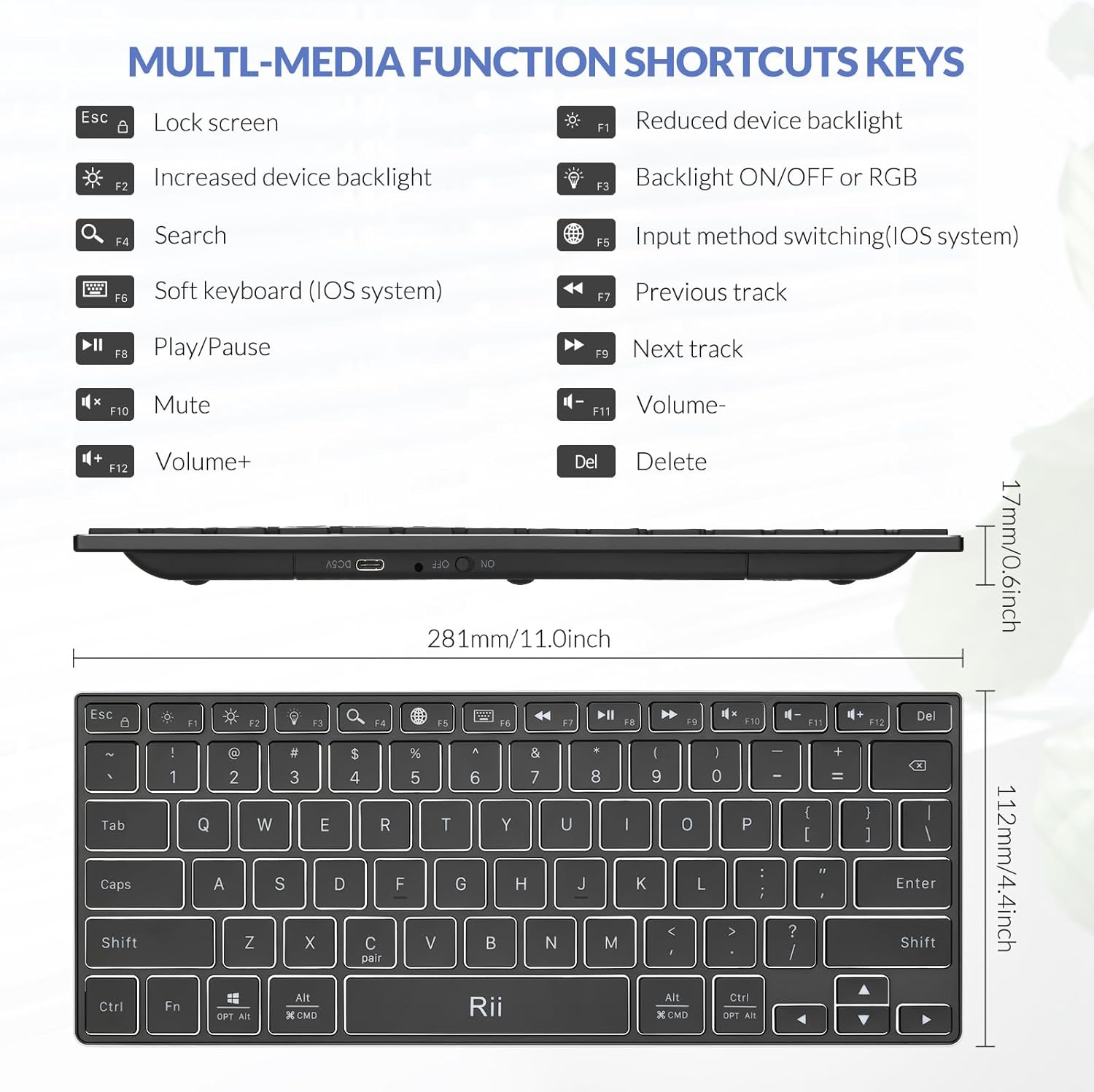
Image: A visual guide to the multimedia function shortcut keys on the Rii Bluetooth Keyboard X9, detailing the actions for each F-key combination.
5.3 Switching Between Paired Devices
If you have paired the keyboard with multiple devices, you can easily switch between them:
- Press Fn + BT1 to switch to the first paired device.
- Press Fn + BT2 to switch to the second paired device.
- Press Fn + BT3 to switch to the third paired device.
The keyboard will automatically connect to the selected device if it is within range and has Bluetooth enabled.
6. Maintenance
6.1 Cleaning the Keyboard
To keep your keyboard in optimal condition:
- Turn off the keyboard before cleaning.
- Use a soft, lint-free cloth slightly dampened with water or a mild cleaning solution to wipe the surface.
- Do not use harsh chemicals, abrasive cleaners, or spray cleaners directly onto the keyboard.
- Use compressed air to remove dust and debris from between the keys.
6.2 Battery Care
To prolong the battery life:
- Avoid fully discharging the battery frequently.
- Charge the keyboard regularly, even if not in constant use.
- Store the keyboard in a cool, dry place when not in use for extended periods.
- The keyboard will automatically enter sleep mode after 30 minutes of inactivity to conserve power. Press any key to wake it up.
7. Troubleshooting
If you encounter issues with your Rii Bluetooth Keyboard X9, please refer to the following common solutions:
7.1 Keyboard Not Connecting/Pairing
- Ensure the keyboard is turned on and fully charged.
- Make sure Bluetooth is enabled on your device.
- Ensure the keyboard is in pairing mode (indicator light blinking rapidly). If not, re-enter pairing mode by holding Fn + BT1/BT2/BT3 for 3 seconds.
- Move the keyboard closer to your device.
- Forget or remove the keyboard from your device's Bluetooth list and attempt to pair again.
- Restart both the keyboard and your device.
7.2 Backlight Not Working
- Ensure the keyboard is turned on.
- Press Fn + F3 repeatedly to cycle through backlight modes and ensure it's not turned off.
- Check battery level; low battery might disable backlighting. Charge the keyboard.
7.3 Keys Not Responding
- Check if the keyboard is connected to the correct device (if multiple devices are paired).
- Ensure the keyboard is charged.
- Restart the keyboard and the connected device.
- Clean any debris from around the non-responsive keys.
8. Warranty and Customer Support
All Rii products come with a 12-month warranty from the date of purchase. This warranty covers manufacturing defects and workmanship under normal use.
For any questions, technical support, or warranty claims, please contact Rii customer service. Our 7*24 customer service team is available to assist you.
You can typically find contact information on the Rii official website or through the retailer where you purchased the product. Please have your product model (Bluetooth2-X9) and purchase details ready when contacting support.
9. Product Videos
Please note: The provided product data indicates the presence of videos, but specific URLs and creator types were not available to embed them directly into this manual. For official product videos, please visit the Rii brand store on Amazon or the manufacturer's website.
Ask a question about this manual
Ask about setup, troubleshooting, compatibility, parts, safety, or missing instructions. Manuals+ will review the question and use this page’s manual context to help answer it.