
1. Introduction
The KYSONA EM9 is a 57° wireless ergonomic vertical mouse designed to provide a comfortable and efficient user experience. Its unique vertical design helps reduce wrist strain and tension, making it suitable for extended use. This mouse features dual-mode connectivity (Bluetooth and 2.4G wireless), adjustable DPI settings, quiet click buttons, and customizable RGB lighting.
Note: This ergonomic mouse is recommended for small to medium hands. The mouse dimensions are approximately 10.7 x 7.4 x 7.1 CM (4.2 x 2.9 x 2.8 inches). Please measure your hand prior to purchasing for a comfortable fit.
2. Product Features Overview
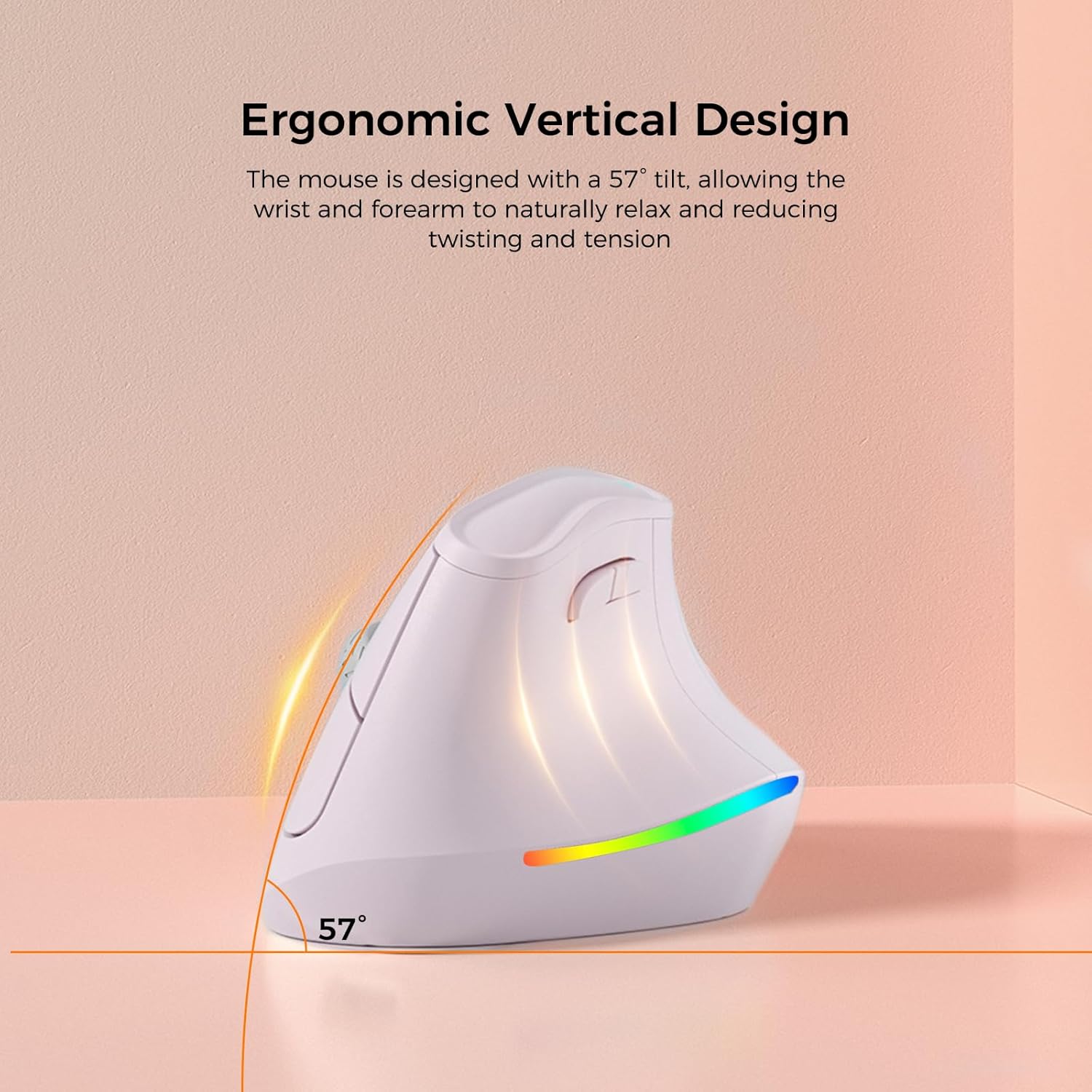
Ergonomic Vertical Design: The mouse is designed with a 57° tilt, allowing the wrist and forearm to naturally relax and reducing twisting and tension.

5 DPI Adjustments: Features 5 adjustable DPI settings (800, 1200, 1600, 2400, 4000) for personalized sensitivity.
Silent Switch: Operates quietly, ensuring a disturbance-free environment.

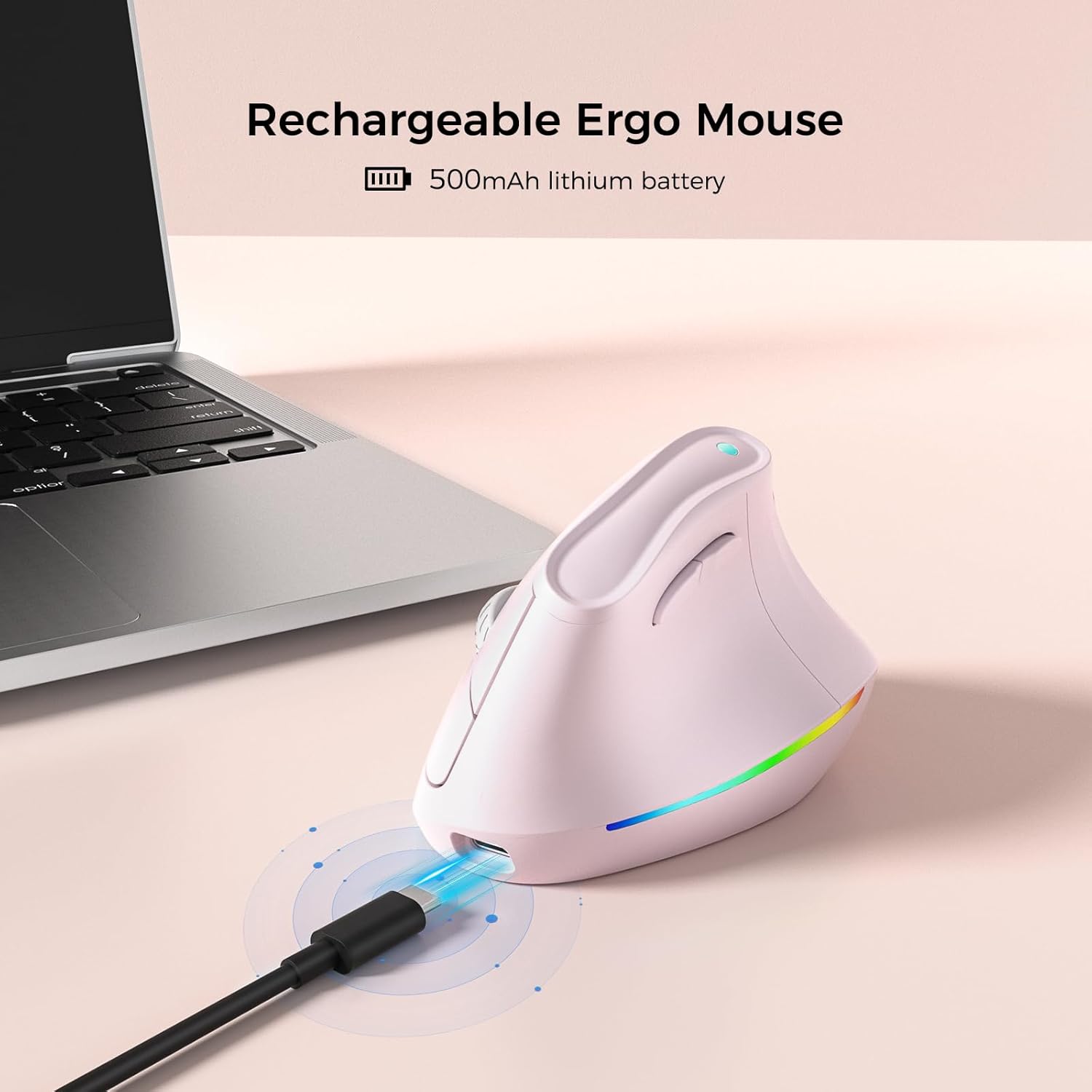
Rechargeable Battery: Equipped with a 500mAh lithium battery for long-lasting use.

Dual Mode Connection: Supports Bluetooth 3.0/5.0 and 2.4G wireless, connecting up to 3 devices.
3. Setup
3.1 Charging the Mouse
Before first use, fully charge the mouse using the provided USB-C cable. Connect the USB-C end to the mouse's charging port and the USB-A end to a power source (e.g., computer USB port, USB wall adapter).
3.2 Connecting via 2.4G Wireless
- Locate the USB receiver, typically stored in a compartment on the underside of the mouse.
- Plug the USB receiver into an available USB port on your computer.
- Turn on the mouse using the power switch on the underside.
- The mouse should automatically connect to your computer.
3.3 Connecting via Bluetooth
- Turn on the mouse using the power switch on the underside.
- Switch the connectivity mode to Bluetooth (refer to the mode switch on the underside of the mouse).
- On your device (PC, Laptop, Mac, Tablet), go to Bluetooth settings.
- Search for new devices and select "KYSONA EM9" (or similar name) from the list.
- Follow any on-screen prompts to complete the pairing process.
3.4 Product Overview Video
This video provides a visual overview of the KYSONA EM9 Ergonomic Vertical Mouse, demonstrating its design and features.
4. Operating Instructions
4.1 DPI Adjustment
The mouse features 5 adjustable DPI settings: 800, 1200, 1600, 2400, and 4000. Press the DPI button (usually located near the scroll wheel or on the top of the mouse) to cycle through these settings and adjust cursor sensitivity to your preference.
4.2 RGB Lighting Control
The mouse includes customizable RGB lighting. To turn off the RGB lighting, simultaneously press the Forward key and the Backward key located on the side of the mouse.
4.3 Smart Auto-Sleep Mode
The EM9 mouse incorporates smart auto-sleep technology. During periods of inactivity, the mouse will automatically enter sleep mode to conserve power. This feature contributes to a battery life of up to 12 months, though actual battery life may vary based on usage and computing conditions.
5. Maintenance
5.1 Cleaning
To clean your mouse, use a soft, dry cloth. For stubborn dirt, slightly dampen the cloth with water or a mild cleaning solution. Avoid using harsh chemicals or abrasive materials, as these can damage the mouse's surface.
5.2 Battery Care
The mouse is equipped with a rechargeable lithium polymer battery. To prolong battery life, ensure the mouse is fully charged before first use and recharge it when the battery indicator is low. The auto-sleep feature helps conserve power during inactivity.
6. Troubleshooting
- Mouse not responding: Ensure the mouse is powered on and correctly connected via either 2.4G wireless (USB receiver plugged in) or Bluetooth (paired). Check battery level and charge if necessary.
- Cursor movement is erratic or sluggish: Try adjusting the DPI settings. Ensure the mouse sensor is clean and free from obstructions. If using a mouse pad, ensure it is clean and suitable for optical mice.
- Mouse does not glide smoothly: Check the underside of the mouse for any protective plastic films on the glide pads. Remove any such films to ensure optimal gliding performance.
- RGB lighting is off: If the RGB lighting is not active, ensure it hasn't been manually turned off. Press the Forward key + Backward key simultaneously to toggle the RGB lighting on/off.
- Connectivity issues: For 2.4G, try plugging the USB receiver into a different USB port. For Bluetooth, unpair and re-pair the mouse with your device. Ensure no other wireless devices are causing interference.
7. Specifications
| Feature | Detail |
|---|---|
| Product Dimensions | 4.25 x 2.91 x 0.1 inches |
| Item Weight | 5.6 ounces |
| Item Model Number | EM9 |
| Batteries | 1 Lithium Polymer battery (included) |
| Brand | KYSONA |
| Color | Pink |
| Connectivity Technology | 2.4G, Bluetooth (3.0/5.0) |
| Special Features | Ergonomic Design, Lightweight, Rechargeable, Soundless (Quiet Click), Wireless, RGB Lighting |
| Movement Detection Technology | Optical |
| DPI Settings | 800, 1200, 1600, 2400, 4000 |
| Manufacturer | Shenzhen Huihaikang Intelligent Equipment Co., Ltd |
8. Warranty and Support
For warranty information and customer support, please refer to the documentation included with your product or visit the official KYSONA website. The manufacturer is Shenzhen Huihaikang Intelligent Equipment Co., Ltd.

