
Introduction
The Lenovo USB-C Dual Display Travel Dock is a compact and versatile docking station designed to enhance productivity for modern professionals. This device supports dual 4K displays and provides power delivery to your USB-C laptop. It features 7 essential ports for comprehensive connectivity, all within a sleek, environmentally conscious design.

Figure 1: The Lenovo USB-C Dual Display Travel Dock, emphasizing its compact design and key features.
Setup Guide
Follow these steps to set up your Lenovo USB-C Dual Display Travel Dock:
- Connect Power: If your model includes a power adapter, connect the 100W USB-C charger to the dock's power input port. For enhanced power delivery up to 100W to your laptop, an optional 135W USB-C adapter can be used.
- Connect to Laptop: Use the integrated USB-C cable from the dock to connect to your laptop's USB Type-C port. Ensure your laptop supports industry-standard USB-C Alt-Mode or Thunderbolt protocols.
- Connect Displays: Connect your external monitors to the dock using the DisplayPort 1.4 and HDMI 2.0 ports. The dock supports dual 4K displays.
- Connect Peripherals: Plug in your USB-A 3.2 (10 Gbps) devices, additional USB-C (10 Gbps) devices, and Ethernet cable (RJ45) as needed.

Figure 2: Overview of the 7-in-1 ports on the Lenovo USB-C Dual Display Travel Dock.
Video 1: A brief overview demonstrating the connectivity of a Lenovo Docking Station bundle, showcasing various ports and setup.
Operating Instructions
Once connected, your Lenovo USB-C Dual Display Travel Dock provides enhanced functionality:
- Dual Display Output: Utilize the DisplayPort 1.4 and HDMI 2.0 ports to connect up to two 4K external displays, transforming your workspace for improved multitasking.
- Power Delivery: The dock delivers up to 65W power to your laptop with the included 100W USB-C charger, or up to 100W with an optional 135W USB-C adapter.
- Always-On USB Port: The dedicated 'Always-On' USB-C port provides continuous power supply (max. 5V/2.4A) to charge your mobile devices, even when your laptop is disconnected.
- High-Speed Data Transfer: Benefit from super-fast data transfer speeds with 1x USB-A 3.2 (10 Gbps) and 2x USB-C (10 Gbps) ports.
- Gigabit Ethernet: The RJ45 port supports 10/100/1000M network transmission for stable and fast wired internet access.

Figure 3: The dock facilitating a dual 4K display setup for an expanded workspace.
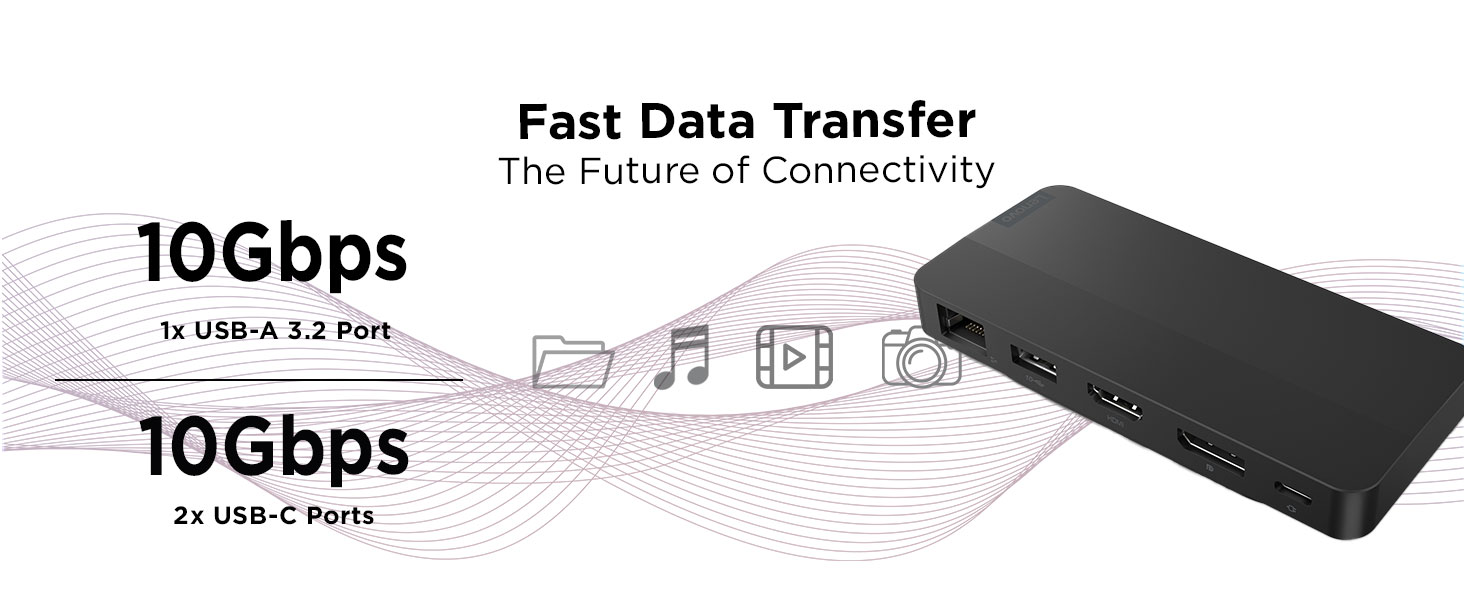
Figure 4: Highlighting the 10Gbps data transfer speeds of the dock's USB ports.
Maintenance
To ensure the longevity and optimal performance of your Lenovo USB-C Dual Display Travel Dock, follow these maintenance guidelines:
- Cleaning: Use a soft, dry, lint-free cloth to clean the exterior of the dock. Avoid using liquid cleaners, aerosols, or solvents, as these may damage the device.
- Storage: When not in use, store the dock in a cool, dry place away from direct sunlight and extreme temperatures.
- Cable Management: Utilize the adjustable cable management feature to keep cables organized and prevent strain on the ports.
- Avoid Obstructions: Ensure that the dock's ventilation areas are not obstructed to prevent overheating.
Troubleshooting
If you encounter issues with your docking station, refer to the following common troubleshooting tips:
- No Display Output:
- Verify all display cables (HDMI, DisplayPort) are securely connected to both the dock and the monitors.
- Ensure the dock is receiving power and is properly connected to your laptop via the USB-C cable.
- Check your laptop's display settings to ensure external monitors are detected and configured correctly (e.g., extended, mirrored).
- No Power Delivery to Laptop:
- Confirm that the power adapter is correctly plugged into the dock and a working power outlet.
- Ensure your laptop's USB-C port supports power delivery.
- If using an optional 135W adapter, ensure it is properly connected.
- Peripherals Not Recognized:
- Try connecting the peripheral to a different USB port on the dock.
- Connect the peripheral directly to your laptop to rule out device issues.
- Ensure your laptop's drivers for USB-C and display output are up to date.
- Intermittent Connectivity:
- Check for loose cable connections.
- Ensure no other devices are causing interference.
- Restart your laptop and the dock.
Specifications
| Feature | Detail |
|---|---|
| Brand | Lenovo |
| Model | B0D2JH1RWR |
| Color | Black |
| Hardware Interface | USB Type C |
| Compatible Devices | Laptops (supporting USB-C Alt-Mode or Thunderbolt protocols) |
| Number of Ports | 7 |
| USB Ports | 1 x USB-A 3.2 10 Gbps, 2 x USB-C 10 Gbps (1x Always-On with max. 5V/2.4A charging) |
| Video Ports | 1 x DP 1.4, 1 x HDMI 2.0 (Dual 4K display support) |
| Networking | 1 x RJ45 (10/100/1000M Network Transmission) |
| Power Delivery | Up to 100 watts (with 135W USB-C adapter, 65W with 100W adapter) |
| Product Dimensions | 4.72"L x 2.6"W x 0.79"H |
| Item Weight | 0.3 Pounds |
Warranty and Support
The Lenovo USB-C Dual Display Travel Dock comes with a 3-year manufacturer's warranty.
For technical support, driver updates, or further assistance, please visit the official Lenovo support website or contact their customer service directly. Ensure you have your product model number (B0D2JH1RWR) and proof of purchase available when seeking support.