
FREEWOLF M96
FREEWOLF M96 Wireless Gaming Keyboard User Manual
Model: M96
Introduction
The FREEWOLF M96 Wireless Gaming Keyboard is designed for versatile use, offering both Bluetooth and 2.4G wireless connectivity. It features a mechanical feel, RGB LED backlighting, a digital display screen, and durable PBT keycaps. This manual provides detailed instructions to help you set up, operate, and maintain your keyboard for optimal performance.
Product Overview
The FREEWOLF M96 keyboard combines advanced features with a user-friendly design. Key components include:
- Dual Connectivity: Supports Bluetooth (BT1, BT2) and 2.4G wireless modes for seamless switching between multiple devices.
- Digital Display Screen: Provides real-time information on battery capacity, connection mode, and charging status.
- Multimedia Control Knob: Allows for easy adjustment of volume and backlight settings.
- PBT Keycaps: Durable, spherical keycaps designed for comfortable typing and longevity.
- RGB LED Backlight: Customizable lighting effects to enhance your gaming or typing experience.
- Long-lasting Battery: Equipped with a 3000 mAh battery for extended use.
- Ergonomic Design: Features adjustable feet for optimal typing comfort.

Image: Overview of the FREEWOLF M96 Wireless Keyboard, highlighting its 90% US layout, PBT keycaps, Bluetooth/2.4G connectivity, LED backlight, 3000 mAh battery, multimedia knob, LED screen, and compatibility with Win/Mac/Linux/iOS/Android systems.

Image: Close-up view of the PBT color blocking keycaps, emphasizing their durability and longer lifespan.
Setup
1. Charging the Keyboard
Before first use, it is recommended to fully charge the keyboard. Connect the provided USB-C cable to the charging port on the keyboard and the other end to a USB power source (e.g., computer USB port, wall adapter).
- The digital display screen will indicate the charging status.
- A full charge typically takes several hours.

Image: Side view of the keyboard illustrating the power switch, Type-C charging port, and the 2.4G/BT1/BT2 mode switch. The Type-C port is for charging only and cannot be used for wired connection.
2. Connecting via 2.4G Wireless
- Locate the 2.4G wireless receiver (USB dongle), usually stored in a compartment on the keyboard's underside.
- Plug the 2.4G receiver into an available USB port on your computer.
- Slide the mode switch on the keyboard to the "2.4G" position.
- The keyboard should automatically connect to your device. The display screen will show the 2.4G connection status.
3. Connecting via Bluetooth
The keyboard supports two Bluetooth channels (BT1 and BT2) for connecting to multiple devices.
- Slide the mode switch on the keyboard to either "BT1" or "BT2" position.
- On your device (computer, tablet, smartphone), enable Bluetooth and search for new devices.
- Select "FREEWOLF M96" (or similar name) from the list of available devices.
- If prompted, enter the pairing code displayed on your device.
- Once connected, the digital display screen will show the active Bluetooth channel (BT1 or BT2).
To switch between connected Bluetooth devices, simply slide the mode switch to the desired BT1 or BT2 channel.
Video: Demonstrates the dual-mode connectivity of the FREEWOLF M96 Wireless Gaming Keyboard, showing how to switch between 2.4G wireless and Bluetooth connections (BT1, BT2) for seamless multi-device operation.
Operating Instructions
1. Digital Display Screen
The integrated electronic display provides essential information at a glance:
- Battery Capacity: Shows the current battery percentage.
- Connection Mode: Indicates whether the keyboard is in 2.4G, BT1, or BT2 mode.
- Charging Status: Displays an icon when the keyboard is charging.
- Low Battery Indicator: Alerts you when the battery is low.

Image: Detailed view of the digital display screen on the FREEWOLF M96 keyboard, showing indicators for power display, connection status (2.4G, BT1, BT2), charging, and low battery.
2. Multimedia Control Knob
The knob located on the top right of the keyboard offers dual functionality:
- Default Function (Volume Control):
- Rotate clockwise to increase volume.
- Rotate counter-clockwise to decrease volume.
- Press the knob to mute/unmute audio.
- Backlight Control:
- Press and hold the knob for five seconds to switch to backlight control mode.
- In backlight control mode:
- Rotate clockwise to increase backlight brightness.
- Rotate counter-clockwise to decrease backlight brightness.
- Press the knob to switch between different backlight effects/modes.

Image: Illustration of the advanced dial control, detailing its default functions for volume (volume up, volume down, mute) and its backlight control functions (backlight brightness up, backlight brightness down, light effect switching) when pressed and held for 5 seconds.
3. Backlight Control (Function Keys)
In addition to the knob, you can control the backlight using function key combinations:
- FN + N: Switch Backlight Mode
- FN + Up Arrow / Down Arrow: Adjust Backlight Brightness
- FN + Left Arrow / Right Arrow: Adjust Backlight Speed
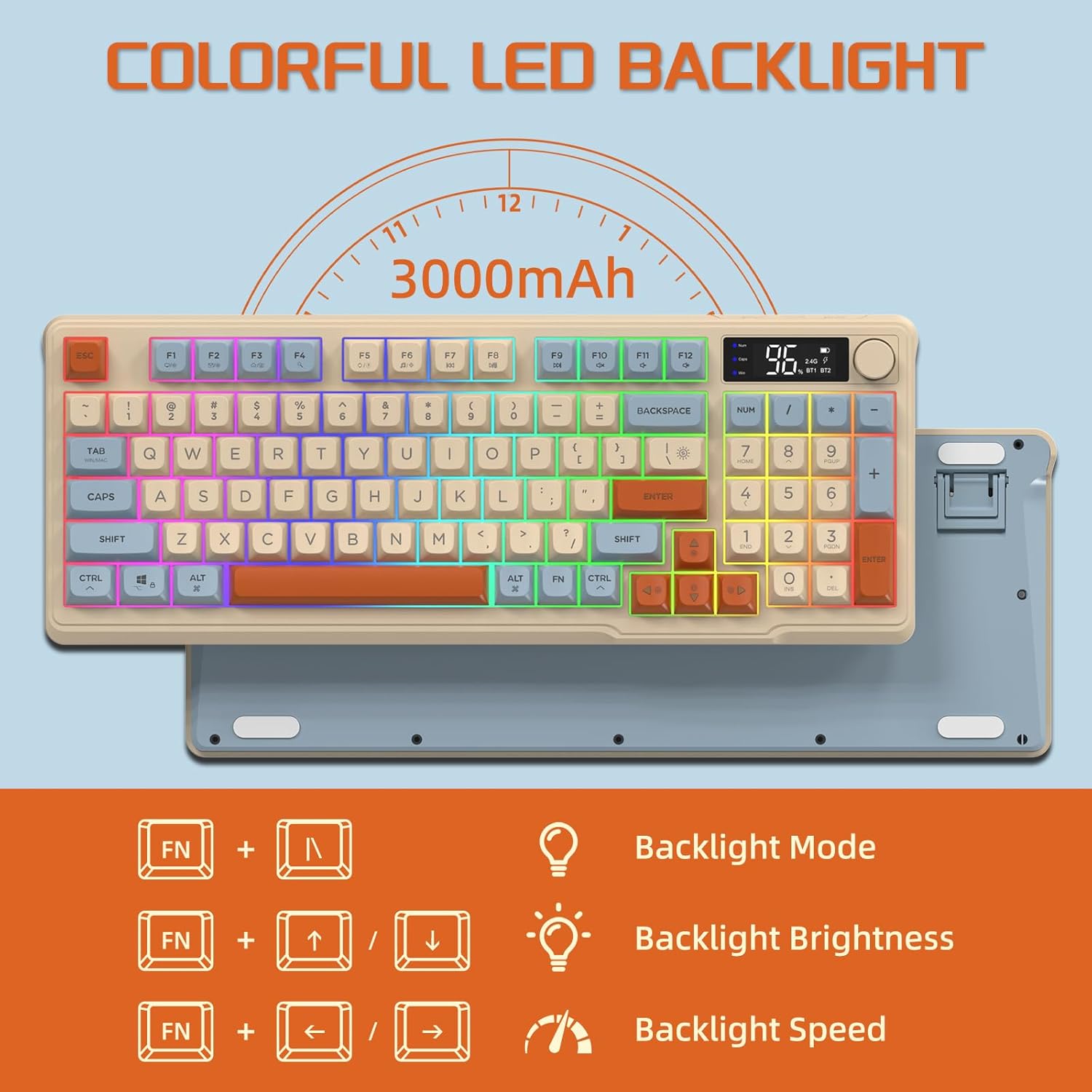
Image: The keyboard displaying the key combinations for controlling the colorful LED backlight, including changing backlight mode, brightness, and speed using the FN key with N, arrow keys.
4. Power Saving Modes
The keyboard is designed with power-saving features to extend battery life:
- Sleep Mode (3 minutes inactivity): After 3 minutes of inactivity, the keyboard enters sleep mode, and the backlight turns off.
- Deep Sleep Mode (10 minutes inactivity): After 10 minutes in sleep mode, the keyboard enters deep sleep. The first key press will be ignored to wake the keyboard, and the second key press will activate it.
5. Compatibility
The FREEWOLF M96 keyboard is compatible with a wide range of operating systems, including Windows, Mac, and Linux, ensuring broad usability.
Maintenance
1. Cleaning
- Turn off the keyboard before cleaning.
- Use a soft, lint-free cloth slightly dampened with water or a mild cleaning solution to wipe the surface.
- For cleaning between keycaps, use compressed air or a small brush.
- Avoid using harsh chemicals or abrasive materials.
2. Battery Care
- Avoid fully discharging the battery frequently.
- Store the keyboard in a cool, dry place when not in use for extended periods.
- Use only the provided charging cable or a compatible USB-C cable.
Troubleshooting
| Problem | Possible Cause | Solution |
|---|---|---|
| Keyboard not responding. | Low battery; incorrect connection mode; receiver not plugged in (2.4G); Bluetooth not paired. | Charge the keyboard; switch to correct mode (2.4G/BT1/BT2); ensure 2.4G receiver is connected; re-pair Bluetooth. |
| Backlight not working. | Backlight turned off; low battery; brightness set to minimum. | Check backlight settings using the knob or FN key combinations; charge the keyboard. |
| Keys not registering or ghosting. | Software conflict; low battery; interference. | Restart your device; charge the keyboard; move closer to the receiver/device; check for driver updates. |
| Bluetooth connection unstable. | Interference; distance from device; low battery. | Reduce interference (other wireless devices); move keyboard closer to device; charge keyboard. |
Specifications
| Feature | Detail |
|---|---|
| Brand | FREEWOLF |
| Model Number | M96 |
| Connectivity Technology | Bluetooth, 2.4G Wireless |
| Keyboard Description | Mechanical feel with PBT keycaps |
| Number of Keys | 94 keys (US Layout) |
| Backlight | RGB LED Backlight |
| Battery Capacity | 3000 mAh |
| Special Features | Electronic display, multimedia control knob, power saving modes |
| Compatible Devices | PC (Windows, Mac, Linux), iOS, Android |
| Color | Blueberry (Myrtille) |
| Product Dimensions | 385mm (15.16 inch) x 145mm (5.71 inch) x 40mm (1.57 inch) |

Image: Diagram illustrating the product dimensions of the FREEWOLF M96 keyboard: 385mm (15.16 inches) length, 145mm (5.71 inches) width, and 40mm (1.57 inches) height.
Warranty and Support
This FREEWOLF M96 Wireless Gaming Keyboard comes with a standard manufacturer's warranty. Please refer to the product packaging or the seller's information for specific warranty terms and conditions. For technical support or further assistance, please contact the retailer or manufacturer directly.
For the latest information and support, visit the official FREEWOLF website or contact their customer service.
Related documentsM96


Ask a question about this manual
Ask about setup, troubleshooting, compatibility, parts, safety, or missing instructions. Manuals+ will review the question and use this page’s manual context to help answer it.