
Vibox I-80
Contents
Vibox I-80 Gaming PC User Manual
Model: I-80
Your guide to setting up, operating, and maintaining your Vibox I-80 Gaming PC.
1. Introduction
Welcome to the Vibox I-80 Gaming PC. This entry-level gaming system is designed for casual gamers and offers reliable performance for less demanding titles and independent games. It features an AMD Ryzen 3 3200G processor with integrated Radeon Vega 8 graphics, 8GB of DDR4 RAM, and a fast 480GB SSD. The system comes pre-installed with Linux Mint, providing a flexible and open-source operating environment.
This manual provides essential information to help you set up, operate, and maintain your new PC, ensuring a smooth and enjoyable experience.
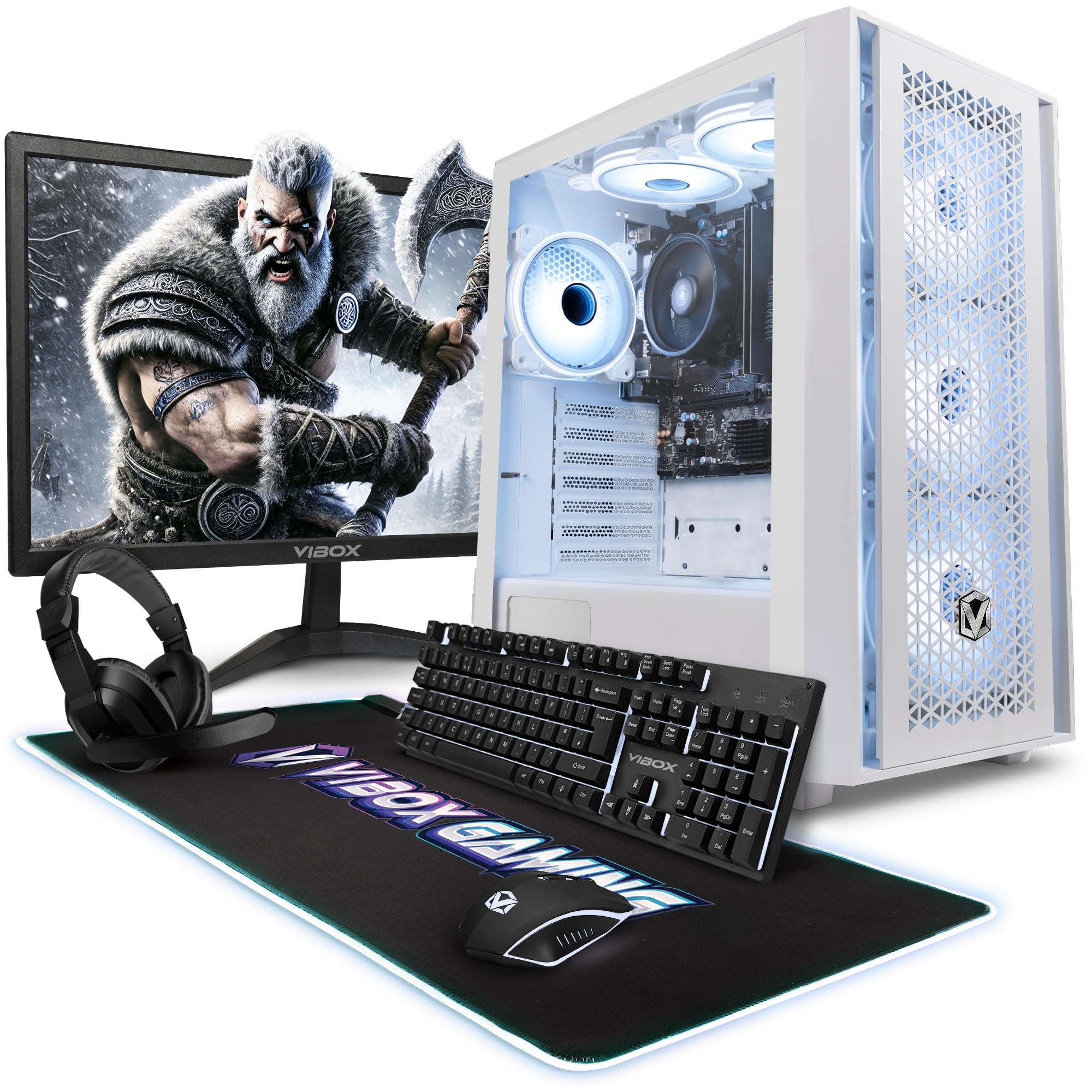
Figure 1: The Vibox I-80 Gaming PC with its internal components clearly visible through the side panel.
2. Setup
Follow these steps to set up your Vibox I-80 Gaming PC:
- Unpacking: Carefully remove the PC and all accessories (monitor, keyboard, mouse, power cables) from their packaging. Retain the packaging for future transport or warranty claims.
- Placement: Place the PC tower on a stable, flat surface, ensuring adequate ventilation around the case. Avoid placing it in enclosed spaces or near heat sources.
- Connect Monitor: Connect your monitor to the PC using an HDMI or VGA cable. The PC supports HDMI video output.
- Connect Peripherals: Plug in your keyboard and mouse into the available USB ports on the back or front of the PC.
- Connect Power: Connect the power cable to the PC's power supply unit and then to a wall outlet.
- Initial Boot-up: Press the power button on the front of the PC. The system will boot into Linux Mint. Follow any on-screen prompts for initial setup, such as language selection and user account creation.

Figure 2: Internal view of the PC, showing components and fan placement for optimal setup.
3. Operating Instructions
Your Vibox I-80 PC comes with Linux Mint pre-installed. Here are basic operating guidelines:
- Power On/Off: Press the power button to turn on the PC. To shut down, click the menu icon (usually bottom-left), then select 'Shut Down'.
- Navigation: Use the mouse and keyboard to navigate the desktop environment. The taskbar, start menu, and file manager function similarly to other operating systems.
- Internet Connectivity:
- Wi-Fi: Click the network icon in the system tray (usually bottom-right), select your Wi-Fi network, and enter the password.
- Ethernet: Connect an Ethernet cable from your router to the Ethernet port on the back of the PC. The connection should be established automatically.
- Installing Software/Games: Linux Mint includes a Software Manager for easy installation of applications. For gaming, the system supports Steam, Lutris, and Proton, allowing access to a wide range of Windows games. Refer to online guides for specific installation steps for these platforms.
- USB Ports: The PC features multiple USB 2.0 and USB 3.0 ports for connecting external devices like USB drives, headsets, or game controllers.
- RGB Lighting: Use the dedicated RGB change button on the front panel to cycle through different lighting modes for the internal fans.

Figure 3: Front panel connectivity, including USB ports, headphone jack, and RGB control button.
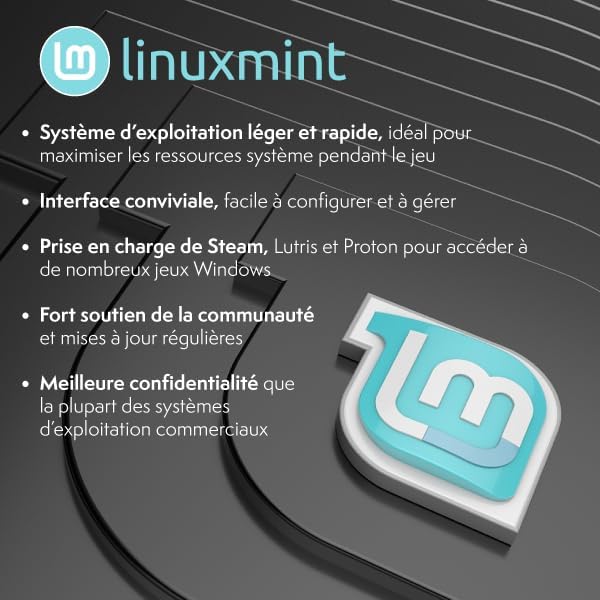
Figure 4: Key features of the Linux Mint operating system.
4. Maintenance
Proper maintenance ensures the longevity and optimal performance of your PC:
- Dust Management: Regularly clean the exterior of the PC with a soft, dry cloth. Periodically, use compressed air to clear dust from the fan vents and internal components. Ensure the PC is powered off and unplugged before cleaning.
- Airflow: Ensure that the PC's ventilation openings are not obstructed. The Vibox I-80 features an optimized airflow design to keep components cool.
- Software Updates: Keep your Linux Mint operating system and installed applications updated. Regular updates provide security patches and performance improvements.
- Cable Management: Ensure all cables are neatly organized and not obstructing airflow or causing strain on ports.

Figure 5: Illustration of the PC's reverse airflow design for efficient cooling.

Figure 6: RGB Infinity 120mm fans, contributing to both cooling and aesthetics.
5. Troubleshooting
Here are solutions to common issues you might encounter:
- PC Does Not Power On:
- Check if the power cable is securely connected to both the PC and the wall outlet.
- Ensure the power switch on the back of the power supply unit (if present) is in the 'On' position.
- Try a different power outlet.
- No Display on Monitor:
- Verify that the monitor is powered on and correctly connected to the PC's video output port (HDMI/VGA).
- Ensure the correct input source is selected on your monitor.
- If you have multiple video output ports, try connecting to a different one.
- Slow Performance:
- Close unnecessary applications running in the background.
- Ensure your operating system and drivers are up to date.
- Check for adequate free space on your SSD.
- Internet Connectivity Issues:
- Restart your router/modem.
- For Wi-Fi, ensure you have the correct password and are within range.
- For Ethernet, check the cable connection.
If you continue to experience issues, please refer to the Warranty and Support section for assistance.
6. Specifications
Detailed technical specifications for the Vibox I-80 Gaming PC:
| Feature | Detail |
|---|---|
| Model Number | I-80 |
| CPU Model | AMD Ryzen 3 3200G (4 Cores, Max 4.0 GHz) |
| Graphics | Integrated Radeon Vega 8 |
| RAM | 8GB DDR4 (3200 MHz) |
| Storage | 480GB SATA SSD |
| Operating System | Linux Mint (No Windows OS) |
| Connectivity | Wi-Fi, Ethernet, USB (Total 4 ports), HDMI |
| Video Output | HDMI, VGA |
| Cooling Method | Air Cooling |
| Dimensions (L x W x H) | 40 x 21 x 45 cm |
| Included Components | Monitor, Mouse, RGB Lighting, Keyboard |

Figure 7: Dimensions of the Vibox I-80 PC case.
7. Warranty and Support
Your Vibox I-80 Gaming PC comes with comprehensive warranty and support:
- Warranty: The product includes a 2-year warranty and lifetime labor support. This covers manufacturing defects and ensures professional assistance for repairs.
- Spare Parts: Spare parts availability in the EU is guaranteed for 2 years.
- Manufacturer: Vibox
- Contact Support: For technical assistance, warranty claims, or any other inquiries, please visit the official Vibox website or contact their customer service directly. Refer to your purchase documentation for specific contact details.
Documents and downloads
Ask a question about this manual
Ask about setup, troubleshooting, compatibility, parts, safety, or missing instructions. Manuals+ will review the question and use this page’s manual context to help answer it.