1. Introduction
This manual provides essential information for setting up, operating, and maintaining your Vibox VI-162 Gaming PC. This entry-level gaming PC is designed for casual gamers, featuring integrated graphics capable of running less demanding titles and indie games efficiently. It is an ideal system for beginners or those seeking an affordable computer with potential for future upgrades.

Image 1.1: The complete Vibox VI-162 gaming PC bundle, including the tower, 22-inch monitor, keyboard, mouse, and headset.
2. What's in the Box
Please ensure all the following items are present in your package:
- Vibox VI-162 Gaming PC Tower
- 22-inch Monitor
- Keyboard
- Mouse
- Power Cable(s)
- Display Cable (HDMI/DisplayPort)
- RGB Lighting Accessories (if applicable)
3. Setup Instructions
3.1 Unpacking
- Carefully remove all components from their packaging.
- Place the PC tower on a stable, flat surface with adequate ventilation.
- Remove any protective films or internal packaging materials from the PC tower.
3.2 Connecting Peripherals
- Monitor: Connect the monitor to the PC's graphics output port (HDMI or DisplayPort) using the provided cable. Ensure the monitor's power cable is also connected to a power outlet.
- Keyboard and Mouse: Connect the keyboard and mouse to the available USB ports on the rear or front of the PC tower.
- Power: Connect the PC's power cable to the power supply unit (PSU) at the rear of the PC, then plug it into a wall outlet.
- Network: For wired internet, connect an Ethernet cable to the LAN port on the rear of the PC. For wireless internet, ensure the Wi-Fi antenna (if provided) is securely attached.
- Audio: Connect your headset or speakers to the appropriate audio jacks (headphone/microphone) on the front or rear panel.

Image 3.1: Front panel connectivity of the Vibox VI-162 PC, showing ports for headphones, microphone, USB 2.0, USB 3.0, RGB control, reset, and power buttons.
3.3 First Boot
- Press the power button on the front of the PC tower.
- Turn on your monitor.
- The system will boot into the pre-installed Linux Mint operating system. Follow the on-screen prompts for initial setup, such as language selection, time zone, and user account creation.
- Once the setup is complete, your PC is ready for use.
4. Operating Instructions
4.1 Operating System
Your Vibox VI-162 PC comes with Linux Mint pre-installed. Linux Mint is a user-friendly and efficient operating system, ideal for maximizing system resources during gaming and general use. It offers a robust platform with strong community support and regular updates.
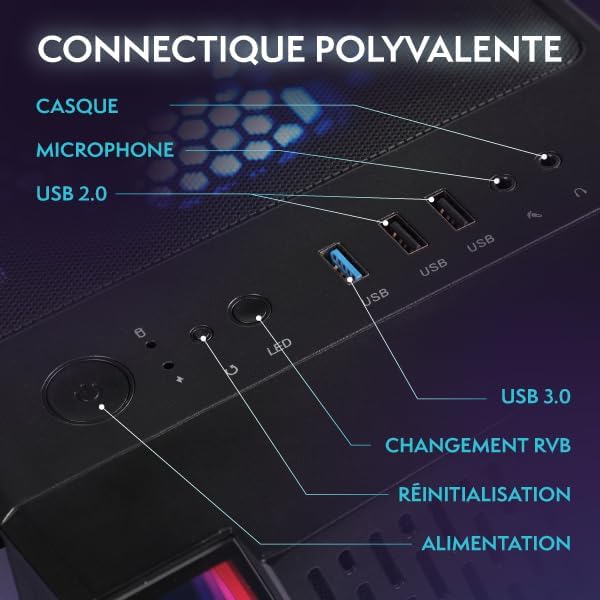
Image 4.1: Key features of the Linux Mint operating system, including its lightweight design, user-friendly interface, and support for gaming platforms like Steam, Lutris, and Proton.
You have the flexibility to install your preferred operating system if desired. Refer to the specific installation guide for your chosen OS.
4.2 Gaming and Performance
The PC is equipped with an AMD Ryzen 3 3200G processor and integrated Radeon Vega 8 graphics, suitable for less demanding games and indie titles. For optimal performance, ensure your graphics drivers are up to date.
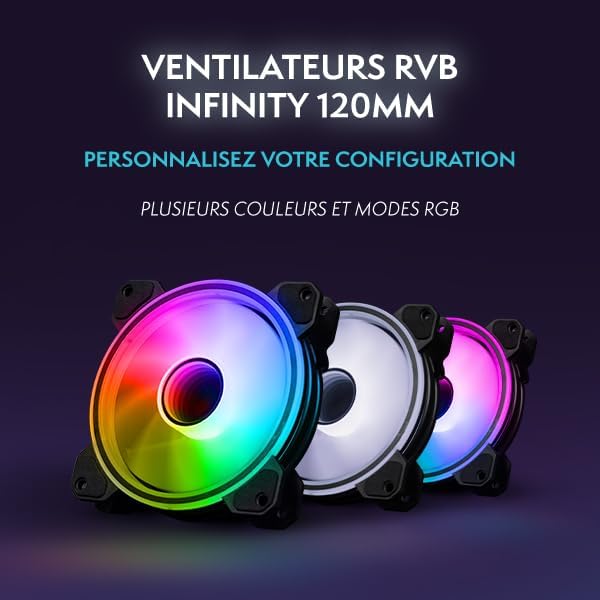
Image 4.2: Internal view of the Vibox VI-162 PC tower, showcasing the motherboard and CPU cooler.
4.3 RGB Lighting Control
The PC tower features customizable RGB lighting. Use the dedicated RGB change button on the front panel (refer to Image 3.1) to cycle through different colors and lighting modes. For more advanced control, consult the motherboard or case manufacturer's software documentation if available.
5. Maintenance
5.1 Cleaning
- Exterior: Use a soft, dry, anti-static cloth to clean the exterior surfaces of the PC tower and monitor. Avoid abrasive cleaners.
- Dust: Periodically use compressed air to clear dust from ventilation grilles and internal components. Ensure the PC is powered off and unplugged before cleaning.
5.2 Ventilation
Ensure the PC has adequate airflow. Do not block the ventilation openings on the front, rear, top, or sides of the tower. Proper ventilation helps prevent overheating and maintains system stability.
6. Troubleshooting
This section addresses common issues you might encounter with your Vibox VI-162 PC.
6.1 No Power
- Check if the power cable is securely connected to both the PC and the wall outlet.
- Ensure the power switch on the PSU (located at the rear of the PC) is in the 'ON' position.
- Test the wall outlet with another device to confirm it is functional.
6.2 No Display on Monitor
- Verify that the monitor is powered on and its power cable is connected.
- Ensure the display cable (HDMI/DisplayPort) is securely connected to both the PC and the monitor.
- Confirm the monitor's input source is set correctly (e.g., HDMI 1, DisplayPort).
6.3 Peripherals Not Responding
- Try connecting the keyboard or mouse to a different USB port.
- Restart the PC.
- Ensure drivers for specific peripherals are installed and up to date (if required by the peripheral).
6.4 System Slowdown or Freezing
- Close unnecessary applications running in the background.
- Check for sufficient free storage space on your SSD.
- Ensure the PC has proper ventilation to prevent thermal throttling.
- Update your operating system and drivers.
7. Specifications
Detailed technical specifications for the Vibox VI-162 Gaming PC:
| Feature | Specification |
|---|---|
| Brand | Vibox |
| Manufacturer | Vibox |
| Series | VTX-2 |
| Product Dimensions | 37 x 20 x 46 cm |
| Product Model Number | VI-162 |
| Color | VTX-2 Black Bundle |
| Form Factor | Tower |
| Screen Size (Monitor) | 22 Inches |
| Screen Resolution (Monitor) | 1920 x 1080 Pixels |
| Maximum Resolution | 1920 x 1080 Pixels |
| Processor Manufacturer | AMD |
| Processor Type | Ryzen 3 3200G |
| Processor Speed | 3.6 GHz (Max 4.0 GHz) |
| Processor Socket | Socket AM4 |
| Number of Processors | 4 |
| RAM Capacity | 16 GB |
| Memory Technology | DDR4 |
| Computer Memory Type | DDR4 SDRAM |
| Maximum Supported Memory | 128 GB |
| Memory Clock Speed | 3200 MHz |
| Hard Drive Description | SSD |
| Hard Drive Interface | Solid State |
| Storage Capacity | 1 TB |
| Graphics Coprocessor | AMD Radeon Vega 8 |
| Graphics Card Brand | AMD |
| Graphics Card Description | Integrated |
| Graphics Memory Type | Shared |
| Graphics RAM Capacity | 2 GB |
| Graphics Card Interface | Integrated |
| Connectivity Type | Wi-Fi |
| Wireless Connection Type | 802.11n |
| Number of USB 2.0 Ports | 3 |
| Number of USB 3.0 Ports | 3 |
| Optical Drive Type | None |
| Power Source | DC |
| Hardware Platform | PC |
| Operating System | Linux |
| Product Weight | 15.6 kg |
| Specific Product Uses | Image Editing, Video Editing, Video Games |
| Personal Computer Design Type | Computer Tower |
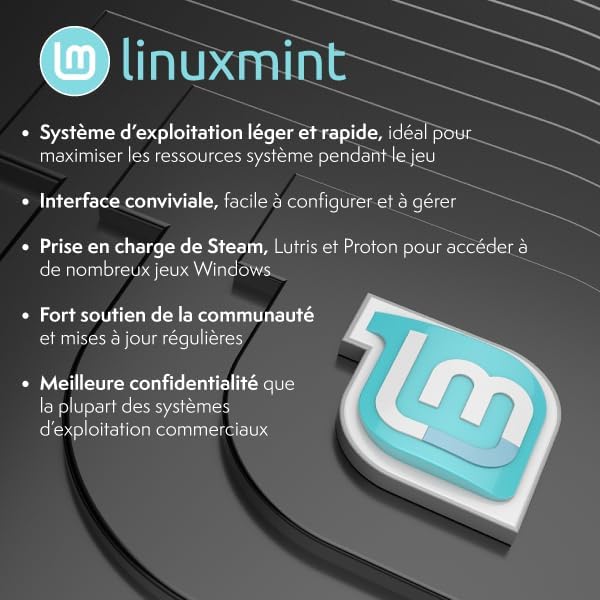
Image 7.1: Dimensions of the Vibox VI-162 PC tower: 46cm height, 38cm depth, and 20cm width.
8. Warranty and Support
8.1 Warranty Information
Your Vibox VI-162 PC is covered by a manufacturer's warranty. For specific details regarding warranty duration, terms, and conditions, please refer to the documentation included with your purchase or visit the official Vibox website. Keep your proof of purchase for warranty claims.
8.2 Technical Support
If you encounter any issues not covered in the troubleshooting section or require further assistance, please contact Vibox customer support. You can typically find contact information on the official Vibox website or through your retailer.
Vibox Official Website: www.vibox.co.uk (Please note: URL may vary by region. Check your local Vibox website for the most accurate support information.)


