1. Introduction
This manual provides essential information for setting up, operating, and maintaining your VIBOX I-100 PC Gamer. Please read this guide thoroughly to ensure proper use and longevity of your system.
2. Setup Guide
2.1 Unboxing and Component Check
Carefully remove all components from the packaging. Verify that the following items are present:
- VIBOX I-100 PC Tower
- 22-inch Monitor
- RGB Gaming Keyboard
- Gaming Mouse
- Headset
- Power Cables for PC and Monitor
- Display Cable (HDMI/VGA)
- USB Wi-Fi Adapter
- USB Key (for system recovery/drivers)

Figure 2.1: Complete VIBOX I-100 PC Gamer setup, including the tower, 22-inch monitor, RGB keyboard, gaming mouse, and headset.
2.2 Connecting Peripherals
- Connect the Monitor: Connect the display cable (HDMI or VGA) from the PC's graphics output to the monitor's input. Ensure the monitor's power cable is connected to a power outlet.
- Connect Keyboard and Mouse: Plug the USB cables of the keyboard and mouse into the available USB ports on the back of the PC.
- Connect Headset: Plug the headset into the appropriate audio jacks (headphone and microphone) on the front or back of the PC.
- Connect Wi-Fi Adapter: Insert the USB Wi-Fi adapter into an available USB port.
- Power Connection: Connect the PC's power cable to the power supply unit on the back of the tower, then plug it into a power outlet.

Figure 2.2: Front panel connectivity of the VIBOX I-100 PC, showing USB 3.0, USB 2.0, microphone, headphone jacks, RGB lighting control, and power button.
2.3 Initial Boot and Operating System Setup
Your VIBOX I-100 PC comes with Linux Mint pre-installed. Follow these steps for the first boot:
- Power On: Press the power button on the front of the PC tower.
- Monitor Display: Ensure your monitor is turned on and set to the correct input source (HDMI/VGA).
- Linux Mint Setup: Follow the on-screen prompts to complete the initial setup of Linux Mint, including language selection, user account creation, and network configuration.
- Wi-Fi Connection: Use the pre-installed network manager in Linux Mint to connect to your wireless network using the USB Wi-Fi adapter.
Note on Windows Installation: If you intend to install Windows, you will need to acquire a Windows license and installation media separately. The pre-installed Linux Mint provides a functional operating system out of the box.
3. Operating Your PC
3.1 Basic Navigation in Linux Mint
Linux Mint features a user-friendly desktop environment. You can access applications, files, and settings through the main menu (usually located in the bottom-left corner of the screen).
3.2 Gaming Performance
The VIBOX I-100 is equipped with an AMD Ryzen 3 3200G processor and integrated Radeon Vega 8 graphics, suitable for various gaming titles at 720p to 1080p resolutions. Performance may vary depending on the game and specific settings.

Figure 3.1: Estimated average FPS for Counter-Strike 2 (High: 67, Medium: 90, Low: 105) and Grand Theft Auto V (Ultra: 41, High: 57, Normal: 63) at 1920x1080 resolution.

Figure 3.2: Estimated average FPS for DOTA 2 (High: 80, Medium: 89, Fast: 91) and Apex Legends (High: 35, Medium: 61, Low: 84) at 1920x1080 resolution.
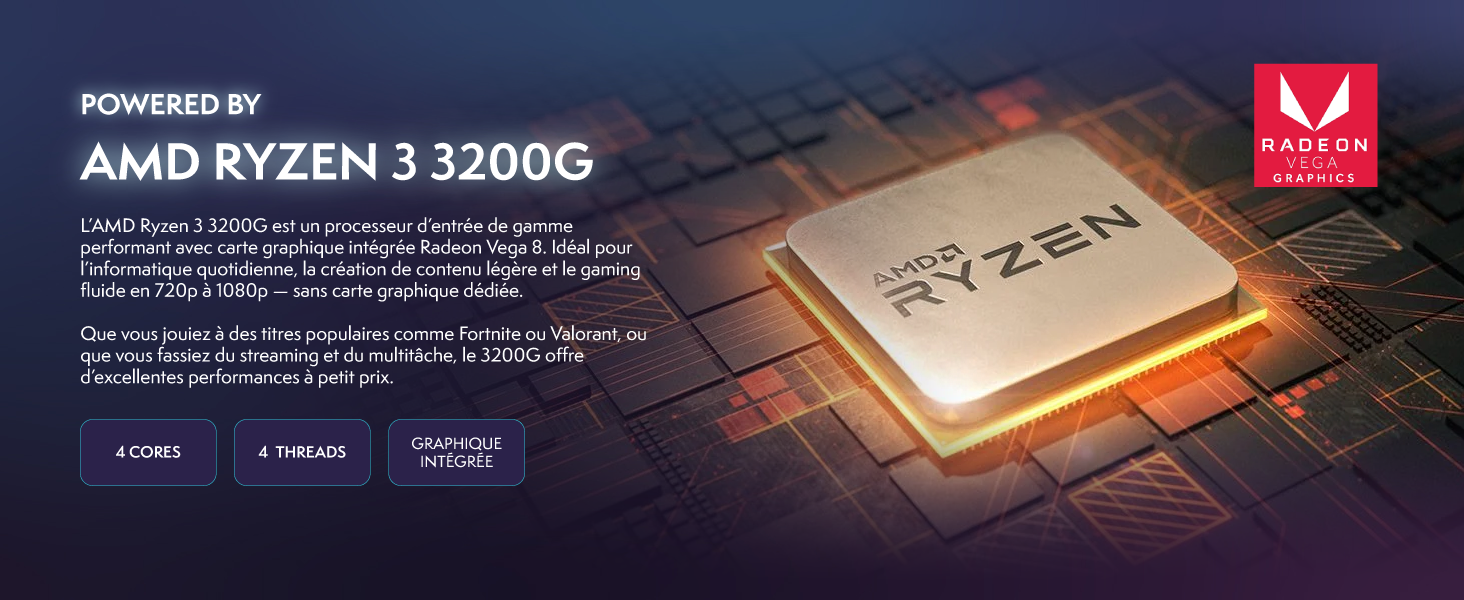
Figure 3.3: Estimated average FPS for Rocket League (High Quality: 85, Quality: 153, Performance: 214) and Overwatch 2 (High: 44, Medium: 80, Lowest: 99) at 1920x1080 resolution.
3.3 RGB Lighting Control
The PC tower features customizable RGB lighting. Use the dedicated RGB change button on the front panel (refer to Figure 2.2) to cycle through different lighting modes and colors for the fans and case accents.

Figure 3.4: The VIBOX I-100 PC tower showcasing its RGB fans and elegant lighting accents.
4. Maintenance
4.1 General Cleaning
Regularly clean the exterior of your PC with a soft, dry cloth. For dust accumulation inside the case, use compressed air to gently clear vents and components. Ensure the PC is powered off and unplugged before cleaning.
4.2 Fan Maintenance
Dust can accumulate on cooling fans, reducing their efficiency. Periodically inspect the CPU cooler fan and case fans for dust buildup. If necessary, carefully remove the side panel (refer to troubleshooting for guidance on opening the case) and clean the fan blades with compressed air. Avoid touching internal components directly.
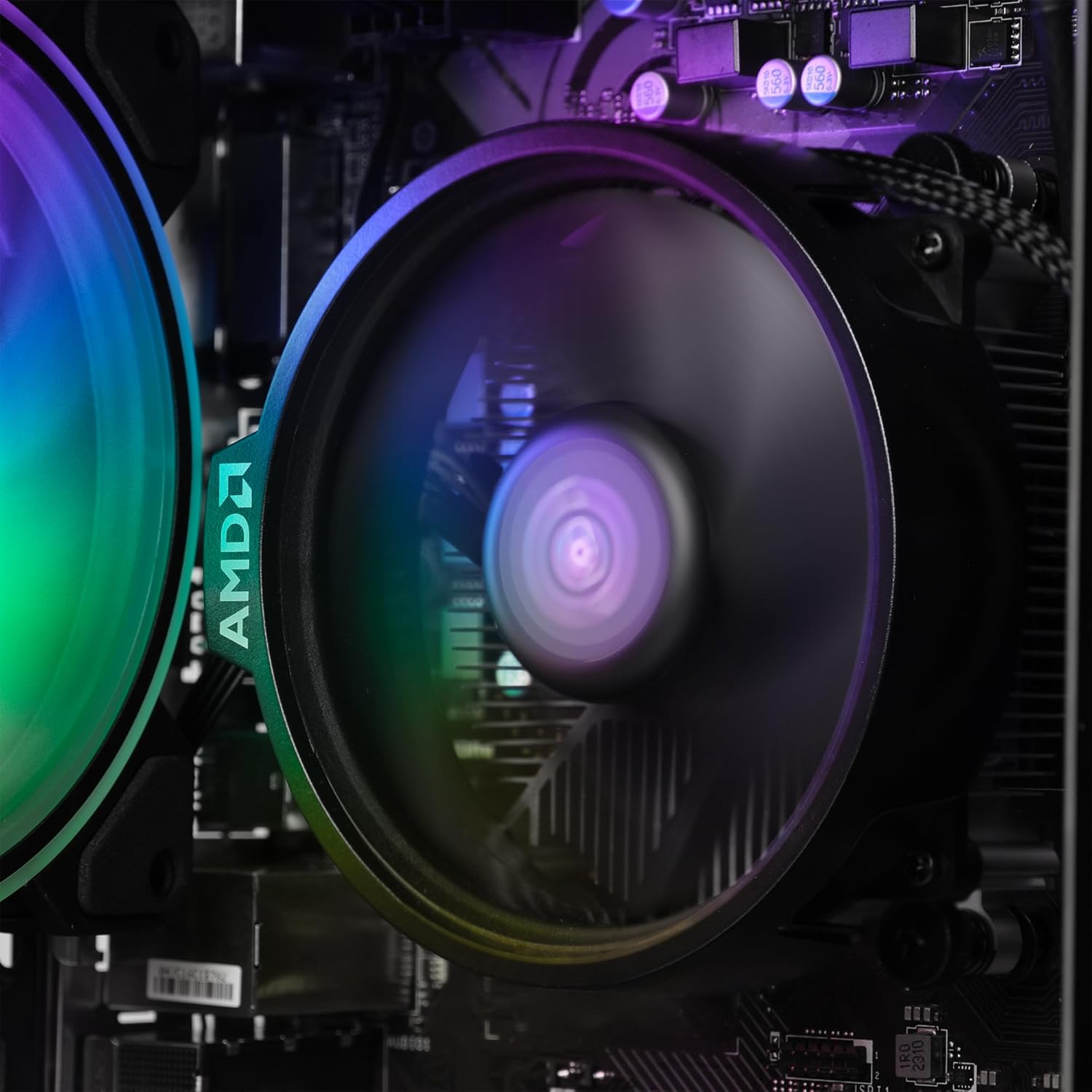
Figure 4.1: Close-up view of the AMD CPU cooler fan, highlighting the importance of keeping it free from dust for optimal performance.
4.3 Software Updates
Keep your Linux Mint operating system and installed applications updated to ensure optimal performance, security, and compatibility. Use the built-in update manager in Linux Mint to check for and install available updates regularly.
5. Troubleshooting
This section addresses common issues you might encounter with your VIBOX I-100 PC.
| Problem | Possible Cause | Solution |
|---|---|---|
| PC does not power on. | Power cable not connected, power supply switch off, faulty power outlet. | Ensure all power cables are securely connected. Check the power switch on the PSU. Try a different power outlet. |
| No display on monitor. | Monitor not powered, incorrect input source, display cable loose or faulty. | Verify monitor power and input source. Reconnect display cable. Test with another display cable if available. |
| Difficulty opening the PC case. | Side panel screws are tight or unfamiliar mechanism. | Locate and unscrew the thumbscrews on the rear of the side panel (usually the left side when facing the front). Gently slide the panel backward and then pull it away. Some models may require removing the front panel to access internal cables. |
| Keyboard or mouse not responding. | Loose USB connection, driver issue, faulty peripheral. | Reconnect the USB device to a different port. Restart the PC. Test the peripheral on another computer if possible. |
| Audio jacks not working. | Incorrect audio settings, loose connection, driver issue. | Check audio settings in Linux Mint. Ensure headset/speakers are fully plugged in. Verify audio drivers are up to date. |
| Linux Mint is in the wrong language. | Initial setup language selection error. | Navigate to System Settings > Language Settings in Linux Mint to change the display language to your preference. |
6. Specifications
Detailed technical specifications for the VIBOX I-100 PC Gamer:
| Feature | Detail |
|---|---|
| Brand | VIBOX |
| Model Number | I-100 |
| Series | Vibox I-100 |
| Operating System | Linux Mint (pre-installed) |
| Processor | AMD Ryzen 3 3200G (4 Cores, up to 4.0 GHz) |
| Graphics | Integrated AMD Radeon Vega 8 (2 GB Shared Memory) |
| RAM | 16 GB DDR4 (3200 MHz, Dual Channel) |
| Storage | 500 GB NVMe M.2 SSD |
| Monitor Size | 22 Inches |
| Monitor Resolution | 1920 x 1080 Pixels (Full HD) |
| Connectivity | Wi-Fi (802.11n), Ethernet |
| Ports | 1x HDMI, 3x USB 2.0, 3x USB 3.0, VGA, Audio Jacks |
| Dimensions (L x W x H) | 32.6 x 19.5 x 42 cm |
| Included Software | 3 Months Norton 360 Gamer Antivirus Protection |

Figure 6.1: Overview of key internal components and features of the VIBOX I-100 PC.
7. Warranty and Support
7.1 Product Warranty
The VIBOX I-100 PC Gamer comes with a manufacturer's warranty of 2 years for parts and lifetime labor. Please retain your proof of purchase for warranty claims.
7.2 Customer Support
For technical assistance, troubleshooting, or warranty inquiries, please contact VIBOX Gaming customer support. Contact details can typically be found on the VIBOX Gaming website or through your purchase platform.


