
1. Introduction
The ASUS MD200 Wireless Mouse is designed for efficient and comfortable use, offering versatile connectivity and precise tracking. This manual provides instructions for setting up, operating, maintaining, and troubleshooting your device.
2. What's in the Box
- ASUS MD200 Mouse
- USB Dongle
- Warranty Document
- Manual
- 1 AA Battery (included)
3. Setup
3.1. Battery Installation
- Locate the battery compartment on the underside of the mouse.
- Open the battery compartment cover.
- Insert the included AA battery, ensuring correct polarity (+/-).
- Close the battery compartment cover securely.
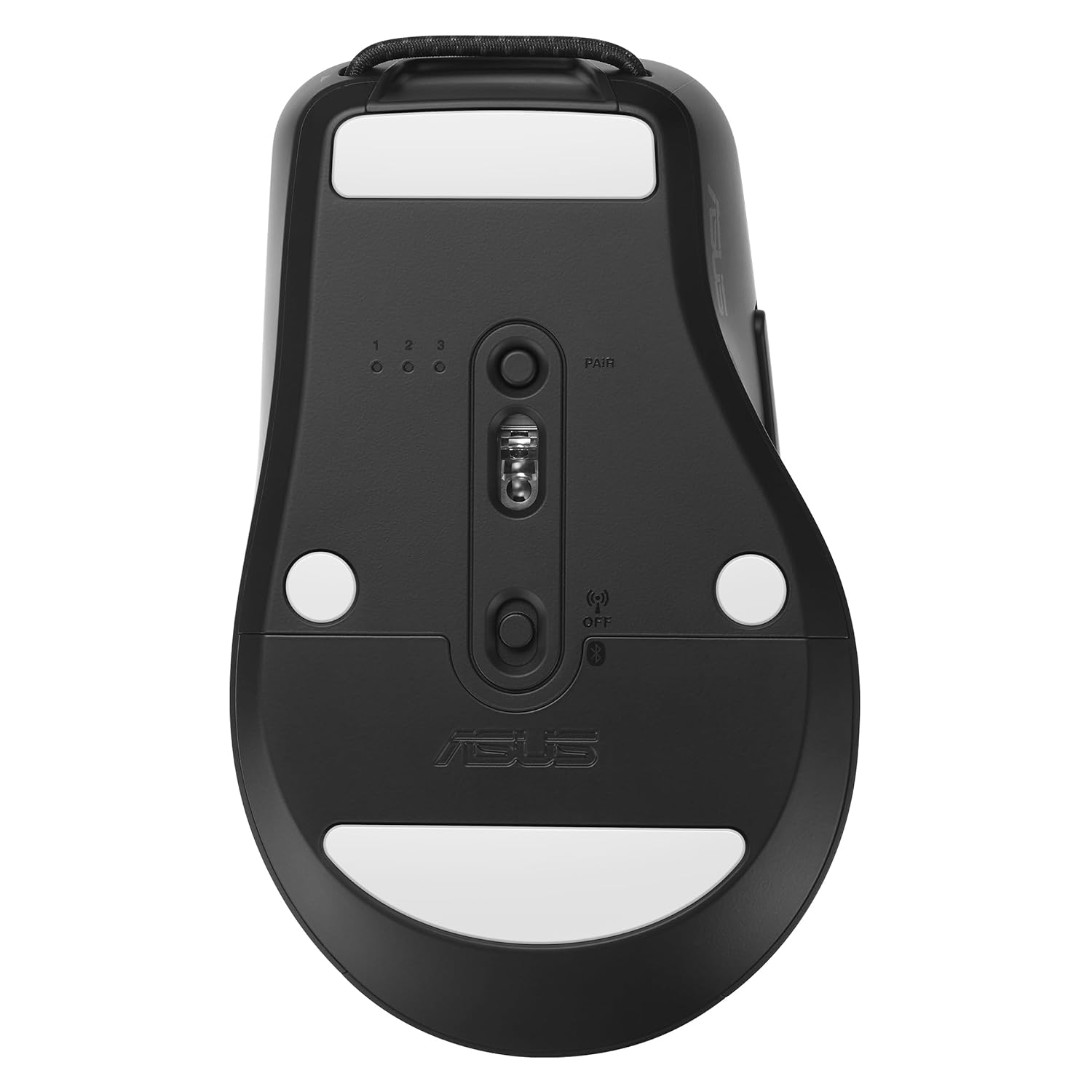
Figure 1: Underside of the ASUS MD200 mouse, illustrating the battery compartment, power switch, and connectivity mode selector.
3.2. Connectivity
The ASUS MD200 Mouse supports dual-mode connectivity: 2.4 GHz wireless via USB dongle and Bluetooth. It can connect to up to three different devices.
3.2.1. 2.4 GHz Wireless Connection
- Remove the USB dongle from its storage slot on the underside of the mouse.
- Plug the USB dongle into an available USB port on your computer.
- Set the connectivity switch on the mouse to the 2.4 GHz mode (usually indicated by a dongle icon or '2.4G').
- The mouse should automatically connect to your computer.
3.2.2. Bluetooth Connection
- Set the connectivity switch on the mouse to Bluetooth mode (usually indicated by a Bluetooth icon).
- Press and hold the 'PAIR' button on the underside of the mouse until the LED indicator starts blinking, indicating pairing mode.
- On your computer or device, navigate to Bluetooth settings and search for new devices.
- Select 'ASUS MD200' from the list of available devices to complete the pairing process.
- To switch between paired Bluetooth devices, briefly press the 'PAIR' button to cycle through the stored connections (1, 2, 3).

Figure 2: The ASUS MD200 mouse connected wirelessly to a desktop and a laptop, demonstrating multi-device capability.
4. Operating the Mouse
4.1. Basic Functions
- Left Click: Primary selection and interaction.
- Right Click: Accesses contextual menus.
- Scroll Wheel: Scrolls content vertically. Can also be clicked for middle-click functionality.
- Side Buttons: Typically used for 'forward' and 'back' navigation in web browsers or file explorers.
4.2. DPI Adjustment
The mouse features a high-performance sensor with up to 4200 DPI for precise tracking. DPI settings can be adjusted to suit your preference and task requirements. Refer to the Armoury Crate software for detailed DPI customization.

Figure 3: A hand operating the ASUS MD200 mouse, demonstrating its precise tracking capabilities with a 4200 DPI sensor.
4.3. Customizable Buttons (Armoury Crate)
The ASUS MD200 Mouse includes intuitive software, Armoury Crate, which allows you to customize its 6 programmable buttons. You can configure gesture settings, monitor battery life, and adjust DPI and polling rates for an optimized workflow.

Figure 4: A display showing the ASUS Armoury Crate software interface, where users can customize the buttons and settings of the MD200 mouse.
4.4. Ergonomics and Portability
The mouse features an ergonomic design with a thumb rest for comfortable all-day use. Its compact size and built-in elastic carrying loop enhance portability, making it easy to transport.

Figure 5: The ergonomic design of the ASUS MD200 mouse, featuring a comfortable thumb rest for extended use.

Figure 6: Side view of the ASUS MD200 mouse, highlighting its integrated elastic carrying loop for easy transport.
5. Maintenance
5.1. Cleaning
To clean your mouse, gently wipe its surface with a soft, dry cloth. Avoid using harsh chemicals or abrasive materials that could damage the finish or internal components.
5.2. Battery Life and Replacement
The ASUS MD200 Mouse features exclusive power-saving technology, allowing for a battery life of up to 1 year. When the battery is low, the LED indicator may signal a low power state. Replace the AA battery as described in Section 3.1.
5.3. Durability
The mouse buttons are equipped with switches rated for a 10-million-click lifespan, ensuring long-term reliability.

Figure 7: Image illustrating the durability of the ASUS MD200 mouse with a 10-million-click lifespan and up to 1 year of battery life.
5.4. Antimicrobial Protection
The mouse is designed to inhibit bacterial growth by over 99% over a 24-hour period, contributing to a cleaner user experience.
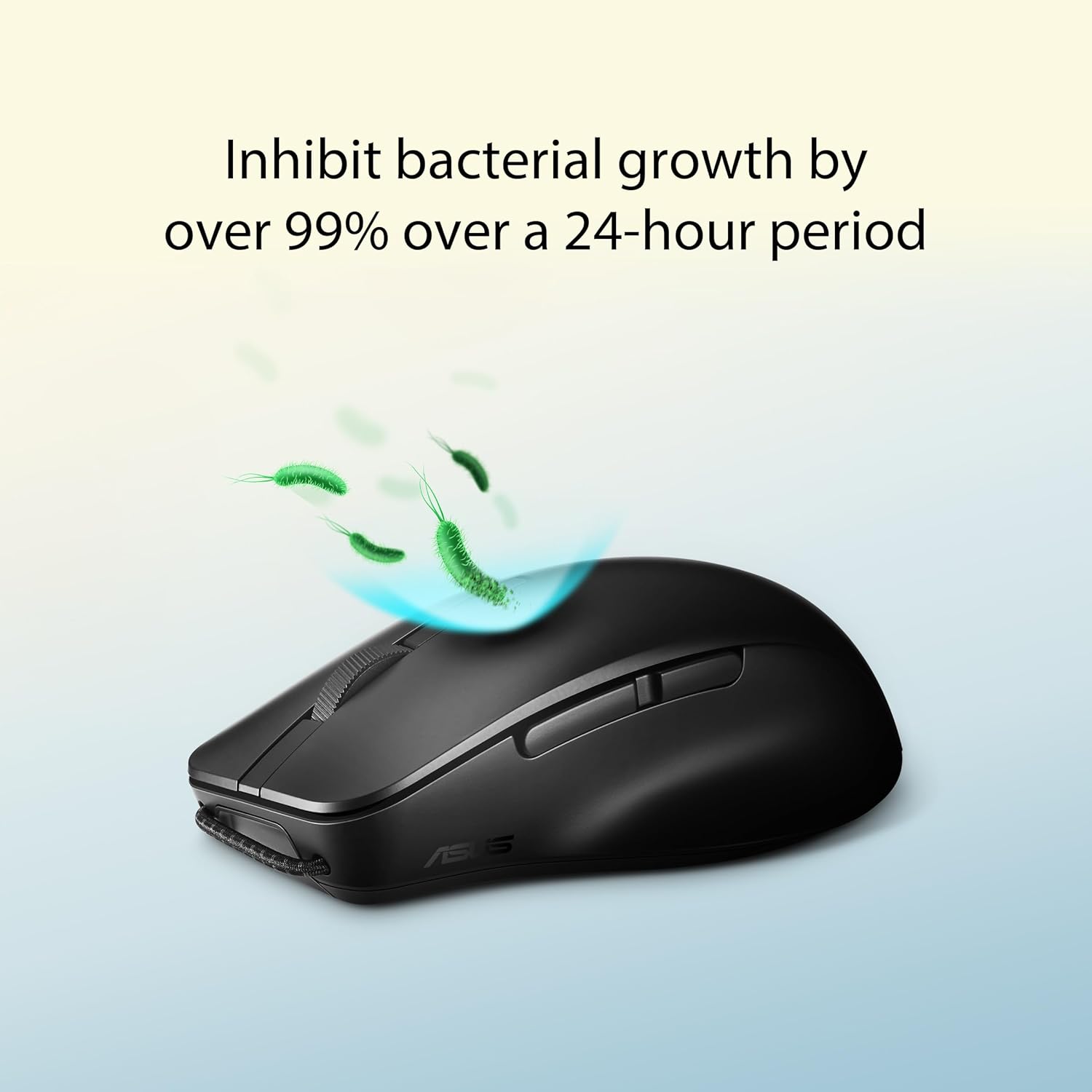
Figure 8: Visual representation of the ASUS MD200 mouse's antimicrobial properties, showing it inhibits bacterial growth.
6. Troubleshooting
- Mouse not responding:
Check if the mouse is powered on. Ensure the battery is correctly installed and has sufficient charge. Verify the USB dongle is securely plugged in or that Bluetooth is properly paired. Try re-pairing the Bluetooth connection or using a different USB port. - Intermittent connection:
Ensure the mouse is within the effective range (up to 10 meters). Avoid obstructions between the mouse and the receiver/device. Check for potential interference from other wireless devices. - Inaccurate tracking:
Clean the optical sensor on the underside of the mouse. Ensure you are using the mouse on a suitable surface; the MD200 tracks on almost any surface, including glass. Adjust DPI settings via Armoury Crate if tracking is too fast or slow. - Buttons not working:
Check for any physical obstructions. If using Armoury Crate, ensure button assignments are correct.
7. Specifications
| Brand | ASUS |
| Model Name | MD200 |
| Connectivity Technology | Bluetooth, USB (2.4 GHz with dongle) |
| Movement Detection Technology | Optical |
| Mouse Maximum Sensitivity | 4200 Dots per Inch (DPI) |
| Button Quantity | 4 (plus scroll wheel click and side buttons for 6 programmable functions) |
| Hand Orientation | Right |
| Compatible Devices | Personal Computer, Tablet |
| Operating System | Windows 11 (Minimum Required) |
| Battery Type | 1 AA battery (included) |
| Battery Average Life | Up to 12 Months |
| Item Weight | 85 Grams |
| Item Dimensions (L x W) | 11.5L x 7.1W Centimeters |
| Special Features | Lightweight, Portable, Precision Tracking, Antimicrobial, Multi-device connectivity |
8. Warranty and Support
8.1. Warranty Information
The ASUS MD200 Wireless Mouse comes with a 1-year carry-in hardware warranty provided by the manufacturer from the date of purchase. Please retain your proof of purchase for warranty claims.
8.2. Manufacturer and Importer Contact
Manufacturer: ASUS, G.TECH TECHNOLOGY LTD. NO.8, JINYUAN 1ST ROAD, TANGJIAWAN TOWN, HIGH-TECH ZONE, ZHUHUA CITY, GUANGDONG, CHINA
Importer: ASUS INDIA PRIVATE LIMITED, 402, Supreme chambers, 17/18, Shah Industrial Estate, Veera Desai Road, Andheri (West), Mumbai 400053, India
For further support, please visit the official ASUS support website or contact your local ASUS service center.
9. Product Overview Video
Video 1: A brief overview highlighting key features of the ASUS MD200 Wireless Mouse, including its tracking capabilities, durability, and connectivity options.


