
1. Introduction
This manual provides detailed instructions for the setup, operation, and maintenance of your ASUS MD200 Wireless Mouse. Please read this manual thoroughly before using the device to ensure proper functionality and to maximize its features.
The ASUS MD200 is a versatile wireless mouse designed for portability and precision, featuring dual-mode connectivity (2.4 GHz and Bluetooth), a high-precision 4200 DPI sensor, and customizable buttons.
2. Package Contents
Verify that all items are present in your package:
- ASUS MD200 Wireless Mouse
- USB Dongle (for 2.4 GHz connection)
- AA Battery (pre-installed or included separately)
- Warranty Document
- User Manual (this document)
3. Product Features
The ASUS MD200 Wireless Mouse offers several key features:
- Easy Portability: Features a built-in elastic rope for convenient carrying.
- Versatile Tracking: 4200 DPI sensor tracks accurately on various surfaces, including glass, thanks to 100% PTFE feet.
- Durable and Power-efficient: Buttons rated for 10-million clicks and up to 1 year of battery life.
- Customizable Functions: Six programmable buttons via ASUS Armoury Crate software.
- Dual Mode Connectivity: Supports 2.4 GHz (USB dongle) and Bluetooth 5.0, connecting up to three devices.
- Near-Silent Operation: Designed for quiet clicks.
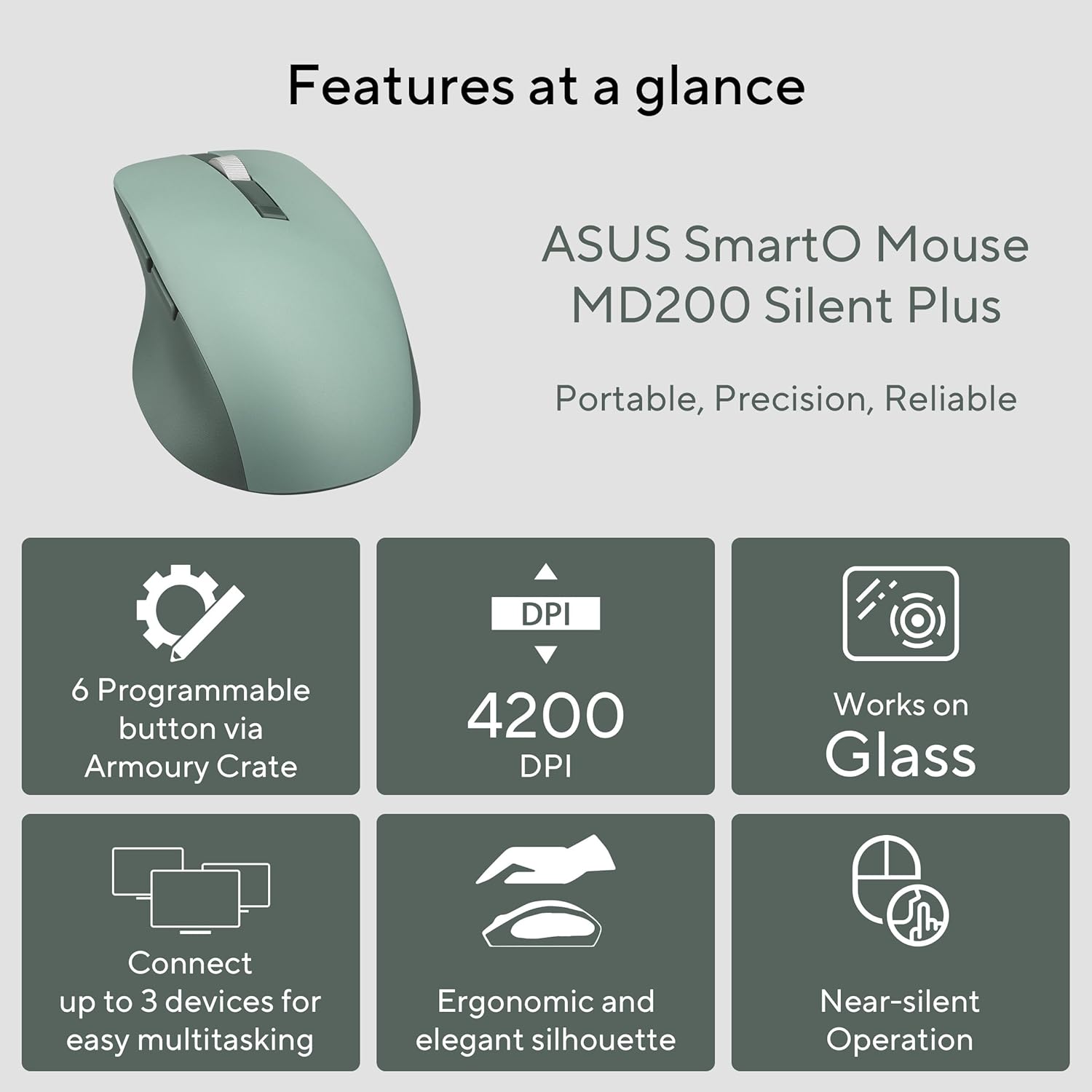
Image: Overview of ASUS MD200 mouse features, including 6 programmable buttons, 4200 DPI, glass tracking, multi-device connectivity, ergonomic design, and silent operation.
4. Setup
4.1. Battery Installation
- Locate the battery compartment cover on the underside of the mouse.
- Slide or lift the cover to open the compartment.
- Insert one AA battery, ensuring correct polarity (+/-).
- Replace the battery compartment cover.

Image: The underside of the ASUS MD200 mouse, showing the battery compartment, PTFE feet, and connectivity switch.
4.2. Connecting via 2.4 GHz Wireless (USB Dongle)
- Remove the USB dongle from its storage slot on the underside of the mouse.
- Plug the USB dongle into an available USB port on your computer.
- Turn on the mouse using the power switch located on the underside.
- The mouse should automatically connect to your computer.
4.3. Connecting via Bluetooth
- Turn on the mouse using the power switch on the underside.
- Set the connectivity switch on the underside of the mouse to the Bluetooth icon.
- On your computer or device, navigate to Bluetooth settings.
- Select "Add a device" or "Pair new device".
- Look for "ASUS MD200" in the list of available devices and select it to pair.
- The mouse can connect to up to three different Bluetooth devices. Use the connectivity switch to cycle between paired devices.

Image: A user operating the ASUS MD200 mouse connected wirelessly to multiple devices, illustrating 2.4 GHz and Bluetooth 5.0 connectivity options.
5. Operating Instructions
5.1. Basic Mouse Functions
- Left Click: Primary selection and activation.
- Right Click: Accesses contextual menus.
- Scroll Wheel: Scrolls content vertically. Can also be clicked for middle-click functionality.
- Side Buttons: Typically assigned for forward/backward navigation in web browsers. These can be customized.
5.2. Adjusting DPI (Sensitivity)
The ASUS MD200 mouse features a DPI switch, usually located near the scroll wheel, allowing you to adjust the cursor sensitivity on the fly. Press the DPI button to cycle through available DPI settings (up to 4200 DPI). Higher DPI settings result in faster cursor movement.

Image: A hand using the ASUS MD200 mouse on a glass surface, demonstrating its precise tracking capabilities up to 4200 DPI.
6. Customization with Armoury Crate
The ASUS MD200 mouse supports customization through the ASUS Armoury Crate software. This software allows you to:
- Program the six buttons with various functions.
- Adjust DPI settings and polling rate.
- Monitor battery life.
- Create and manage profiles for different applications.
To download Armoury Crate, visit the official ASUS support website for the MD200 mouse.

Image: Screenshot of the ASUS Armoury Crate software interface, showing options for customizing mouse buttons and settings for the MD200.
7. Maintenance
7.1. Cleaning the Mouse
- Ensure the mouse is turned off before cleaning.
- Use a soft, lint-free cloth lightly dampened with water or a mild cleaning solution.
- Avoid using harsh chemicals or abrasive materials.
- Clean the optical sensor area on the underside periodically to maintain tracking accuracy.
7.2. Battery Replacement
When the mouse's performance degrades or it stops responding, it may be time to replace the AA battery. Refer to section 4.1 for battery installation instructions.
The exclusive power-saving technology allows for a battery life of up to 1 year under typical usage conditions.

Image: The ASUS MD200 mouse highlighting its durability with 10 million click lifespan and 1-year battery life.
8. Troubleshooting
If you encounter issues with your ASUS MD200 mouse, refer to the following common solutions:
- Mouse not responding:
- Ensure the mouse is turned on.
- Check the battery level and replace if necessary.
- For 2.4 GHz connection, ensure the USB dongle is securely plugged into a working USB port. Try a different port.
- For Bluetooth connection, ensure Bluetooth is enabled on your device and the mouse is paired. Try re-pairing the mouse.
- Ensure the connectivity switch on the mouse is set to the correct mode (2.4 GHz or Bluetooth).
- Erratic cursor movement or poor tracking:
- Clean the optical sensor on the underside of the mouse.
- Ensure you are using the mouse on a suitable surface. While the MD200 tracks on glass, highly reflective or uneven surfaces can sometimes affect performance.
- Adjust the DPI setting to a lower value if the cursor is too sensitive.
- Buttons not working or unresponsive:
- Check if the buttons have been remapped using Armoury Crate software.
- Ensure the mouse has sufficient battery power.
- Scroll wheel issues:
- Clean any debris around the scroll wheel.
- If using 2.4GHz, ensure the dongle is not obstructed or too far from the mouse.
If problems persist, consult the ASUS support website or contact customer service.
9. Specifications
| Feature | Specification |
|---|---|
| Brand | ASUS |
| Model | MD200 |
| Connectivity | 2.4 GHz Wireless (USB Dongle), Bluetooth 5.0 |
| DPI | Up to 4200 DPI |
| Buttons | 6 Programmable Buttons |
| Tracking Surface | Works on various surfaces, including glass |
| Battery Type | 1 x AA Battery |
| Battery Life | Up to 12 Months (approx.) |
| Switch Lifespan | 10 Million Clicks |
| Dimensions (LxWxH) | 11.45 x 7.1 x 0.1 cm |
| Weight | 85 g |
| Operating System | Windows 11 (and compatible with other OS) |
| Included Components | Mouse, USB Dongle, Warranty Document, Manual |
10. Warranty and Support
Your ASUS MD200 Wireless Mouse comes with a manufacturer's warranty. Please refer to the included Warranty Document for detailed terms and conditions, including warranty period and coverage.
For technical support, driver downloads (such as Armoury Crate), or further assistance, please visit the official ASUS support website or contact ASUS customer service in your region.
ASUS Support Website: www.asus.com/support