
Introduction
Thank you for choosing the CZEview Video Baby Monitor. This manual provides essential information for setting up, operating, and maintaining your new baby monitor system. Please read it thoroughly before use to ensure proper functionality and safety.
The CZEview baby monitor offers uninterrupted surveillance, allowing you to keep an extended eye and ear on your baby. With access via a 4.3-inch screen and a smart app, you can clearly monitor your baby's every move from anywhere, anytime.

Image: The CZEview Video Baby Monitor system, including two cameras, a handheld monitor, and a smartphone displaying the live feed.
What's in the Box
Your CZEview Video Baby Monitor package includes the following components:
- Camera (2 units)
- Monitor (1 unit)
- Power Adapters (for camera and monitor)
- User Manual
Setup Guide
- Charge the Monitor: Connect the monitor to a power outlet using the provided power adapter. Charge it fully before first use.
- Position the Cameras: Place the cameras in desired locations, such as your baby's crib or play area. Ensure a clear line of sight to the monitoring area. The cameras can be wall-mounted if preferred.
- Power On Cameras: Connect each camera to a power outlet using its respective power adapter. The cameras will automatically power on.
- Pairing (if necessary): The cameras and monitor are usually pre-paired. If not, refer to the 'Pairing Devices' section in the detailed manual for instructions.
- App Setup (Optional): For smartphone monitoring, download the CZEview app from your device's app store. Follow the in-app instructions to connect your cameras to your Wi-Fi network and link them to your account.
Operating Instructions
Dual View Monitoring
The system supports monitoring two cameras simultaneously on the 4.3-inch screen, allowing you to watch both babies at once. This feature provides peace of mind, especially for families with multiple children.

Image: The handheld monitor showing a split-screen view of two different baby rooms.
Remote Pan, Tilt, and Zoom (PTZ)
The baby camera features a 355° pan and 100° tilt, offering wide coverage of the room. You can remotely control the camera's movement and utilize the 4X digital zoom via both the handheld monitor and the smartphone app to get a closer look at your baby.

Image: Visual representation of the camera's pan and tilt range, demonstrating 360-degree coverage.
Intelligent Monitoring and Alerts
The CZEview smart baby monitor is equipped with motion detection and sound detection sensors. You will receive prompt alerts on your phone or monitor upon detecting motions or sounds, ensuring you are aware when your baby needs attention. The system also provides temperature and humidity detection to help maintain an optimal comfort zone for your baby.

Image: The monitor screen showing live video feed along with real-time temperature and humidity readings.
Crisp Night Vision
The enhanced night vision feature allows you to monitor your baby clearly even in complete darkness. The infrared LEDs provide vivid and sharp visibility up to 5 meters, ensuring you can see your baby throughout the night.

Image: A clear, black-and-white image demonstrating the night vision capability, showing a baby sleeping.
Two-Way Audio
Utilize the two-way audio feature to talk to your baby from another room. This allows you to comfort them with your voice or communicate with anyone near the camera.

Image: A baby and a dog interacting near the camera, illustrating the two-way audio communication feature.
VOX Energy-Saving Mode
The VOX (Voice Operated eXchange) mode conserves battery life by activating the monitor screen only when the baby's voice or significant sound is recognized. This mode can save energy for up to 7 days, ensuring the monitor is ready when needed.

Image: A visual demonstration of the VOX energy-saving mode, showing the monitor screen activating upon sound detection.
Vibrant Nightlight & Melodic Lullabies
Comfort your baby with a colorful night light integrated into the camera. You can also play pre-installed lullabies to help your baby fall asleep peacefully. This soothing combination promotes relaxation.
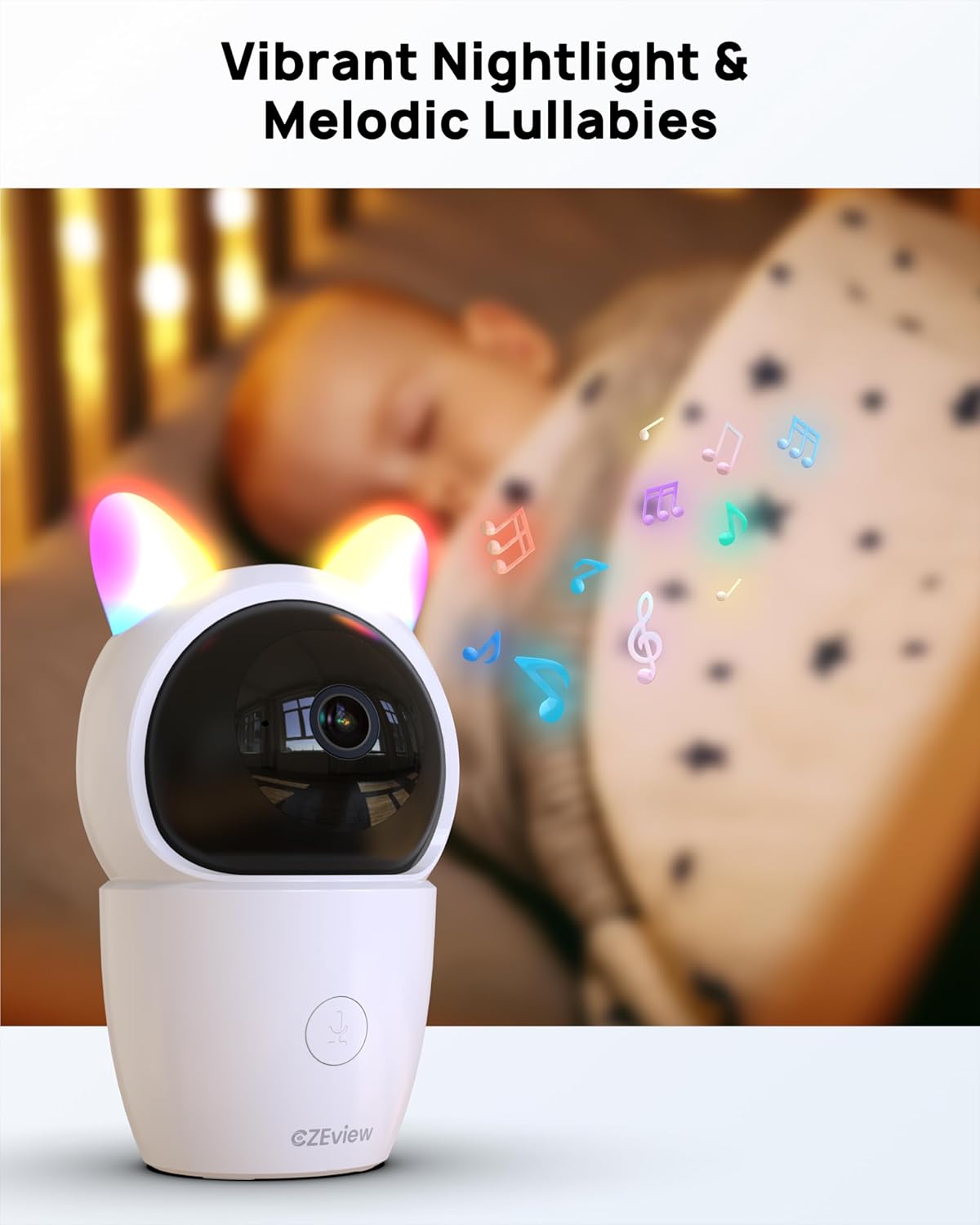
Image: The camera with its vibrant nightlight and musical notes, indicating the lullaby feature, with a baby sleeping in the background.
Connectivity: At Home & On the Move
View directly on the 4.3-inch screen at home without needing Wi-Fi or an app. For monitoring on the go, view live via the CZEview app on your smartphone or tablet, ensuring you never miss a moment.

Image: A comparison showing the monitor's functionality for direct viewing at home and remote viewing via a smartphone app.
Maintenance
- Cleaning: Use a soft, dry cloth to clean the camera lens and monitor screen. Do not use liquid cleaners or aerosols.
- Storage: If storing the device for an extended period, ensure it is fully charged and stored in a cool, dry place.
- Battery Care: For optimal battery life, avoid extreme temperatures and do not allow the battery to fully discharge frequently.
Troubleshooting
| Problem | Possible Solution |
|---|---|
| No image on monitor | Ensure both camera and monitor are powered on and charged. Check if they are within range. Re-pair devices if necessary. |
| Poor image quality | Check for obstructions between camera and monitor. Ensure camera lens is clean. Adjust camera position for better lighting. |
| No sound or distorted sound | Adjust volume settings on the monitor. Ensure no objects are blocking the microphone or speaker on either device. Check for interference from other electronic devices. |
| App connectivity issues | Ensure your Wi-Fi network is stable. Restart your router, camera, and smartphone. Verify correct Wi-Fi password and network band (2.4GHz recommended). |
| Monitor battery drains quickly | Reduce screen brightness. Enable VOX mode. Ensure the monitor is fully charged before use. Battery life varies with usage. |
Specifications
- Model Name: Baby Monitor
- Item Model Number: ZY-BB1
- Brand: CZEview
- Color: white 2pcs
- Indoor/Outdoor Usage: Indoor
- Compatible Devices: Android, iOS
- Power Source: Battery Powered
- Connectivity Protocol: Wi-Fi
- Controller Type: Smartphone
- Mounting Type: Wall Mount
- Video Capture Resolution: 2K
- Number of Items: 1 (set includes 2 cameras)
- Included Components: Camera, Monitor
- Number of Channels: 2
- Wireless Communication Technology: Wi-Fi
- Form Factor: Dome
- Night Vision Range: 15 Meters
- Item Dimensions (L x W x H): 2.36 x 2.36 x 5.12 inches
- Item Weight: 2.09 pounds
- Alert Type: Motion Only
- Room Type: Nursery
- Video Capture Format: MP4
- International Protection Rating: IP65
- Control Method: App, Remote
- Special Feature: Running & Breathing Lights
Warranty and Support
CZEview products are designed for reliability and performance. For specific warranty details, please refer to the warranty card included in your product packaging or visit the official CZEview website. If you encounter any issues or require technical assistance, please contact CZEview customer support through the contact information provided on our website or in your product documentation.
We are committed to providing excellent service and support for your CZEview Video Baby Monitor.
