
1. Introduction
This manual provides detailed instructions for the installation, operation, and maintenance of your Bisofice POS-8370 80mm Thermal Receipt Printer. Please read this manual thoroughly before using the printer to ensure proper functionality and to extend the product's lifespan. Keep this manual for future reference.
2. Product Overview
The Bisofice POS-8370 is a high-efficiency thermal receipt printer designed for various point-of-sale environments. It features fast printing, automatic cutting, and versatile connectivity options.
Key Features:
- Efficient Printing: High-speed thermal printing up to 220 mm/s with automatic cutter.
- Versatile Connectivity: Supports USB and LAN (Ethernet) interfaces.
- Wide Compatibility: Compatible with Win2003/XP/7/8/10, Linux, and Mac OS.
- High Resolution: 203 DPI (8 dots/mm) for clear print quality.
- 80mm Paper Support: Accommodates 80mm wide thermal paper rolls.
- ESC/POS Command Compatible: Supports standard POS printer commands.
- Wall-Mountable Design: Features bottom holes for convenient wall installation, saving space.

Image 2.1: The Bisofice POS-8370 thermal receipt printer in operation, showing a printed receipt emerging from the top slot.

Image 2.2: The printer highlighting its clear printing capability with a sample receipt and indicating 203dpi resolution.
3. Package Contents
Please check the contents of your package upon arrival. If any items are missing or damaged, contact your vendor immediately.
- 1 x Bisofice POS-8370 Thermal Receipt Printer
- 1 x Power Cable
- 1 x USB Cable
- 1 x Thermal Paper Roll (80 x 30 mm)
- 1 x User Manual
4. Setup Instructions
4.1 Unpacking
Carefully remove the printer and all accessories from the packaging. Retain the packaging for future transport or storage.
4.2 Connecting the Printer
The POS-8370 printer supports both USB and LAN (Ethernet) connections.
- Power Connection: Connect the power adapter to the printer's 'DC' port and then plug it into a power outlet.
- USB Connection: Connect one end of the provided USB cable to the printer's 'USB' port and the other end to your computer.
- LAN (Ethernet) Connection: Connect an Ethernet cable to the printer's 'LAN' port and the other end to your network router or switch.

Image 4.1: Close-up view of the printer's rear ports, including USB, LAN, Cash Drawer (CASH), and DC power input (DC).

Image 4.2: Illustration of the printer's USB connection to a laptop, demonstrating its compatibility with various operating systems.
4.3 Loading Thermal Paper
- Ensure the printer is powered off.
- Press the cover open button (usually located on the side or front) to open the top cover.
- Insert the 80mm thermal paper roll into the paper compartment, ensuring the printing side of the paper faces upwards and the roll unwinds from the bottom.
- Pull a small amount of paper out past the cutter.
- Close the top cover firmly until it clicks into place.
4.4 Driver Installation
To enable communication between your computer and the printer, you must install the appropriate drivers.
- Download the latest drivers from the official support website: http://www.cnfujun.com/d/33
- Follow the on-screen instructions to install the drivers for your operating system (Windows, Linux, or Mac OS).
- After installation, restart your computer if prompted.
4.5 Wall Mounting (Optional)
The printer includes two holes on its bottom for wall mounting, which can help save counter space.
- Identify a suitable location on a wall for mounting.
- Use appropriate screws and anchors (not included) to secure the printer to the wall through the designated holes on the bottom of the unit.
- Ensure the printer is securely fastened before use.

Image 4.3: The printer demonstrating its wall-mountable feature, with a close-up of the bottom holes for installation.
5. Operating Instructions
5.1 Basic Printing
Once the printer is connected and drivers are installed, you can initiate printing from your application.
- Ensure the printer is powered on and has paper loaded.
- From your POS software or application, select the Bisofice POS-8370 as your printer.
- Send the print command. The printer will automatically print the receipt and cut the paper.
5.2 Automatic Cutter
The POS-8370 features an integrated automatic cutter that severs the receipt paper after each print job, providing clean and professional receipts. No manual tearing is required.
5.3 ESC/POS Command Compatibility
For advanced control and customization, the printer is compatible with standard ESC/POS commands. Refer to the ESC/POS command set documentation (typically available with the driver download or from the manufacturer's support page) for details on programming custom print layouts, logos, barcodes, and other functions.
6. Maintenance
6.1 Cleaning the Printer
Regular cleaning helps maintain print quality and extends the printer's life.
- Exterior: Wipe the printer's exterior with a soft, damp cloth. Do not use harsh chemicals or abrasive cleaners.
- Print Head: If print quality degrades, the thermal print head may need cleaning. Use a cotton swab lightly dampened with isopropyl alcohol to gently wipe the print head surface. Ensure the printer is powered off and completely dry before resuming operation.
- Paper Path: Remove any paper dust or debris from the paper path using a soft brush or compressed air.
6.2 Replacing Thermal Paper
Follow the instructions in Section 4.3 'Loading Thermal Paper' to replace an empty paper roll.
7. Troubleshooting
If you encounter issues with your Bisofice POS-8370 printer, refer to the following common problems and solutions.
| Problem | Possible Cause | Solution |
|---|---|---|
| Printer not responding / Not printing |
|
|
| Poor print quality / Blurry print |
|
|
| Paper jam |
|
|
| Driver installation issues |
|
|
8. Technical Specifications
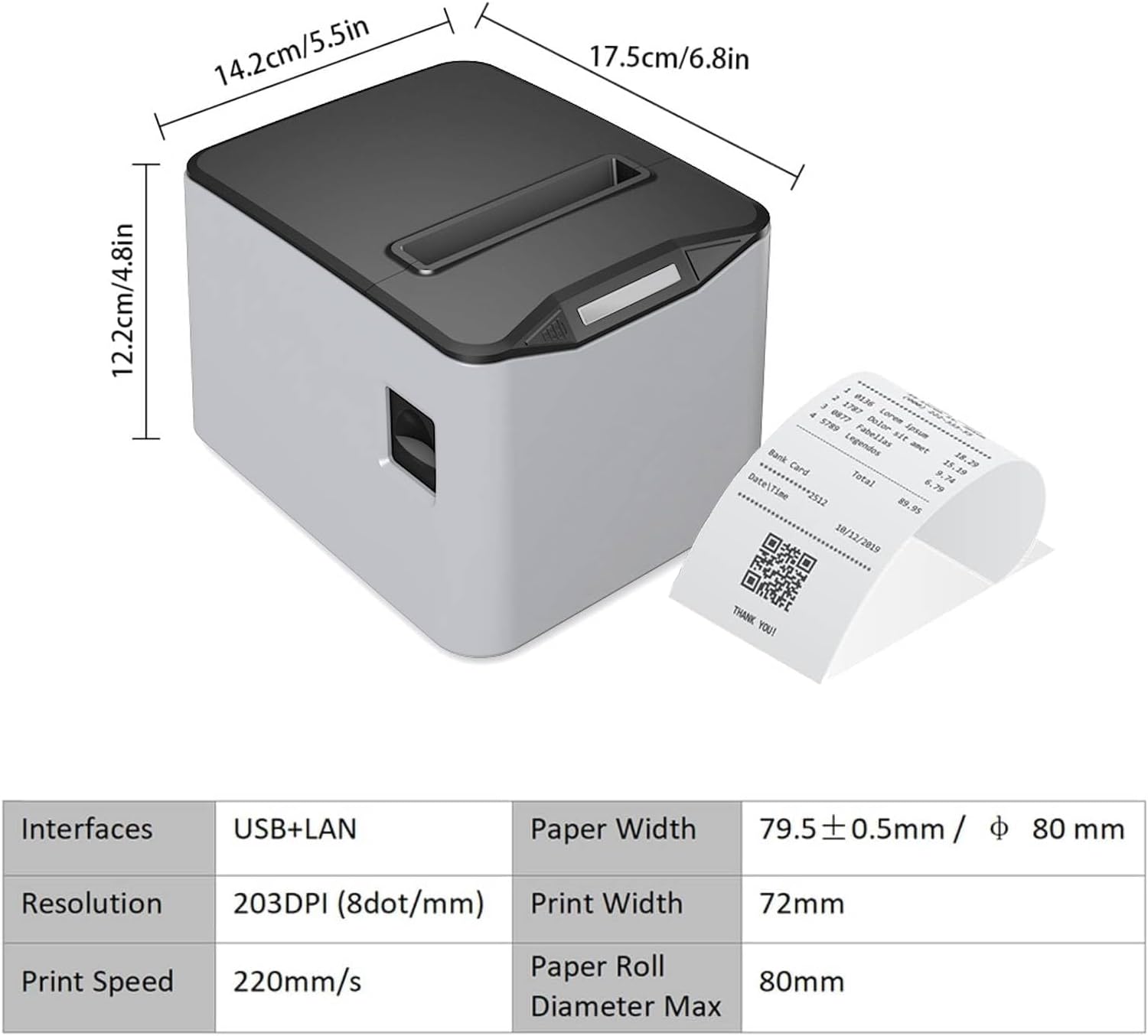
Image 8.1: Visual representation of the printer's dimensions and a summary of its key technical specifications.
| Feature | Specification |
|---|---|
| Model | POS-8370 |
| Printing Method | Thermal Line Printing |
| Interface | USB + LAN (Ethernet) |
| Print Command | ESC/POS Compatible |
| Print Speed | Up to 220 mm/s |
| Resolution | 203 DPI (8 dots/mm) |
| Line Spacing | 3.75 mm (adjustable) |
| Paper Width | 79.5 ± 0.5 mm |
| Paper Roll Diameter Max | φ80 mm |
| Print Width | 72 mm |
| Paper Thickness | 0.06 – 0.08 mm |
| Character Size | ANK Character: 1.5 x 3.0 mm (12 x 24 dots) |
| Supported 1D Barcodes | UPC-A/UPC-E/JAN13(EAN13)/JAN8(EAN8)/CODE39/ITF/CODABAR/CODE93/CODE128 |
| Supported 2D Barcodes | CODEQR, PDF417 |
| Product Dimensions | 17.5 x 14.2 x 12.2 cm (6.8 x 5.5 x 4.8 inches) |
| Product Weight | 0.84 kg (1.85 lbs) |
| Operating System Compatibility | Win2003/XP/7/8/10, Linux, Mac OS |
9. Warranty and Support
For warranty information and technical support, please refer to the documentation provided at the time of purchase or visit the official Bisofice website. Keep your purchase receipt as proof of purchase for warranty claims.


