
1. Introduction
This manual provides comprehensive instructions for the setup, operation, and maintenance of your LENVII Handheld 2D Barcode Reader. Please read this manual thoroughly before using the device to ensure proper functionality and to maximize its lifespan. This device is designed for efficient and accurate scanning of various 1D and 2D barcodes in diverse environments.
2. Product Overview
2.1 Key Features
- Plug and Play: Connects via USB cable without requiring driver or software installation.
- Wide Compatibility: Compatible with Windows, Mac, Android, and Linux operating systems.
- Versatile Barcode Support: Scans most 1D and 2D barcodes, including those on screens.
- Configurable Options: Allows customization of prefix/suffix, character deletion, and addition of keyboard keys (e.g., TAB, CR & LF).
- Multiple Scanning Modes: Supports both Key Trigger Mode and Auto-Sensing Continuous Scan Mode.
- Durable Design: Ergonomic design made of high-quality ABS, capable of withstanding drops from 1.5 meters onto concrete.
- Mute Function: Volume can be turned off for quiet environments.
2.2 Supported Barcode Types
The LENVII Handheld 2D Barcode Reader supports a wide range of 1D and 2D barcode symbologies:
- 1D Barcodes: EAN, UPC, Code 39, Code 93, Code 128, UCC/EAN 128, Codabar, Interleaved 2/5, ITF-6, ITF-14, ISBN, ISSN, MSI Plessey, GS1 DataBar, Code 11, Industrial 25, Matrix 2/5, etc.
- 2D Barcodes: QR Code, Data Matrix, PDF417, Micro QR, AZTEC, etc.

Figure 1: Examples of supported 1D and 2D barcode types.
2.3 System Compatibility
The scanner is compatible with various operating systems, ensuring broad integration into existing setups.
- Windows
- Mac OS
- Android
- Linux

Figure 2: System compatibility and typical usage scenarios.
3. Setup
The LENVII Handheld 2D Barcode Reader is designed for simple plug-and-play setup.
- Unpack the barcode reader and its USB cable from the packaging.
- Connect the USB cable to the scanner's port.
- Plug the other end of the USB cable into an available USB port on your computer or host device.
- The operating system should automatically detect and install the necessary drivers. No additional software installation is typically required.
- Once connected, the scanner is ready for use.

Figure 3: LENVII Handheld 2D Barcode Reader with USB cable.
4. Operating Instructions
4.1 Scanning Modes
The scanner supports two primary scanning modes:
- Key Trigger Mode: Press the trigger button to activate the scan beam and read a barcode. Release the button to deactivate.
- Continuous Scanning Mode: The scanner continuously emits a scan beam, automatically reading barcodes as they are presented. This mode is often used with a stand for hands-free operation.

Figure 4: Key Trigger Mode and Continuous Scanning Mode.
4.2 Scanning from Screens
To scan barcodes displayed on smartphone or computer screens:
- Ensure the screen brightness is set to maximum.
- Position the scanner at an appropriate distance and angle to read the barcode.
4.3 Configuration Options
The barcode reader offers various customization options, typically configured by scanning specific setup barcodes found in the full product manual (not included here). These options may include:
- Adding or hiding custom prefix/suffix digits to scanned data.
- Deleting specific characters from scanned data.
- Adding keyboard keys (e.g., TAB, Carriage Return (CR), Line Feed (LF)) to the end of scanned data for automated input.
4.4 Mute Function
For quiet working environments, the scanner's volume can be muted. Refer to the full product manual for specific instructions on how to activate or deactivate the mute function by scanning a configuration barcode.
5. Maintenance
To ensure optimal performance and longevity of your LENVII Handheld 2D Barcode Reader, follow these maintenance guidelines:
- Cleaning: Regularly wipe the scanner's exterior with a soft, damp cloth. Avoid using harsh chemicals or abrasive materials. Ensure the scanning window is clean and free of dust or smudges for accurate reading.
- Storage: Store the scanner in a cool, dry place away from direct sunlight and extreme temperatures.
- Handling: While the device is designed to be durable, avoid unnecessary drops or impacts. Handle the USB cable carefully to prevent damage to the connectors.
6. Troubleshooting
If you encounter issues with your barcode reader, consider the following:
- Scanner Not Reading:
- Ensure the USB cable is securely connected to both the scanner and the host device.
- Verify that the scanner is in the correct operating mode (Key Trigger or Continuous).
- Check if the barcode is damaged, smudged, or poorly printed.
- For screen scanning, ensure the screen brightness is at maximum.
- Some densely packed or ambiguous PDF417 barcodes, or other special 2D codes, may not be scannable or enabled by default. Refer to the full product manual for advanced configuration options to enable specific barcode types.
- Incorrect Data Output:
- Check the scanner's configuration settings (prefix/suffix, character deletion) by referring to the full product manual and scanning the appropriate setup barcodes.
- Ensure your host system's keyboard layout matches the scanner's output settings (e.g., Japanese keyboard output support).
- No Power/Indicator Light:
- Confirm the USB cable is properly connected and the host device is powered on.
- Try connecting the scanner to a different USB port or a different computer to rule out port issues.
If problems persist, please contact LENVII customer support for further assistance.
7. Specifications
| Brand | LENVII |
| Model | Handheld 2D Barcode Reader |
| Connectivity Technology | USB Cable |
| Power Source | Corded Electric |
| Item Quantity | 1 |
| Manufacturer | LENVII |
| Country of Origin | China |
| UPC / GTIN | 764549594269 |
8. Warranty and Support
8.1 Warranty Information
This LENVII Handheld 2D Barcode Reader comes with a 6-month warranty from the date of purchase. This warranty covers manufacturing defects and malfunctions under normal use. It does not cover damage caused by misuse, accidents, unauthorized modifications, or improper maintenance.
8.2 Customer Support
For technical support, warranty claims, or any questions regarding your LENVII Handheld 2D Barcode Reader, please contact LENVII customer service through the retailer where the product was purchased or visit the official LENVII website for contact information.
9. Application Scenarios
The LENVII Handheld 2D Barcode Reader is suitable for a wide range of applications, including but not limited to:
- File Management
- Inventory Tracking
- Point of Sale (POS) systems
- Supermarkets and Convenience Stores
- Warehouses and Logistics
- Libraries and Bookstores
- Pharmacies and Retail Outlets
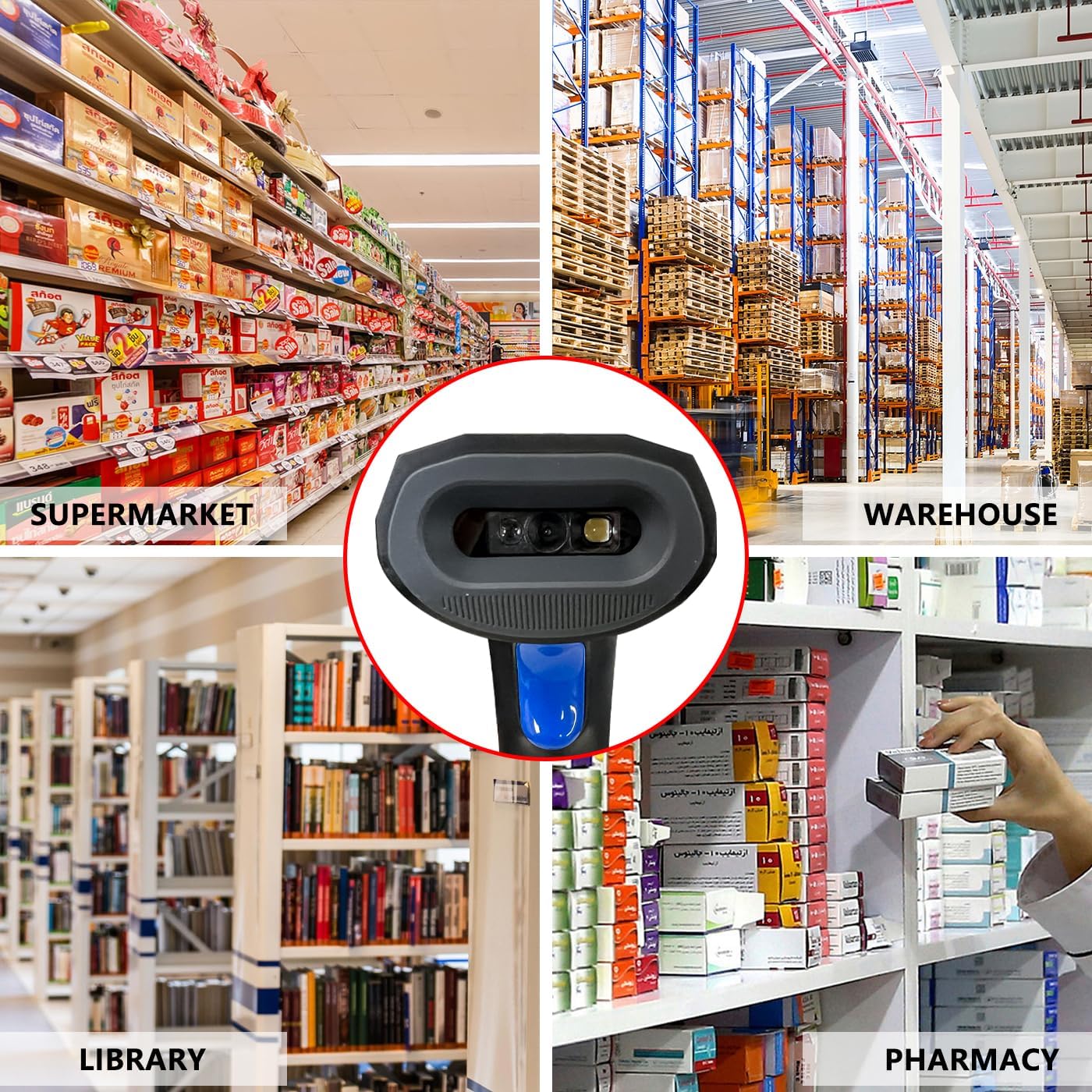
Figure 5: Diverse application environments for the barcode reader.