1. Introduction
This manual provides detailed instructions for the installation, configuration, and use of your WAVLINK 5GB PCIe Network Card. This network adapter is designed to enhance your computer's network speed, offering data transfer rates significantly faster than standard Gigabit Ethernet.
2. Package Contents
Please verify that all items are present in your package:
- WAVLINK 5GB PCIe Network Card
- Standard Height Bracket (pre-installed)
- Low-Profile Bracket
- Mounting Screws
- USB Flash Drive (containing drivers)
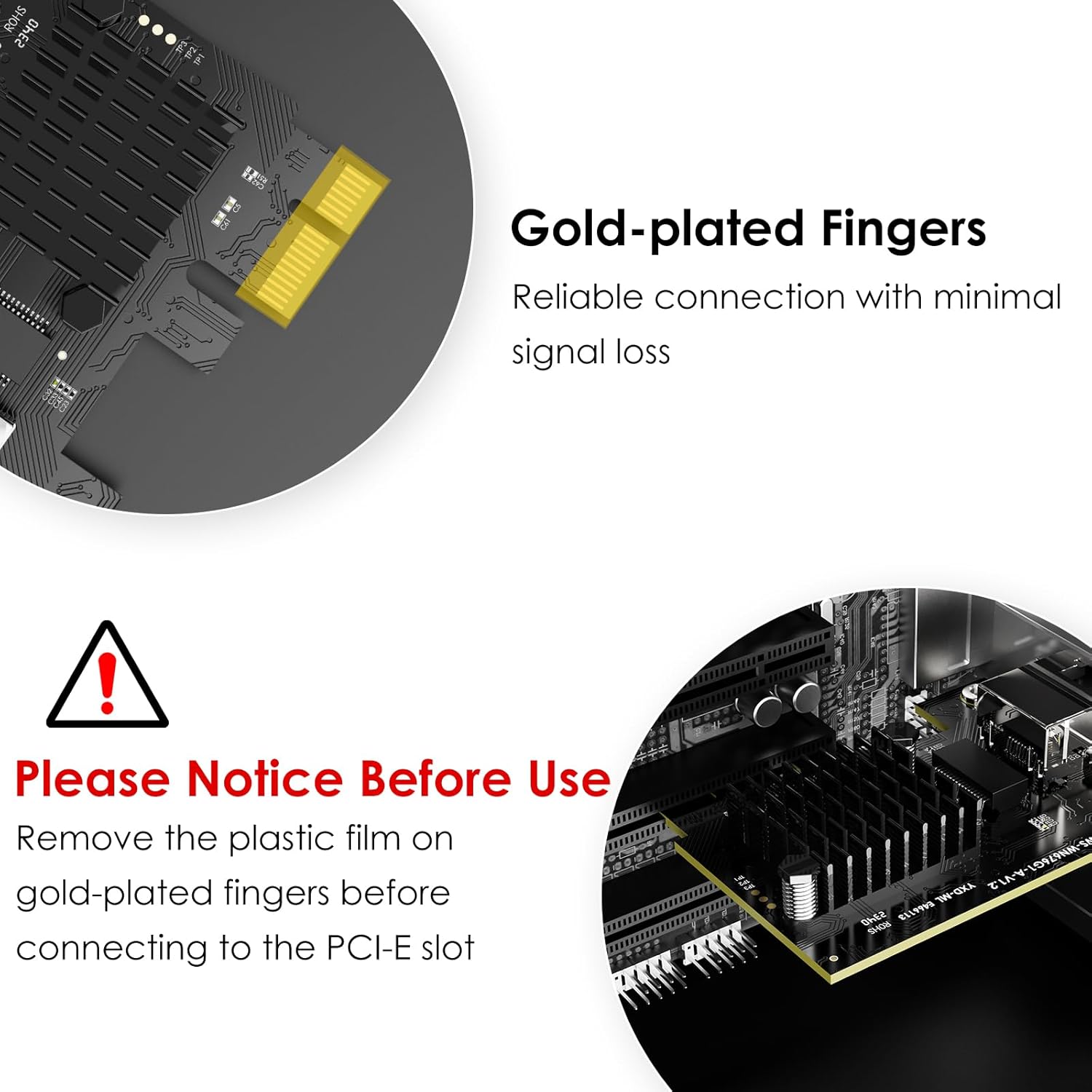
Image: The WAVLINK 5GB PCIe Network Card and its accessories, including the main card, two different sized mounting brackets, mounting screws, and a USB flash drive for drivers.
3. Product Features
- High-Speed Data Transfer: Achieves network transmission speeds up to 5 Gigabits per second, enabling rapid file transfers, smooth HD video streaming, and responsive online gaming.
- PCIe Interface Compatibility: Designed for various PCI Express slot configurations (x1, x4, x8, x16), ensuring broad compatibility with different motherboards. Note: Compatible with PCI-E slots only, not standard PCI slots.
- Operating System Compatibility: Supports Windows 11, Windows 10, and Linux systems for seamless integration.
- Dual Bracket Design: Includes both standard (12cm) and low-profile (8cm) brackets to accommodate various computer case sizes, from full towers to small form factor PCs.
- Enhanced Stability and Heat Dissipation: Features robust metal shielding to minimize electromagnetic interference and an integrated heat sink to reduce operating temperature, maintaining stable network transmission.
4. Specifications
| Feature | Specification |
|---|---|
| Brand | WAVLINK |
| Hardware Interface | PCIE x 1, PCIE x 4, PCIE x 8, PCIE x 16 |
| Compatible Devices | Desktop |
| Data Link Protocol | Ethernet |
| Data Transfer Rate | 5 Gigabits Per Second |
| Item Weight | 2.4 ounces (0.15 Pounds) |
| Package Dimensions | 5.91 x 4.92 x 1.06 inches |
5. Installation Guide
Follow these steps to install the WAVLINK 5GB PCIe Network Card into your computer:
- Power Off and Open PC: Ensure your computer is completely powered off and unplugged. Open your computer case to access the motherboard's PCIe slots.
- Select and Prepare PCIe Slot: Locate an available PCI Express slot (x1, x4, x8, or x16) on your motherboard. Remove the corresponding metal bracket cover from your PC case.
- Install the Network Card: Carefully align the gold-plated fingers of the network card with the chosen PCIe slot. Gently but firmly push the card into the slot until it is fully seated. Ensure the card's bracket aligns with the opening in your PC case.
- Secure the Card: Use the provided screws to secure the network card's bracket to your PC case.
- Connect Ethernet Cable: Connect a Cat6 or higher Ethernet cable from your router or network switch to the RJ45 port on the newly installed network card.
- Close Case and Power On: Close your computer case, plug in the power cable, and power on your computer.
Image: A diagram illustrating the first step of installation: powering off the computer and opening its case to reveal the internal components.
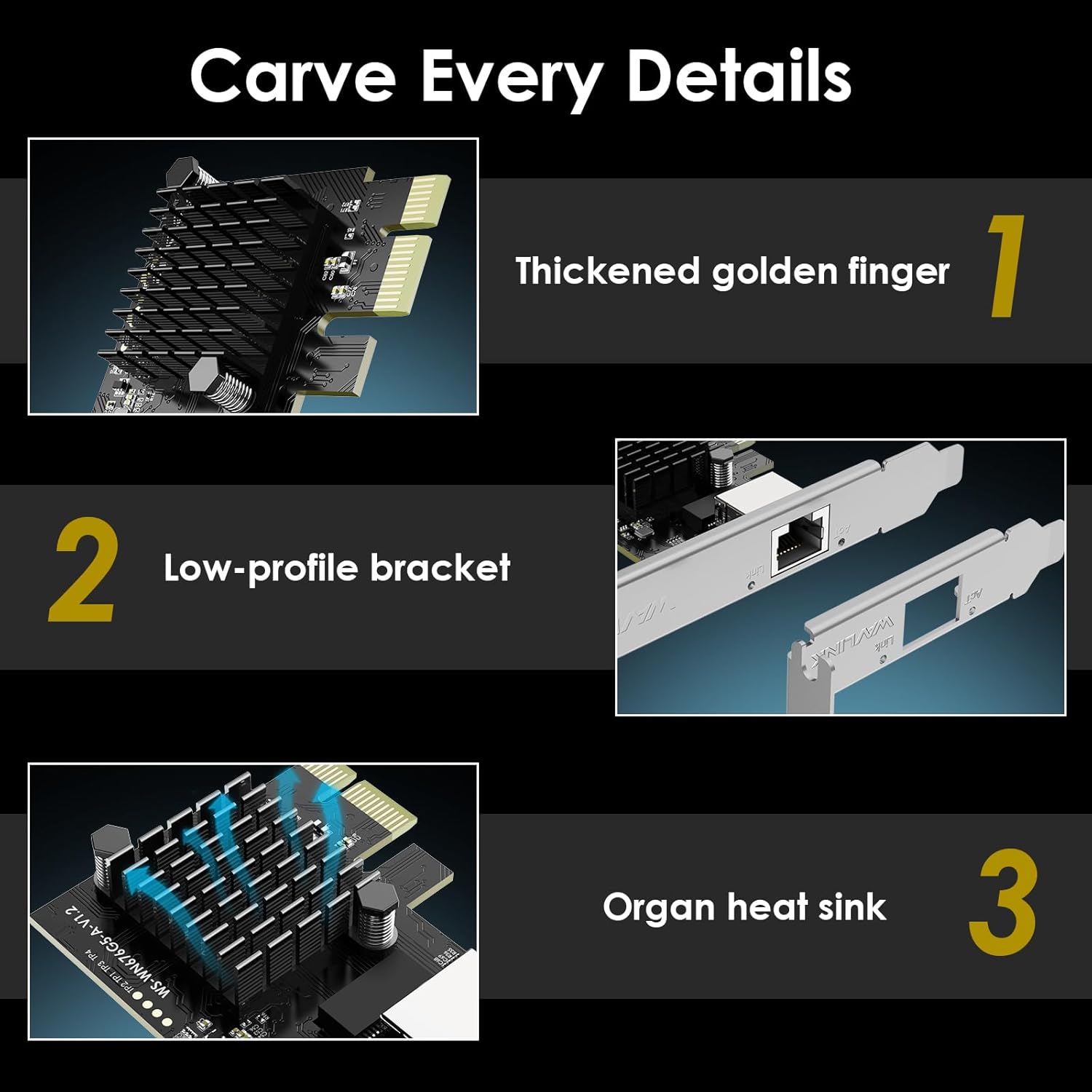
Image: A visual guide to compatible PCIe slots (x1, x4, x8, x16) and an incompatible PCI slot, demonstrating where the network card can be installed.
Image: A diagram showing the process of inserting the WAVLINK 5GB PCIe Network Card into an available PCIe slot on a motherboard.
Image: A diagram depicting the final physical installation steps: securing the network card with screws and connecting an Ethernet cable to its RJ45 port.

Image: A close-up view of the RJ45 Ethernet port on the WAVLINK 5GB PCIe Network Card, with labels for 'Link' and 'Act' indicators.
Important Note:
Before inserting the card, ensure you remove the protective plastic film from the gold-plated PCIe interface fingers to ensure proper contact.

Image: A detailed view of the gold-plated PCIe connector on the network card, with a warning to remove any protective plastic film before installation.
6. Driver Installation
After physical installation, you need to install the appropriate drivers for the network card to function correctly.
- Insert USB Flash Drive: Insert the included USB flash drive into an available USB port on your computer.
- Locate and Install Driver: Navigate to the USB drive in File Explorer and locate the driver setup file for your operating system (Windows 11/10 or Linux). Run the installer and follow the on-screen prompts.
- Verify Installation: Once the driver installation is complete, restart your computer. After restarting, open Device Manager (on Windows) and check under 'Network adapters' to ensure 'Realtek PCIe 5GbE Family Controller' is listed and functioning without errors.
Image: A diagram showing a computer monitor displaying a driver download page, representing the step to download and install the necessary drivers.
Video Guide: Installation and Overview
Video: This video provides a visual overview of the WAVLINK 5GB PCIe Network Card, demonstrating its components and basic installation steps.
7. Configuration (Advanced Settings)
For advanced users, the network card drivers offer various configurable options through the Device Manager (Windows) or network settings (Linux). These settings can optimize performance for specific network environments.
Key Advanced Settings:
- Speed & Duplex: Allows manual setting of connection speed (e.g., 5 Gbps Full Duplex) if auto-negotiation is not optimal.
- Jumbo Frame: Enables larger Ethernet frames for increased data throughput, beneficial in specific network setups.
- Wake-On-Lan (WOL): Configures the card to wake up the computer from a low-power state when a network signal is detected.
- VLAN ID: For use in Virtual Local Area Network environments.
Access these settings by right-clicking the network adapter in Device Manager, selecting 'Properties', and navigating to the 'Advanced' tab.
8. Compatibility
The WAVLINK 5GB PCIe Network Card is designed for broad compatibility:
- Operating Systems: Fully compatible with Windows 11, Windows 10, and various Linux distributions.
- PCIe Slots: Supports PCI Express x1, x4, x8, and x16 slots. It is not compatible with older PCI slots.
- Network Hardware: Requires a network switch or router capable of 5Gbps or multi-gigabit speeds (e.g., 2.5Gbps or 10Gbps with 5Gbps negotiation) to achieve maximum performance.
- Ethernet Cables: For optimal 5Gbps performance, Cat6 or Cat6A Ethernet cables are recommended. Cat5e cables may work for shorter distances but might not sustain full 5Gbps speeds reliably.
9. Usage Scenarios
This 5GB PCIe Network Card is ideal for various applications requiring high-speed and stable network connectivity:
- Online Office: Enhances productivity with faster access to network resources and cloud services.
- Lag-Free Gaming: Provides a stable and high-bandwidth connection for competitive online gaming.
- 4K Streaming: Ensures smooth and uninterrupted streaming of high-resolution video content.
- IT Programming & Data Transfer: Accelerates large file transfers and improves performance for network-intensive development tasks.
Image: A collage illustrating diverse applications for the WAVLINK 5GB PCIe Network Card, such as gaming, office tasks, online meetings, IT programming, and 4K streaming.
10. Important Considerations
- Network Infrastructure: To fully utilize the 5Gbps speed, ensure your entire network infrastructure (router, switch, and other connected devices) supports multi-gigabit Ethernet.
- Cable Quality: The performance of your 5Gbps connection is highly dependent on the quality of your Ethernet cables. Always use Cat6 or Cat6A cables for optimal results.
- System Performance: Your computer's overall performance, including CPU, RAM, and storage (especially SSDs for fast read/write speeds), can impact the actual data transfer rates achieved.
11. Troubleshooting
If you encounter issues with your WAVLINK 5GB PCIe Network Card, consider the following troubleshooting steps:
- No Link Light: Check if the Ethernet cable is securely connected to both the network card and your router/switch. Ensure the router/switch port is active.
- Slow Speeds: Verify that your router/switch supports 5Gbps or multi-gigabit speeds. Check the type and condition of your Ethernet cable (Cat6 or Cat6A recommended). Ensure drivers are correctly installed and updated.
- Driver Issues: Reinstall the drivers from the provided USB flash drive or download the latest version from the WAVLINK official website. Check Device Manager for any error messages related to the network adapter.
- Card Not Detected: Ensure the network card is fully seated in the PCIe slot. Try installing the card in a different PCIe slot if available. Confirm that the plastic film on the gold-plated fingers was removed.
- System Instability: If your system experiences crashes or instability after installation, ensure your power supply unit (PSU) can adequately power all components. Consult your motherboard's manual for PCIe slot compatibility and power requirements.
12. Warranty and Support
WAVLINK products are designed for reliability and performance. For warranty information, please refer to the documentation included with your purchase or visit the official WAVLINK website.
Customer Support:
If you require further assistance, please contact WAVLINK customer support:
- Email: support@wavlink.com
- Live Chat: Visit wavlink.com
- Phone (US Local): +1(888)973-0883 (Mon-Fri 09:00 am - 10:00 pm UTC-5)

Image: WAVLINK customer support details, including email address, live chat website, and a US local phone number with specified operating hours.


