
1. Introduction
This manual provides detailed instructions for the installation, operation, and maintenance of your podofo 8 Core 4G+64G Car Radio. This car stereo head unit is designed for Honda Civic models from 2006 to 2011, offering advanced features such as Wireless Carplay, Android Auto, GPS navigation, Bluetooth 5.0, FM/RDS radio, and a 10.1-inch IPS touchscreen.
Please read this manual thoroughly before installation and use to ensure proper function and to maximize your experience with the product.
2. Safety Information
- Always ensure the vehicle is parked safely with the engine off and parking brake engaged before performing any installation or wiring.
- Disconnect the vehicle's battery negative terminal before starting installation to prevent electrical shorts and damage.
- Consult a professional installer if you are unsure about any part of the installation process. Improper installation can lead to vehicle damage or personal injury.
- Do not operate the device in a way that distracts you from driving. Always prioritize road safety.
- Keep the device away from water, moisture, and extreme temperatures.
3. Package Contents
Verify that all items listed below are included in your package:
- Android Car Stereo Unit
- GPS Antenna
- External Microphone
- HD Backup Camera
- Power Cable
- RCA Input/Output Cables
- Reversing Camera Input Cable
- USB Cables
- Radio Antenna
- Installation Tools (if included)
- User Manual (this document)

Image: Package contents and dimensions of the podofo car radio, showing the main unit, power cable, RCA cables, USB cables, GPS antenna, external microphone, and HD backup camera.
4. Setup and Installation
4.1 Compatibility Check
This car stereo is specifically designed for Honda Civic models manufactured between 2006 and 2011. It comes with a plug-and-play wiring harness for simplified installation.
Important Note: This unit is incompatible with original car radio systems that feature built-in navigation or a large factory screen. Please verify your vehicle's current setup before proceeding with installation.
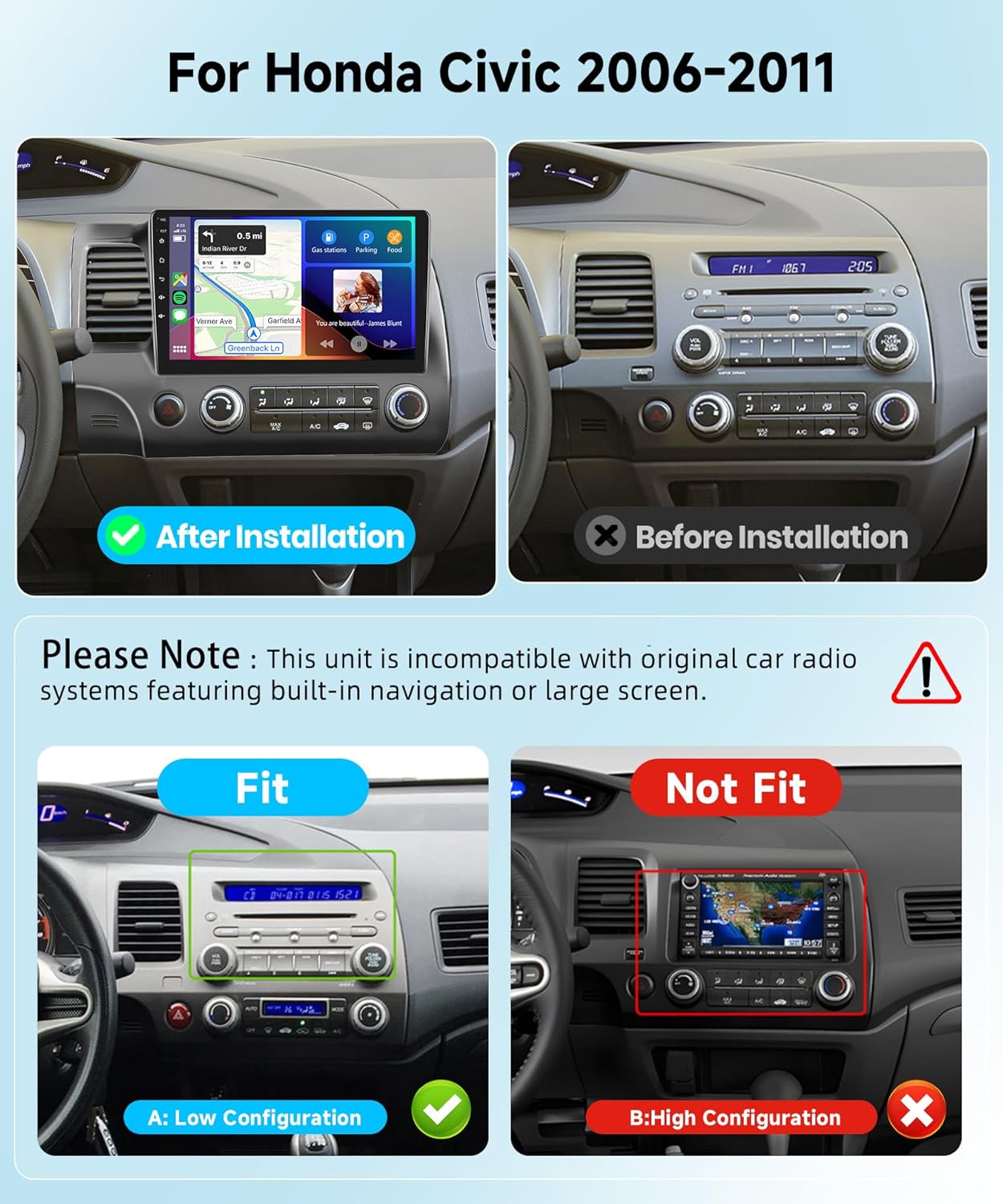
Image: Comparison of a Honda Civic dashboard before and after installation of the podofo car radio. It also illustrates compatibility with 'Low Configuration' (standard radio) and incompatibility with 'High Configuration' (factory navigation/large screen) original systems.
4.2 General Installation Steps
- Preparation: Disconnect the vehicle's battery. Carefully remove the original car radio and dashboard trim.
- Mounting: Install the new podofo car stereo into the dashboard opening. Secure it using the provided mounting brackets.
- Wiring: Connect the plug-and-play wiring harness to the vehicle's existing harness. Connect the GPS antenna, external microphone, and USB cables to the corresponding ports on the car stereo.
- Rear Camera (Optional): If installing the included HD backup camera, follow the specific wiring instructions below.
- Testing: Reconnect the vehicle's battery. Turn on the ignition and test all functions of the car stereo.
- Final Assembly: Once all functions are verified, reassemble the dashboard trim.
4.3 Rear Camera Wiring
Properly connecting the rear camera ensures safe and convenient parking assistance.
- Connect the video output cable from the camera to the "Reversing Camera Input" port on the car stereo.
- Locate the reverse trigger cable (often labeled "back" or "reverse") from the car stereo's wiring harness. Connect this cable to the vehicle's reverse light positive (+) wire. If this cable is already tied with the power harness, no separate connection is needed.
- Connect the camera's power cable (red wire) to the vehicle's reverse light positive (+) wire.
- Connect the camera's ground cable (black wire) to a suitable vehicle ground point (GND).

Image: A detailed diagram illustrating the connections for the reverse camera, including the video input, reverse trigger cable, and power/ground connections to the vehicle's reverse light.
5. Operating Instructions
5.1 Power On/Off
The unit will power on automatically when the vehicle's ignition is turned on. To manually power off or restart, press and hold the power button on the unit or use the corresponding option in the system settings.
5.2 Touchscreen Interface
The 10.1-inch IPS touchscreen features a 1280x720 resolution for clear visuals. Navigate through menus and applications by tapping, swiping, and pinching. The system supports split-screen functionality, allowing two applications to run simultaneously.

Image: An exploded view of the IPS HD screen, detailing its features such as IPS 178° viewing angle, 1280*720 resolution, 2.5D curved glass, responsive touchscreen, and the ability to use split-screen mode.
5.3 Wireless Carplay & Android Auto
Connect your smartphone via wired or wireless Carplay (for iOS) or Android Auto (for Android) to access phone applications directly on the car stereo. This includes navigation, music, calls, and voice control, enhancing driving safety and convenience.

Image: A diagram showing the setup for Carplay, Android Auto, and Mirror Link, indicating connections via Bluetooth or USB cable for both Android and iOS devices.
5.4 GPS Navigation & WiFi
The built-in GPS module supports offline navigation, providing reliable map data even without network coverage. Connect to WiFi to use online maps, download additional applications, and access internet services directly from the touchscreen.

Image: The GPS navigation screen displaying both online and offline map options, with an icon indicating WiFi connectivity for downloading more applications.
5.5 Bluetooth 5.0 & FM/RDS Radio
Bluetooth 5.0 provides a stable and fast connection for hands-free calling and wireless audio streaming. The integrated FM/RDS radio allows you to listen to your favorite stations with clear reception and display station information.

Image: Displays the Bluetooth interface for phone calls and music playback, along with the FM/RDS radio tuner showing frequency and station information.
5.6 DSP Audio & 32EQ
The Digital Sound Processor (DSP) technology, combined with a 32-band equalizer, allows for precise sound adjustments. This feature suppresses noise and improves sound clarity, providing a realistic and immersive music experience.
5.7 Steering Wheel Control (SWC)
Utilize your vehicle's existing steering wheel buttons to control the car stereo. This includes answering calls, playing music, switching modes, and more, allowing you to keep your focus on the road.
5.8 Rear Camera Display
When the vehicle is shifted into reverse, the display automatically switches to the HD night vision rearview camera feed. The 170-degree ultra-wide viewing angle and waterproof design assist in safer and easier parking maneuvers.
5.9 Voice Control
The system supports voice control, allowing you to issue commands for navigation, music playback, calls, and other functions, compatible with both Siri Assistant and Google Assistant.
5.10 Mirror Link
The Mirror Link function allows you to mirror your Android or iOS smartphone screen onto the car stereo display, providing access to your phone's content and applications.
6. Maintenance
- Screen Cleaning: Use a soft, lint-free cloth to gently wipe the touchscreen. For stubborn smudges, slightly dampen the cloth with water or a screen-safe cleaner. Avoid harsh chemicals.
- Software Updates: Periodically check for software updates through the system settings or the manufacturer's website to ensure optimal performance and access to new features.
- General Care: Keep the unit free from dust and debris. Avoid exposing it to direct sunlight for extended periods when the vehicle is parked, as this can cause overheating.
7. Troubleshooting
If you encounter issues with your car radio, refer to the following common problems and solutions:
| Problem | Possible Solution |
|---|---|
| Unit does not power on | Check power connections and vehicle's fuse box. Ensure the battery is properly connected. |
| No sound | Verify speaker wiring connections. Check volume settings and ensure mute is not activated. |
| GPS signal loss or inaccuracy | Ensure the GPS antenna is properly installed and has a clear view of the sky. Update map data if necessary. |
| Bluetooth connection issues | Ensure Bluetooth is enabled on both the car stereo and your phone. Delete previous pairings and try reconnecting. |
| Rear camera not displaying | Check all camera wiring, especially the reverse trigger and power connections. Ensure the camera is functioning correctly. |
| Touchscreen unresponsive | Restart the unit. If the problem persists, perform a factory reset (refer to system settings). |
If these solutions do not resolve the issue, please contact customer support.
8. Specifications
- Operating System: Android 13.0
- CPU: 8-Core Processor
- RAM: 4GB
- ROM: 64GB
- Screen Size: 10.1 Inches IPS
- Resolution: 1280 x 720
- Connectivity: Bluetooth 5.0, USB, Wi-Fi
- Audio Output Mode: APE/FLAC/WAV/MP3/WMA, etc.
- Special Features: Wireless Carplay, Android Auto, GPS Navigation, FM/RDS, 32EQ DSP, Rear Camera Support, Steering Wheel Control, Voice Control, Split Screen, Mirror Link
- Mounting Type: Dashboard Mount
- Compatible Vehicle Type: Honda Civic 2006-2011
- Item Weight: 1.81 Kilograms
9. Warranty
This podofo car radio comes with a 2-year warranty from the date of purchase. This warranty covers manufacturing defects and malfunctions under normal use. Please retain your proof of purchase for warranty claims. For detailed warranty terms and conditions, refer to the product packaging or contact customer support.
10. Support
Podofo is committed to providing professional technical support for its products. If you encounter any issues regarding compatibility, installation, operation, or any other concerns, please do not hesitate to contact our support team.
- 24/7 Expert Customer Support: Our team is available around the clock to assist you.
- Contact Method: Refer to the contact information provided on your product packaging or the official podofo website.

Image: An infographic highlighting Podofo's commitment to customer support, including 24/7 availability, a 2-year warranty, and product presence in over 100 countries.


