1. Introduction
Thank you for choosing the WODRAWER Printer Stand. This versatile office furniture piece is designed to optimize your workspace with integrated power solutions, ample storage, and a dedicated space for your paper shredder. This manual provides detailed instructions for assembly, operation, maintenance, and troubleshooting to ensure you get the most out of your new printer stand.
Key Features:
- Integrated Power Outlet and USB Charging Ports: Equipped with 2 AC outlets (125V/12A) and 2 USB charging ports (5V/2A) for convenient power access for your devices.
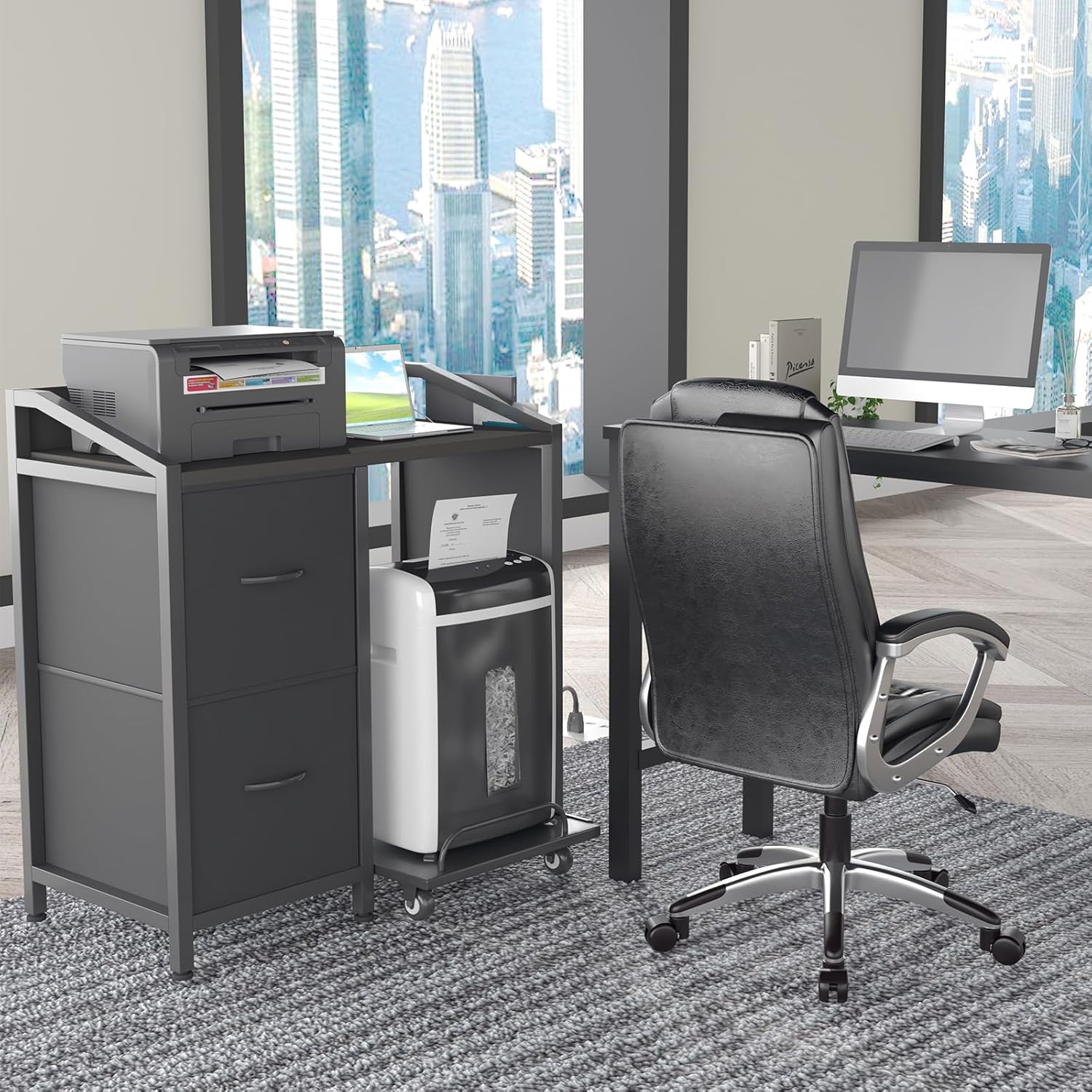
- Multipurpose Storage Rack: Functions as a printer stand, file cabinet, office storage rack, paper shredder stand, and more, suitable for various rooms.
- Slide Rail Rack & Large Storage Drawers: Features two large capacity fabric drawers and a pull-out shelf with wheels for a paper shredder or computer host.
- Super Sturdy Structure and Stable: Constructed with a high-quality MDF board and a rugged premium metal frame, supporting up to 200 lbs.
- Hassle-Free Assembly: Comes with step-by-step instructions and clearly marked parts for straightforward installation.

2. What's in the Box
Please verify that all components are present before beginning assembly. If any parts are missing or damaged, please contact customer support.
- 1 x File Cabinet Frame
- 1 x Power Outlet Unit (with 6.6FT power cord)
- 1 x Instruction Manual
- All necessary assembly hardware and tools
3. Specifications
| Attribute | Value |
|---|---|
| Product Dimensions | 31.5 x 16.5 x 33.9 inches (L x W x H) |
| Item Weight | 29.7 pounds |
| Material | MDF Board, Metal Frame, Fabric Drawers |
| Color | Black |
| Weight Capacity | Up to 200 lbs |
| Power Outlets | 2 AC Outlets (125V/12A) |
| USB Ports | 2 USB Ports (5V/2A) |
| Power Cord Length | 6.6 FT |

4. Setup Instructions
Follow these steps carefully to assemble your WODRAWER Printer Stand. It is recommended to have a clear, spacious area for assembly.
- Unpack Components: Carefully remove all parts from the packaging. Lay them out and compare them against the parts list provided in the separate instruction manual to ensure nothing is missing.
- Assemble Frame: Follow the step-by-step diagrams in the included instruction manual to connect the metal frame components using the provided hardware. Ensure all screws are tightened securely.
- Install Shelves and Drawers: Attach the MDF shelves to the frame as indicated. Insert the fabric drawers into their designated compartments.
- Attach Power Outlet Unit: Secure the power outlet and USB charging unit to the designated area on the top shelf. Ensure the power cord is routed safely and not pinched.
- Adjust Leveling Feet: The printer stand is equipped with six adjustable feet. Rotate these feet at the bottom of the stand to ensure stability on uneven floors.
- Place Shredder Rack: Position the pull-out shredder rack into its slot.

5. Operating Instructions
Utilize the features of your WODRAWER Printer Stand for an organized and efficient workspace.
5.1 Using the Power Outlets and USB Ports
- Plug the main power cord of the printer stand into a standard wall outlet.
- Connect your printer, paper shredder, scanner, phone, tablet, or other office electric equipment to the 2 AC outlets or 2 USB charging ports located on the top surface.
- Ensure devices are properly plugged in for power and charging.

5.2 Utilizing Storage Drawers
- Use the two large capacity fabric drawers to store documents, office supplies, or personal items.
- Organize files vertically or horizontally within the drawers as needed.
5.3 Using the Slide Rail Rack for Shredder/Host
- Place your paper shredder or computer host onto the movable shelf with wheels.
- Gently pull the handle on the rack to slide it out for easy access to your shredder or computer.
- Push the rack back into the stand when not in use to save space.
6. Maintenance
Proper care will extend the life and appearance of your printer stand.
- Cleaning: Wipe surfaces with a soft, damp cloth. Avoid harsh chemicals or abrasive cleaners that may damage the finish.
- Stability Check: Periodically check all screws and connections to ensure they remain tight. Re-tighten if necessary.
- Leveling: Re-adjust the leveling feet if the stand becomes wobbly over time.
- Power Unit Care: Ensure the power cord is not kinked or damaged. Keep the outlets free from dust and debris.
7. Troubleshooting
If you encounter any issues with your WODRAWER Printer Stand, refer to the following common problems and solutions:
- Stand is Wobbly:
Solution: Check the adjustable feet at the bottom of the stand. Rotate them to extend or retract until the stand is stable on the floor. Ensure all assembly screws are tightened. - Power Outlets/USB Ports Not Working:
Solution: Ensure the main power cord is securely plugged into a functioning wall outlet. Check if the power outlet unit is properly connected to the stand's frame. Test with a different device to confirm the issue is with the stand's power unit and not the device itself. - Drawers are Sticking/Not Sliding Smoothly:
Solution: Ensure the fabric drawers are inserted correctly and not overloaded. Check for any obstructions in the drawer compartments. - Shredder Rack Not Sliding:
Solution: Check if the wheels on the shredder rack are free from debris. Ensure the rack is properly aligned within its track.
If the problem persists after attempting these solutions, please contact WODRAWER customer support for further assistance.
8. Warranty and Support
WODRAWER is committed to providing high-quality products. While specific warranty details are not included in this manual, we stand behind our products.
For any questions, concerns, or assistance with your WODRAWER Printer Stand, please do not hesitate to contact our customer support team. We aim to resolve any issues within 24 hours.
Please refer to your purchase documentation or the seller's information for specific warranty terms and contact details.