
1. Introduction
Thank you for choosing the MOFII Wireless Keyboard and Mouse Combo. This full-size 2.4G wireless set features a retro typewriter-style design with round keycaps, offering a comfortable and efficient typing experience. Designed for wide compatibility, it is suitable for various operating systems and devices. This manual provides detailed instructions for setup, operation, maintenance, and troubleshooting to ensure optimal performance of your new device.
2. Package Contents
- MOFII Wireless Keyboard
- MOFII Wireless Mouse
- USB Receiver (stored inside the mouse)
- User Manual (this document)

Image: The MOFII Wireless Keyboard and Mouse Combo, including the keyboard, mouse, and the compact USB receiver.
3. Key Features
- Reliable 2.4G Wireless Connection: Provides a stable, anti-interference wireless connection up to 10 meters (33 feet) with a single USB receiver for both keyboard and mouse.
- Wide Compatibility: Compatible with PCs, desktops, laptops, and various Windows operating systems (Windows 7/8/10).
- Ergonomic Design: The keyboard features a folding holder for an optimal typing slope (approximately 7 degrees), reducing wrist strain. The contoured mouse is designed for comfortable use over extended periods.
- Intelligent Auto-Sleep Feature: Both the keyboard and mouse enter an auto-sleep mode after 8-10 minutes of inactivity to conserve battery life.
- Multimedia Hotkeys: Equipped with 13 multimedia hotkeys for quick access to common functions, enhancing productivity.
- Durable and Easy to Clean: Features removable round keycaps for convenient cleaning and maintenance.

Image: The keyboard and mouse demonstrating wide compatibility with various computer setups, including desktops and laptops.

Image: Visual representation of key features including 2.4G wireless connectivity, energy saving, plug and play functionality, ergonomic design, and adjustable DPI.
4. Setup Guide
Follow these steps to set up your MOFII Wireless Keyboard and Mouse Combo:
- Install Batteries:
- Open the battery compartment on the underside of the keyboard and insert one AA battery (not included), ensuring correct polarity.
- Open the battery compartment on the underside of the mouse and insert one AA battery (not included), ensuring correct polarity.
- Locate the USB Receiver: The USB receiver is conveniently stored inside the battery compartment of the mouse. Carefully remove it.
- Connect the USB Receiver: Plug the USB receiver into an available USB port on your computer (desktop, laptop, or PC).
- Plug and Play: The keyboard and mouse are designed for plug-and-play functionality. Your computer should automatically detect and install the necessary drivers. No additional software installation is required.
- Begin Use: Once detected, the keyboard and mouse are ready for immediate use.
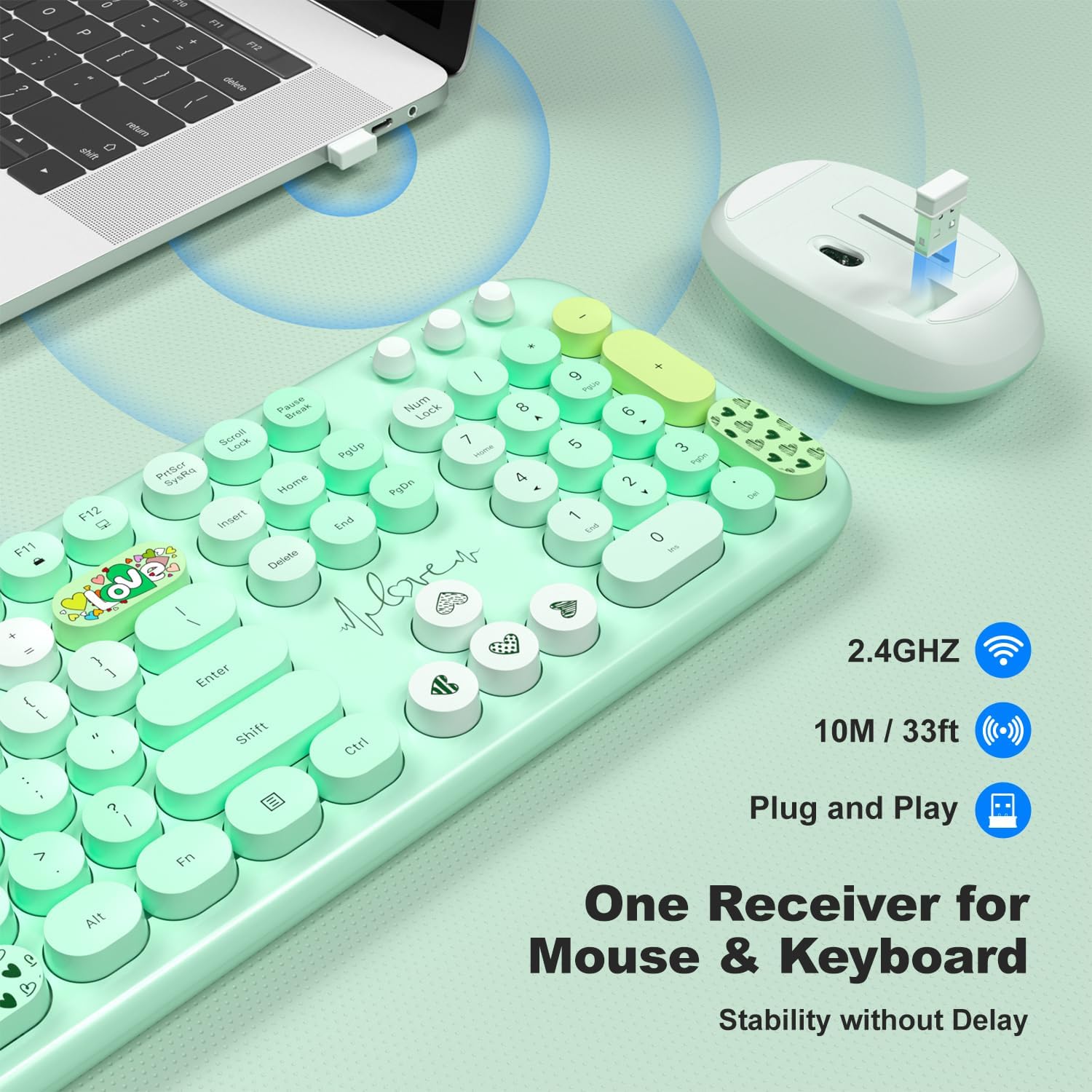
Image: The USB receiver connected to a laptop, illustrating the 2.4GHz wireless technology and effective range.

Image: A visual explanation that a single USB receiver manages the connection for both the keyboard and the mouse.
5. Operating Instructions
5.1 Basic Usage
The keyboard functions as a standard full-size keyboard with a numeric keypad. The mouse operates as a typical two-button mouse with a scroll wheel. No special drivers are needed for basic functionality.
5.2 Multimedia Hotkeys
The keyboard includes 13 multimedia hotkeys (F1-F12, plus a dedicated key) that provide quick access to various functions. To activate these functions, press the Fn key simultaneously with the desired F-key.
| Key Combination | Function |
|---|---|
| Fn + F1 | Media Player |
| Fn + F2 | Volume Down |
| Fn + F3 | Volume Up |
| Fn + F4 | Mute |
| Fn + F5 | Previous Track |
| Fn + F6 | Next Track |
| Fn + F7 | Play/Pause |
| Fn + F8 | Stop |
| Fn + F9 | Home Page |
| Fn + F10 | |
| Fn + F11 | My Computer |
| Fn + F12 | Calculator |
| Dedicated Key (Heart Icon) | Search |

Image: An illustration of the keyboard highlighting the 13 multimedia hotkeys and their respective functions.
5.3 Auto-Sleep Function
To conserve battery power, both the keyboard and mouse will automatically enter a sleep mode after approximately 8-10 minutes of inactivity. To wake them up:
- Keyboard: Press any key.
- Mouse: Click any button.

Image: The keyboard and mouse illustrating the intelligent auto-sleep feature, designed to save battery life.

Image: A diagram demonstrating how to reactivate the keyboard by pressing any key and the mouse by clicking a button after they enter auto-sleep mode.
6. Maintenance
6.1 Cleaning
To maintain the cleanliness and functionality of your keyboard and mouse:
- Keyboard: The round keycaps are removable for easy cleaning. Gently pull them off to clean underneath with a soft brush or compressed air. Wipe the keycaps and keyboard surface with a soft, damp cloth. Ensure the keyboard is completely dry before reattaching keycaps and resuming use.
- Mouse: Wipe the surface of the mouse with a soft, damp cloth. Avoid getting moisture into the internal components.
- Do not use harsh chemicals or abrasive cleaners.

Image: A close-up view of the keyboard demonstrating the removable keycaps, which facilitate easy cleaning and maintenance.
6.2 Battery Replacement
When the keyboard or mouse performance degrades (e.g., delayed response, erratic cursor movement), it may be time to replace the batteries.
- Each device requires one AA battery.
- Open the battery compartment on the underside of the respective device.
- Remove the old battery and insert a new AA battery, ensuring correct polarity (+/-).
- Close the battery compartment securely.
7. Troubleshooting
If you encounter issues with your MOFII Wireless Keyboard and Mouse Combo, refer to the following common solutions:
- No Response from Keyboard or Mouse:
- Ensure batteries are correctly installed and not depleted. Replace if necessary.
- Check if the USB receiver is securely plugged into a working USB port on your computer. Try a different USB port.
- If the devices are in auto-sleep mode, press any key on the keyboard or click any button on the mouse to wake them up.
- Restart your computer.
- Lag or Intermittent Connection:
- Ensure the keyboard and mouse are within the effective operating range (up to 10 meters/33 feet) of the USB receiver.
- Move the USB receiver closer to the keyboard and mouse, or use a USB extension cable if needed.
- Avoid placing the receiver near other wireless devices (e.g., Wi-Fi routers, cordless phones) that might cause interference.
- Replace batteries, even if they seem to have some charge left.
- Keys Not Responding or Sticky:
- Clean under the keycaps as described in the Maintenance section. Debris can cause keys to stick or not register.
- Ensure the keycaps are properly seated.
- Mouse Cursor Erratic or Not Moving Smoothly:
- Clean the optical sensor on the underside of the mouse.
- Ensure you are using the mouse on a suitable surface. Avoid highly reflective or transparent surfaces.
- Replace the mouse battery.
8. Specifications
| Feature | Detail |
|---|---|
| Model | MOFII Wireless Keyboard and Mouse Combo (Lovely Green) |
| Connectivity Technology | 2.4G Wireless (USB Receiver) |
| Wireless Range | Up to 10 meters (33 feet) |
| Keyboard Power Source | 1 x AA Battery (not included) |
| Mouse Power Source | 1 x AA Battery (not included) |
| Compatible Devices | Personal Computer (Desktop, Laptop, PC) |
| Compatible OS | Windows 7/8/10 and above |
| Keyboard Dimensions | Approx. 17.71 x 5.31 x 1.57 inches |
| Mouse Dimensions | Approx. 4.13 x 2.56 x 1.37 inches |
| Item Weight | Approx. 2.01 pounds (total combo) |
| Special Feature | Round Keycaps, Ergonomic Tilt |

Image: Technical drawing showing the precise dimensions of both the keyboard and the mouse.
9. Warranty and Support
Your MOFII Wireless Keyboard and Mouse Combo comes with a 12-month warranty from the date of purchase. Additionally, a 30-day money-back guarantee is offered. For warranty claims, technical support, or any product-related inquiries, please contact the seller, MOFii Direct, through the platform where you made your purchase. Please retain your proof of purchase for warranty validation.