
Mediacom Azimut 4
Mediacom SmartPad 4 4G Azimut 4 Tablet User Manual
Model: Azimut 4
1. Introduction
This manual provides essential information for the safe and efficient use of your Mediacom SmartPad 4 4G Azimut 4 tablet. Please read this manual thoroughly before operating the device and retain it for future reference.
2. Safety Information
- Battery Safety: Do not attempt to replace the internal battery. Do not expose the device to extreme temperatures or direct sunlight.
- Water Resistance: This device is not water-resistant. Avoid exposure to liquids.
- Charging: Use only the original charger and cable provided with the device.
- Hearing Protection: Avoid prolonged listening at high volume levels to prevent hearing damage.
- Disposal: Dispose of the device and its battery according to local regulations. Do not dispose of with household waste.
3. Package Contents
Ensure all items are present in the package:
- Mediacom SmartPad 4 4G Azimut 4 Tablet
- USB-C Charging Cable
- Power Adapter
- Quick Start Guide (if included)
- SIM Ejector Tool (if included)
4. Device Layout
Familiarize yourself with the physical components of your tablet.
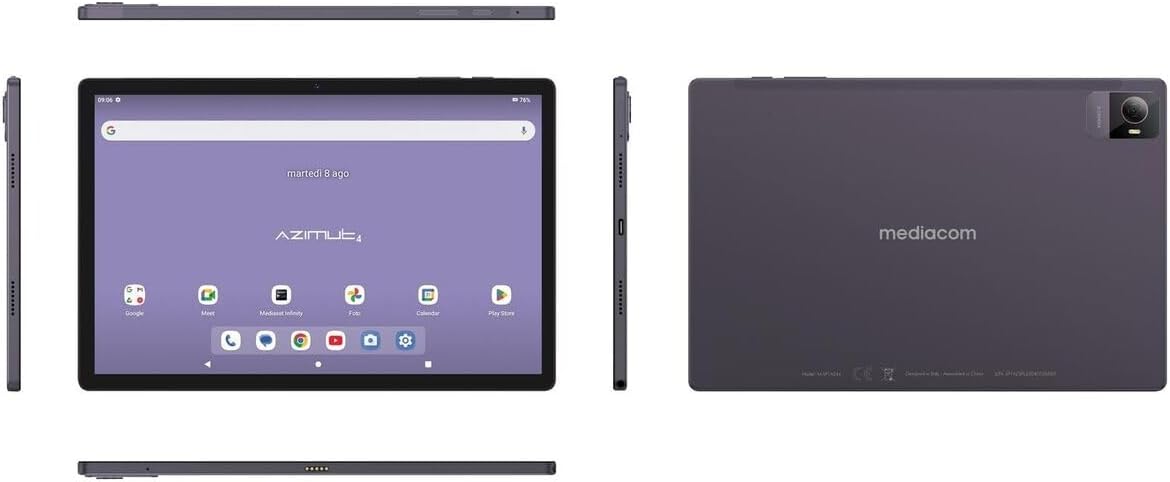
Image 4.1: Multiple views of the Mediacom SmartPad 4 4G Azimut 4 tablet, illustrating the front display, rear camera, and various side ports and buttons. This includes the power button, volume rocker, USB-C port, headphone jack, and SIM/microSD card slot.
- Front Camera: Located at the top center of the display when held in landscape orientation.
- Display: 10.51-inch IPS screen.
- Power Button: Typically located on the side, used to turn the device on/off or wake/sleep the screen.
- Volume Buttons: Located near the power button, used to adjust audio volume.
- USB-C Port: For charging and data transfer.
- Headphone Jack: Standard 3.5mm audio output.
- SIM/microSD Card Slot: Combined slot for Nano-SIM and microSD cards.
- Rear Camera: Located on the back of the tablet, typically with a flash.
- Speakers: Four speakers for immersive audio.
5. Setup
5.1 Charging the Device
Before first use, fully charge your tablet. Connect the USB-C cable to the tablet's USB-C port and the power adapter. Plug the adapter into a wall outlet. The battery indicator on the screen will show charging status.
5.2 Inserting SIM and MicroSD Cards
- Locate the SIM/microSD card slot on the side of the tablet.
- Use the provided SIM ejector tool to open the tray.
- Carefully place your Nano-SIM card and/or microSD card into the designated slots on the tray. Ensure correct orientation.
- Gently push the tray back into the slot until it clicks into place.
5.3 Initial Power On and Setup
- Press and hold the Power button until the Mediacom logo appears.
- Follow the on-screen prompts to select your language, connect to a Wi-Fi network, set up your Google account, and configure other initial settings.
6. Operating Instructions
6.1 Basic Navigation
The Mediacom SmartPad 4 4G Azimut 4 uses a multi-touch capacitive touchscreen. Common gestures include:
- Tap: To select an item or open an app.
- Tap and Hold: To access contextual menus or move icons.
- Swipe: To scroll through pages or lists.
- Pinch: To zoom in or out on images and web pages.
6.2 Connecting to Wi-Fi
- Go to Settings > Network & internet > Wi-Fi.
- Toggle Wi-Fi On.
- Select your desired network from the list and enter the password if prompted.
6.3 Connecting to 4G Cellular Network
If a Nano-SIM card is inserted and activated, your tablet will automatically connect to the 4G network. Ensure mobile data is enabled in Settings > Network & internet > Mobile network.
6.4 Using the Cameras
Open the Camera app from your home screen or app drawer. You can switch between the 8 MP front camera and the 13 MP rear camera. Tap the shutter button to take photos or record videos.
6.5 Managing Storage
Your tablet has 64 GB of internal storage. You can expand this by up to 128 GB using a microSD card. To view storage usage, go to Settings > Storage.
6.6 Bluetooth Connectivity
To connect Bluetooth devices:
- Go to Settings > Connected devices > Bluetooth.
- Toggle Bluetooth On.
- Select your device from the list of available devices and follow pairing instructions.
7. Maintenance
7.1 Cleaning the Device
Use a soft, lint-free cloth to clean the screen and body of the tablet. Avoid using harsh chemicals or abrasive materials.
7.2 Battery Care
- Avoid fully discharging the battery frequently.
- Do not leave the tablet charging for extended periods after it is fully charged.
- Store the tablet in a cool, dry place when not in use for long periods.
7.3 Software Updates
Periodically check for software updates to ensure optimal performance and security. Go to Settings > System > System update.
8. Troubleshooting
- Device not turning on: Ensure the battery is charged. Connect the charger and try again.
- Screen unresponsive: Try restarting the device by holding the Power button for about 10-15 seconds.
- Wi-Fi connection issues: Restart your tablet and your Wi-Fi router. Ensure you are within range and have entered the correct password.
- Apps crashing: Clear the cache of the problematic app (Settings > Apps > [App Name] > Storage & cache > Clear cache). If the issue persists, try reinstalling the app.
- Slow performance: Close unused apps, clear cache, or consider performing a factory reset (backup your data first).
9. Specifications
| Feature | Specification |
|---|---|
| Model Name | Azimut 4 |
| Operating System | Android 13 |
| Display | 10.51" IPS, 1920 x 1200 pixels, Multi-touch 5 points |
| Processor | Spreadtrum Tiger T606 (8-core, 1.6 GHz) |
| RAM | 4 GB |
| Internal Storage | 64 GB |
| Expandable Storage | microSD up to 128 GB |
| Rear Camera | 13 Megapixels (with flash) |
| Front Camera | 8 Megapixels |
| Cellular Technology | 4G (GSM, WCDMA, FDD-LTE) |
| Cellular Bands | W-CDMA 900/2100, GSM 850/900/1800/1900, LTE B1/B20/B3/B7 |
| Wireless Connectivity | Wi-Fi (802.11n), Bluetooth 5.0 |
| Ports | 1 x Nano-SIM/microSD combo, 1 x Headphone (3.5mm), 1 x USB-C |
| Battery | 6000 mAh Li-Po |
| Special Features | 4G Cellular Technology, Ergonomic and Contemporary Design |
10. Warranty and Support
For warranty information and technical support, please refer to the warranty card included in your product packaging or visit the official Mediacom website. Keep your proof of purchase for warranty claims.
11. Regulatory Compliance
This device complies with relevant regulatory standards. For detailed compliance information, please refer to the product packaging or the official Mediacom website.
Related documentsAzimut 4


Ask a question about this manual
Ask about setup, troubleshooting, compatibility, parts, safety, or missing instructions. Manuals+ will review the question and use this page’s manual context to help answer it.