
1. Introduction
This manual provides essential information for setting up, operating, and maintaining your Tibuta A70W 10.1-inch Kids Tablet. Designed specifically for children, this tablet features a durable design, parental controls, and a user-friendly Android 13 operating system. Please read this manual thoroughly to ensure proper use and to maximize your child's learning and entertainment experience.

Image: The Tibuta 10.1-inch Kids Tablet, highlighting its 1280x800 display, Android 13 OS, Quad-core 1.8GHz processor, 4GB+32GB memory, 2MP+5MP cameras, and 5000mAh battery.
2. Product Overview
2.1 Key Features
- Display: 10.1-inch 1280x800 IPS Full HD touchscreen.
- Operating System: Android 13 with GMS certification.
- Processor: 1.8 GHz Quad-core.
- Memory: 4GB RAM (2+2GB), 32GB ROM, expandable up to 128GB via Micro SD.
- Cameras: Dual cameras (Front 2MP, Rear 5MP).
- Battery: 5000 mAh for extended use.
- Connectivity: Wi-Fi (802.11b/g/n) and Bluetooth.
- Durability: Food-grade silicone shockproof case with an integrated stand.
- Parental Controls: Built-in features for screen time limits and content filtering.
- Pre-installed Apps: Includes YouTube, Kids Space, and more.
2.2 Tablet Components
Familiarize yourself with the physical components of your tablet:

Image: A diagram illustrating the tablet's functional details, including the front camera, speakers, power ON/OFF button, volume buttons, reset button, rear camera, 3.5mm headphone port, TF Card slot, and USB 2.0 OTG port.
- Front Camera: For video calls and selfies.
- Speakers: For audio output.
- Power ON/OFF Button: To turn the tablet on or off, or to put it to sleep.
- Volume Buttons: To adjust the sound level.
- Reset Button: For system reset in case of unresponsiveness (use a pin).
- Rear Camera: For taking photos and videos.
- 3.5mm Headphone Port: For connecting headphones.
- TF Card Slot: For inserting a Micro SD card to expand storage.
- USB 2.0 OTG Port: For charging and data transfer.
3. Setup
3.1 Initial Charging
Before first use, fully charge the tablet. Connect the provided USB-C cable to the tablet's USB port and the other end to a power adapter. The battery indicator on the screen will show charging status.
3.2 Powering On/Off
- To Power On: Press and hold the Power ON/OFF button until the screen lights up.
- To Power Off: Press and hold the Power ON/OFF button, then select "Power off" from the options.
- To Sleep/Wake: Briefly press the Power ON/OFF button.
3.3 Initial Configuration
Upon first startup, follow the on-screen prompts to configure basic settings:
- Select your preferred language.
- Connect to a Wi-Fi network.
- Sign in with your Google account or create a new one. This is necessary to download apps from the Google Play Store.
- Set up parental controls as desired (refer to Section 5 for details).
3.4 Inserting a Micro SD Card
To expand storage, insert a Micro SD card (up to 128GB) into the TF Card slot. Ensure the tablet is powered off before inserting or removing the card.
4. Operating Instructions
4.1 Basic Navigation
- Tap: To select an item or open an app.
- Swipe: To scroll through screens or lists.
- Pinch: To zoom in or out on images and web pages.
- Long Press: To access contextual menus or move icons.
4.2 Wi-Fi Connection
- Go to Settings > Network & internet > Wi-Fi.
- Turn Wi-Fi on.
- Select your desired network from the list and enter the password if prompted.
4.3 Downloading Applications
The tablet runs on Android 13 and supports the Google Play Store. You can download a wide range of educational and entertainment apps.

Image: The tablet screen displaying the Google Android 13 interface with various app icons, indicating access to a wide range of applications from the Google Play Store.
- Open the Google Play Store app.
- Search for the desired app.
- Tap "Install" to download and install the app.
4.4 Using the Cameras
The tablet features a front (2MP) and rear (5MP) camera.
- Open the Camera app.
- Tap the camera switch icon to toggle between front and rear cameras.
- Tap the shutter button to take a photo or start/stop video recording.
4.5 Battery Management
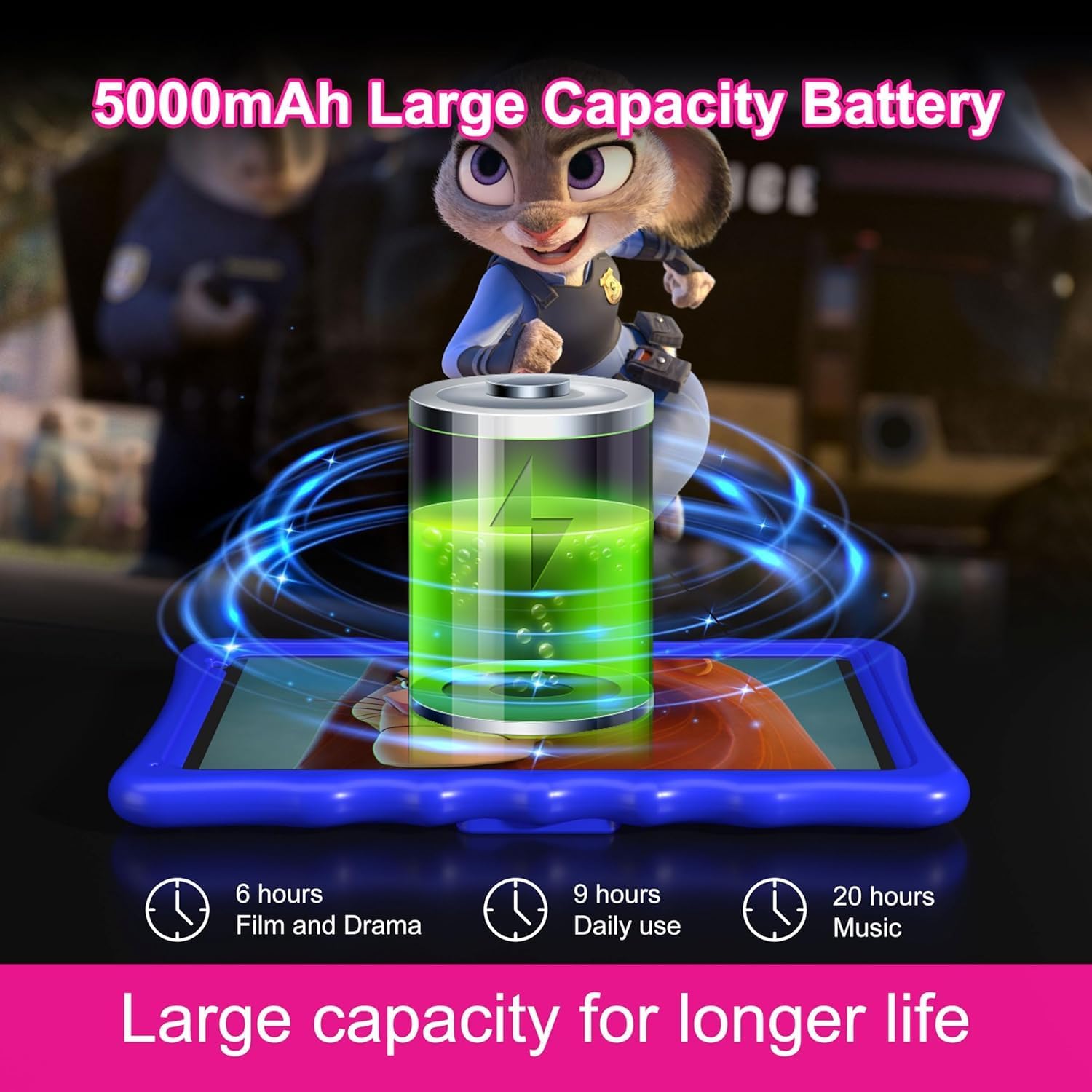
Image: An illustration of the tablet's 5000mAh battery capacity, showing estimated usage times: 6 hours for film/drama, 9 hours for daily use, and 20 hours for music.
The 5000 mAh battery provides extended usage. To optimize battery life:
- Reduce screen brightness.
- Turn off Wi-Fi and Bluetooth when not in use.
- Close unused applications running in the background.
- Charge the tablet regularly, avoiding complete discharge.
5. Parental Control
The Tibuta A70W tablet includes robust parental control features to ensure a safe and educational environment for children. You can switch between normal and child modes.
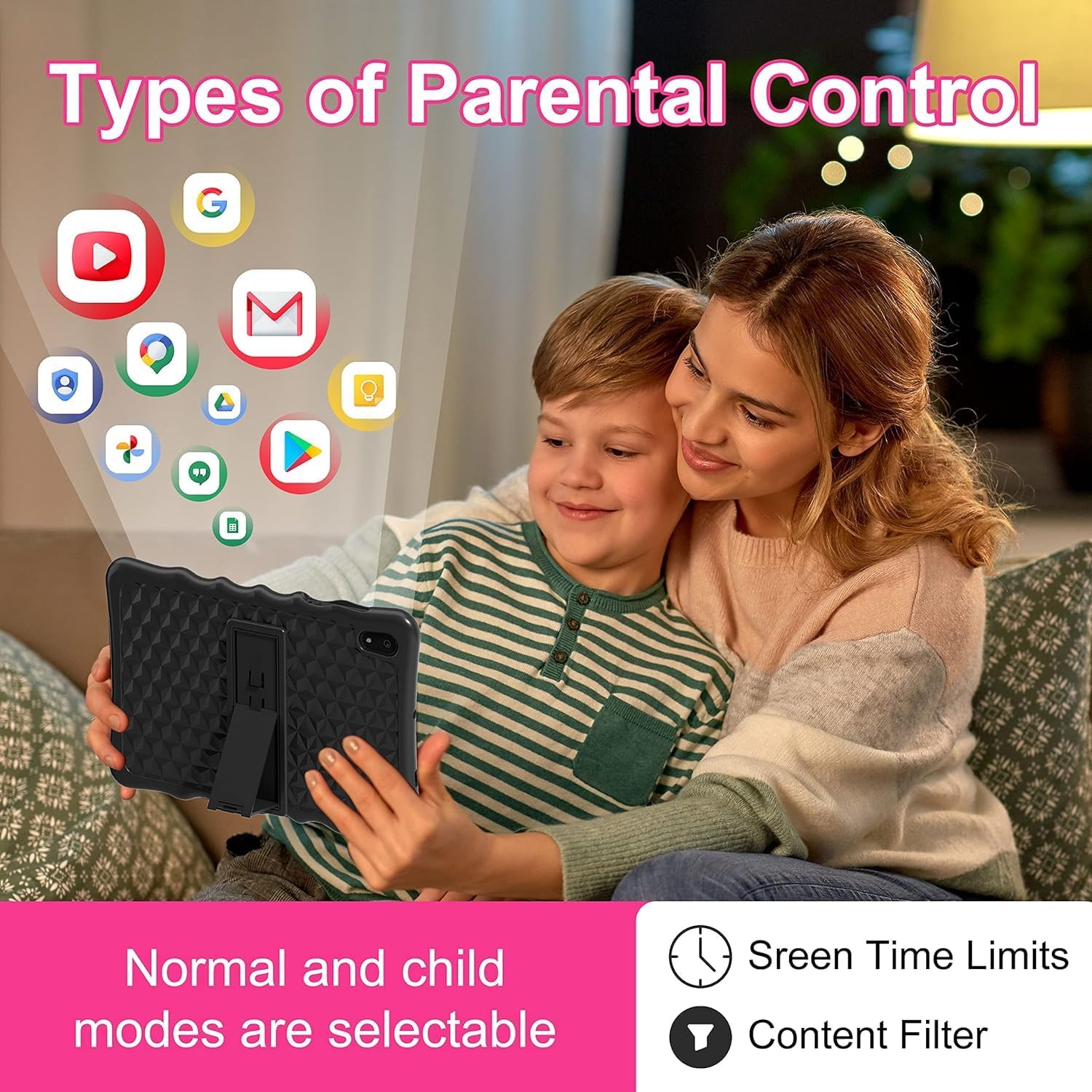
Image: A visual representation of parental control features, including options for setting screen time limits and applying content filters, with various app icons floating above the tablet.
5.1 Setting Up Parental Controls
Access parental control settings through the dedicated "Kids Space" app or via the tablet's main settings menu. Here you can:
- Set Screen Time Limits: Define daily usage limits for the tablet.
- Manage Content: Filter inappropriate content and approve specific apps, websites, and videos.
- Control App Access: Select which applications your child can use.
- Monitor Activity: Review your child's tablet usage.

Image: The tablet displaying the interface for pre-installed Kids Apps like YouTube and Kids Space, showing various educational and entertainment content categories within Google Kids Space.
The tablet comes with pre-installed educational apps and access to Google Kids Space, offering a curated selection of age-appropriate content.
6. Maintenance
6.1 Cleaning the Tablet
- Use a soft, lint-free cloth to clean the screen and body.
- Avoid using harsh chemicals or abrasive materials.
- Ensure the tablet is powered off before cleaning.
6.2 Software Updates
Periodically check for software updates to ensure optimal performance and security. Go to Settings > System > System update.
6.3 Shockproof Case Care
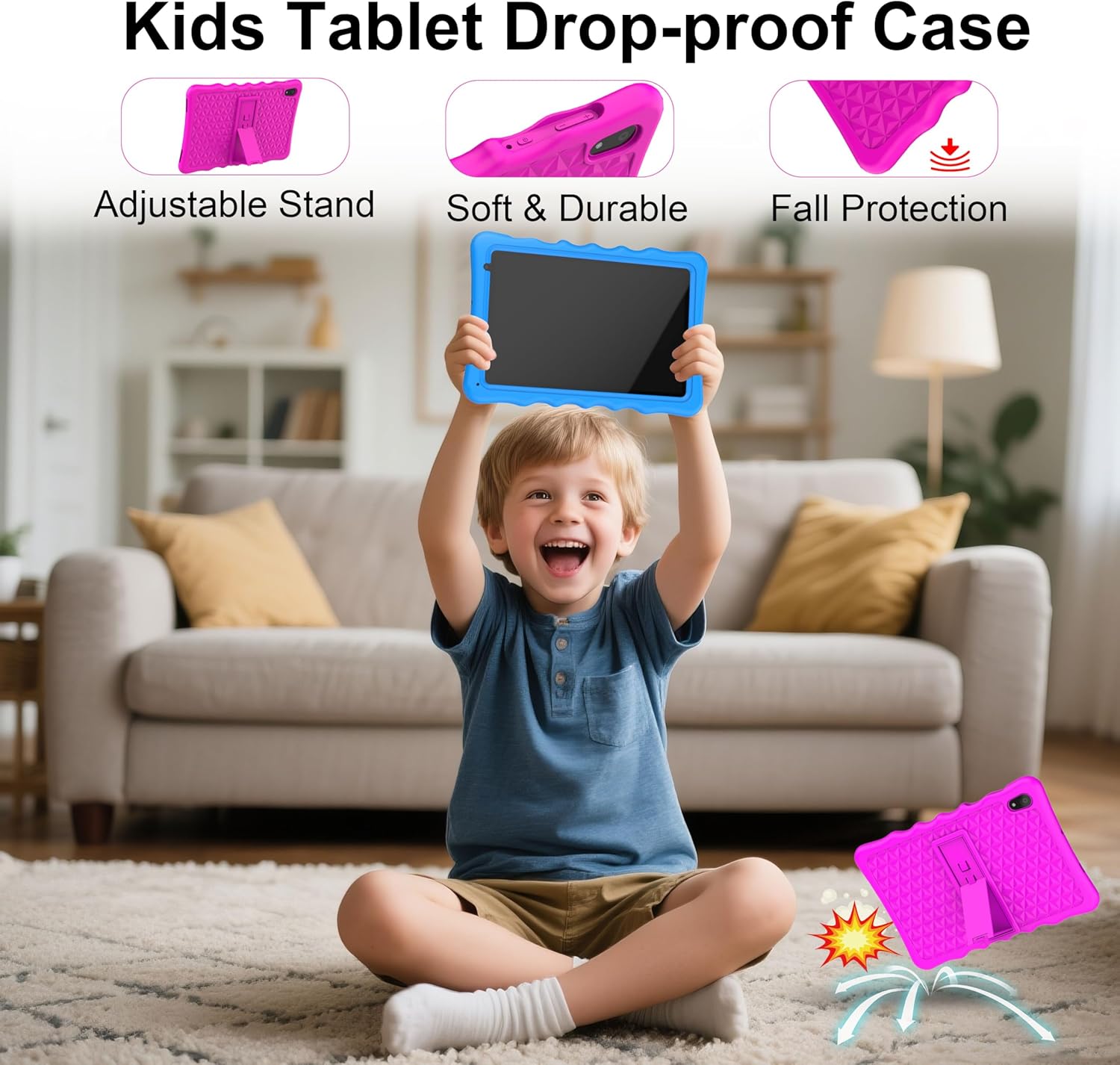
Image: A child happily holding the tablet in its blue shockproof case, with insets illustrating the case's adjustable stand, soft and durable material, and fall protection features.
The food-grade silicone case provides protection. Clean it with mild soap and water if necessary. Ensure it is completely dry before reattaching it to the tablet.
7. Troubleshooting
| Problem | Possible Cause | Solution |
|---|---|---|
| Tablet does not turn on. | Low battery; system crash. | Charge the tablet for at least 30 minutes. If unresponsive, press the reset button with a pin. |
| Wi-Fi connection issues. | Incorrect password; out of range; router issue. | Verify password. Move closer to the router. Restart the router and tablet. |
| Applications are slow or crashing. | Too many apps running; low storage; outdated app. | Close background apps. Clear app cache. Update apps. Free up storage. |
| Screen is unresponsive. | Temporary software glitch. | Perform a soft reset by holding the power button for 10-15 seconds, or use the reset pinhole. |
| Parental controls not working as expected. | Incorrect settings; app not configured. | Review parental control settings in the Kids Space app or tablet settings. Ensure all apps are managed. |
8. Specifications
| Feature | Detail |
|---|---|
| Brand | Tibuta |
| Model Number | A70W |
| Operating System | Android 13 |
| Processor Brand | Allwinner |
| Processor Speed | 1.5 GHz (Note: Feature bullets state 1.8 GHz, using 1.5 GHz from specifications for consistency) |
| Screen Size | 10.1 Inches |
| Screen Resolution | 1280 x 800 Pixels |
| RAM Installed Size | 4 GB |
| Memory Storage Capacity | 32 GB (Expandable up to 128GB via Micro SD) |
| Graphics Chipset Brand | PowerVR GE8300 |
| Connectivity Type | Bluetooth, Wi-Fi (802.11b/g/n) |
| Battery | 1 Lithium-polymer (included) - 5000 mAh |
| Item Dimensions (L x W x H) | 24.2 x 16.1 x 0.84 cm |
| Item Weight | 1.04 Kilograms |
| Special Features | Shockproof case, pre-installed educational apps, parental control |
9. Warranty
The Tibuta A70W Kids Tablet comes with a 1-year manufacturer's warranty. This warranty covers defects in materials and workmanship under normal use. Please retain your proof of purchase for warranty claims.
For detailed warranty terms and conditions, please refer to the documentation included with your product or contact customer support.
10. Customer Support
If you encounter any problems with your Tibuta A70W Kids Tablet or require technical assistance, please do not hesitate to contact us. Our support team is ready to help.
- Contact Method: You can reach us via our official store email or through Amazon's messaging system.
- Response Time: We aim to respond quickly and provide comprehensive technical support.
Please provide your product model (A70W) and a detailed description of the issue when contacting support to facilitate a faster resolution.