1. Introduction
This manual provides instructions for the safe and effective use of your NXT Technologies 6-Outlet Plus USB Surge Protector. This device is designed to protect your electronic equipment from power surges and spikes while providing convenient power access and charging capabilities.
Package Contents:
- 1 x NXT Technologies 6-Outlet Plus USB Surge Protector (NX61426)
- User Manual (this document)

Figure 1.1: NXT Technologies 6-Outlet Plus USB Surge Protector. This image displays the white surge protector with its 4-foot power cord and right-angle plug, showing the six AC outlets, one USB-A port, one USB-C port, and the power switch with a 'Protected' indicator light.
2. Safety Information
Please read and understand all safety instructions before using this product. Failure to follow these instructions may result in electric shock, fire, or damage to the product or connected devices.
- Indoor Use Only: This surge protector is designed for indoor use in dry locations only. Do not expose to moisture or water.
- Electrical Rating: Do not exceed the electrical rating of the surge protector. Refer to the specifications section for details.
- Grounding: Ensure the surge protector is plugged into a properly grounded 3-prong outlet.
- Extension Cords: Do not plug this surge protector into another surge protector or an extension cord.
- Children: Keep out of reach of children.
- Ventilation: Do not cover the surge protector or block any ventilation openings.
- Damage: Do not use if the cord, plug, or surge protector housing is damaged.
WARNING: This product can expose you to chemicals including Styrene, which are known to the State of California to cause cancer, and Bisphenol A (BPA), which are known to the State of California to cause birth defects or other reproductive harm. For more information go to www.P65Warnings.ca.gov.
3. Product Features
The NXT Technologies Surge Protector offers advanced features for comprehensive device protection and power management:
- Six Grounded AC Outlets: Provides power for multiple electronic devices.
- USB Type-A Port (2.4A): For charging compatible USB devices.
- USB Type-C Port (15W): For fast and efficient charging of compatible USB-C devices.
- 1500 Joules Surge Protection: Shields connected electronics from power surges and spikes.
- 4-Foot Power Cord: Offers flexible placement options.
- Space-Saving Right-Angle Plug: Allows furniture to sit closer to the wall.
- Illuminated 'Protected' Indicator: Confirms active surge protection.
- Reset Switch: For restoring power after an overload.
- Keyholes for Mounting: Enables secure installation on a wall or desk.

Figure 3.1: Overview of key features including 1500 Joules of surge protection, 1 USB-C port, 1 USB-A port, 6 grounded AC outlets, and a 4 ft. cord.

Figure 3.2: Close-up view of the power switch, the illuminated 'Protected' indicator light, and the USB-C (15W) and USB-A ports.
4. Setup and Installation
Connecting to Power:
- Ensure the surge protector's power switch is in the 'OFF' position.
- Plug the surge protector's right-angle plug into a standard, grounded 3-prong wall outlet.
- Flip the power switch to the 'ON' position. The 'Protected' indicator light should illuminate, confirming active surge protection.
Mounting the Surge Protector:
The surge protector features keyholes on the back for optional wall or desk mounting.
- Determine the desired mounting location.
- Measure the distance between the keyholes on the back of the surge protector.
- Install two screws (not included) into the wall or desk at the measured distance, ensuring they are securely anchored and protrude slightly.
- Align the keyholes on the back of the surge protector with the installed screws and slide the surge protector downwards to secure it in place.
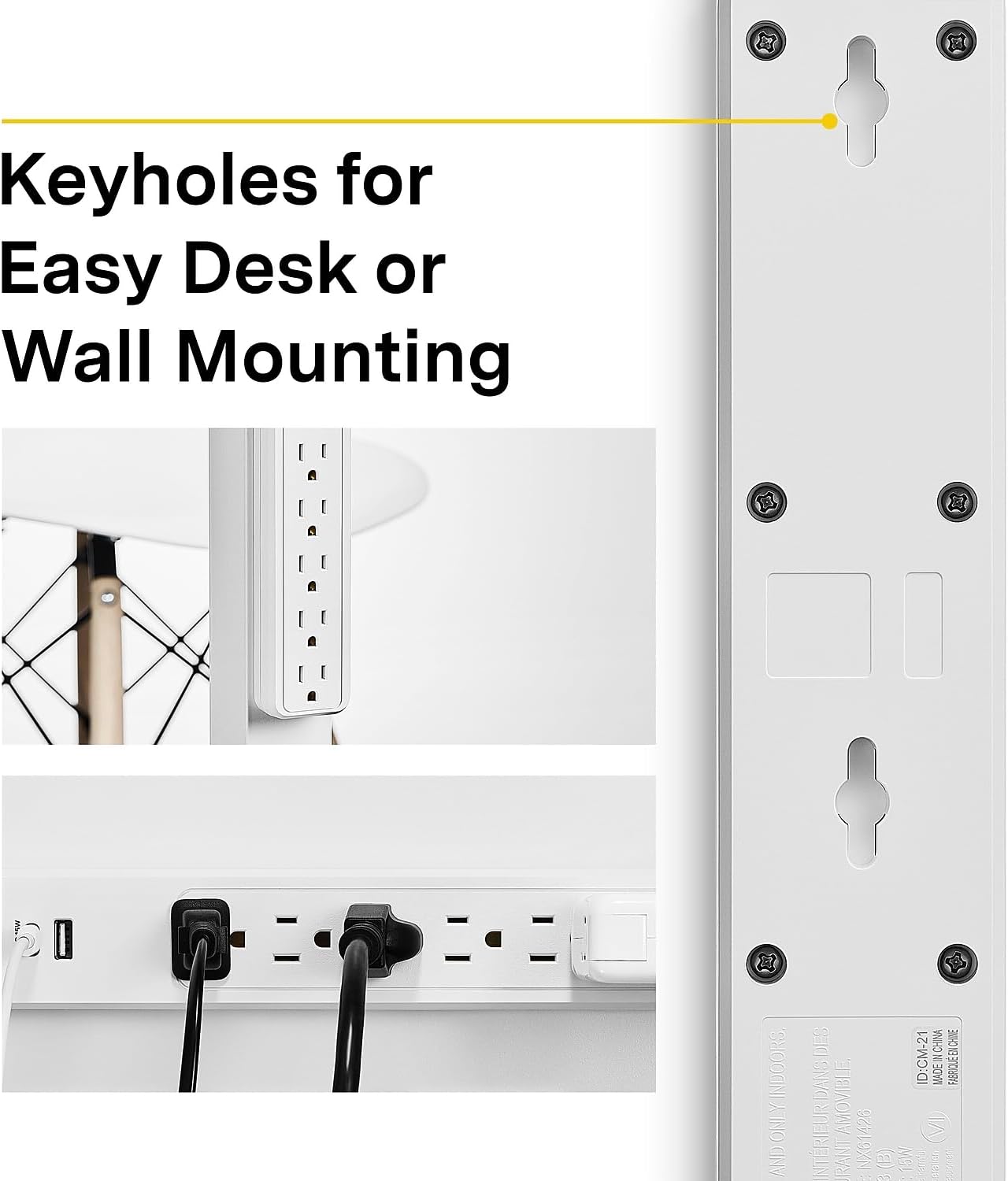
Figure 4.1: Rear view of the surge protector highlighting the keyholes designed for easy mounting on a desk or wall.
5. Operation
Using AC Outlets:
Plug your electronic devices directly into the six grounded AC outlets. Ensure the total power draw of all connected devices does not exceed the surge protector's maximum electrical rating.
Using USB Charging Ports:
Connect your USB-powered devices to the USB Type-A (2.4A) or USB Type-C (15W) ports using appropriate charging cables. These ports are designed for charging smartphones, tablets, and other compatible USB devices.
'Protected' Indicator Light:
When the surge protector is plugged in and the power switch is 'ON', the 'Protected' indicator light should be illuminated. This light confirms that the surge protection circuitry is active and functioning correctly. If this light is off, the surge protection has been compromised, and the unit should be replaced.
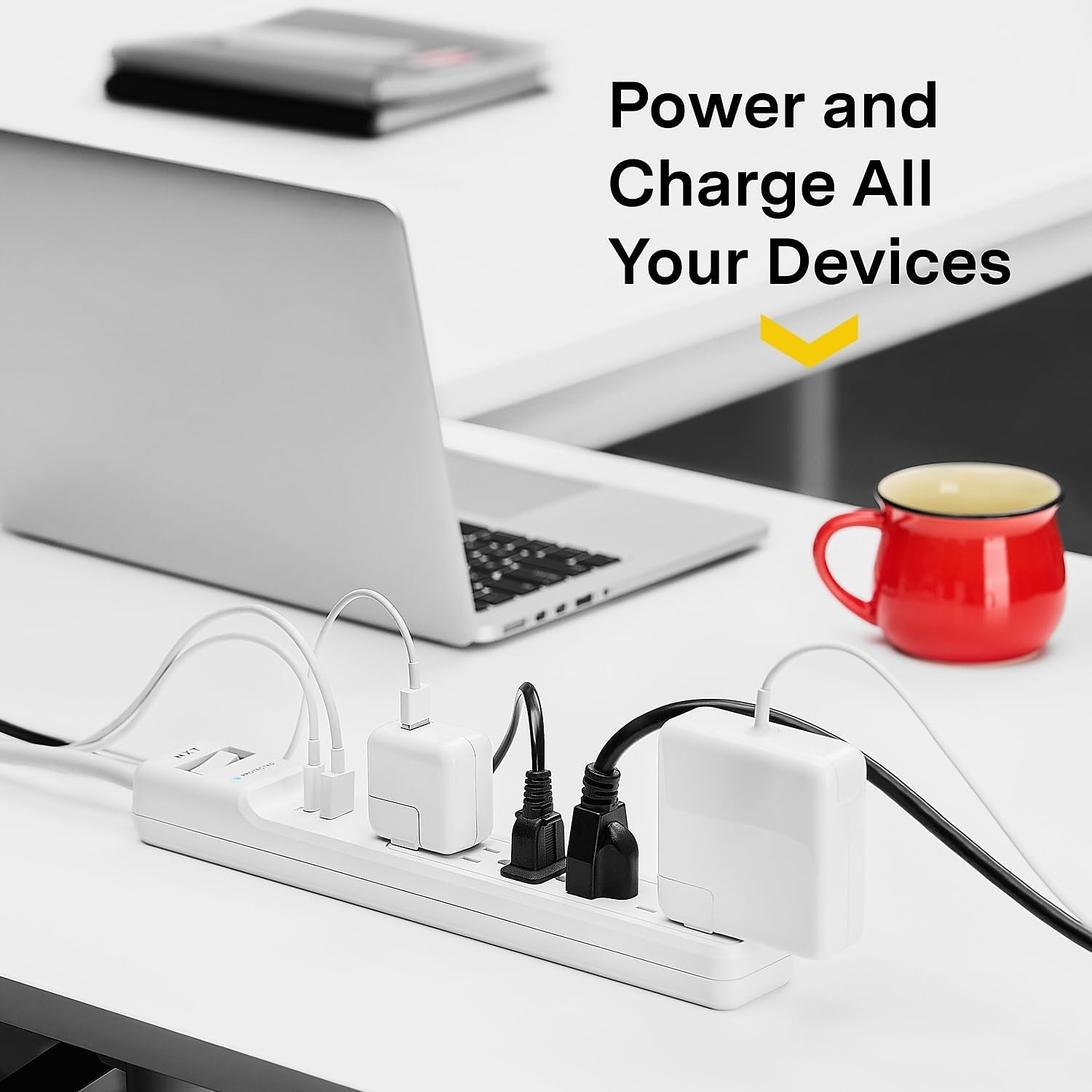
Figure 5.1: The surge protector in an office setting, demonstrating multiple devices (laptop, phone, tablet) being powered and charged simultaneously via its AC outlets and USB ports.
6. Maintenance
Regular maintenance helps ensure the longevity and optimal performance of your surge protector.
- Cleaning: Disconnect the surge protector from the wall outlet before cleaning. Use a soft, dry cloth to wipe the exterior. Do not use liquid or aerosol cleaners.
- Inspection: Periodically inspect the power cord, plug, and housing for any signs of damage. If damage is found, discontinue use and replace the unit.
- 'Protected' Indicator: Regularly check the 'Protected' indicator light. If it is off, the surge protection has been exhausted, and the unit will no longer protect against surges. Replace the surge protector immediately.
7. Troubleshooting
No Power to Connected Devices:
- Check Power Switch: Ensure the surge protector's power switch is in the 'ON' position.
- Check Wall Outlet: Verify that the wall outlet is functioning by plugging in another device directly.
- Reset Button: If the surge protector has experienced an overload, the circuit breaker may have tripped. Press the 'RESET' button located near the power switch to restore power.
- 'Protected' Indicator: If the 'Protected' indicator light is off, the surge protection has been compromised. The unit will still provide power but no longer offers surge protection. Replace the unit.
USB Devices Not Charging:
- Check Cable: Ensure the USB charging cable is securely connected to both the surge protector and the device. Try a different cable.
- Device Compatibility: Verify that your device is compatible with USB charging and that the power requirements do not exceed the USB port's output (USB-A: 2.4A, USB-C: 15W).
- Power to Surge Protector: Ensure the surge protector itself is receiving power and the power switch is 'ON'.
8. Specifications
| Model | NX61426 |
| Total Power Outlets | 6 Grounded AC Outlets |
| USB Ports | 1 x USB Type-A (2.4A), 1 x USB Type-C (15W) |
| Surge Protection | 1500 Joules |
| Cord Length | 4 feet |
| Plug Type | Right-Angle Plug |
| Product Dimensions | 13.39 x 1.87 x 1.34 inches |
| Item Weight | 1 pound |
| Color | White |
| Manufacturer | Staples |
9. Warranty and Support
Warranty Information:
This NXT Technologies Surge Protector is backed by a Lifetime Limited Warranty. Additionally, it includes a Connected Equipment Warranty, providing further assurance for your valuable electronics. Please refer to the product packaging or the manufacturer's website for full details and terms of these warranties.

Figure 9.1: Product packaging displaying information about the Lifetime Limited Warranty and Connected Equipment Warranty.
Customer Support:
For technical assistance, warranty claims, or further information, please contact NXT Technologies customer support. Refer to the product packaging or the official NXT Technologies website for current contact details.


