
Inefala 2+64G
Inefala Car Stereo User Manual
Model: 2+64G Android 13 Car Radio
Applicable for Dodge Grand Caravan 2011-2020, Chrysler Grand Voyager 2011-2015, Chrysler Town & Country 2011-2016
1. Introduction
This manual provides detailed instructions for the installation, operation, and maintenance of your Inefala 2+64G Android 13 Car Stereo. This unit is designed to enhance your in-car entertainment and navigation experience with features like Wireless CarPlay, Android Auto, GPS, Bluetooth, and a high-definition touch screen. Please read this manual thoroughly before installation and use to ensure proper function and safety.
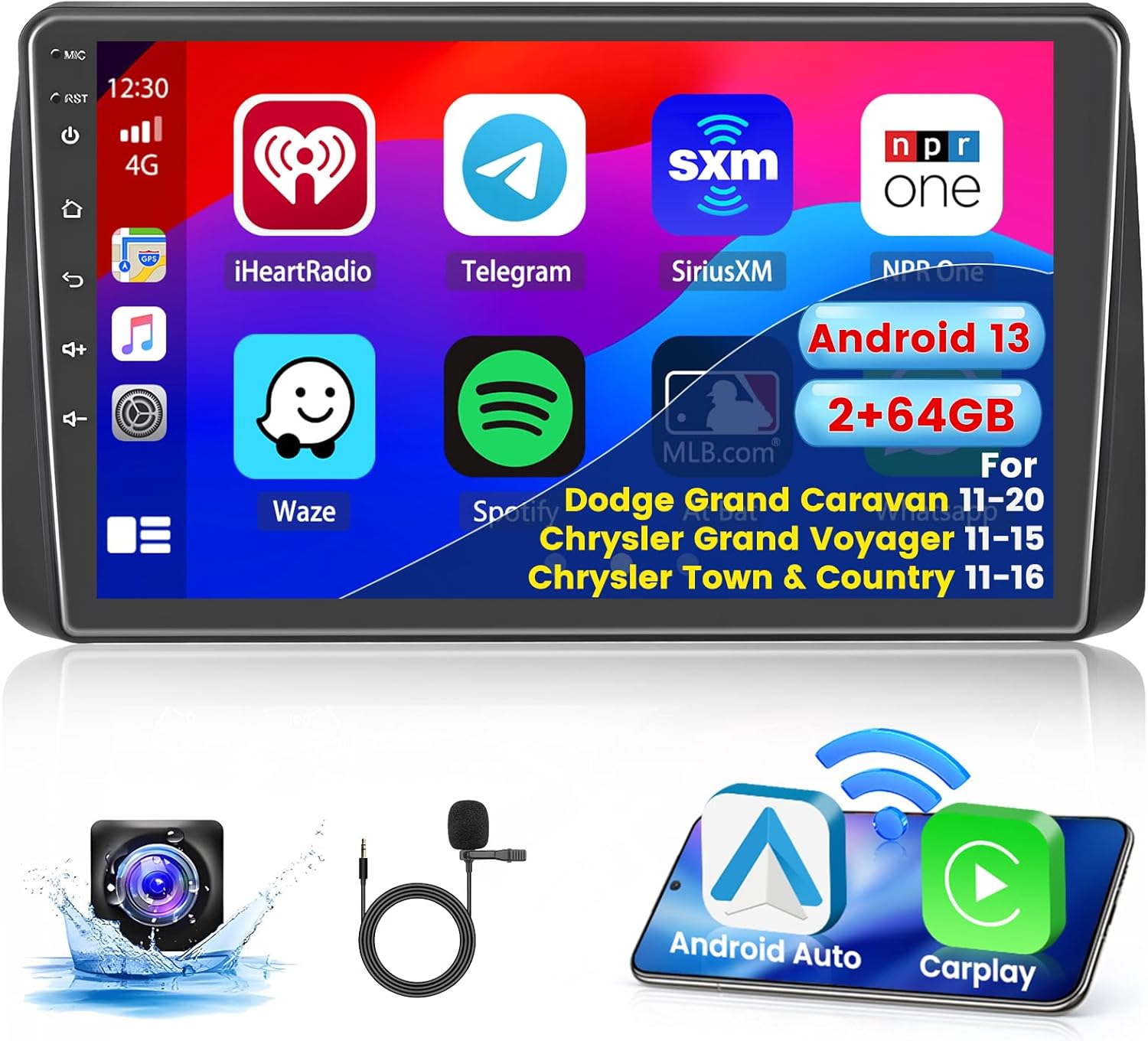
Figure 1.1: Inefala 2+64G Android 13 Car Stereo with included accessories.
2. Safety Information
- Always ensure the vehicle is parked and the engine is off before performing any installation or wiring.
- Disconnect the vehicle's battery before starting installation to prevent electrical shorts.
- Consult a professional if you are unsure about any installation steps. Improper installation can lead to damage to the unit or vehicle.
- Do not operate the unit in a way that distracts you from driving. Always prioritize road safety.
- Keep the unit away from water and excessive moisture.
- Use only specified power cables and accessories.
3. Package Contents
Verify that all items listed below are included in your package:
- 1 x Inefala Android Radio (for Dodge Grand Caravan/ Chrysler Grand Voyager/ Chrysler Town & Country)
- 1 x Power Cable
- 1 x CANBUS Decoder
- 1 x Radio Antenna Cable
- 1 x RCA Harness
- 1 x GPS Antenna
- 1 x AHD Backup Camera
- 1 x Rear Camera Input Cable
- 1 x External Microphone
- 2 x USB Cable
- 1 x Installation Tool Kit
4. Specifications
| Parameter | Value |
|---|---|
| System | Android 13 |
| Core | 4 |
| CPU | 8227L |
| Memory (RAM + ROM) | 2GB + 64GB |
| Main Frequency | 1.3GHz |
| Radio Band | FM/RDS |
| Rear Camera Standard | AHD720 & CVBS |
| Power Amplifier Chip | 7388 |
| Radio Chip | MTK |
| Sound Decoder | 2133 |
| Split Screen | Supported |
| Bluetooth Version | 4.2 |
| USB Interface | Double USB |
| Screen Resolution | 1024*600 |
| Factory Setting Keyword | 1234 |
5. Installation Guide
5.1 Pre-Installation Checks
- Ensure the vehicle's ignition is off and the negative terminal of the battery is disconnected.
- Confirm the power cable port on the unit matches your original car's wiring harness.
- Gather all necessary tools (provided installation tool kit, screwdrivers, wire strippers, etc.).
5.2 Wiring Diagram (General Overview)
Connect the provided cables to their respective ports on the car stereo and the vehicle's wiring harness. Refer to the specific wiring diagram included with your product for detailed pin assignments.
- Power Cable: Connects the stereo to the vehicle's power supply.
- CANBUS: Connect the CANBUS decoder to enable communication between the stereo and the vehicle's systems (e.g., steering wheel controls).
- Radio Antenna Cable: Connect for FM/RDS radio reception.
- RCA Harness: For audio/video output to external amplifiers or monitors.
- GPS Antenna: Position in a location with clear sky view for optimal GPS signal reception.
- AHD Backup Camera & Rear Camera Input Cable: Connect the backup camera to its input for automatic display when reversing.
- External Microphone: Connect for improved hands-free call quality.
- USB Cables: For connecting USB devices, charging, and wired CarPlay/Android Auto.
5.3 Physical Installation Steps
- Carefully remove the original car radio and trim panels using the provided installation tools.
- Connect all necessary cables from the new Inefala stereo to the vehicle's harness and accessories (GPS antenna, backup camera, microphone, USB cables).
- Mount the new stereo securely into the dashboard opening.
- Reconnect the vehicle's battery.
- Turn on the vehicle's ignition and test the stereo's basic functions (power, sound, touch screen).
- Reinstall the trim panels.

Figure 5.1: Comparison of dashboard before and after Inefala stereo installation.
5.4 CANBUS Settings
After installation, it is crucial to configure the CANBUS settings to ensure proper communication with your vehicle's systems, especially for steering wheel controls and other integrated features.
- Navigate to "Settings" on the stereo's main interface.
- Select "Factory Setup".
- Enter the password: 1234.
- Go to "Can Settings" and select the correct vehicle model (Dodge Grand Caravan, Chrysler Grand Voyager, or Chrysler Town & Country) and year range.
- Save the settings and restart the unit if prompted.
6. Operating Instructions
6.1 Basic UI Navigation and Desktop Themes
The unit features a 9-inch 1024x600 resolution touch screen with a blue main UI and 28 customizable desktop themes. Swipe left/right to navigate between screens, tap icons to open applications.
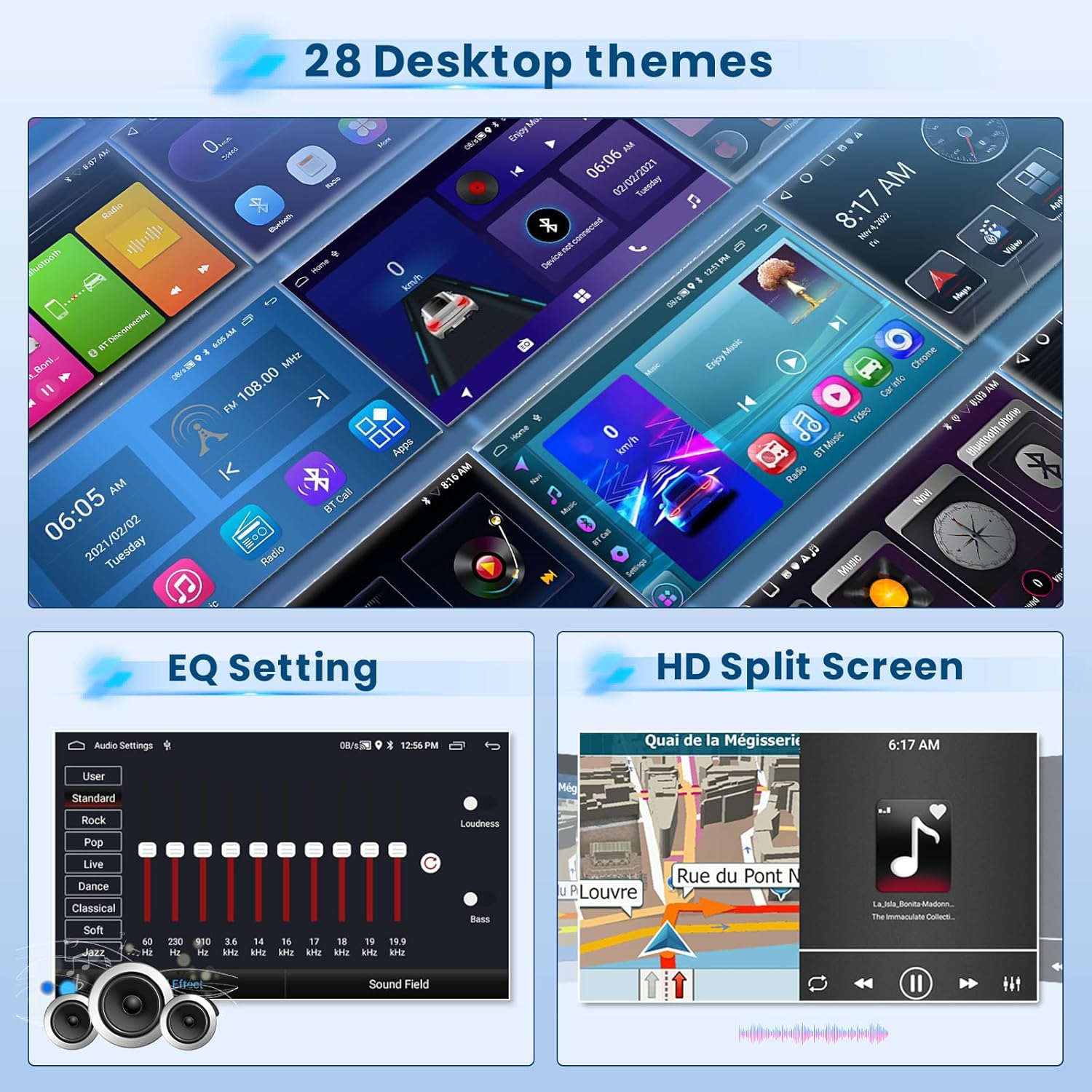
Figure 6.1: Customizable desktop themes and sound settings.
6.2 Wireless CarPlay & Android Auto
Connect your smartphone wirelessly or via USB to access CarPlay (for iOS) or Android Auto (for Android). This allows voice control and access to phone functions like navigation, music, calls, and messages directly on the stereo screen.
- Ensure Bluetooth and Wi-Fi are enabled on your phone.
- On the stereo, open the CarPlay/Android Auto application.
- Follow the on-screen prompts to pair your device.

Figure 6.2: Interfaces for Apple CarPlay, Android Auto, and Mirror Link.
6.3 Mirror Link (for iOS/Android)
Synchronize your cell phone's content (videos, navigation) to the stereo's larger screen via the phone's original USB cable. iOS phones support one-way control, while Android phones support two-way control.
- Connect your phone to the stereo using a USB cable.
- Open the "Mirror Link" application on the stereo.
- Follow the instructions on both your phone and the stereo to establish the connection.
6.4 Offline/Online GPS Navigation
The unit supports both offline and online navigation. You can download free offline maps (e.g., Waze) or use online mapping services via Wi-Fi connection.
- Ensure the GPS antenna is properly installed and has a clear view of the sky.
- For offline maps, download the map data to the unit's internal storage.
- For online maps, connect to Wi-Fi or a mobile hotspot.

Figure 6.3: GPS navigation interface and Wi-Fi connectivity options.
6.5 WiFi Connection
Connect the stereo to a Wi-Fi network or your phone's mobile hotspot to access online features, download apps (YouTube, TikTok), and browse the internet.
- Go to "Settings" > "Network & Internet" > "Wi-Fi".
- Select your desired Wi-Fi network and enter the password.
6.6 Built-in Bluetooth (Version 4.2)
The Bluetooth function allows for hands-free calls and audio streaming.
- Pairing: Enable Bluetooth on your phone. On the stereo, go to the Bluetooth application, search for devices, and select your phone. Confirm the pairing code.
- Hands-free Calls: Once paired, you can make and receive calls directly from the stereo. Your phonebook can be downloaded for easy access.
- Audio Streaming: Play music from your phone through the car stereo speakers.
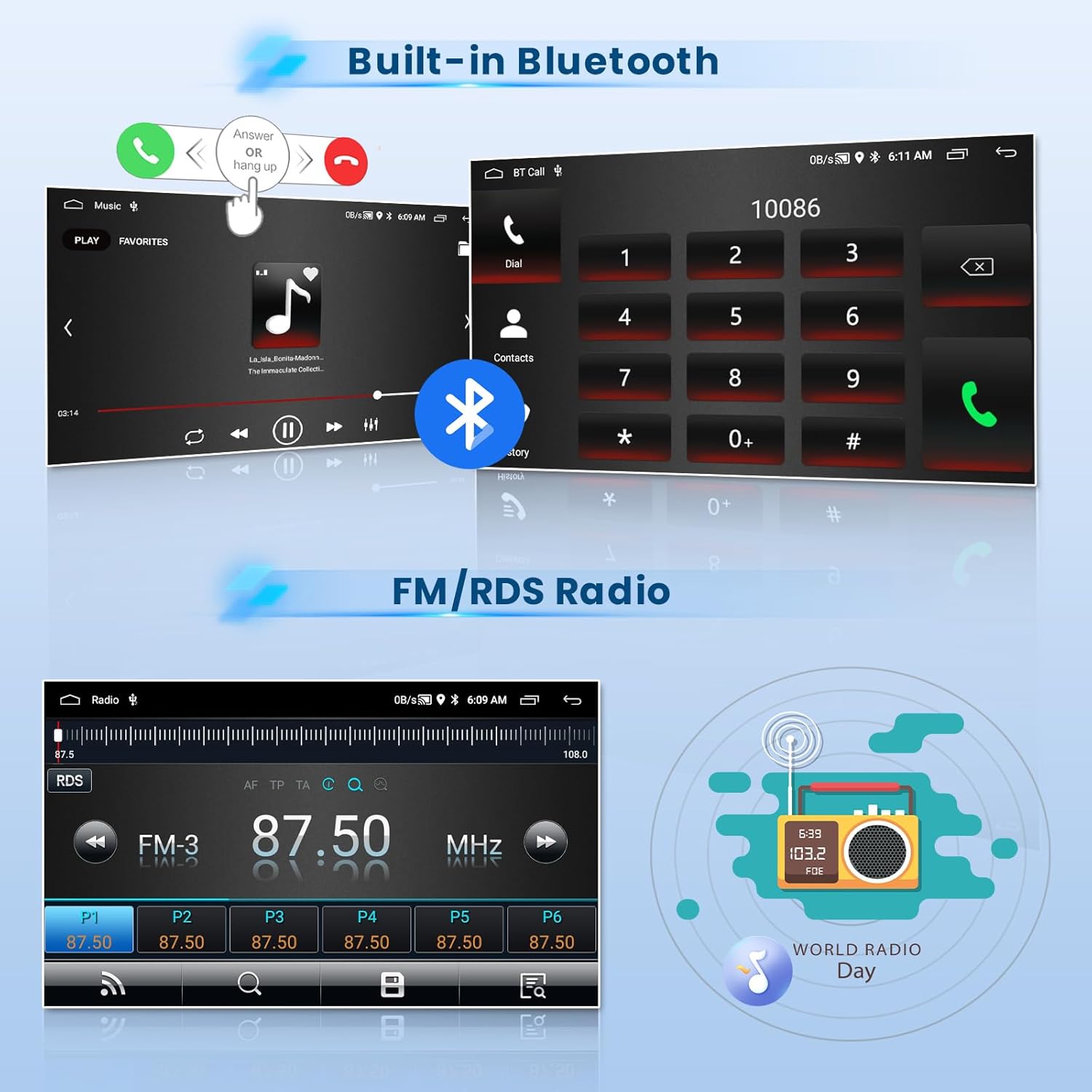
Figure 6.4: Bluetooth call interface and FM/RDS radio display.
6.7 FM/RDS Radio
Listen to your favorite radio stations with FM and RDS (Radio Data System) support. You can save up to 18 preset stations.
- Open the "Radio" application.
- Use the scan function to find available stations or manually tune to a frequency.
- Press and hold a preset button to save the current station.
6.8 EQ Settings
Adjust the audio equalizer settings to customize your listening experience. Choose from preset modes (pop, rock, jazz) or manually adjust frequency bands.
- Access the "EQ" or "Sound Settings" application.
- Select a preset or drag the sliders to fine-tune the audio output.
6.9 Split Screen Function
The split-screen feature allows you to run two applications simultaneously, such as navigation on one side and music on the other.
- Open the first application.
- Press and hold the recent apps button or swipe up from the bottom (depending on UI) to enter split-screen mode.
- Select the second application to display on the other half of the screen.
6.10 Steering Wheel Control
If your vehicle supports it and CANBUS is correctly configured, you can control the stereo using your steering wheel buttons.
- Go to "Settings" > "Steering Wheel Learning".
- Follow the on-screen instructions to assign functions to your steering wheel buttons.

Figure 6.5: Steering wheel control setup and backup camera view.
6.11 AHD Backup Camera
The included AHD backup camera provides a clear view of the area behind your vehicle. The display automatically switches to the camera feed when the reverse gear is engaged.
- Ensure the backup camera and its input cable are correctly connected during installation.
- Test the camera by shifting into reverse gear (with the engine running or ignition on).
7. Maintenance
- Cleaning: Use a soft, dry cloth to clean the screen and unit. For stubborn smudges, slightly dampen the cloth with water. Avoid harsh chemicals or abrasive materials.
- Software Updates: Periodically check for software updates from the manufacturer's website or through the unit's system settings (if available) to ensure optimal performance and new features.
- Temperature: Avoid exposing the unit to extreme temperatures for prolonged periods.
8. Troubleshooting
| Problem | Possible Cause | Solution |
|---|---|---|
| No power | Loose power connection, blown fuse, incorrect wiring. | Check all power cable connections. Inspect vehicle's fuse box and the stereo's inline fuse. Verify wiring against diagram. |
| No sound | Volume too low, mute enabled, incorrect speaker wiring, amplifier issue. | Increase volume. Check if mute is active. Verify speaker connections. If using an external amplifier, check its power and connections. |
| Touch screen unresponsive | Software glitch, screen calibration issue. | Perform a soft reset (refer to manual for reset button location, usually a small pinhole). If issue persists, contact support. |
| CarPlay/Android Auto not connecting | Incorrect phone settings, faulty USB cable, software incompatibility. | Ensure phone's Bluetooth and Wi-Fi are on. Try a different USB cable. Restart both phone and stereo. Check for phone OS updates. Note: Some Samsung/Huawei models may have compatibility issues with Android Auto/Mirror Link. |
| GPS signal weak/lost | GPS antenna not properly placed, antenna faulty. | Ensure GPS antenna has a clear view of the sky and is securely connected. Relocate antenna if necessary. |
| Steering wheel controls not working | CANBUS not configured, incorrect wiring, vehicle incompatibility. | Verify CANBUS settings in "Factory Setup" (Password: 1234). Ensure CANBUS decoder is correctly connected. Perform steering wheel learning. |
| Backup camera not displaying | Camera not connected, faulty camera, reverse trigger wire issue. | Check camera and video input cable connections. Ensure the reverse trigger wire is correctly connected to the vehicle's reverse light signal. |
9. Warranty and Support
Inefala products come with a standard manufacturer's warranty. For specific warranty terms and conditions, please refer to the warranty card included in your product packaging or visit the official Inefala website.
For technical support, troubleshooting assistance, or replacement parts, please contact Inefala customer service through the following channels:
- Email: Refer to your product packaging or the Inefala brand store on Amazon for contact details.
- Online Support: Visit the Inefala Store on Amazon for FAQs and support information.
When contacting support, please have your product model number (2+64G) and purchase details ready.
Related documents2+64G


Ask a question about this manual
Ask about setup, troubleshooting, compatibility, parts, safety, or missing instructions. Manuals+ will review the question and use this page’s manual context to help answer it.