
1. Introduction
This manual provides essential instructions for the setup, operation, and maintenance of your YIXZSWD 75 Inch Full Screen Indoor Floor Stand Digital Signage. Please read this guide thoroughly before use to ensure proper functionality and longevity of the product.
2. What's in the Box
Verify that all components are present in the packaging:
- Body*1 & Base*1
- Power Cord*1
- Remote Controller*1
- USB flash disk*1
- User Guide*1
- Wheels*4
- M6 screw*16
- Cross screw driver*1
- Allen wrench*1
- M8 screw*6 & Key*2
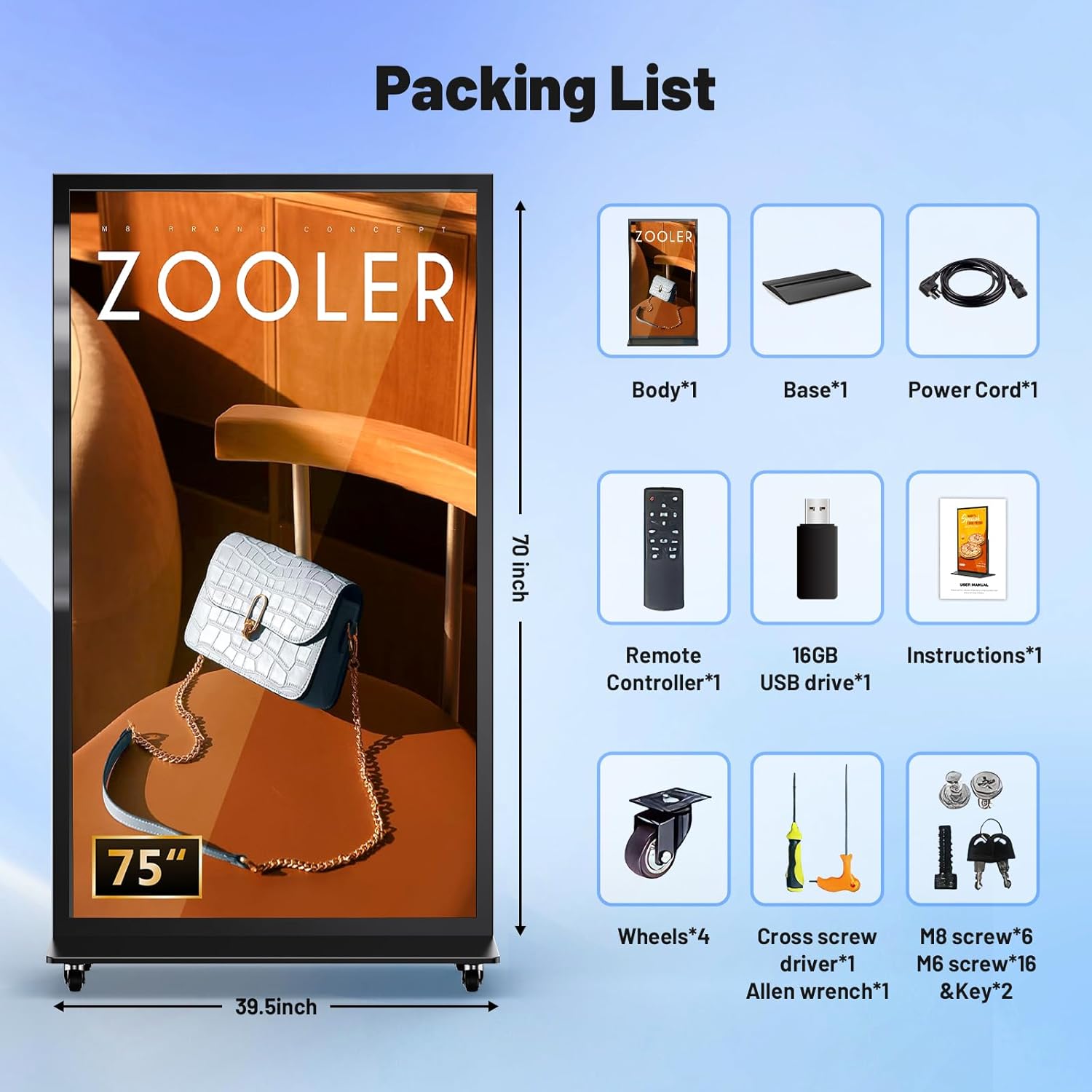
Image: All components included in the product packaging, laid out for inspection.
3. Setup and Installation
3.1 Unpacking and Initial Setup
Carefully remove the digital signage unit from its packaging. It is recommended that two people handle the unit due to its size and weight. Place the main screen body on a stable, flat surface for assembly.
3.2 Base Assembly
Attach the four wheels to the base using the provided screws and screwdriver. Ensure all screws are tightened securely for stability.

Image: A visual comparison highlighting the screen-to-body ratio of the YIXZSWD 75 inch digital signage versus a smaller model.
3.3 Screen Attachment and Connectivity
Carefully lift the main screen unit and align it with the assembled base. Secure the screen to the base using the appropriate screws. Connect the power cord to the unit and plug it into a power outlet. Connect the Wi-Fi antenna to the designated port on the unit.
Video: Detailed installation guidance for the 75 inch Full Screen Digital Signage, demonstrating unpacking, base assembly, and initial power-up steps.
4. Operating Instructions
4.1 Power On/Off
Once connected to power, press the power button on the unit to turn it on. The Android system will boot up. To power off, press the power button again or use the remote control.
4.2 Content Playback via USB
The unit supports USB plug-and-play functionality. Copy your media content (pictures, videos) to the root directory of the provided USB flash disk. Insert the USB disk into the designated USB port on the digital signage. The content will automatically play in a loop.

Image: A hand inserting a USB flash drive into the digital signage, illustrating the plug-and-play feature for media content.
4.3 Content Management (Copy Mode)
For internal storage, create a folder named 'AutoPlayFile' on your USB disk and copy your media content into it. In the 'Autoplay' application settings, select 'Copy Mode'. When the USB disk is inserted, the content will be copied to the internal memory of the digital signage. Once copied, you can remove the USB disk, and the content will play from internal storage.
Video: Usage guidance for QIXZOCV Digital Signage Displays, demonstrating how to manage and copy media content to the device's internal memory using a USB drive.
4.4 HDMI Input
The digital signage supports HDMI input for connecting external player boxes or other HDMI devices. Use the remote control to select the HDMI input source. The display will automatically switch to the HDMI input when powered on if configured in the 'Auto Start Settings'.

Image: Rear view of the digital signage showing HDMI input ports and an internal compartment for an optional player box.
Video: A demonstration of the 75 inch full screen digital signage, including its features and how to switch between different input sources like HDMI.
4.5 Scheduled Playback
Configure timed startup and shutdown schedules for continuous 7-day loop playback. This feature allows the display to operate automatically according to your set schedule.

Image: Illustration of the scheduled playback feature, showing options for setting timed startup and shutdown for continuous operation.
4.6 Smart Split Screen
Utilize the built-in split-screen modules to display multiple videos and images simultaneously across different windows. This enhances content presentation and engagement.
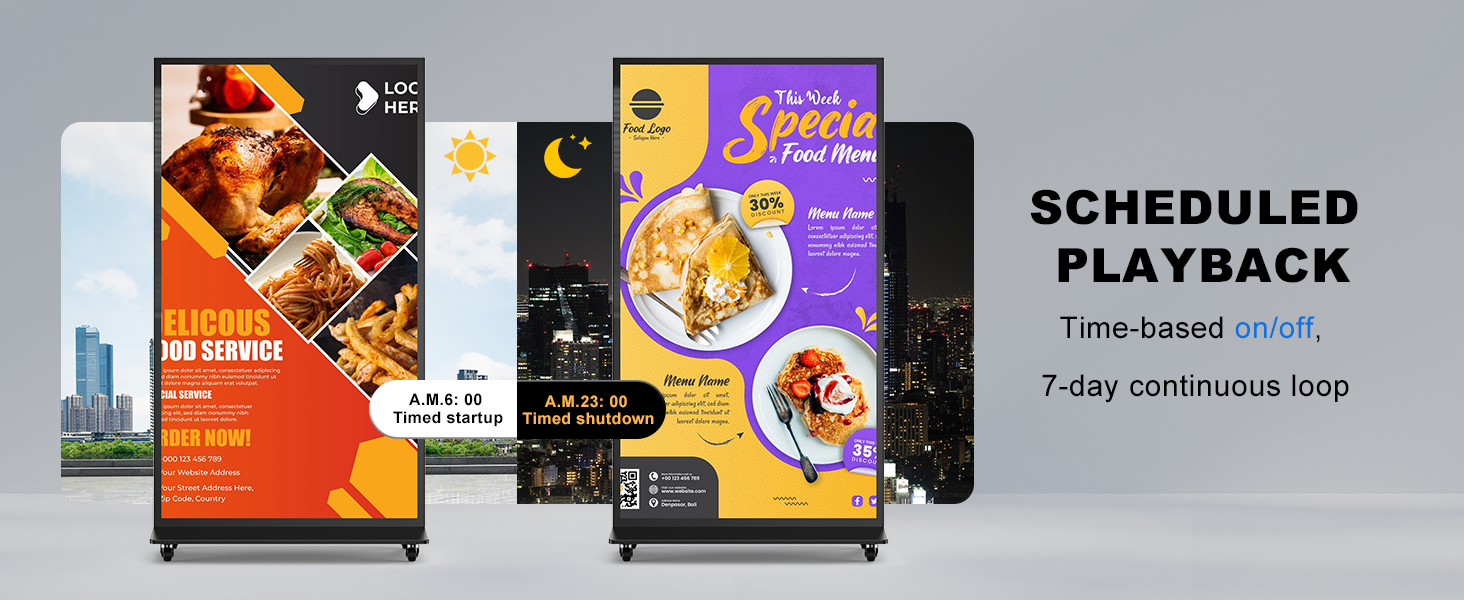
Image: The digital signage displaying various split-screen layouts for simultaneous video and image presentation.
5. Features and Usage Scenarios
The YIXZSWD 75 Inch Digital Signage offers a high-quality 1920x1080 pixel screen with a 178° ultra-wide viewing angle, ensuring clear and vivid content from various perspectives. It operates on a user-friendly Android 9.0 OS.
5.1 Wide Application
This digital signage is suitable for a wide range of indoor environments, including retail stores, shopping malls, restaurants, hotels, exhibition halls, airports, subways, and educational or medical facilities.
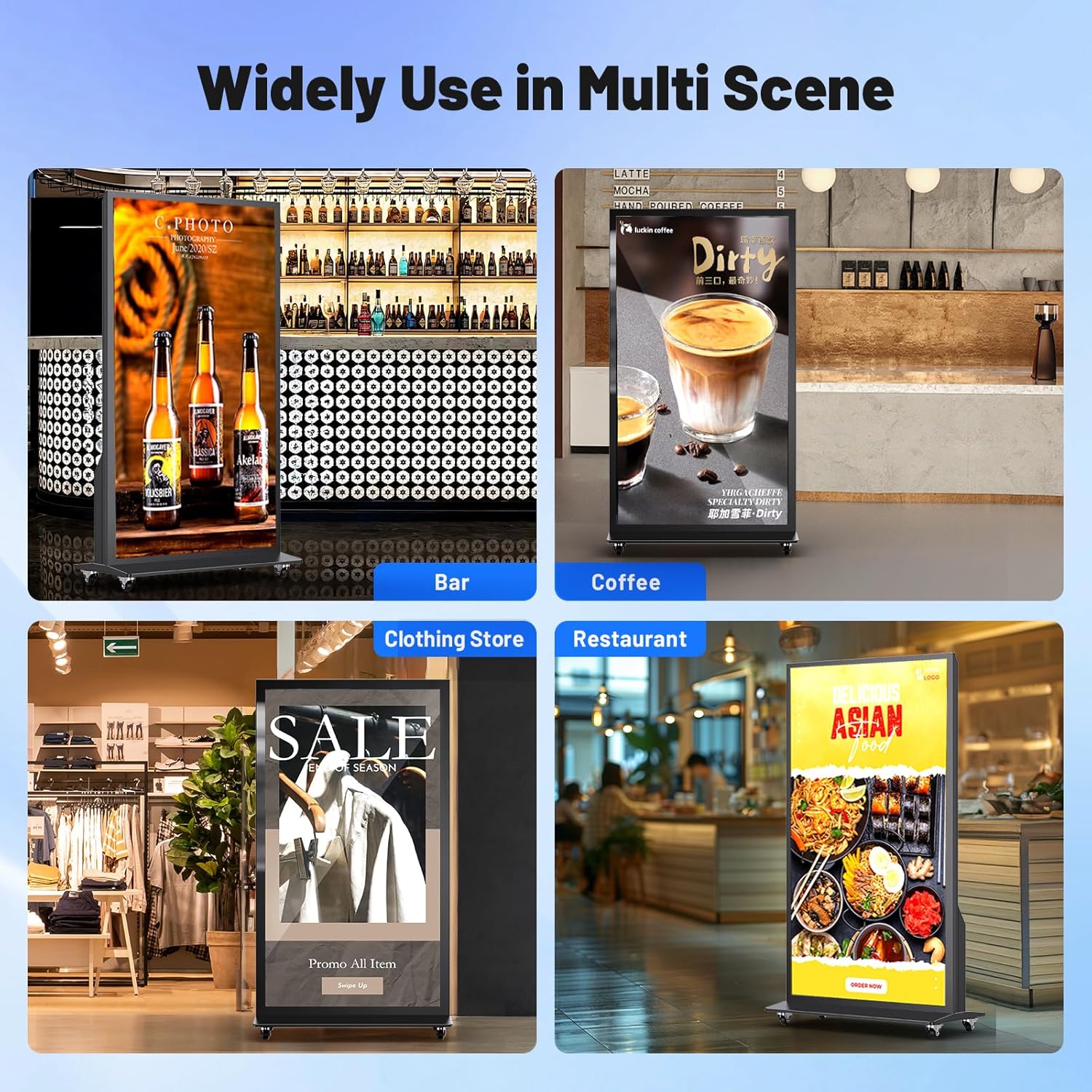
Image: Multiple examples of the digital signage being used in different commercial environments such as bars, coffee shops, clothing stores, and restaurants.
6. Maintenance
To maintain optimal performance and extend the lifespan of your digital signage, regularly clean the screen with a soft, lint-free cloth. Avoid using harsh chemicals or abrasive materials. Ensure proper ventilation around the unit to prevent overheating. Periodically check all cable connections for security.
7. Troubleshooting
If the display does not power on, check the power cable connection and the power outlet. If content is not playing, ensure the USB disk is properly inserted and the media files are in a compatible format. For HDMI input issues, verify the cable connection and that the correct input source is selected via the remote control.
8. Specifications
- Brand: YIXZSWD
- Model: 75 inch
- Manufacturer: Marvel Technology CO.,LTD
- Item Weight: 164.7 pounds
- Product Dimensions: 3.15 x 47.24 x 17.83 inches
- Color: Black
- Mounting Type: Floor Standing
- Orientation: Portrait
- ASIN: B0D25W7R4F
- Date First Available: April 19, 2024
9. Warranty and Support
The product comes with a 3-year after-sales warranty service to ensure normal operation. For any technical support requirements or inquiries, please contact Marvel Technology CO., LTD.
