1. Introduction
Thank you for choosing the PRITOM TAB11 Android Tablet. This manual provides essential information to help you set up, operate, and maintain your device. The PRITOM TAB11 is a versatile 10.1-inch tablet featuring Android 14, an Allwinner A523 8-core processor, 8GB RAM (4GB + 4GB expansion), 128GB internal storage (expandable up to 512GB via SD card), WiFi6 connectivity, and an 8000mAh battery. It is designed for a smooth user experience, ideal for media consumption, online learning, and daily tasks.
Key features include:
- Powerful Performance: Allwinner A523 8-core processor with 8GB RAM (4GB physical + 4GB virtual) and 128GB ROM, expandable up to 512GB.
- Advanced Connectivity: Supports 5GHz WiFi6 for efficient data transfer and minimal data consumption.
- Vibrant Display: 10.1-inch 1280*800 IPS full-view screen for an immersive visual experience.
- Long-lasting Battery: 8000mAh battery with USB-C fast charging, providing extended usage time.
- Latest Android OS: Pre-installed with Android 14, focusing on user privacy and security.

Image: The PRITOM TAB11 tablet displaying its key specifications, including Android 14, 8GB RAM, and 128GB ROM.
2. Setup
2.1 Initial Language Setting
Upon first use, you can set the device language to Japanese. If you missed this step or need to change the language later, follow these instructions:
- Go to Settings.
- Select System.
- Choose Languages & input.
- Tap on Languages.
- Select Add a language and choose Japanese.
2.2 Charging the Tablet
Before first use, fully charge your tablet using the provided USB-C charger and cable. Only use the dedicated charger and cable to prevent electric shock or battery malfunction.
- Connect the USB-C cable to the tablet's charging port.
- Plug the charger into a power outlet.
- The battery indicator on the screen will show charging status.
2.3 Connecting to Wi-Fi
To access the internet, connect your tablet to a Wi-Fi network:
- Go to Settings.
- Select Network & internet.
- Tap on Wi-Fi and turn it On.
- Select your desired Wi-Fi network from the list.
- Enter the password if prompted and tap Connect.

Image: An overview of the PRITOM TAB11's features, including Android 14, 10.1-inch screen, WiFi6, camera specifications, memory, and battery capacity.
3. Operating Instructions
3.1 Basic Navigation
The tablet features a responsive touch screen. Navigate by tapping, swiping, and pinching. The Android 14 operating system provides a user-friendly interface with enhanced privacy and security features.
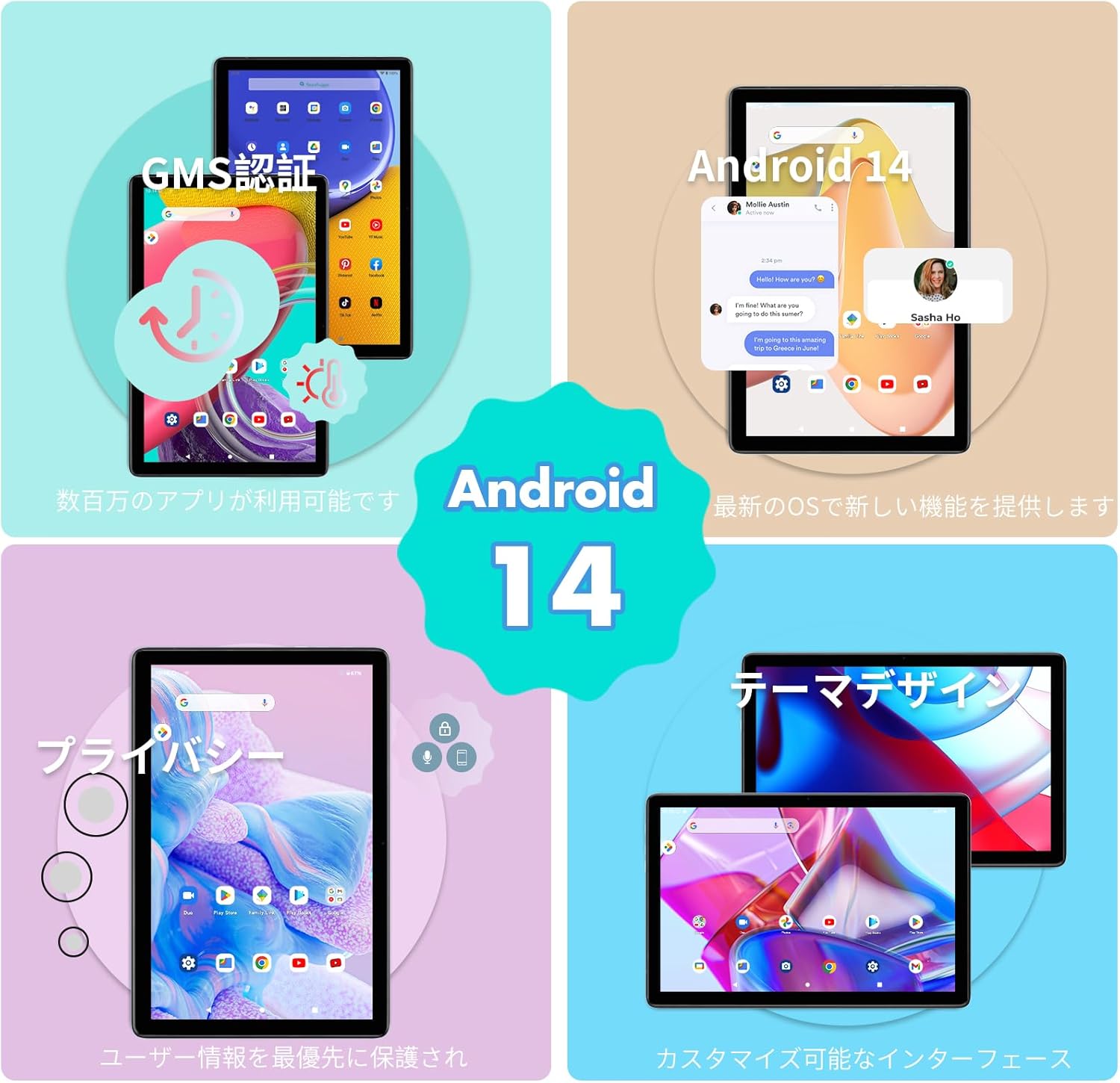
Image: Visual representation of Android 14 features on the PRITOM TAB11, highlighting GMS certification, new OS functionalities, privacy controls, and customizable themes.
3.2 Installing Applications
The tablet comes with Google Play Store pre-installed, allowing you to download a wide variety of Android applications, music, movies, games, and magazines.
- Open the Play Store app.
- Search for your desired app.
- Tap Install to download and install the app.
3.3 Media Playback
Enjoy a perfect viewing experience with the 10.1-inch 1280*800 IPS display. The tablet supports 1080P HD video playback from platforms like Netflix, Amazon Prime Video, and YouTube.

Image: A user holding the PRITOM TAB11 tablet, demonstrating its use for video appreciation.
3.4 Bluetooth Connectivity
Connect your favorite accessories via Bluetooth:
- Go to Settings.
- Select Connected devices.
- Tap on Bluetooth and turn it On.
- Select Pair new device and choose your accessory from the list.
3.5 Using the Protective Case
The tablet comes with a dedicated protective case that offers multiple viewing angles and shock resistance.
- Viewing Mode: Fold the case to prop up the tablet for hands-free viewing of videos or presentations.
- Typing Mode: Adjust the case to a lower angle for comfortable typing.
- Shock Resistance: The case provides protection against accidental drops and impacts.
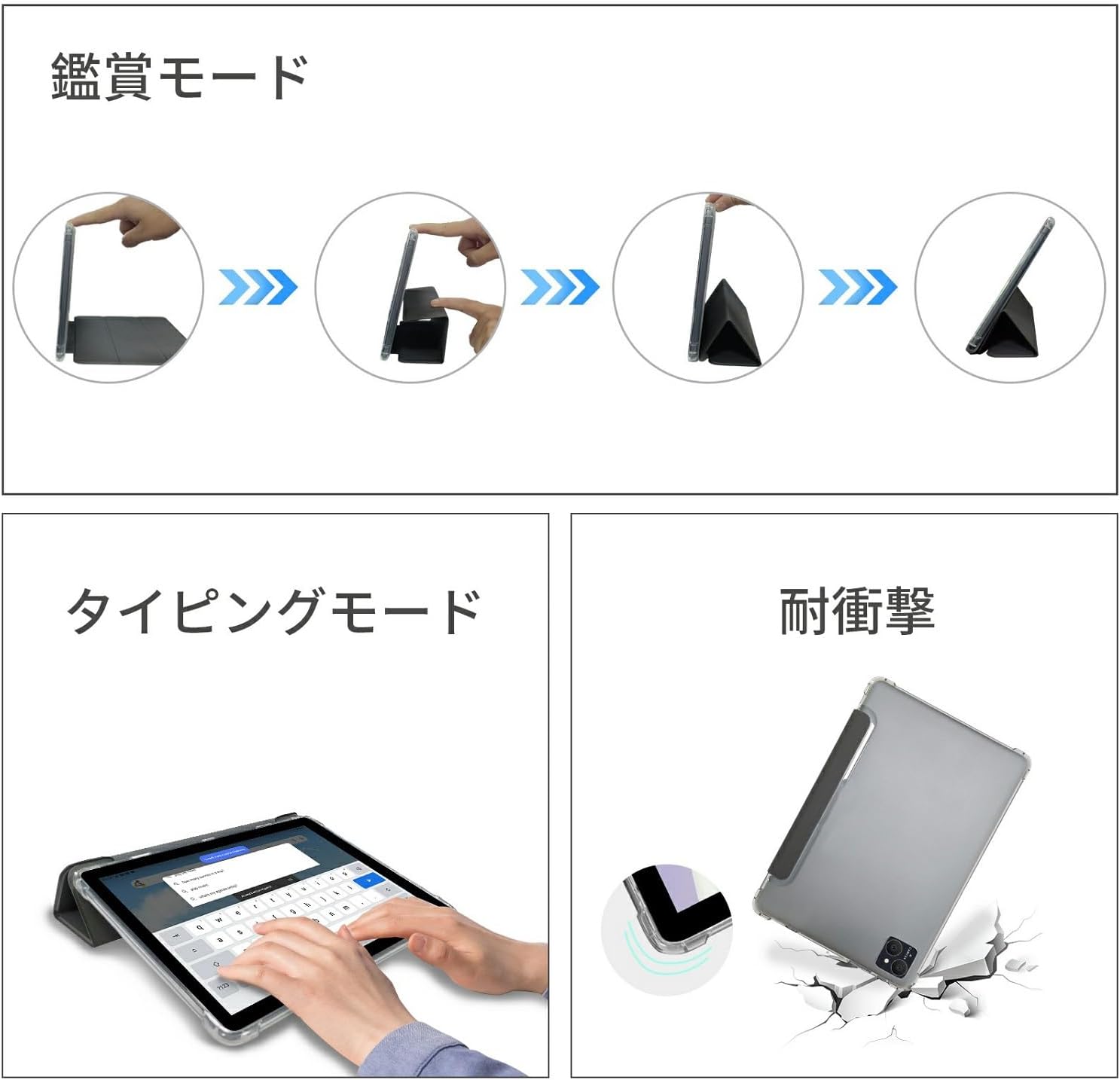
Image: Illustrations showing how to use the tablet's protective case for viewing, typing, and highlighting its shock-resistant design.
4. Maintenance
4.1 Battery Care
To prolong the life of your 8000mAh battery:
- Avoid extreme temperatures.
- Do not fully discharge the battery regularly.
- Use only the original charger and cable provided with the tablet.

Image: The PRITOM TAB11 tablet highlighting its 8000mAh large capacity battery and estimated usage times for video playback, daily use, and reading.
4.2 Cleaning the Tablet
Use a soft, lint-free cloth to clean the screen and body of the tablet. Avoid using harsh chemicals or abrasive materials.
5. Troubleshooting
If you encounter issues with your PRITOM TAB11 tablet, refer to the following common solutions:
5.1 Slow Response or Freezing
- Restart the tablet: Press and hold the power button, then select 'Restart'.
- Close background apps: Swipe up from the bottom of the screen (or tap the recent apps button) and close unused applications.
- Clear cache: Go to Settings > Apps > [App Name] > Storage > Clear cache.
- Free up storage: Delete unnecessary files or apps to improve performance.
5.2 Power Issues (Tablet not turning on/charging)
- Check charger and cable: Ensure the provided charger and USB-C cable are securely connected and undamaged. Try a different power outlet.
- Force restart: Press and hold the power button for about 10-15 seconds until the device restarts.
- Charge for a longer period: If the battery is completely drained, it might take a few minutes of charging before the tablet responds.
5.3 Wi-Fi Connectivity Problems
- Toggle Wi-Fi: Turn Wi-Fi off and then on again in Settings.
- Restart router: Power cycle your Wi-Fi router.
- Forget network: Go to Settings > Network & internet > Wi-Fi, tap on the problematic network, and select 'Forget'. Then try reconnecting.
6. Specifications
| Feature | Specification |
|---|---|
| Brand | PRITOM |
| Model Name | PRITOM TAB11 (P30H) |
| Operating System | Android 14 |
| Display Size | 10.1 inches |
| Display Resolution | 1280x800 pixels (IPS) |
| Processor | Allwinner A523 8-core, 1.6 GHz |
| RAM | 8GB (4GB physical + 4GB virtual) |
| Internal Storage | 128GB |
| Expandable Storage | Up to 512GB via SD card (sold separately) |
| Wireless Connectivity | WiFi6 (802.11 a/b/g/n/ax), Bluetooth |
| Front Camera | 2 MP |
| Battery | 8000mAh Lithium Polymer (26.6 Wh) |
| Battery Life (estimated) | 6 hours (general use) |
| Charging Port | USB-C |
| Item Weight | 950 g |
| Package Dimensions | 34.79 x 19.8 x 4.4 cm |

Image: Detailed view of the PRITOM TAB11's memory and storage capabilities, including RAM, ROM, and TF MicroSD card expansion, alongside an illustration of the A523 8-core CPU.

Image: Specifications of the PRITOM TAB11's display, including its 10.1-inch size, 1280x800 IPS resolution, screen-to-body ratio, thickness, and aspect ratio.
7. Warranty and Support
7.1 Warranty Information
The PRITOM TAB11 tablet comes with a 12-month warranty from the date of purchase. This warranty covers manufacturing defects. Please note that the warranty does not cover damage caused by misuse, accidents, or unauthorized repairs. For non-human product issues within the warranty period, please contact customer support.
7.2 Contacting Support
If you require assistance or have questions regarding your PRITOM TAB11 tablet, please contact customer support through one of the following methods:
- Via Amazon: Go to your Amazon account > Order History > Select the relevant order > Contact Seller.
- Direct Email: Before emailing, please include your order number for faster service.
Customer support is available Monday to Friday, 10:00 AM to 7:00 PM (Japan Standard Time). Inquiries received outside business hours or on holidays will be responded to on the next business day.


