
Introduction
The CACKBIRD Portable 60% Mechanical Gaming Keyboard is designed for compact performance and versatility. Featuring a 61-key layout, linear red mechanical switches, and customizable RGB backlighting, this keyboard offers a responsive and ergonomic typing experience for both gaming and office use. Its ultra-compact design makes it ideal for travel and optimizing desktop space.
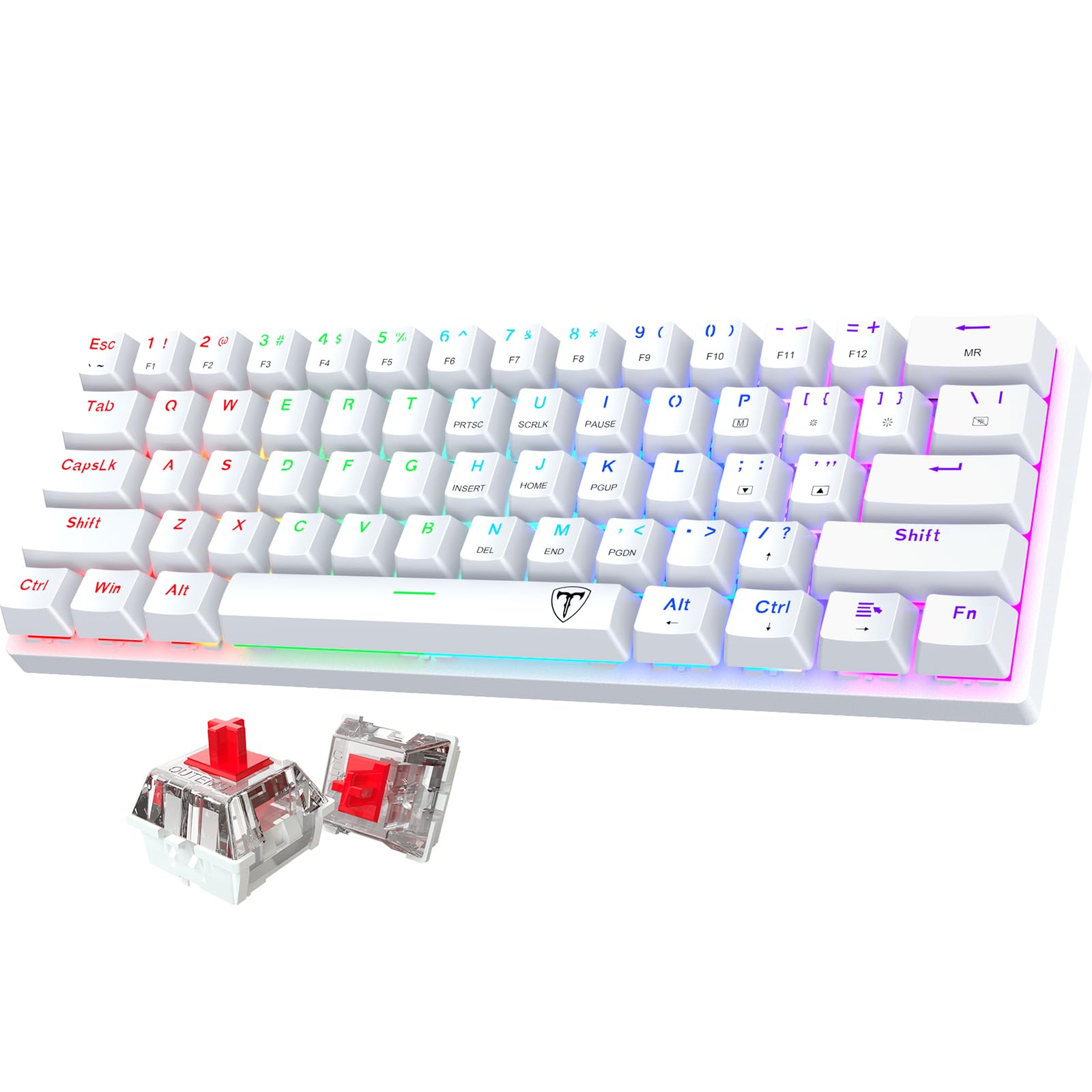
Image: The CACKBIRD 60% Mechanical Gaming Keyboard, showcasing its compact design and RGB lighting.
What's in the Box
- 1 x CACKBIRD Mechanical Keyboard
- 1 x USB-C Cable
- 1 x Keycap Puller
- 1 x User Manual

Image: Diagram showing the keyboard, USB cable, keycap puller, and user manual included in the package.
Specifications
| Feature | Detail |
|---|---|
| Keyboard Layout | 60% (61 Keys) |
| Switch Type | Linear Red Mechanical Switches |
| Backlighting | 18 LED Rainbow Backlight Effects, 5 Brightness Levels, 5 Dynamic Speeds, 1 Customization Mode |
| Connectivity | Wired USB-C (Detachable 150cm/59.05 inch cable) |
| Keycaps | PBT-engineered, Double Injection ABS (for backlight) |
| Anti-Ghosting | Full N-Key Rollover |
| Ergonomics | Scientific Stair-Up Keycaps Design, Stable Foldable Kickstands |
| Compatible Devices | PC, Laptop, Gaming Console, Mac (Windows 10/8/7/XP, Mac OS, Windows VISTA) |
| Product Dimensions | 11.94"L x 3.93"W x 1.3"H |
| Item Weight | 1.1 pounds |
Setup
- Connect the USB-C Cable: Locate the USB-C port on the left side of the keyboard. Connect the L-shaped end of the provided USB-C cable to the keyboard.
- Connect to Device: Plug the standard USB-A end of the cable into an available USB port on your computer, laptop, gaming console, or Mac.
- Automatic Recognition: The keyboard is plug-and-play. Your operating system should automatically detect and install the necessary drivers. No additional software is required.
- Adjust Kickstands (Optional): For an ergonomic typing angle, extend the foldable kickstands located on the underside of the keyboard.

Image: Close-up view of the detachable L-shaped USB-C cable connecting to the keyboard's port.
Video: Demonstrates the setup and initial use of the CACKBIRD 60% Mechanical Keyboard, including connecting the USB-C cable and showcasing its compact size.
Operating Instructions
Keyboard Layout and Function Keys
The CACKBIRD keyboard features a 60% compact layout with 61 keys. Many functions are accessed using the Fn (Function) key in combination with other keys.
- Arrow Keys: Press Fn + Spacebar to toggle the right Alt, Ctrl, Win, and /? keys into dedicated arrow keys for efficient navigation. Press again to revert.
- Multimedia Controls: Use Fn in combination with the F-row keys (F1-F12) for multimedia functions (e.g., volume, play/pause). Refer to the keycap legends for specific functions.
Backlight Control
The keyboard offers 18 LED Rainbow Backlight Effects. Control these effects using the Fn key:
- Toggle Backlight On/Off: Press Fn + [Key with lightbulb icon].
- Change Backlight Mode: Press Fn + [Key with wave icon] to cycle through 18 different lighting effects.
- Adjust Brightness: Press Fn + [Key with sun up arrow] to increase brightness, and Fn + [Key with sun down arrow] to decrease brightness (5 levels).
- Adjust Speed: Press Fn + [Key with speed up arrow] to increase effect speed, and Fn + [Key with speed down arrow] to decrease effect speed (5 levels).
- Customization Mode: Press Fn + MR to enter customization mode.

Image: The keyboard displaying various rainbow LED backlight effects, highlighting the 18 modes, 5 brightness levels, 5 dynamic speeds, and customization option.

Image: Visual guide to FN key combinations for controlling backlight features like on/off, brightness, speed, and customization.
Ergonomic Features
The keyboard is designed for comfort during extended use:
- Stepped Keycap Design: The keycaps are arranged in a scientific stair-up design to conform to natural finger movement and minimize fatigue.
- Foldable Kickstands: Use the integrated kickstands to adjust the keyboard's angle for personalized comfort.

Image: Close-up view illustrating the foldable kickstands and the stepped keycap layout for ergonomic typing.
Video: A detailed demonstration of the CACKBIRD 60% Mechanical Gaming Keyboard, highlighting its compact size, red switches, and various backlight modes.
Maintenance
Cleaning
- General Cleaning: Use a soft, dry cloth to wipe down the keyboard surface regularly.
- Deep Cleaning: For dust and debris under the keycaps, use the provided keycap puller to carefully remove keycaps. Use compressed air or a small brush to clean the switches and plate. Reattach keycaps by aligning them with the switch stems and pressing down gently until they click into place.

Image: Close-up of the keyboard's linear red switches with a keycap removed, illustrating the mechanism and the keycap puller.
Storage
When not in use, disconnect the USB-C cable and store the keyboard in a dry, dust-free environment. The detachable cable allows for easier and safer transport.
Troubleshooting
- Keyboard Not Responding:
- Ensure the USB-C cable is securely connected to both the keyboard and your device.
- Try plugging the keyboard into a different USB port on your device.
- Restart your computer or device.
- Backlighting Not Working:
- Ensure the keyboard is powered on and connected.
- Press Fn + [Key with lightbulb icon] to toggle the backlight on.
- Adjust brightness using Fn + [Key with sun up/down arrow].
- Specific Keys Not Working:
- Carefully remove the affected keycap using the keycap puller.
- Check for any debris or obstruction around the switch. Clean if necessary.
- Ensure the switch is properly seated.
- Arrow Keys Not Functioning:
- Press Fn + Spacebar to ensure the arrow key function is activated.
Compatibility
The CACKBIRD Portable 60% Mechanical Gaming Keyboard is compatible with a wide range of operating systems and devices, including:
- Windows 10, Windows 8, Windows 7, Windows XP
- Mac OS
- Windows VISTA
- PC, Laptop, Gaming Consoles (e.g., Xbox)
Support
For further assistance or inquiries, please refer to the contact information provided with your product packaging or visit the official CACKBIRD support website.
