
Phomemo TP83
Phomemo TP83 Wireless Thermal Tattoo Stencil Printer
Instruction Manual
1. Product Overview
The Phomemo TP83 is a compact and portable wireless thermal tattoo stencil printer designed for tattoo artists and beginners. It utilizes advanced thermal technology for inkless printing of clear and precise patterns.

Image: The Phomemo TP83 printer, a compact white device, is shown with a tattoo stencil of a skull and roses being printed. A smartphone next to it displays the Phomemo app with the same design. Several sheets of tattoo transfer paper are also visible.
2. Setup Guide
2.1 Unboxing and Initial Charge
Carefully remove the printer and all accessories from the packaging. Before first use, ensure the device is fully charged using the provided USB-C cable and a compatible power adapter.
2.2 Loading Tattoo Transfer Paper
- Prepare the Paper: Take a sheet of tattoo transfer paper. Tear off the yellow protective paper.
- Remove Protective Film: Carefully remove the thin protective film from the carbon sheet.
- Insert Paper: Open the printer's paper slot. Place the carbon sheet face down into the printer, ensuring it is aligned straight. The printer will automatically feed the paper into position.
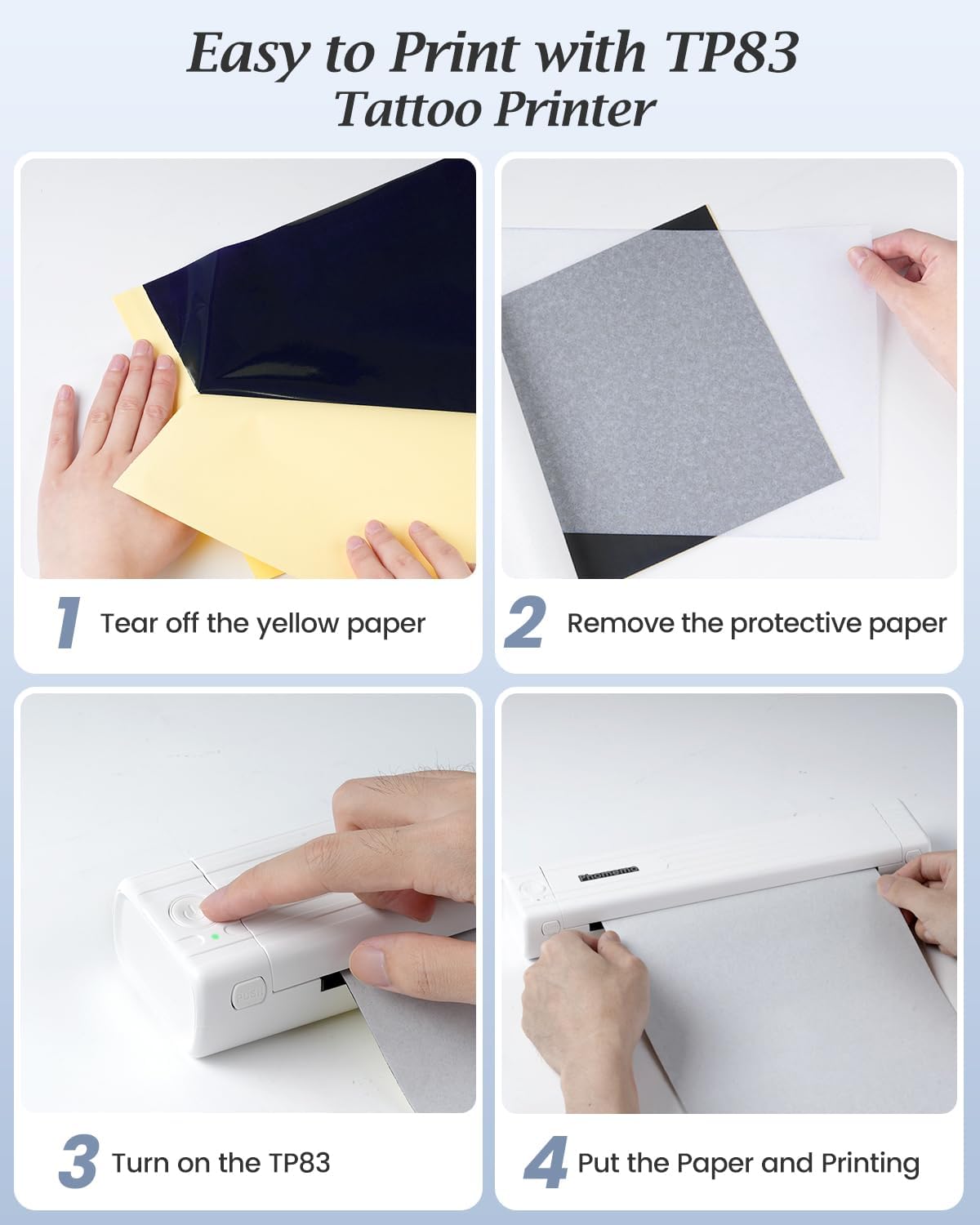
Image: A four-panel image illustrating the steps to load tattoo transfer paper. It shows tearing off yellow paper, removing protective paper, turning on the TP83, and inserting the paper for printing.
2.3 Connecting to Your Device (Bluetooth)
- Download the App: Download the 'Phomemo' app from your device's app store (compatible with iPhone, Android Phone, iPad, and Tablet).
- Enable Bluetooth: Ensure Bluetooth is enabled on your smartphone or tablet.
- Connect in App: Open the Phomemo app. The app will search for available printers. Select 'TP83' from the list to establish a connection.
Video: This video demonstrates how to connect the Phomemo TP83 Tattoo Printer to a smartphone or tablet via Bluetooth using the Phomemo app.
2.4 Connecting to Your Device (USB)
For laptops and desktop computers (Windows, MacOS, ChromeOS, Linux systems), connect the printer using a USB-C cable. Install the necessary drivers from the official Phomemo website if prompted.

Image: The Phomemo TP83 printer is shown on a desk, connected to a laptop via USB and wirelessly to a tablet and smartphone via Bluetooth, illustrating its multi-device compatibility.
3. Operating Instructions
3.1 Printing a Tattoo Stencil
- Select Design: In the Phomemo app, choose a design from the tattoo library or import your own image.
- Adjust Settings: Access the print settings. You can adjust the number of copies, enable 'Anti-wrinkle Mode' for smoother printing, and set the thickness (light, medium, heavy).
- Print: Tap the 'Print' button. The printer will process and print the stencil.
Video: This video provides a comprehensive guide on using the Phomemo TP83 Tattoo Stencil Printer, demonstrating the printing process and application of stencils for tattoo artists and beginners.
3.2 Advanced App Features
- Tattoo Preview: Use the app's tattoo preview function to visualize how a design will look on skin. Take a photo or select one as a background image to edit the tattoo effect.
- Transfer Line Filter: Convert your favorite patterns into tattoo line drawings with a single click.
- Image Cutting: For large tattoo stencils, the app includes an image cutting function, allowing you to print and combine multiple sections accurately.
- Multiple Pattern Combination: Combine up to 9 patterns for complex designs.

Image: A collage of screenshots from the Phomemo app, highlighting features such as a tattoo library, scale interface, large image cutting, multiple pattern combination printing, transfer line conversion, and tattoo preview on a body.
3.3 Anti-Wrinkle Mode
The Phomemo app features an 'Anti-Wrinkle Mode' to ensure smoother and clearer printing by introducing a wrinkle reduction line. Adjust the anti-wrinkle strength or toggle the function on/off within the app settings.

Image: The Phomemo TP83 printer is shown printing a skull design. Blue lines on the sides of the paper indicate the 'Anti-Wrinkle Mode' is active, designed to prevent paper jams and wrinkling.
3.4 Printing Large Stencils
For designs larger than a single sheet, utilize the app's image cutting function. This allows you to divide a large design into multiple printable sections, which can then be combined on the skin without error.
Video: This video demonstrates the Phomemo TP83 Tattoo Stencil Printer's capability to print large tattoo designs by dividing them into multiple sections.
4. Maintenance
4.1 General Care
- Keep the printer clean and free from dust and debris.
- Avoid exposing the printer to extreme temperatures or direct sunlight.
- Store the printer in a dry, cool place when not in use.
4.2 Cleaning the Print Head
If print quality degrades, the thermal print head may need cleaning. Refer to the detailed cleaning instructions within the Phomemo app or the manufacturer's website for specific guidance. Generally, use a soft, lint-free cloth lightly dampened with isopropyl alcohol to gently wipe the print head.
5. Troubleshooting
5.1 Printer Not Connecting
- Ensure the printer is powered on and fully charged.
- Verify Bluetooth is enabled on your device and the Phomemo app has Bluetooth permissions.
- Restart both the printer and your device, then attempt to reconnect.
- If using USB, ensure the cable is securely connected and necessary drivers are installed.
5.2 Poor Print Quality
- Check that the tattoo transfer paper is loaded correctly, with the carbon sheet facing down.
- Clean the thermal print head as described in the Maintenance section.
- Adjust the 'Thickness' setting in the Phomemo app to 'Heavy' for darker prints.
- Ensure the original image quality is sufficient for printing. Complex images with fine details or low contrast may not transfer optimally.
5.3 Paper Jams or Wrinkling
- Ensure the paper is inserted straight and not at an angle.
- Activate the 'Anti-Wrinkle Mode' in the Phomemo app.
- Use only compatible tattoo transfer paper designed for thermal printers.
- If a jam occurs, gently pull the paper out in the direction of printing. Do not force it.
6. Specifications
| Model | TP83 |
| Printing Technology | Thermal |
| Connectivity | Bluetooth, USB Type-C |
| Compatible Devices | Smartphones, Tablets (iOS, Android), Laptops, PCs (Windows, MacOS, ChromeOS, Linux) |
| Max Print Resolution (B&W) | 203 dpi |
| Max Media Size | 8.5 x 11 inches (A4, 8.27 x 11.69 inches) |
| Battery Capacity | 1200mAh Lithium Polymer |
| Pages per Charge | Up to 140 pages |
| Item Weight | 1.5 pounds |
| Product Dimensions | 12.2 x 2.64 x 1.57 inches |
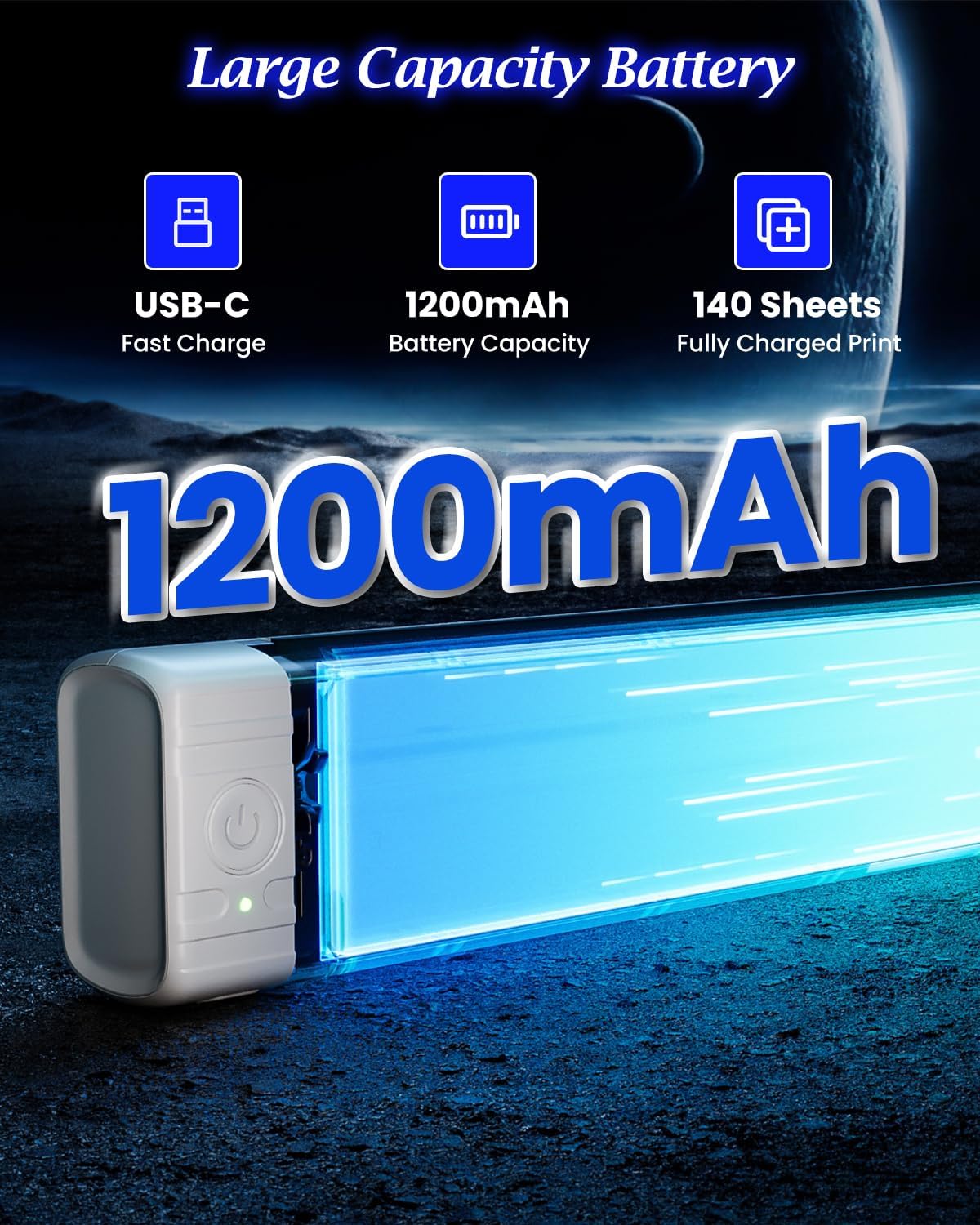
Image: A visual representation of the Phomemo TP83 printer's battery features, including USB-C fast charge, 1200mAh battery capacity, and the capability to print up to 140 sheets on a single charge.
7. Warranty and Support
The Phomemo TP83 Tattoo Stencil Printer comes with a standard manufacturer's warranty. For specific warranty details, duration, and terms, please refer to the warranty card included in your product packaging or visit the official Phomemo website.
For technical support, troubleshooting assistance, or inquiries regarding your device, please contact Phomemo customer service through their official website or the contact information provided in your product documentation.
Related documentsTP83


Ask a question about this manual
Ask about setup, troubleshooting, compatibility, parts, safety, or missing instructions. Manuals+ will review the question and use this page’s manual context to help answer it.