
briidea MK-117
Briidea 8 Zones WiFi Smart Sprinkler Controller User Manual
Model: MK-117
Introduction
The Briidea 8 Zones WiFi Smart Sprinkler Controller is designed to provide intelligent and efficient automatic irrigation for your lawn and garden. With remote control capabilities via the GeniLife APP and extensive customization options, this controller helps maintain lush plant growth while conserving water.

Image: Front view of the Briidea Smart Sprinkler Controller alongside a smartphone displaying its control application.
Safety Information
Please read all safety instructions before installing and operating this device. Failure to follow these instructions may result in electric shock, fire, or other hazards.
- Ensure power is disconnected before performing any wiring or maintenance.
- This device is designed for indoor use only. Do not expose to rain or moisture.
- Only use the provided power adapter.
- Keep out of reach of children.
- Do not attempt to disassemble or repair the unit yourself. Contact qualified personnel for service.
Package Contents
Verify that all items are present in the package:
- Briidea 8 Zones WiFi Smart Sprinkler Controller
- Power Adapter
- Mounting Screws and Wall Anchors
- Wire Connectors
- Small Screwdriver

Image: All components included in the Briidea Smart Sprinkler Controller package, showing the controller, power supply, mounting hardware, and wire connectors.
Setup
1. Physical Installation
- Choose a suitable indoor location near your existing sprinkler wiring and a power outlet.
- Mount the controller securely to the wall using the provided screws and anchors.
- Carefully disconnect and label the wires from your old sprinkler controller.
- Connect the common wire (usually white) to the 'C' terminal on the Briidea controller.
- Connect each zone wire to its corresponding numbered terminal (1-8).
- If using a rain sensor (not included), connect its wires to the designated sensor terminals.
- Connect the power adapter to the controller and plug it into a power outlet.
2. App Setup and Wi-Fi Connection
The Briidea Smart Sprinkler Controller connects to your home Wi-Fi network for remote control. Note: Only 2.4GHz Wi-Fi connections are supported.
- Download the 'GeniLife' APP from your smartphone's app store (iOS or Android).
- Register for a new account or log in if you already have one.
- Ensure your smartphone is connected to a 2.4GHz Wi-Fi network.
- In the GeniLife APP, tap 'Add Device' or the '+' icon.
- Follow the on-screen instructions to put the controller into pairing mode (usually by pressing and holding a specific button on the device until an indicator light flashes).
- Select your 2.4GHz Wi-Fi network and enter the password in the app.
- The app will connect to the controller. Once connected, you can name your device and assign it to a room.
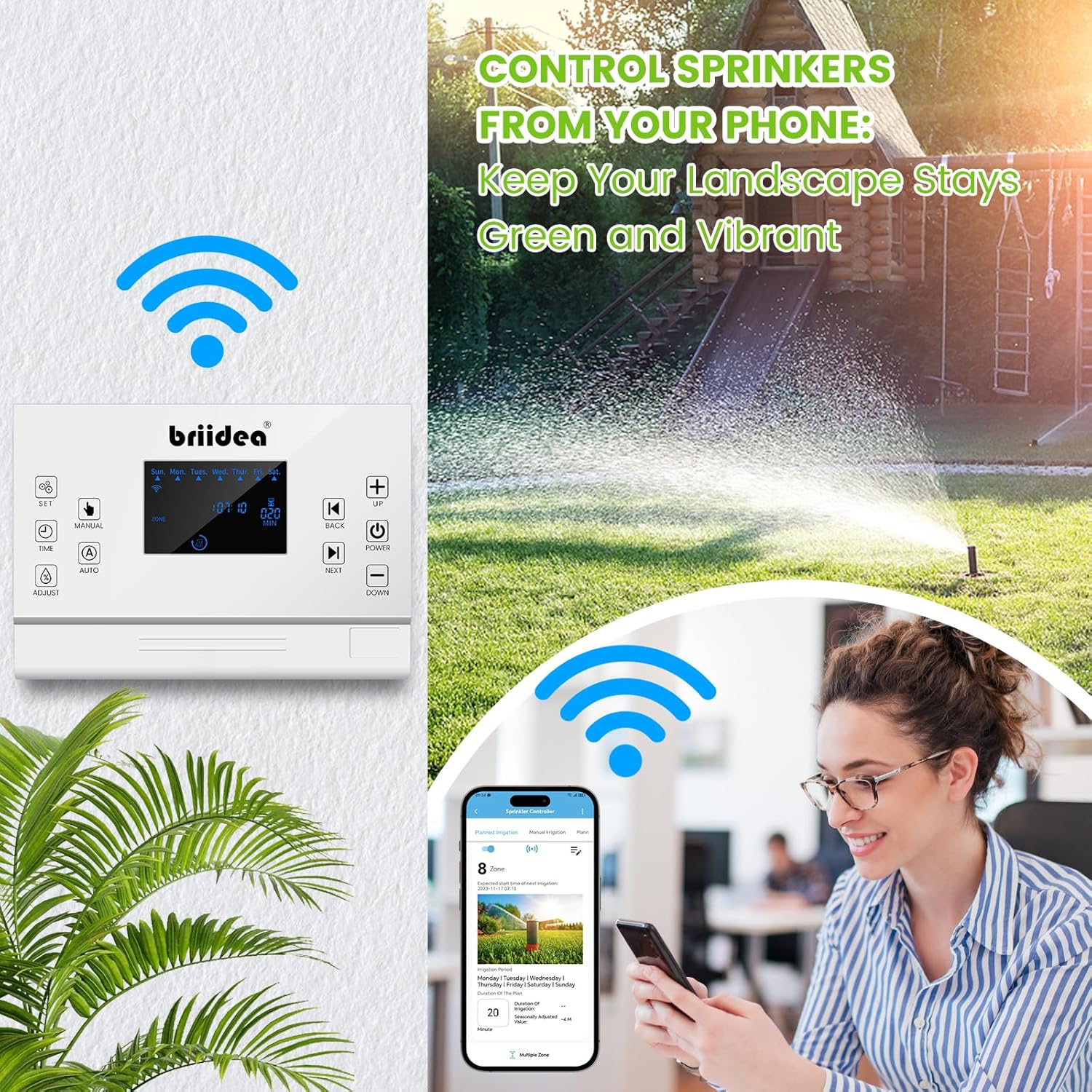
Image: A woman using her smartphone to control the Briidea Smart Sprinkler Controller, with the controller mounted on a wall and a sprinkler watering a lawn in the background.
Operating Instructions
1. Remote Control via GeniLife APP
The GeniLife APP allows you to manage your irrigation system from anywhere, anytime.
- Dashboard: View the status of all zones, upcoming schedules, and current weather conditions.
- Manual Control: Manually start or stop watering for individual zones or all zones.
- Schedule Management: Create, edit, or delete watering schedules for each zone.

Image: A smartphone screen displaying the GeniLife app interface for remote control of the sprinkler system, with options for planned and manual irrigation.
2. Customizing Watering Schedules
The controller offers extensive customization for your watering needs:
- Scheduling Options: Set watering based on specific days of the week, odd days, even days, or specific dates.
- Per-Zone Schedules: Each of the 8 zones can have its own unique watering schedule, duration, and start times.
- Multiple Start Times: Configure multiple start times for a single zone to allow for deep watering with soak cycles.

Image: Multiple smartphone screens illustrating the smart watering customization features within the app, including setting weekly, odd/even, or specific date schedules for individual zones.
3. Seasonal Adjustment
Adjust watering duration based on seasonal changes to optimize water usage:
- Access the seasonal adjustment setting in the GeniLife APP.
- Increase or decrease watering duration by a percentage to account for hotter or cooler weather.
4. Rain Sensor Integration
The controller supports external rain sensors (not included) to prevent unnecessary watering during rainfall:
- Connect a compatible rain sensor to the designated terminals.
- Enable the rain sensor function in the GeniLife APP settings.
- The system will automatically pause irrigation when rain is detected, resuming when conditions are dry.

Image: A smartphone screen displaying the app's settings for seasonal watering cycles and the rain sensor master switch, with visual representations of different seasons.
5. Data Logging and Analysis
The controller retains settings even after power interruptions and logs irrigation data:
- Power-Loss Memory: All previous settings are saved in case of a power outage.
- Activity Log: View irrigation system activity time and historical data within the GeniLife APP.
- This data helps in optimizing watering schedules and managing plant growth effectively.

Image: A smartphone screen displaying the app's data logging and analysis features, showing total irrigation time and historical data, with an icon representing power failure memory function.
6. Manual Control on Device
The controller features a clear LCD screen and buttons for direct control:
- Use the 'MANUAL' button to initiate manual watering.
- Navigate through zones and adjust settings using the 'UP', 'DOWN', 'BACK', and 'NEXT' buttons.
- The 'AUTO' button switches between automatic and manual modes.

Image: A hand pressing the 'MANUAL' button on the Briidea Smart Sprinkler Controller, highlighting the ease of direct device interaction.
Maintenance
To ensure optimal performance and longevity of your Briidea Smart Sprinkler Controller:
- Keep the controller clean and free from dust and debris. Use a soft, dry cloth for cleaning.
- Ensure the controller is installed in a dry, protected indoor environment, away from direct sunlight and extreme temperatures.
- Regularly check wiring connections to ensure they are secure.
- Periodically check for app updates to ensure you have the latest features and security enhancements.
Troubleshooting
| Problem | Possible Cause | Solution |
|---|---|---|
| Controller not powering on | No power, faulty adapter, loose connection | Check power outlet, ensure adapter is securely connected, try a different outlet. |
| Cannot connect to Wi-Fi | Incorrect Wi-Fi band (not 2.4GHz), wrong password, weak signal | Ensure router is set to 2.4GHz, re-enter password carefully, move controller closer to router. |
| Zone not watering | Wiring issue, faulty solenoid, rain sensor activated | Check zone wiring, test solenoid, check rain sensor status in app. |
| App not responding | App glitch, network issue, controller offline | Restart the app, check phone's internet connection, verify controller's Wi-Fi status. |
| Inaccurate watering times | Incorrect schedule settings, seasonal adjustment | Review and adjust schedules in the app, check seasonal adjustment percentage. |
Specifications
| Feature | Detail |
|---|---|
| Model Number | MK-117 |
| Number of Zones | 8 |
| Connectivity | 2.4GHz Wi-Fi (IEEE 802.11 b/g/n) |
| Power Input | AC 120V (with included adapter) |
| Display Type | LCD |
| Material | Plastic |
| Color | White, Green |
| Item Weight | 2.16 pounds (0.98 Kilograms) |
| Package Dimensions | 11.61 x 6.46 x 2.64 inches |
| Included Components | Controller, Power Adapter, Mounting Hardware, Wire Connectors, Screwdriver |
| Rain Sensor Support | Yes (sensor not included) |
Warranty and Support
The Briidea 8 Zones WiFi Smart Sprinkler Controller typically comes with a six-month warranty from the date of purchase. Please retain your proof of purchase for warranty claims.
For technical support, troubleshooting assistance, or warranty inquiries, please contact Briidea customer service through the contact information provided on their official website or through your retailer.
For the most up-to-date information and support resources, please visit the official Briidea website.
Ask a question about this manual
Ask about setup, troubleshooting, compatibility, parts, safety, or missing instructions. Manuals+ will review the question and use this page’s manual context to help answer it.