
1. Introduction
The Blackmagic Design DeckLink Duo 2 is a high-performance PCI Express capture and playback card designed for professional video workflows. It features four independent 3G-SDI connections, allowing for simultaneous capture or playback of multiple video streams in SD and HD formats up to 1080p60. This manual provides essential information for the setup, operation, and maintenance of your DeckLink Duo 2 card.
2. What's in the Box
- DeckLink Duo 2 Capture Card
- Cable Ties

Image: The DeckLink Duo 2 card shown with the accompanying SolidSignal cable ties.
3. Key Features
- Four Independent 3G-SDI Connections: Simultaneously capture and playback up to four video streams at resolutions up to 1080p60.
- PCIe Interface: Utilizes a high-speed PCIe interface for reliable data transfer and low-latency performance. Requires PCI Express 4 lane generation 2, compatible with 4, 8, and 16 lane PCI Express slots.
- Wide Format Support: Compatible with a range of SD, HD, and 3G-SDI formats, including 720p, 1080i, and 1080p.
- Software Compatibility: Works seamlessly with a range of editing, visual effects, and streaming software applications.
- Reference Input: Features a reference input for synchronizing with external genlock (blackburst and tri-sync) signals, ensuring precise timing in multi-camera setups.
4. Setup
4.1 Hardware Installation
To install the DeckLink Duo 2 card:
- Power down your computer and disconnect all cables.
- Open your computer case.
- Locate an available PCI Express slot (x4, x8, or x16).
- Carefully insert the DeckLink Duo 2 card into the slot, ensuring it is fully seated.
- Secure the card with the retaining bracket screw.
- Close your computer case and reconnect all cables.

Image: An angled view of the DeckLink Duo 2 card, illustrating its form factor and components.
4.2 Software Installation
After hardware installation, install the necessary drivers and software from the Blackmagic Design website. The DeckLink Duo 2 supports various operating systems, including Mac OS and Linux. For Windows users, drivers are also available.

Image: A selection of compatible software applications, including DaVinci Resolve, Fusion, Final Cut Pro X, Adobe Premiere Pro CC, Avid Media Composer, Adobe After Effects CC, Avid Pro Tools, Steinberg Cubase, Steinberg Nuendo, and Adobe Photoshop CC.
5. Operating
5.1 Connecting SDI Devices
The DeckLink Duo 2 features four independent 3G-SDI connections, which can be configured as inputs or outputs depending on your workflow. Additionally, a dedicated Reference In port is available for genlock synchronization.
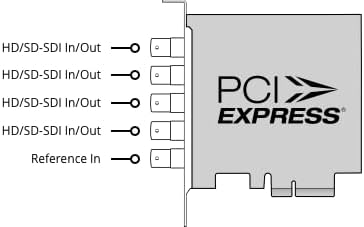
Image: A schematic diagram illustrating the four HD/SD-SDI In/Out ports and the single Reference In port on the DeckLink Duo 2 card's rear bracket.
5.2 Software Integration
Once installed, the DeckLink Duo 2 integrates with a wide range of professional video software. Configure the card settings within your chosen application (e.g., DaVinci Resolve, Adobe Premiere Pro) to select input/output formats, frame rates, and audio channels. Refer to your software's documentation for specific setup instructions.
6. Maintenance
The DeckLink Duo 2 is designed for reliable operation with minimal maintenance. To ensure optimal performance:
- Keep your computer's interior clean and free of dust to prevent overheating, especially around the card's fan and heatsink.
- Ensure proper airflow within your computer case.
- Regularly check the Blackmagic Design website for driver and firmware updates to ensure compatibility and access to the latest features.
7. Troubleshooting
If you encounter issues with your DeckLink Duo 2, consider the following:
- Card Not Detected: Ensure the card is fully seated in the PCIe slot and that your computer's power supply is adequate. Check device manager (Windows) or system information (Mac/Linux) to confirm detection.
- No Video Signal: Verify all SDI cables are securely connected and that the source device is outputting a compatible signal. Check your software's input settings.
- Performance Issues: Ensure your computer meets the minimum system requirements for your workflow. Update drivers and close unnecessary background applications.
- Software Crashes: Ensure your operating system and video software are up to date. Reinstall DeckLink drivers if necessary.
For persistent issues, consult the Blackmagic Design support resources online.
8. Specifications

Image: The DeckLink Duo 2 card with its approximate dimensions of 3.7 inches in height and a weight of 5.64 ounces indicated.
| Specification | Detail |
|---|---|
| Brand | Blackmagic Design |
| Series | DeckLink Duo 2 |
| Model Number | BDLKDUO2 |
| Hardware Interface | PCIe x4 (compatible with x4, x8, x16 slots) |
| Video Capture Resolution | Up to 1080p60 |
| Operating System Support | Linux, Mac OS (Windows also supported) |
| Item Weight | 8.8 ounces |
| Package Dimensions | 6.5 x 5.79 x 1.69 inches |
| Recommended Uses | Video Recording, Media Play-out, Digital Signage, Multi-channel Capture |
9. Warranty and Support
For detailed warranty information, please refer to the documentation included with your purchase or visit the official Blackmagic Design website. Blackmagic Design provides comprehensive support resources, including product manuals, software downloads, and technical support forums.
Blackmagic Design Support: www.blackmagicdesign.com/support


